Skip to product information
1 of 8

Wyze Lock

Wyze Lock

Keypad & App Control Door Lock

Lock Configuration
$123.99
Out of stock
30-day hassle-free returns.
Out of stock
A blue and white logo for Wyze.
Wyze.com Exclusive BENEFITS
18-month extended warranty

Get an 18-mo extended warranty when you buy this product on wyze.com. Also get special bundles, unique promos, + rewards with each order
Keep your door's dead bolt. Just add the brains.
View full details
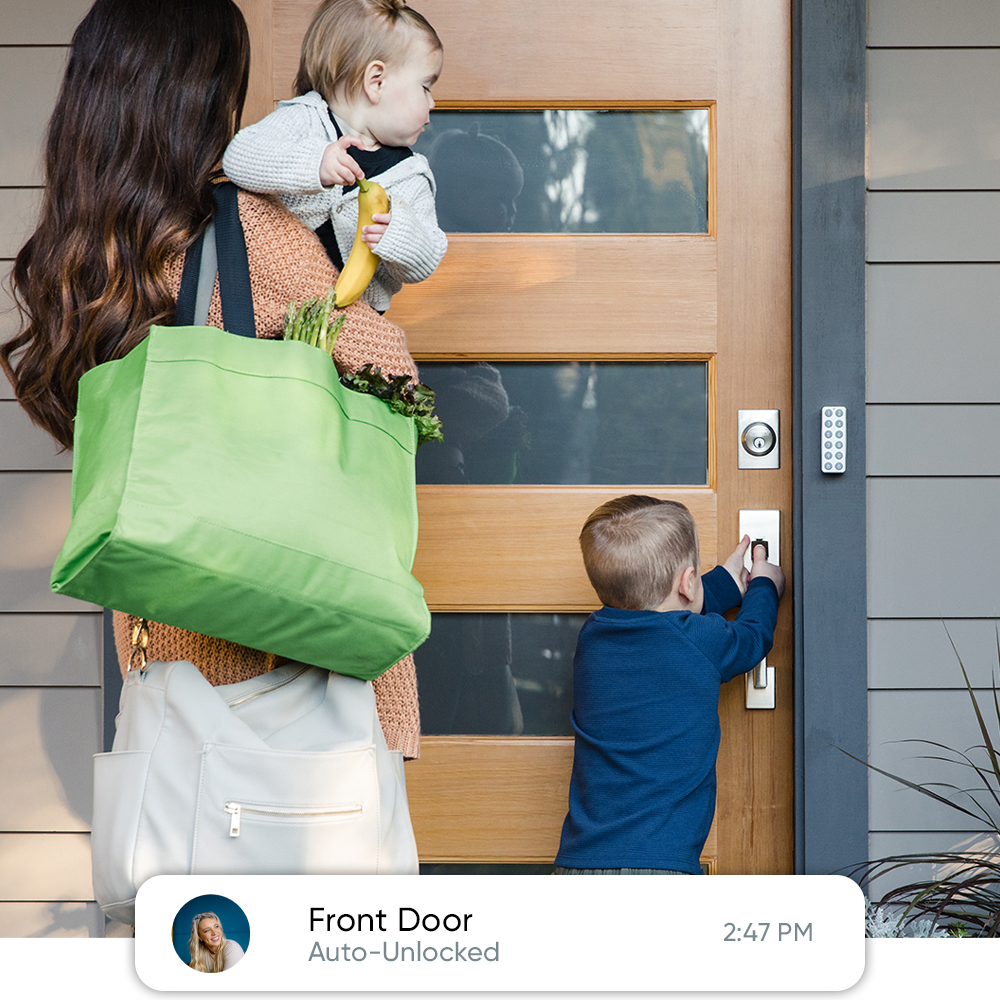
A woman holding a green bag and a child holding a banana while opening a door.

Unlocks as you approach. Locks when you leave.

Hands full? Wyze Lock knows when you arrive home and automatically unlocks as you approach. When it senses the door is closed, it automatically locks behind you.

Wyze Lock Details

  • Color: Silver
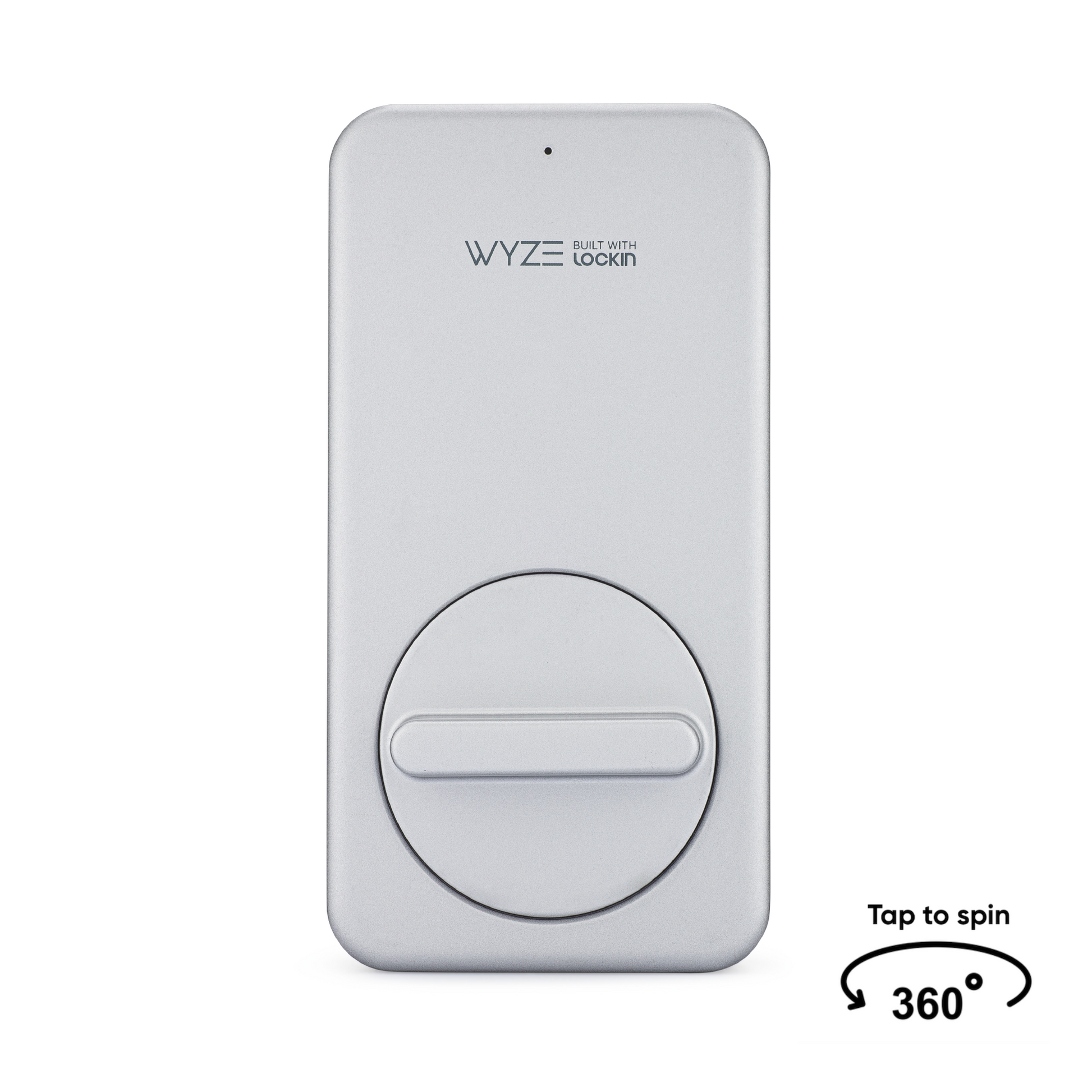
  • Dimensions: 4.9" Length x 2.5" Width x 1.3" Depth (2" including knob)
  • Weight: 0.67 lb
  • Power Source: 4x AA Batteries (included)
  • Battery Life: 5-6 months (depending on usage)
  • Communication Method: Bluetooth, Zigbee
  • Range: To Keypad: 9', To Gateway: 50', BLE to phone: 16'
  • Compatibility: Android 5.0+, iOS 9.0+
  • Weather Resistance: Indoor use only
  • Operating Temperature: 14°F - 131°F / -10°C - 55°C
  • Storage Temperature: -22°F - 158°F / -30°C - 70°C

Keypad (sold separately)

  • Color: Silver
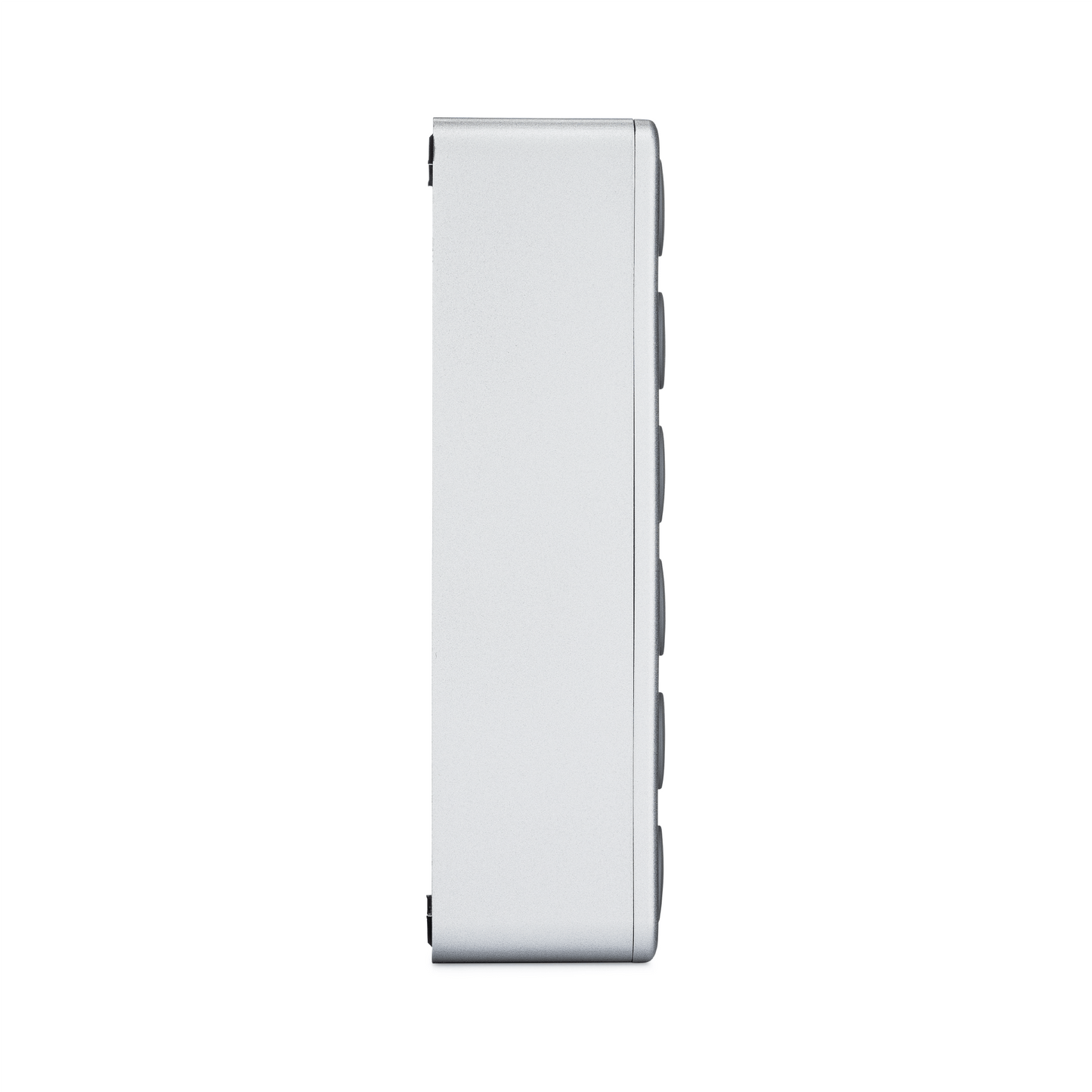
  • Dimensions: 3.7" Length x 1.3" Width x 1.0" Depth
  • Weight: 0.1 lb
  • Power Source: 2x AA Batteries (included)
  • Battery Life: 4-6 months (depending on temperature)
  • Communication Method: Bluetooth
  • Range: To Lock: 9'
  • Compatibility: Android 5.0+, iOS 9.0+
  • Weather Resistance: IPX5
  • Operating Temperature: -4°F - 140°F / -20°C - 60°C
  • Storage Temperature: -22°F - 158°F / -30°C - 70°C

Gateway

  • Color: White
  • Dimensions: 2.1" Length x 2.1" Width x 1.2" Depth (1.9" including pins)
  • Weight: 0.12 lb
  • Power Source: 110-240V, ~60Hz
  • Battery Life: NA
  • Communication Method: Bluetooth, Zigbee, Wifi
  • Range: To Lock: 50', To Router: 50
  • Compatibility: Android 5.0+, iOS 9.0+
  • Weather Resistance: Indoor use only
  • Operating Temperature: 14°F - 131°F / -10°C - 55°C
  • Storage Temperature: -22°F - 158°F / -30°C - 70°C
  • Wyze Lock x1
  • Wyze Lock Gateway x1
  • AA Batteries x4
  • Adhesive Strip x1
  • Mounting Plate x1
  • Adapter x3
  • Quick Start Guide x1

Please check the help center and see if we’ve got what you need. Alternatively, you may also find the list of related parts here.

If your home WiFi goes out you won’t be able to remotely lock or unlock Wyze Lock, but you won’t be locked out! Wyze Lock uses Bluetooth when you’re near the door so you can always get in… even if your home’s WiFi or power are out.

With Auto-Unlock your door automatically unlocks when you come home. This works by using your phone’s location to detect when you’re coming back and unlocking when your phone is close enough to connect to Wyze Lock via Bluetooth.

Wyze Lock has built-in technology that detects the position of the door. That means no extra sensors to setup, install, or look at.

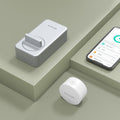
Wyze Lock comes with the Wyze Lock Gateway—a Zigbee hub that connects Wyze Lock to your 2.4GHz WiFi network. Simply plug the Wyze Lock Gateway into an outlet near your door, pair it with Wyze Lock, and you’re good to go.

Wyze Lock will let you know when the batteries are running low, but if you forget to replace them there is backup power so you can still get in. And because Wyze Lock doesn’t change the exterior of your deadbolt, your keys will always work.

Share through the Wyze app to make sure everyone can get in. You can share Wyze Lock with up to 50 people and revoke access at any time.

Wyze Lock has a built in alarm that will alert you if your door has been left open. You can toggle this on or off and adjust how long the door has to be open before triggering the alarm.

Same key. Same deadbolt. Infinitely smarter.

Wyze Lock uses your door's existing hardware so you can keep your key, but still get all the benefits of a smart lock.

Keep your key graphic.
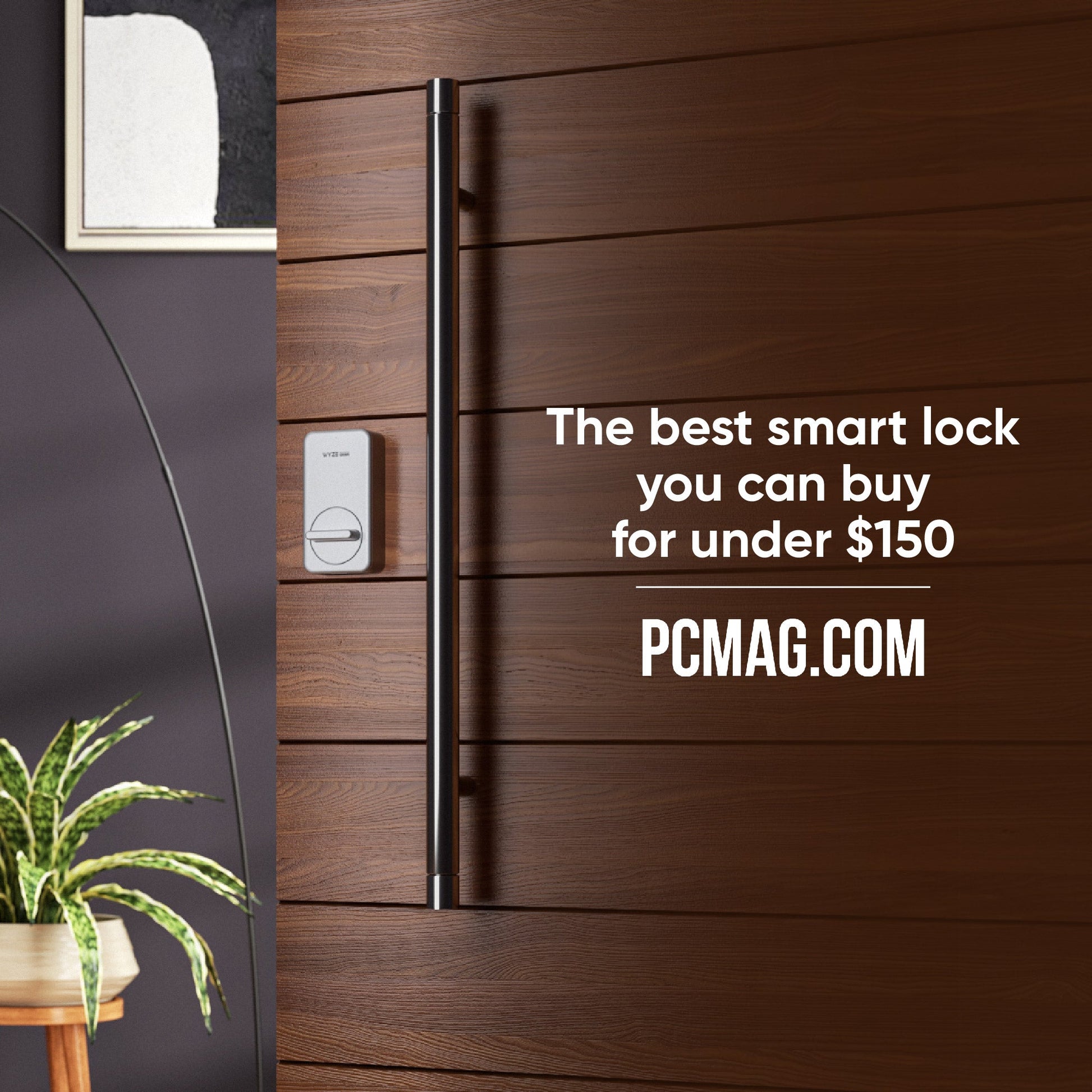
A wooden door with a lock on it.
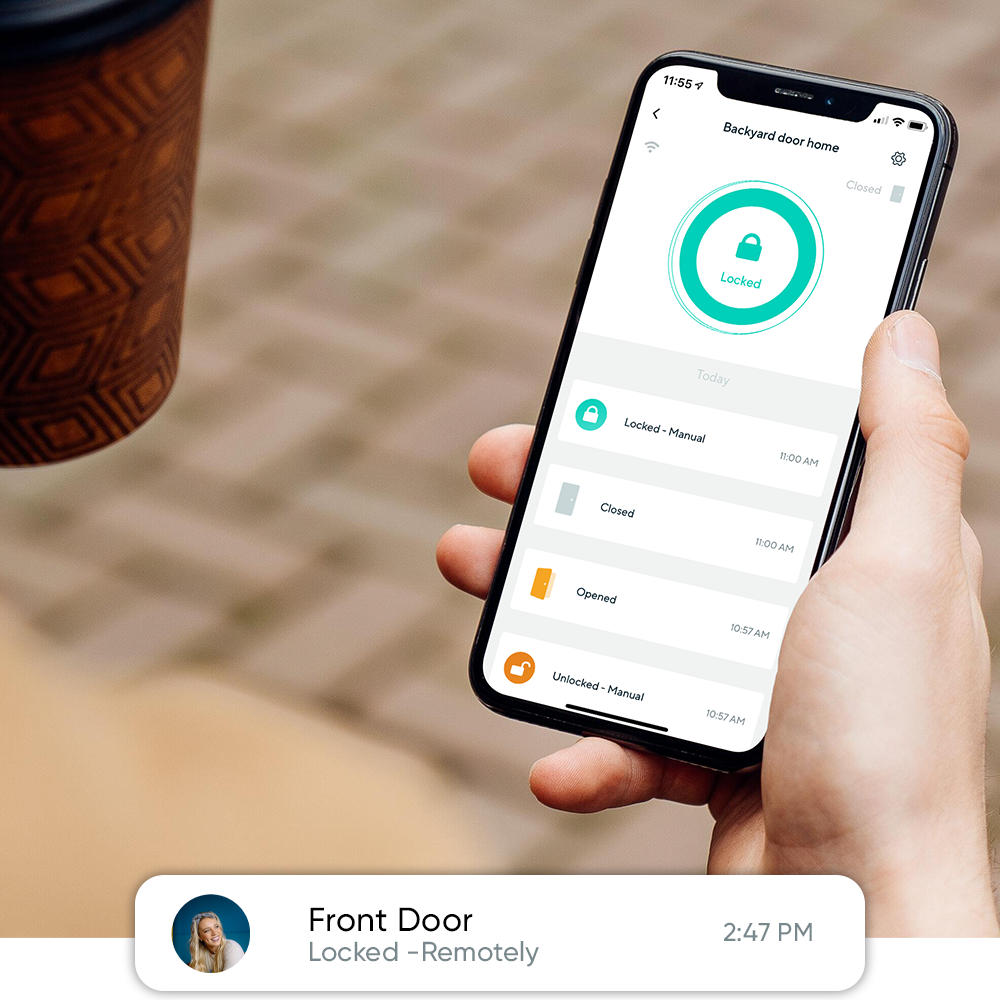
A person holding a smartphone with the Wyze app open, showing the status of their backyard door being locked.

Remote access and history viewing.

Unlock the door for friends and family, even if you're away from home with a tap in the Wyze app. See who accessed your home from anywhere and get notified whenever the door is left unlocked.

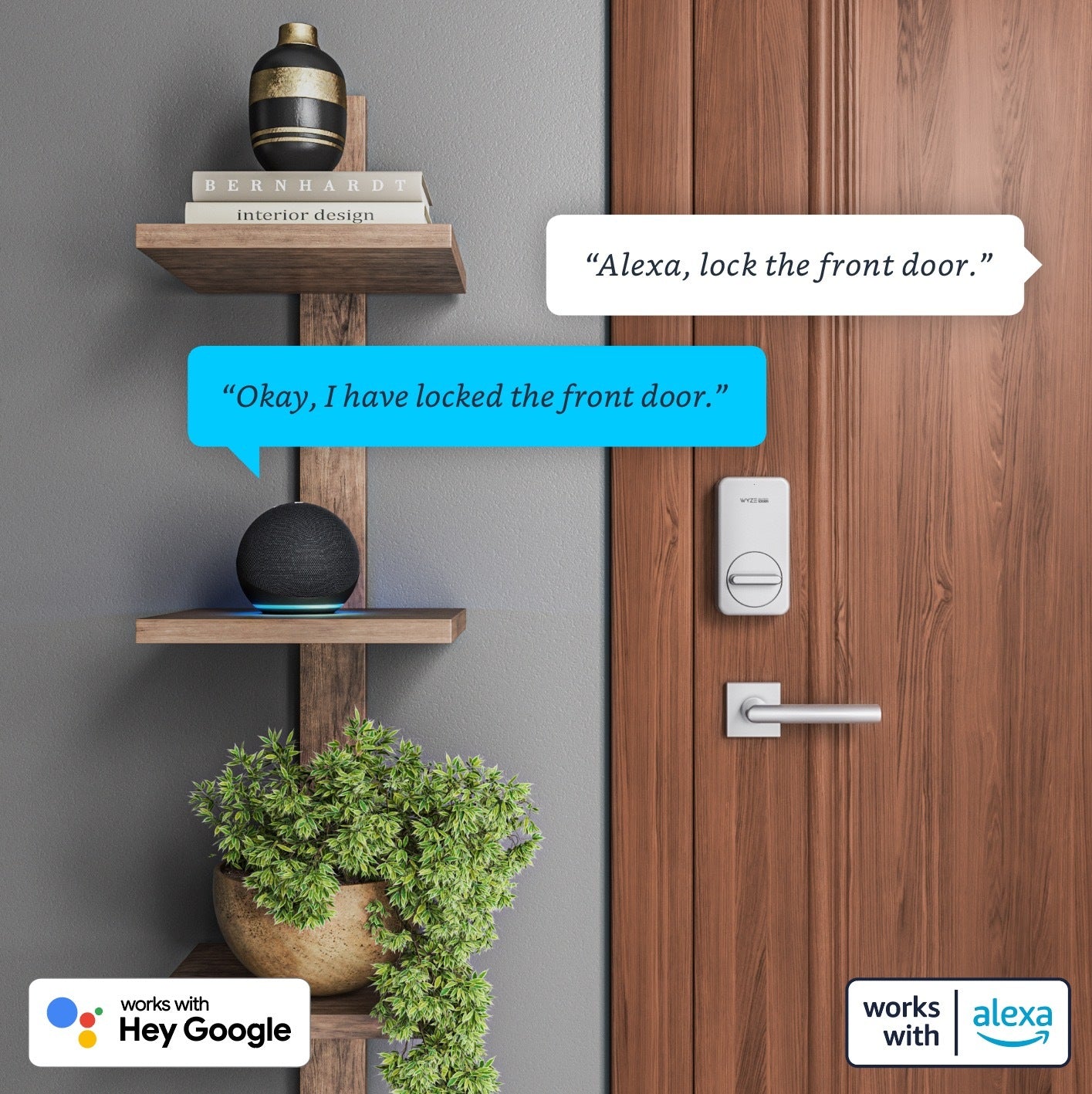
A smart lock that works with Alexa and Google.

Control with Alexa, Google, and Wyze Switch.

Wyze Lock works with Alexa and Google Assistant so you can lock your door by just saying, "Hey Alexa, lock the front door."

Wyze Lock also works with Wyze Switch, so you can lock or unlock your door with a tap.

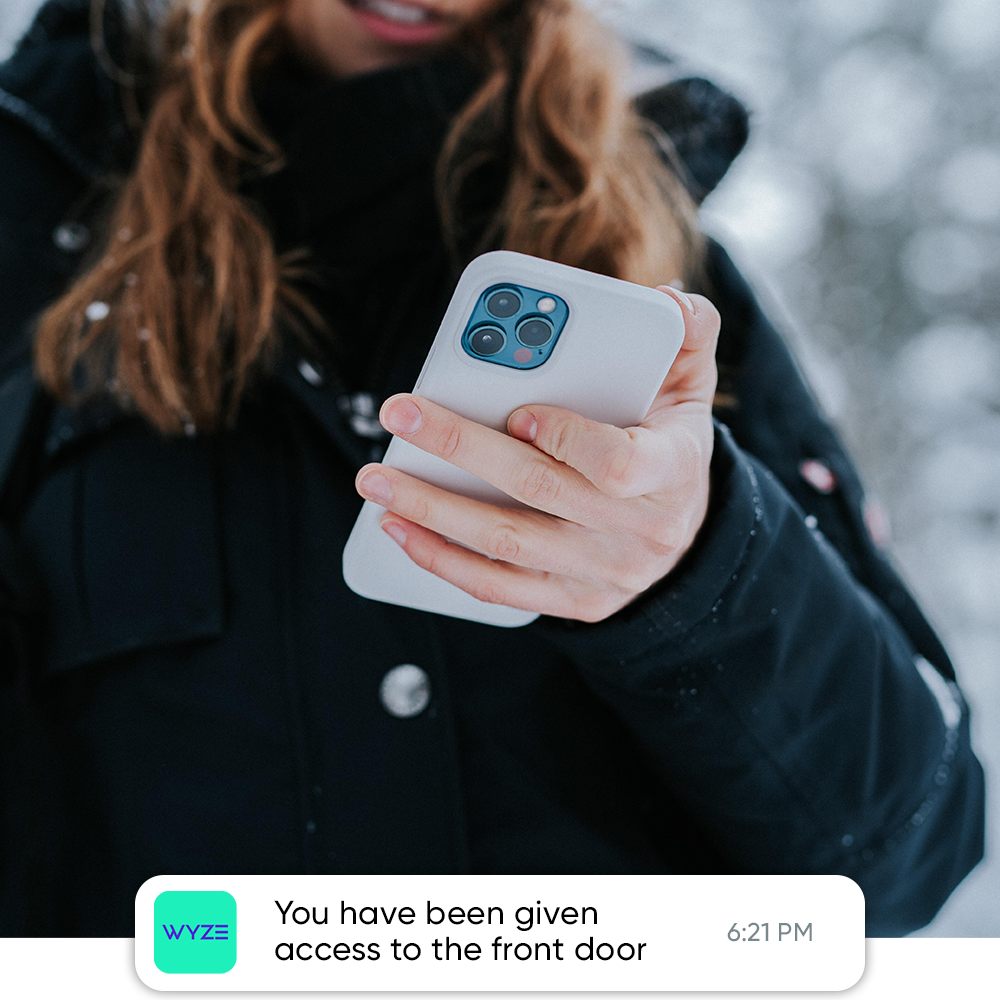
You have been given access to the front door.

Send virtual keys to family and friends.

Wyze Lock makes sharing access to your home simple and puts you in complete control. Easily grant or revoke access to your home through the Wyze app. Only you can see the history of how each key is used.

Compatible with most single cylinder deadbolts.

We made Wyze Lock to work with most single cylinder deadbolts—deadbolts with a keyhole on only one side. Find out if your deadbolt works with Wyze Lock here.

Prefer your guests access with a code?

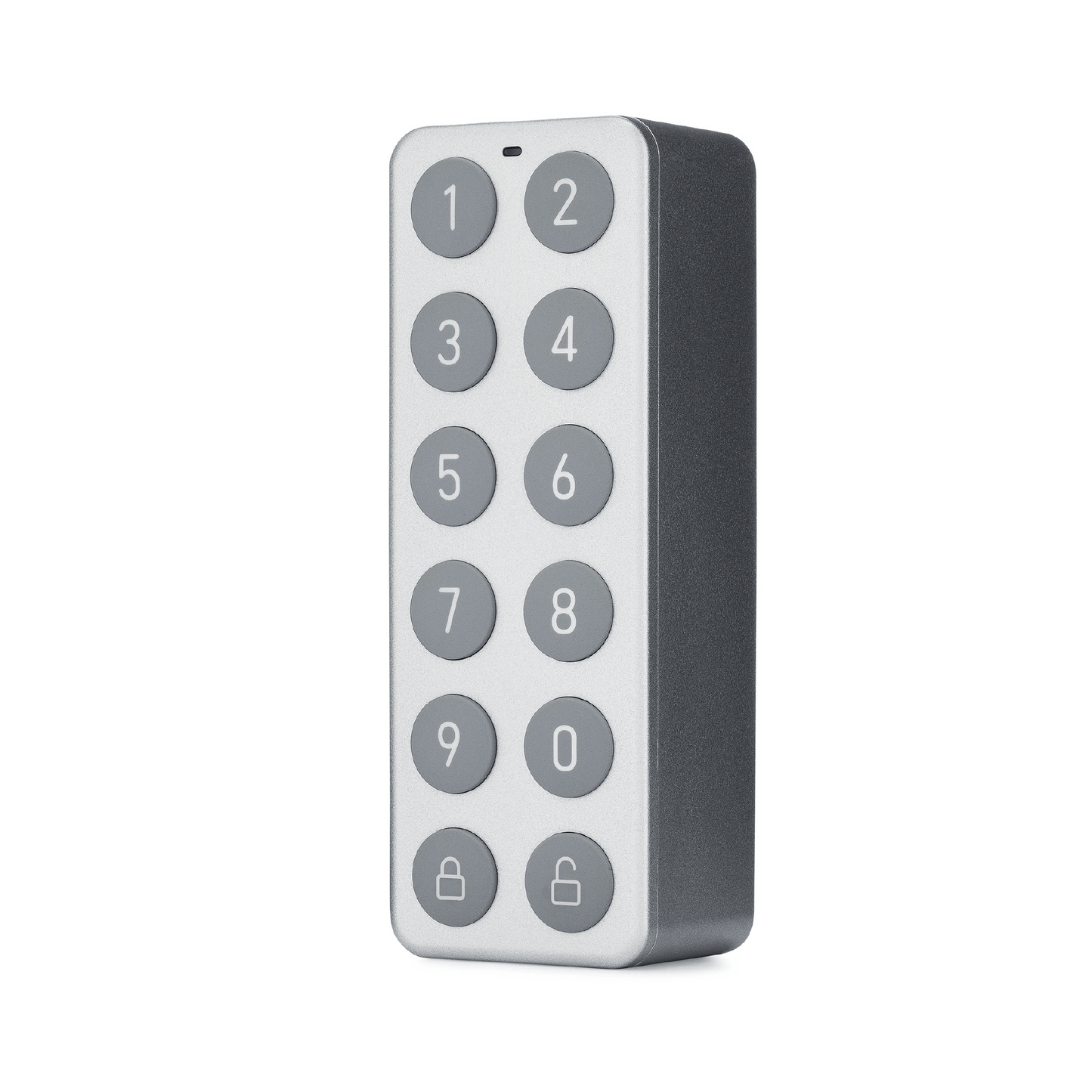
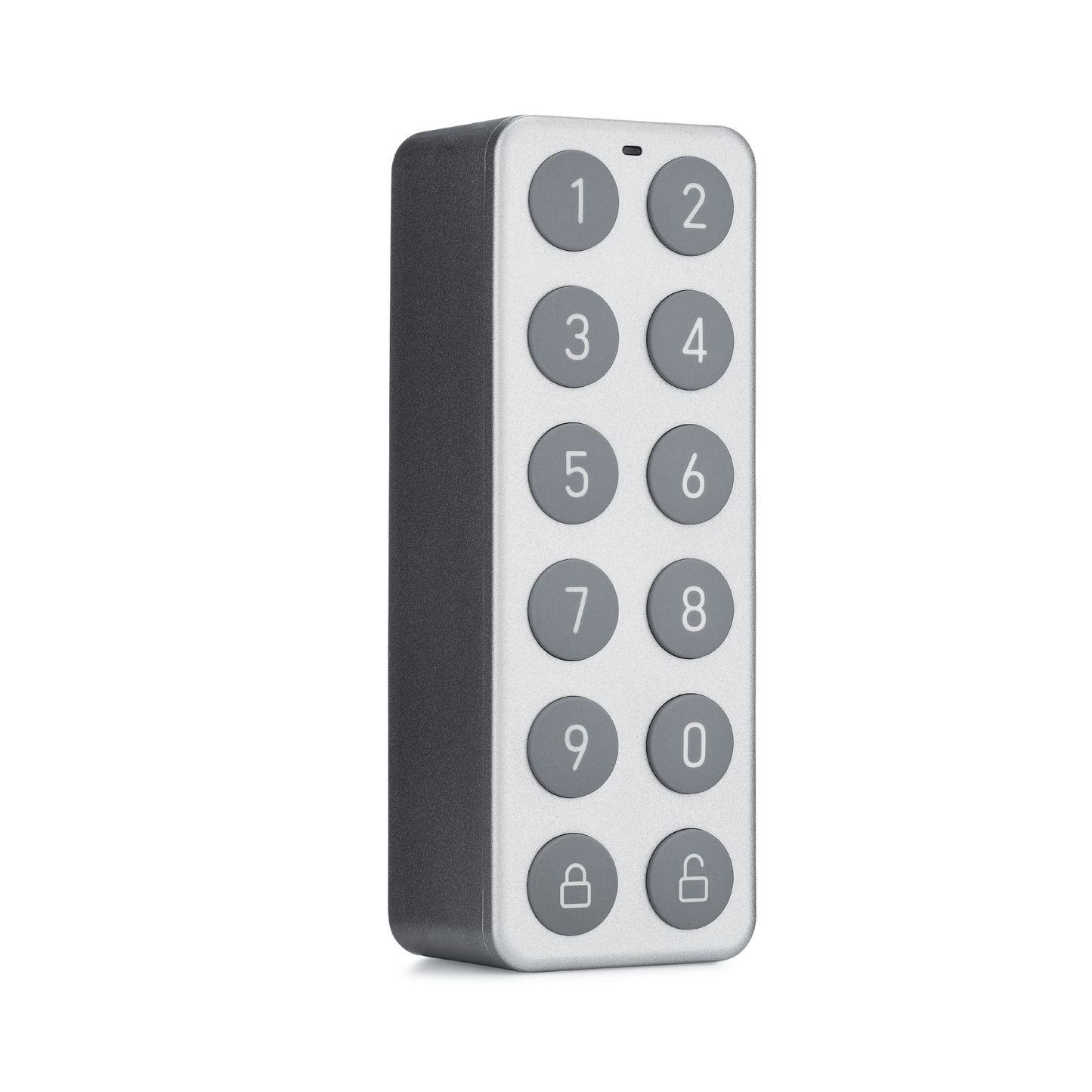
Meet Wyze Lock Keypad, a wireless, mountable keypad that communicates with Wyze Lock to unlock or lock your deadbolt with a code.

A cell phone with a picture of a doorbell on it.

Unlock with your Wyze Video Doorbell.

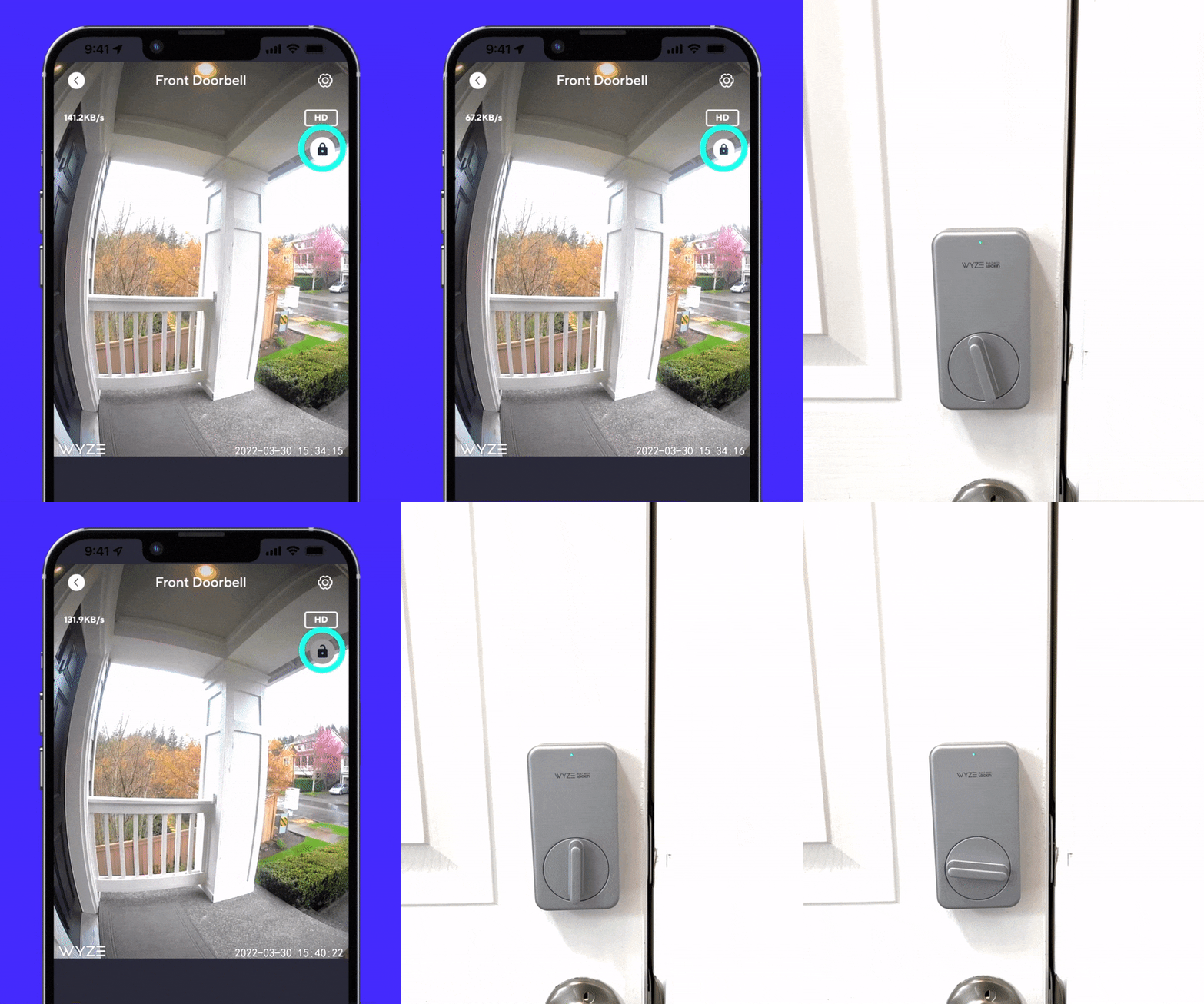
You can control your Wyze Lock right from the Wyze Video Doorbell (or Video Doorbell Pro) viewer, so you don't have to switch between apps just to open the door.

Shop Wyze Video Doorbell

Installs in under 15 minutes.

Wyze Lock only replaces the interior side of your existing deadbolt, so it's much quicker (and easier) to install than a complete deadbolt replacement.

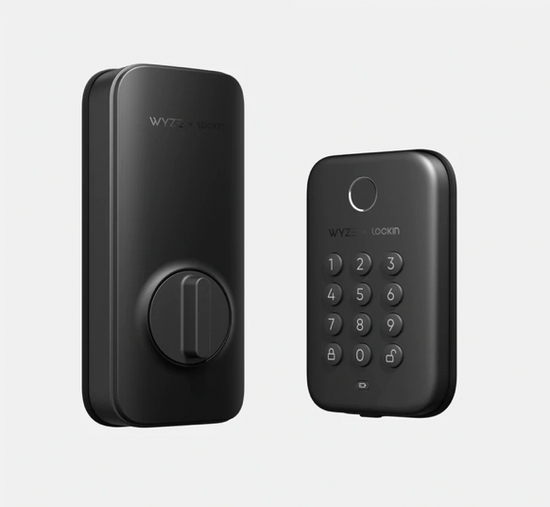
  • A black lock with a keypad and a button.

    Wyze Lock Bolt

    Built for Convenience: Quickly unlock the door with your fingerprint

    • Fingerprint unlock
    • Local app access only
    • No Wyze automations or Alexa/Google support

    • Replaces existing deadbolt

    • Basic Auto-Lock
    • No Auto-Unlock

    • Keypad built-in

    Shop Wyze Lock Bolt 
  • A white button with a lock on it.

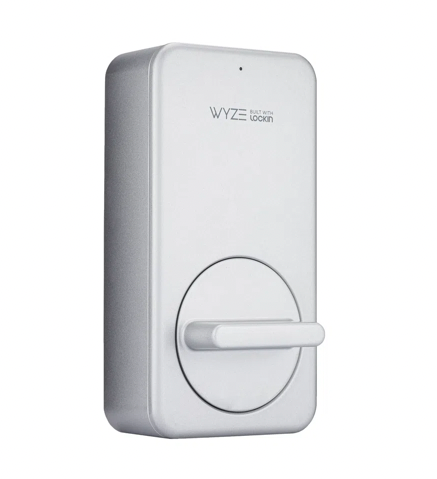
    Wyze Lock

    Built for Smart Homes: Monitor and access your door from anywhere
    • No fingerprint unlock

    • Access the app from anywhere

    • Wyze automations & Alexa/Google support

    • Attaches to existing deadbolt

    • Advanced door position Auto-Lock

    • Auto-Unlock

    • Optional keypad sold separately 

Support Articles

Installing your new Wyze Lock is meant to be as straightforward as possible. If you do run into any trouble with the process outlined on this page though, check out our Troubleshooting section for tips on getting things installed properly.

If you're unsure of whether Wyze Lock will work with your current deadbolt, we've got you covered with our Wyze Lock Compatibility Guide.

What’s in the box?

  • 1x Wyze Lock
  • 1x Mounting Plate
  • 4x Lock Adapters
  • 4x AA Batteries
  • 1x Adhesive Strip

Required Tools

  • 1x Philips Screwdriver

To install your Wyze Lock:

  1. Use the supplied adhesive strip to hold the outside of the lock in place
  2. Unlock your installed deadbolt
  3. Use your screwdriver to remove the screws from your existing deadbolt’s thumb-latch
  4. Insert the screws from Step 3 into the Wyze Lock Mounting Plate
  5. Attach the Wyze Lock Mounting Plate in place of the old thumb-latch. Making sure the plate is level, tighten the screws until snug
  6. Find and install the included adapter which fits the tailpiece of your lock. Reference the chart in the Wyze app to determine which works with your deadbolt
  7. Remove the front plate by pulling from the notch on the bottom of the Lock
  8. Place the Wyze Lock on the Mounting Plate, adjusting the knob as necessary to get it to align with the adapter
  9. Check to make sure that the lock is flush with the door, and can be both locked and unlocked with the thumb-latch If the lock can't be turned at this point, remove it and rotate the thumb 90-degrees and try again
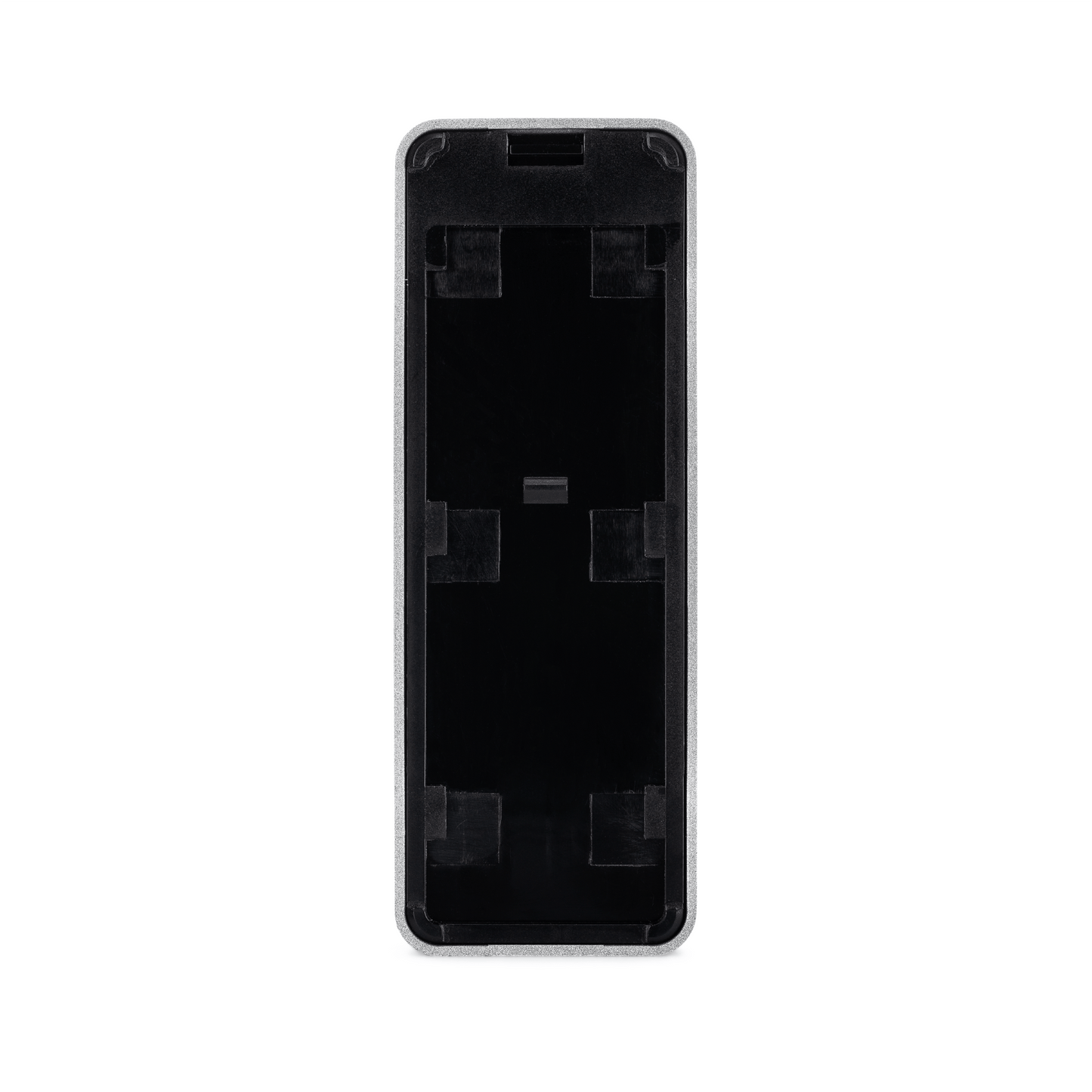
  10. Once you’re confident that everything is aligned, tighten the 2 pre-installed screws inside the battery compartment until snug, taking care not to over-tighten them
  11. Install the included 4x AA batteries taking note of orientation, then fold the battery latches down

Once your lock is successfully installed, the next step is to move on to setting it up. Check out our Wyze Lock Setup Guide here.

Download the Quick Start Guide for Wyze Lock in this article.

Below is the Quick Start Guide for Wyze Lock, a short manual for how to get started.

This guide is a short user manual with the basics about Wyze Lock including:

  • What's in the box for Wyze Lock.
  • How to download the Wyze app.
  • The components of Wyze Lock and Wyze Lock Gateway
  • How to set up your Wyze Lock.
  • Troubleshooting your Wyze Lock.
  • How to read the status lights for Wyze Lock.

If you haven't already, please check out our Wyze Lock Keypad Installation Guide to get it mounted.

An alternative to start the setup process is to continue in the Wyze app immediately after setting up your Wyze Lock.

To set up your Wyze Lock Keypad:

  1. In the Wyze app, tap the Wyze Lock you're setting up a Keypad for.
  2. Go to Settings by tapping the gear icon in the top right.
  3. Tap Wyze Lock Keypad Settings > Add Keypad.
  4. Press and hold the Lock button on the keypad until the status light is flashing green.
  5. Tap Next in the Wyze app.
  6. The keypad will automatically proceed through setup until it connection is complete.
  7. Once the keypad is connected, enter a 4-8 digit code in the Wyze app.*

You're all set! Be sure to choose a code that you'll remember, or record it somewhere safe so you don't forget it.

Added to your cart
FREE shipping on orders $59+
Subtotal
$0.00
View cart