Skip to product information
1 of 19

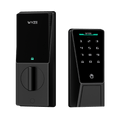
Wyze Palm Lock

Wyze Palm Lock

The key is the palm of your hand.

Best Selling
Everyone's Top Pick
Add an extra battery?
$129.98
In stock
Get it as soon as
30-day hassle-free returns.
In stock

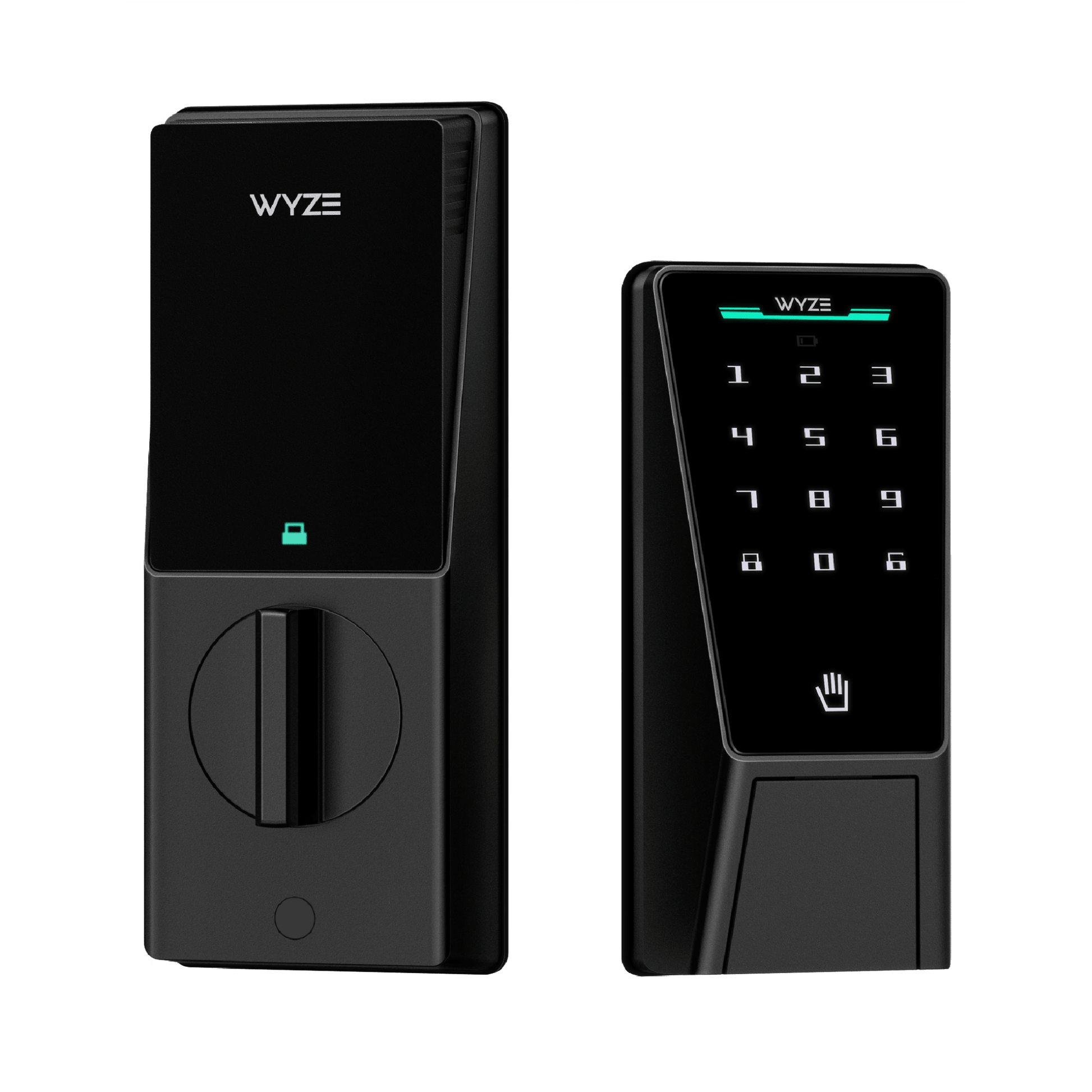
Touchless Palm Scan Unlock

No Downtime With

Dual Battery System

Open your lock with a key

Control Anywhere

with Wi-Fi

A blue and white logo for Wyze.
Wyze.com Exclusive BENEFITS
18-month extended warranty

Get an 18-mo extended warranty when you buy this product on wyze.com. Also get special bundles, unique promos, + rewards with each order

View full details
  • A black image of a palm vein.

    Touchless Palm Scan Unlock

    Just hover your palm near the reader and the door unlocks using highly secure, contactless biometric tech.

  • A black screen with a white logo and text reading "Wifi Control".

    6 Entry Methods + Wi-Fi Control

    Unlock with your palm, code, keys, app, voice-assistant or latch. Control from anywhere with Wi-Fi.

  • A black screen with no visible text or objects.

    No Down Time with Dual Battery System

    The main battery provides 6-months of charge. The backup keeps things running while you recharge.

  • A black and white image of a hammer and wrench.

    Replaces Existing Deadbolt

    Includes a manual lock and key option (set of keys included).

Wyze Palm Lock Specs

Colors & Materials
  • Model: WPLCK1
  • Finish: Matte
  • Color: Black
  • Frame Material: Aluminum Alloy & Steel
  • Panel Material: Tempered Glass
Dimensions
  • External Assembly: 6.14 x 2.89 x 1.28 in (156 x 73.5 x 32.5 mm)
  • Internal Assembly: 7.16in x 2.93in x 1.18in (182mm x 74.5mm x 30mm)
Weight
  • 4 lbs (64 oz)

Power
  • Power Source: Wyze Removable Battery Pack, backup battery
  • Battery Life: Up to 6 months with normal use (10-20 lock/unlock per day)
  • Emergency Power: USB-C port (USB-C cable not included)
Weather & Operating Temps
  • Weather Resistance: IP53

Operating Temperature

  • Exterior assembly: -4℉-122℉ (-20℃-50℃)
  • Interior assembly: 32℉-122℉ (0℃-50℃)
  • Storage Temperature: -22℉-158℉ (-30℃-70℃)

Certifications
  • Certifications: FCC ID+IC, TSCA+CA65, ANSI-BHMA, ROHS, REACH, SVHC, PFAS, IEC62133
Connectivity & Compatibility
  • Communication Method: Bluetooth® 5.0, 2.4 GHz Wi-Fi, Wi-Fi 6
  • Compatibility: Wyze app 3.7+, Android 10.0+ or iOS 16.0+
Door Compatibility

Compatible with most standard US doors. Replaces existing single-cylinder deadbolt.

Warranty
1-Year

  • 1x Wyze Palm Lock
  • 1x Exterior Assembly
  • 1x Interior Assembly
  • 1x Mounting Plate
  • 1x Deadbolt
  • 1x Strike Plate
  • 1x Dust Box
  • 1x Main Battery
  • 1x Backup Battery
  • 1x Silicone Plug
  • 1x Drilling Template
  • 1x Quick Start Guide
  • 2x Mechanical Keys
  • 4x Wood Screws
  • 3x Interior Panel Screws
  • 4x Mounting Screws

Wyze Palm Lock stands out in virtually every way imaginable, with a sleek new form-factor unlike any other. Wyze Palm Lock uses palm vein recognition for contact-free access, a person-detecting radar for optimized battery life, and it connects to Wi-Fi so you can control it from anywhere using the Wyze app or Alexa/Google Assistant. Yes - you can control the lock with your voice! Wyze Palm Lock also has 2 batteries to ensure your lock is always up and running.

Wyze Palm Lock uses palm vein recognition to securely and touchlessly unlock your door. Simply hold your hand up to the lock screen, and it will unlock automatically.

Palm vein recognition is widely used biometric technology in the security industry. It provides secure authentication and unlocking by identifying the unique features of the user’s palm vein pattern. Palm vein scanning smart locks are highly secure, convenient, and completely contactless.

Wyze Palm Lock scans your vein pattern using infrared light and saves it locally to the device. When unlocking, the lock compares the scan result with your pre-saved vein patterns. If there’s a successful match, the lock will automatically open.

Hold your hand between 3-7 inches from the lock screen, pointed directly at the screen.

Extremely secure. Your palm vein pattern is a unique characteristic of the human body and cannot be copied or forged. Compared to traditional fingerprint recognition or a PIN code, palm vein recognition has a lower false acceptance and rejection rate. Additionally, palm vein features are not affected by growth and aging, or physical damage to the skin. No matter how your palm changes over time, your palm vein pattern remains the same. Finally, your palm scans are stored and encrypted locally on the lock - never exported or uploaded to the cloud.

No, installing your Wyze Palm Lock is the same as any other smart lock, with a standard deadbolt and latch assembly. Contactless palm recognition simply replaces your fingerprint, PIN, or key-based entry, making it convenient and user-friendly.

Even if your palm is slightly injured or scarred, Wyze Palm Lock can still recognize your vein pattern and unlock. If your hand is covered or you’re wearing gloves, simply remove the gloves to use the lock normally. You can also unlock using the Wyze app, PIN, and the included physical keys.

The main battery within the lock has a battery life of up to 6 months, when you average 10 unlocks per day.

Wyze Palm Lock is equipped with a new generation gyroscope, which detects the position of the door and automatically locks the door when it’s closed. The gyroscope ensures that the deadbolt is only extended when the door is completely closed, avoiding door jams and false locks.

With Wyze Palm Lock, you can unlock the door using 5 different methods: Palm scan, with a PIN code using the touchscreen, Wyze app, Alexa & Google Assistant, or by using an included physical key.

There are 5 ways to lock Wyze Palm Lock: Use Auto-Lock to lock the door automatically, tap the lock icon on the touchscreen, tap to lock in the Wyze app, command Alexa & Google Assistant to lock the door, or use the physical key.

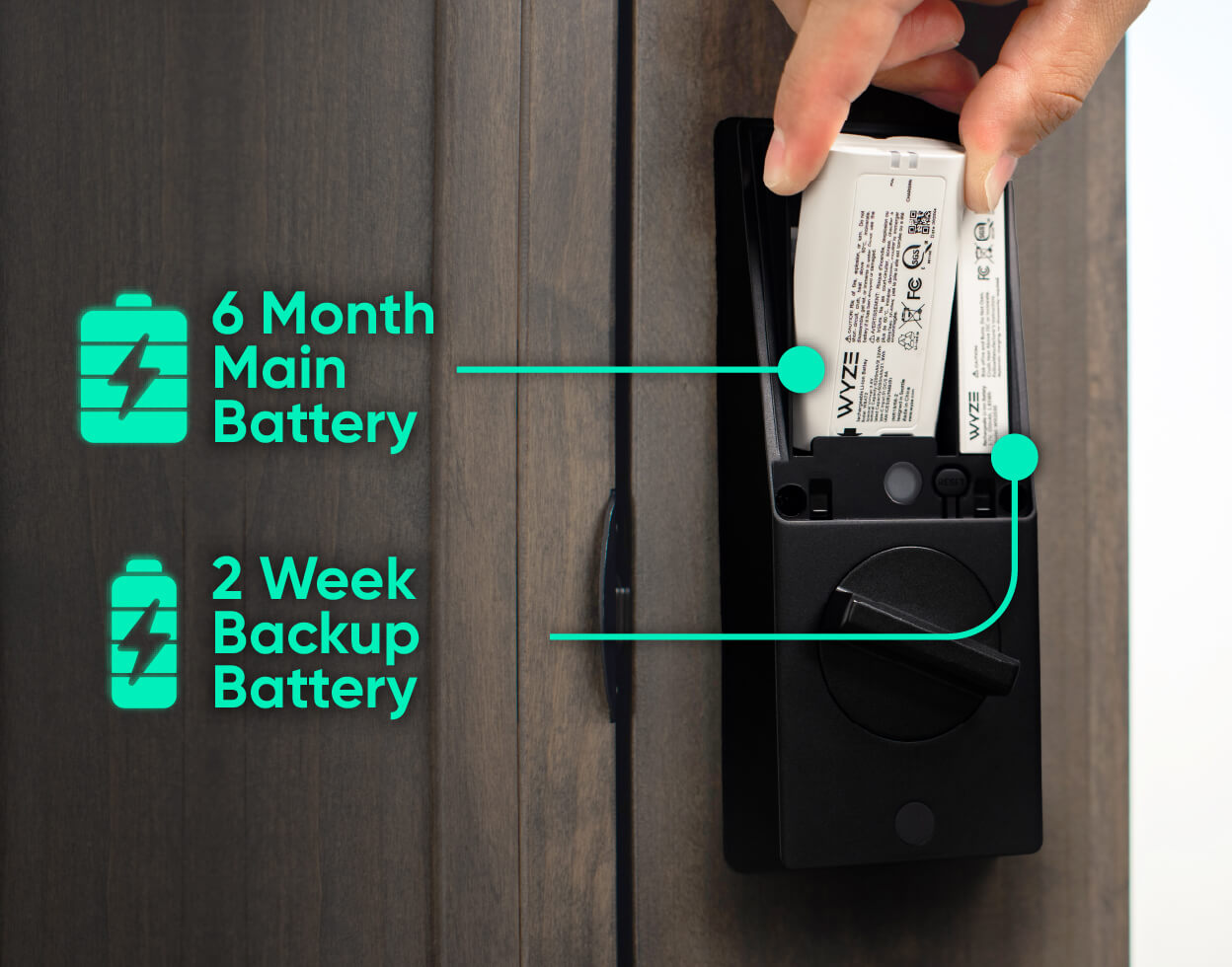
This ensures that when the main battery is removed and being charged, the backup battery keeps your Wyze Palm Lock working normally. If the main battery is removed and not reinstalled within 24 hours, you’ll receive a push notification to do so. Once the main battery is reinstalled, it will automatically re-charge the backup battery.

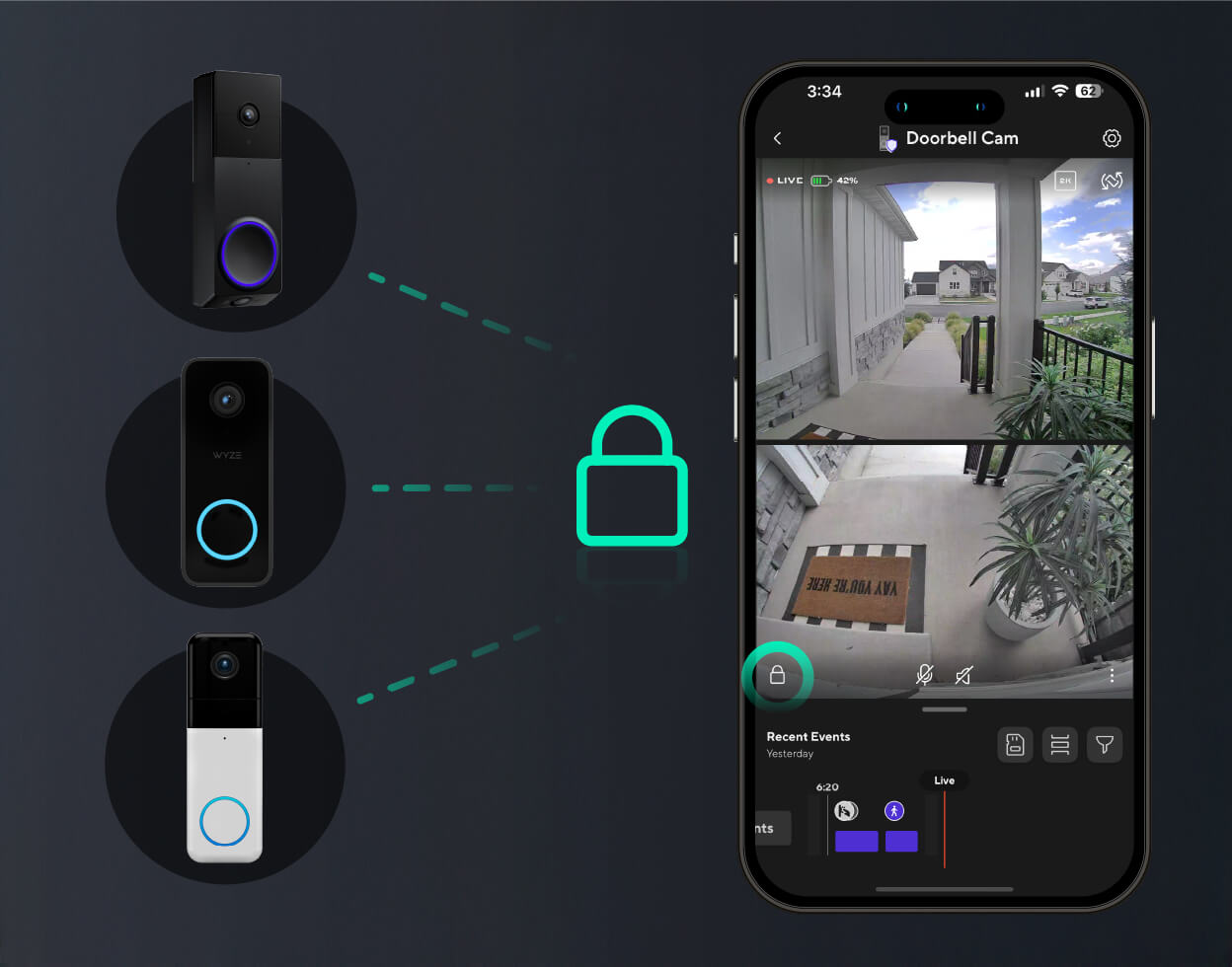
Wyze Palm Lock is compatible with Wyze Video Doorbell v2, Wyze Video Doorbell Pro, and Wyze Duo Cam Doorbell. This lets you lock and unlock the door from your doorbell’s live stream.

The key is the palm of your hand.

Highly secure, contactless biometric tech identifies you based on the unique pattern of veins beneath the surface of your palm. Just hover your palm near the reader, and voilà, the door unlocks. It’s like a secret handshake with your front door.

Unlocks for all types of hands.

Young, weathered, wet, or dirty, palm vein recognition is more accurate than fingerprints because it looks beneath the skin, so surface conditions don’t get in the way.

A boy is holding up his hand with a thumbs up.
A man holding up a sign that says "5".
  • A person is holding a door handle.

    Palm Scan

  • A black and grey electronic lock with a green button on the front.

    Access Codes

  • A phone with a lock screen that says "Front Lock" and "Wyze Palm Lock Methods 04".

    App Control

  • A person is unlocking a device with a key.

    Manual Key

  • A black and white image of a cross with a Google logo on it.

    Voice Control

  • A black lock on a door.

    Manual Latch

1 of 6

Check for door compatibility.

The Wyze Palm Lock replaces your existing lock bolt and will work on most standard residential doors sized between SPECS. Click to see more details.

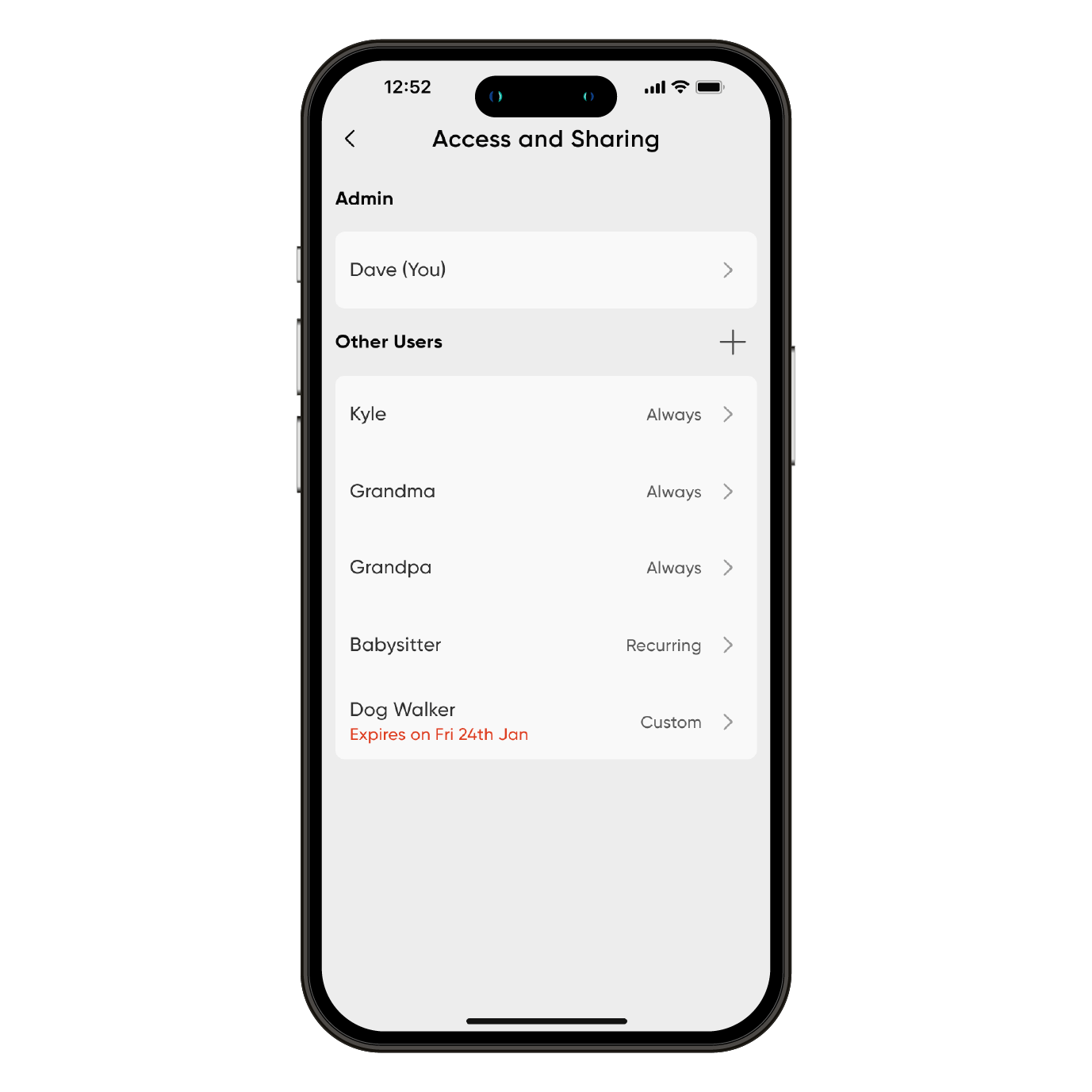
A smartphone displaying a lock screen with the message "Access and Sharing" and a button to unlock the Wyze Palm Lock.

Numbered keypad with access codes.

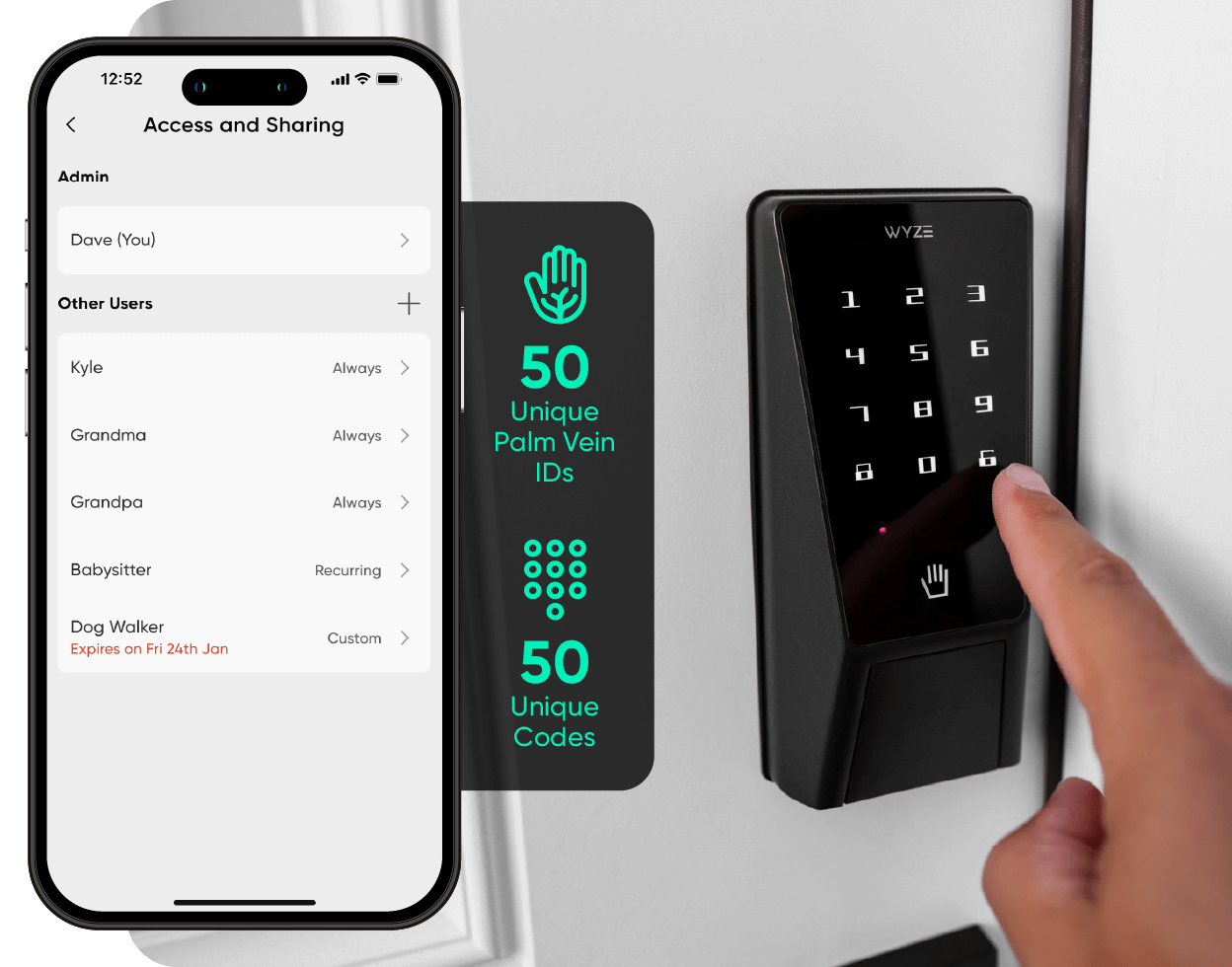
A bright, numbered keypad illuminates with a simple tap. Set and store up to 50 unique access codes, or create one-time guest passcodes that expire on a schedule.

A black device with a white label that says "Wyze Palm Lock.

No down time.

Wyze Palm Lock uses a dual-battery system, so there isn't any down time. The main battery provides up to 6 months of battery life, and the backup battery keeps things running for up to two weeks while you charge the main.

Peace of mind with auto lock.

A built-in gyroscope detects the angle and movement of the door in real time. Once it senses the door has closed then it automatically locks, preventing false or jammed locks.

A black smart lock that can be controlled via a smartphone app.
A black and green lock with the number 15493 on it.

Featuring anti-peep technology.

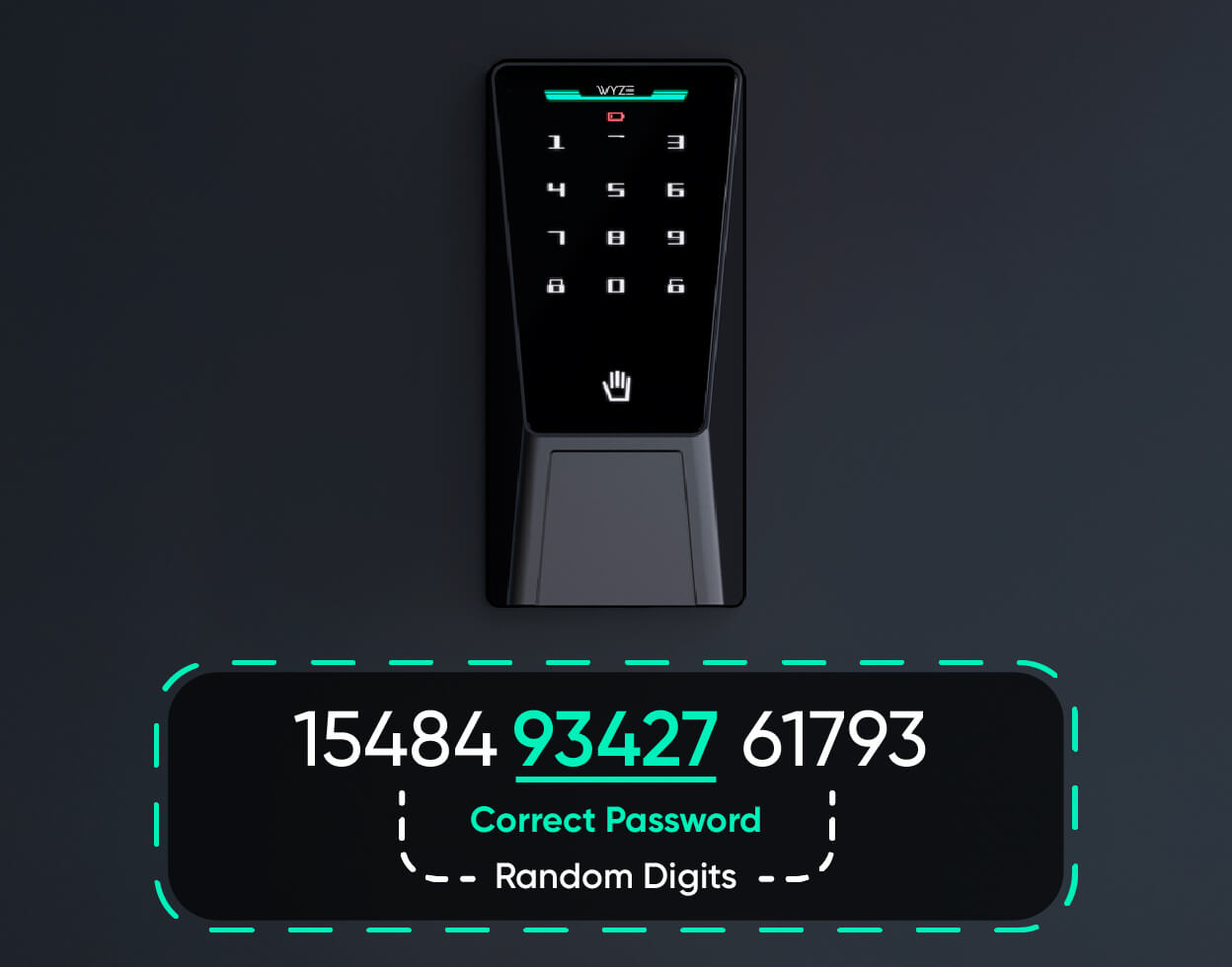
With anti-peep technology, you don't have to worry if someone watches you enter your code.

Simply add extra digits before or after your code and Wyze Palm Lock will still unlock.

A person is holding a key to a Wyze Palm Lock.

Discreet manual lock and key option.

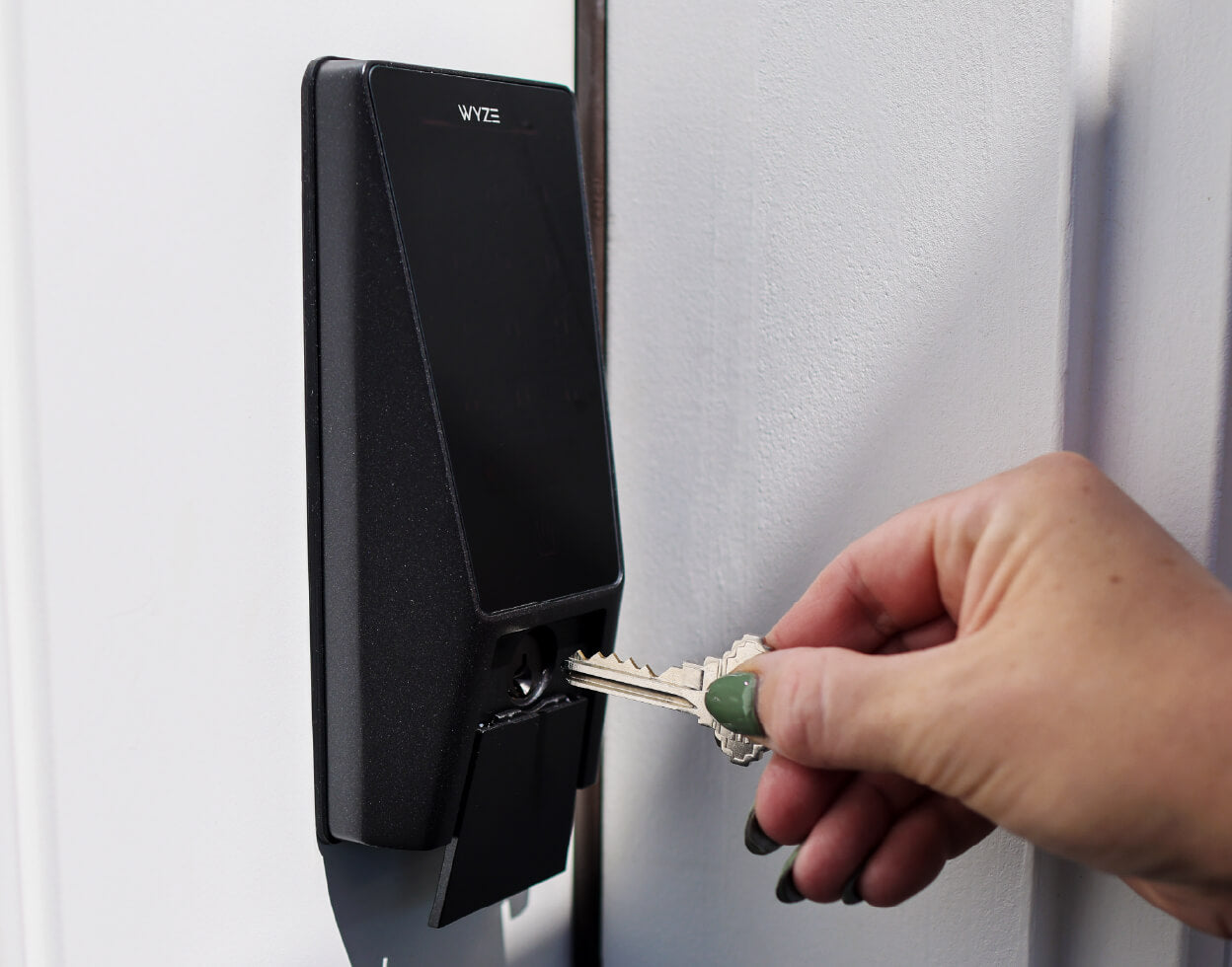
Still yearning for the comfort of a traditional key? We got you covered. Simply slide down the damping cover and manually unlock the old-fashioned way (set of keys included).

Hey Luke, who's your deadbolt daddy?

OK, maybe don't ask him that. Instead, see what this modern day Skywalker had to say when we asked him about Wyze Palm Lock.

A smartphone screen displays a Wyze Palm Lock.

Works with Wyze video doorbells.

Lock and unlock directly from the live view of your Wyze video doorbell without switching between screens to open the door for family and friends.

A black and wet Wyze Palm Lock Shopify 13.

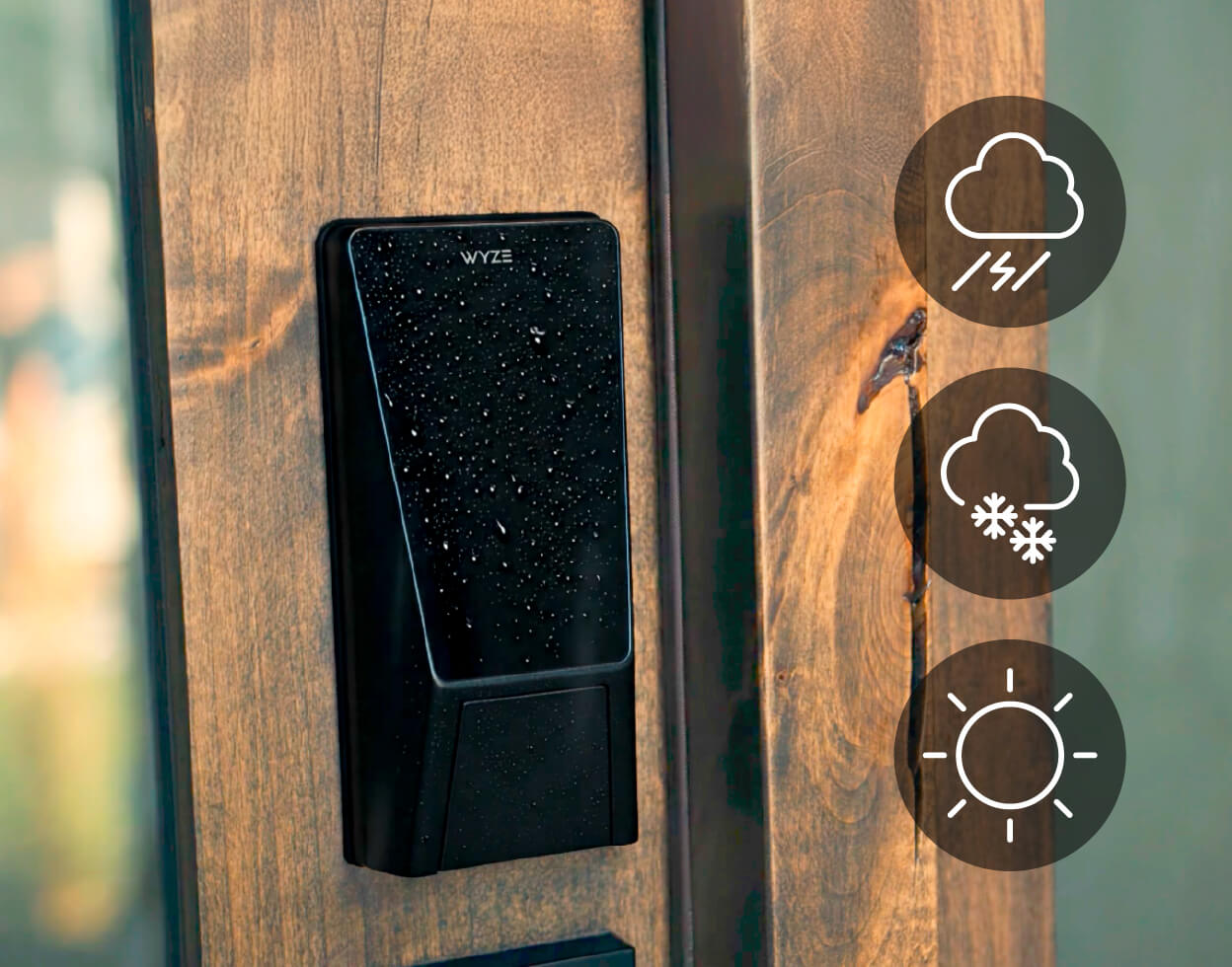
IP53 weather-resistant & BHMA3 certified.

Backed by the Builders Hardware Manufacturers Association, this lock has been tested, slammed, twisted, and splashed thousands of times to make sure it can handle real life. It meets rigorous standards for security, durability, and performance. It’s not just smart, it’s strong.

BHMA Logo

Backed by industry-best security features.

  • A hand holding a leaf.

    Palm Vein Recognition

    Unlike fingerprints, palm vein pattern is an internal characteristic of the human body and cannot be copied or forged.

  • A lock on a door.

    Hardware Encryption

    Your palms and passcodes are encrypted and stored locally on the lock so no one can access your data.

  • A bell icon on a black background.

    Security Siren & Alerts

    An alarm sounds from excessive incorrect unlock attempts, and if you leave the door open (customizable in the Wyze app).

1 of 3
A smartphone screen displaying a lock screen with a green circle and the words "Front Lock" and "Locked".
A smartphone screen displaying a list of users and their corresponding names.
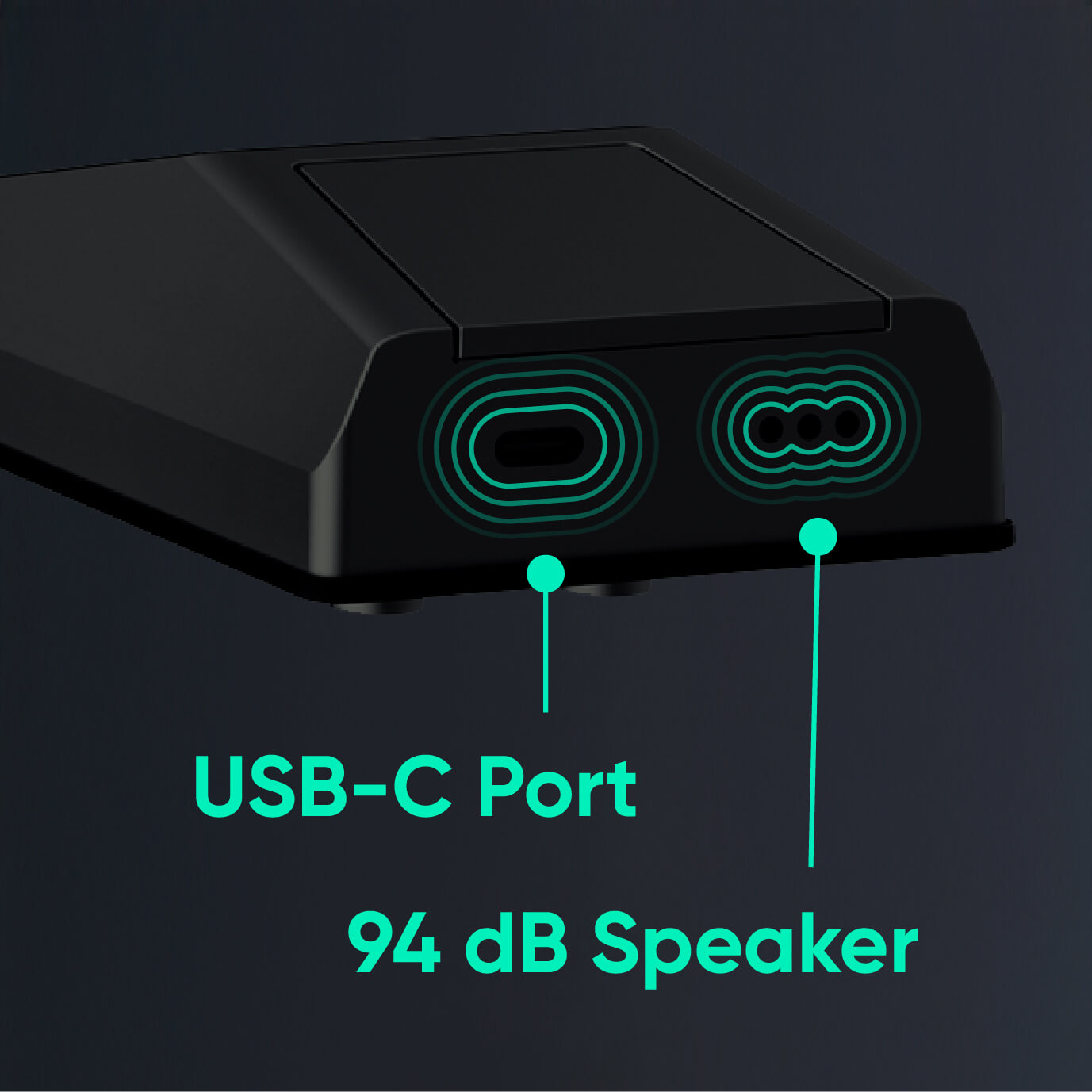
A black device with a green outline and the words "USB-C Port" written on it.
Wyze Palm Lock Shopify 20

Unlock even more goodness

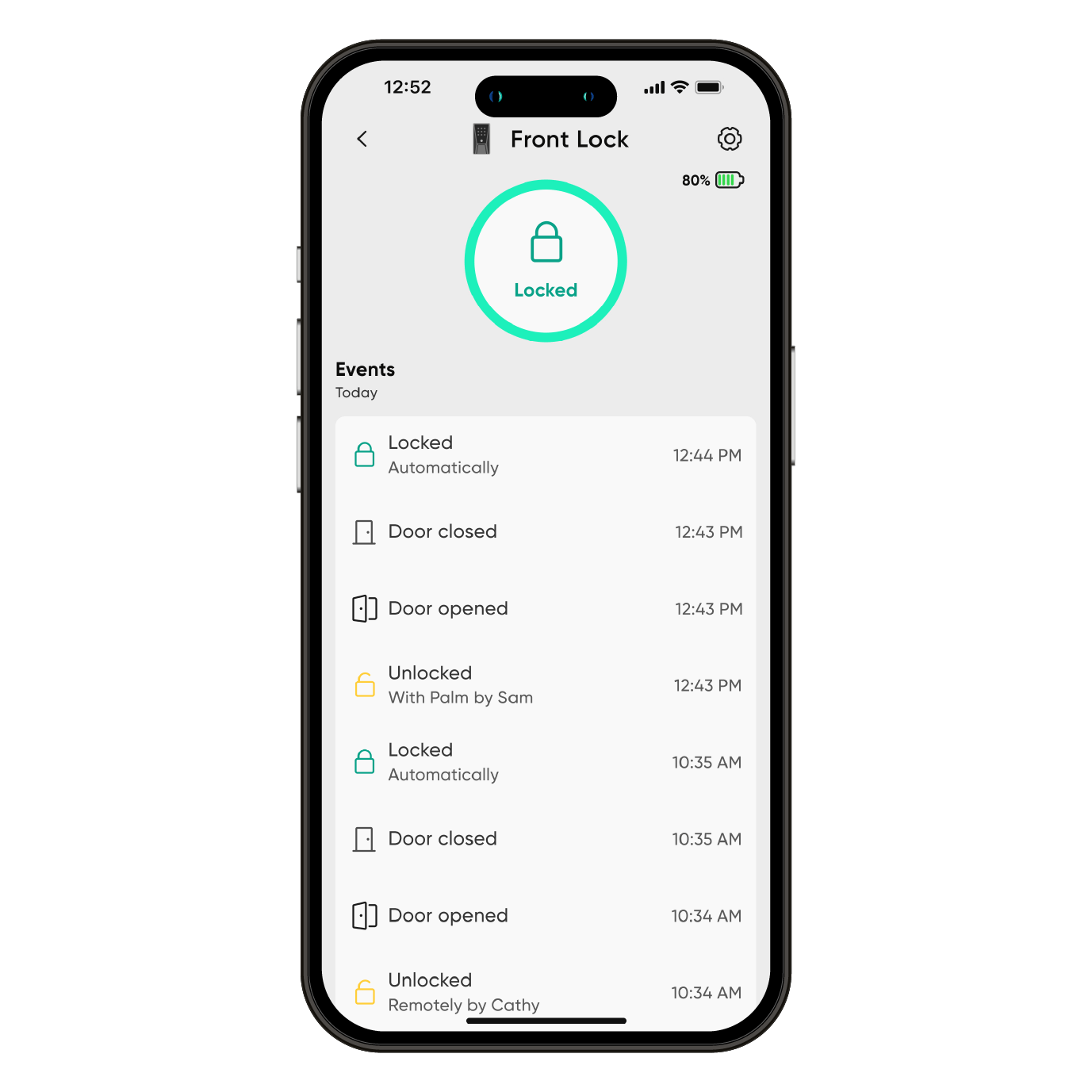
Control and monitor the lock status from anywhere, anytime with Wi-Fi. See the full access history in the Wyze app. View how it was unlocked, the exact time, and if there were any failed passcode attempts.

A bright, numbered keypad illuminates with a simple tap. Set and store up to 50 unique access codes, or create one-time guest passcodes that expire on a schedule.

If the batteries die while you're away, the USB-C port allows for a charge from a power bank so you can enter your access code for entry.

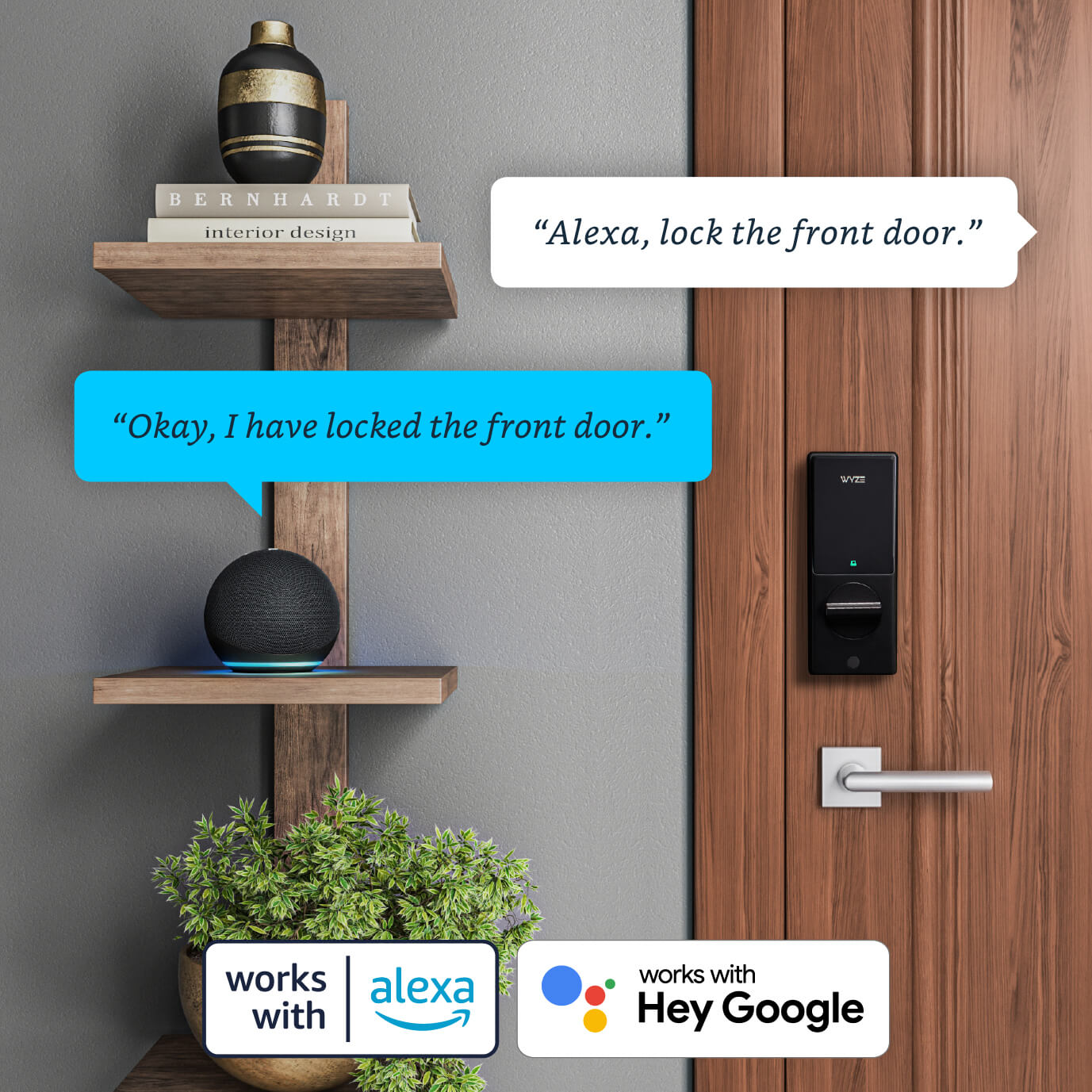
Works with smart assistants like Amazon Alexa and Google Assistant. Use your voice commands to lock, unlock, and check the status of their door. For security, unlocking via voice command requires a PIN which authorizes the action. 

  • Try saying "Alexa, unlock the front door."
  • Try saying "Google, lock the side door."
  • Try asking "Alexa, is my front door open?"
  • A black and silver lock with a green light on the bottom.

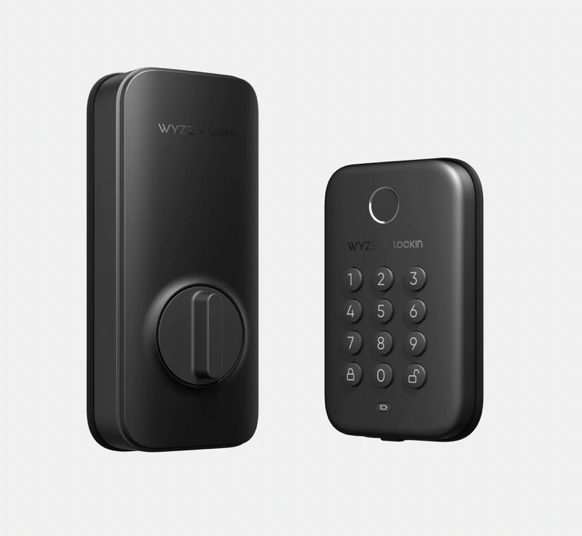
    Wyze Palm Lock NEW

    Release date: September 2025

    Unlock the door with your palm

    Secure Palm ID unlock

    6 total ways to unlock, including the app

    Wyze automations or Alexa/Google support

    Replaces existing deadbolt

    Smart Auto-Lock

    Manual key option

    Keypad built-in

    Status: Available

    Buy it now 
  • A black and silver keypad with a button on the bottom.

    Wyze Lock Bolt

    Release date: 2022

    Unlock the door with your fingerprint

    Fingerprint unlock

    Local app access only

    No Wyze automations or Alexa/Google support

    Replaces existing deadbolt

    Basic Auto-Lock

    No Auto-Unlock

    Keypad built-in

    Status: Available, limited stock

    Learn more 
  • A white device with a button on it.

    Wyze Lock

    Release date: 2020

    Monitor and access your door from anywhere

    No fingerprint unlock

    Access the app from anywhere

    Wyze automations & Alexa/Google support

    Attaches to existing deadbolt

    Advanced door position Auto-Lock

    Auto-Unlock

    Optional keypad sold separately

    Status: No longer available

1 of 3

Watch and learn. It's super easy to install.

Wyze Palm Lock is compatible with almost all exterior doors and replaces your existing deadbolt lock in about 20 minutes. Watch our unboxing and install demo below.


Important notice: Before purchasing your Wyze Palm Lock, please take a few minutes to look at our support article on door compatibility.

Support Articles

Installing your Wyze Palm Lock is just like any other super-smart lock; you remove your existing lock, put your new lock in place, then set it up in the Wyze app.

To install Wyze Palm Lock:

  1. In the Wyze app, tap Home, then tap the plus sign + in the top right hand corner.
  2. On the Add screen, tap Device.
  3. Tap Home > Wyze Palm Lock.
  4. Verify that you have the necessary tools to install Wyze Palm Lock. Tap Next to begin the in-app installation instructions.If you've already installed your Wyze Palm Lock, tap Skip to begin the setup process.
  5. Remove the existing lock and deadbolt - including the bolt and strike plate. Tap Next.
  6. Check that your door holes are the correct size. You must have the correct hole sizes on your door to continue. Refer to the sizes below. If your setup meets these requirements, tap Yes, Continue and skip to step 10. If not, tap No, Show Me How and continue to the next step.The latch hole diameter must be 1” (25 mm).The backset must be between 2-⅜” (60 mm) and 2-¾” (70 mm) wide.The cross bore diameter must be 2-⅛” (54 mm).
  7. Verify you have the necessary tools to drill holes in the door. Tap Next.
  8. Use the included drilling template to mark the center of the circle on the door face and the center of the door edge. Tap Next.
  9. Use your marks as a guide to drill the holes. Tap Next.Drill a 2-⅛” (54 mm) hole through the door face for the lockset.Drill a 1” (25.4 mm) hole through the edge of the door face for the latch.
  10. Measure and select the length of the backset. You may need to extend the latch based on the length of the backset.If the backset is 2-⅜” (60 mm), continue to step 11.If the backset is 2-¾” (70 mm), extend the latch by twisting it clockwise until it stops. Then twist it counterclockwise until it stops to return to the 2-⅜” (60 mm) backset. Tap Next.
  11. Mount the strike plate and dust box to the door frame using the provided mounting screws. Tap Next.
  12. Mount the deadbolt to the door and ensure the latch hub is centered on the door face hole. Tap Next.
  13. Measure the diameter of the cross bore to determine if you’ll need the lock hole adapter for installation, then select the corresponding measurement.If the diameter is 1-½” (38 mm), install the exterior assembly by removing the protective cover, then install the exterior assembly to the door. Tap Next. If the diameter is 2-⅛” (54 mm), install the exterior assembly by removing the lock hole adapter and the protective cover, then install the exterior assembly to the door. Tap Next.
  14. Pass the cable on the exterior assembly under the deadbolt and through the door. Then align the tailpiece with the center hole of the deadbolt and insert it. Make sure the tailpiece does not touch the sides of the hole. Tap Next.
  15. Position the mounting plate. Separate the mounting plate from the interior assembly, then route the cable through the mounting plate. Then align the tailpiece with the center hole of the mounting plate and insert it. Make sure the tailpiece does not touch the sides of the hole and that the screws do not block the hole. Tap Next.
  16. Install the mounting plate. Separate the mounting plate from the interior assembly, then route the cable through the mounting plate. Measure the door’s thickness to determine which screws to use. Tap Next. If the door thickness is between 1-¾” and 2-3/16” (45 and 55 mm), use the longer mounting screws.If the door thickness is between 1-⅜” and 1-15/16” (35 and 50 mm), use the shorter mounting screws.
  17. Install the interior assembly by connecting the cable into the receiving port in the interior assembly. The red marks should line up. Tap Next.
  18. Determine which direction the deadbolt is facing - the direction of your deadbolt will determine the position of your interior assembly.If the deadbolt is facing left, position the knob vertically and insert the tailpiece into the deadbolt center hole. Then route the cables to ensure they are fully tucked inside the device. Mount the interior assembly to the door. It should fit flat against the door, firmly inside the edges of the mounting plate. Tap Next. If the deadbolt is facing right, position the knob horizontally and insert the tailpiece into the deadbolt center hole. Then route the cables to ensure they are fully tucked inside the device. Mount the interior assembly to the door. It should fit flat against the door, firmly inside the edges of the mounting plate. Tap Next.
  19. Open the door, then turn the thumb latch to lock and unlock it. Tap Next. The deadbolt should fully extend without jamming. If the deadbolt jams or does not fully extend, uninstall the interior assembly and check the mounting plate. The tailpiece should be in the middle of the door hole, and the screws should not block the hole.
  20. Close the door, then turn the thumb latch to lock and unlock it. Tap Next. If the thumb latch jams or doesn’t fully extend, uninstall the metal strike plate on the doorframe, install the new dust box included in the packaging. If the dust box doesn’t fit in your doorframe, widen the mortise hole with a chisel.
  21. Remove the battery cover and check the alignment. Then use the provided screws to install the interior assembly on to the mounting plate. Tap Next. Do not over-tighten the screws.
  22. Insert the main battery and backup battery. Leave the battery cover off. Next, make sure that the interior and exterior assemblies are securely fastened. Tap Next.
  23. Installation complete! Now let’s connect your lock to your Wi-Fi network. Tap Next to proceed with setup.

Do not install the battery cover until after you finish setup and pairing

To set up Wyze Palm Lock:

  1. In the Wyze app, tap Home, then tap the plus sign + in the top right-hand corner.
  2. On the Add screen, tap Device.
  3. Tap Home > Wyze Palm Lock.
  4. If the lock is not already installed, you can tap Next and follow the in-app installation instructions.If you’ve already installed your Wyze Palm Lock, tap Skip.
  5. Now let’s connect your lock to your Wi-Fi network. Tap Next to proceed with setup.Do not install the battery cover until after you finish setup and pairing.
  6. Press and hold the RESET button on the lock for 8 seconds.The status light will pulse red.
  7. In the app, check the box next to I heard, “Ready to connect”, then tap Next.
  8. If Bluetooth® hasn’t already been enabled, you’ll be prompted to allow Bluetooth® and location access. Tap Next.If Bluetooth® and location access have already been enabled, it will skip to the next step.
  9. The app will automatically begin searching for and pairing to your Wyze Palm Lock.
  10. Select your 2.4 GHz Wi-Fi network and enter your network password. Tap Next.Tap the icon in the password field to display the password to ensure it was entered correctly.
  11. Your device will finish pairing. Then it is time to name your Wyze Palm Lock using the text field, or by choosing one of the preset suggestions, then tap Finish.
  12. Setup complete! Now let’s customize and calibrate your Wyze Palm Lock. Tap Next.

Continue onwards to our Wyze Palm Lock Calibration Guide.

You've completed the Wyze Palm Lock Setup Guide. It's now time to calibrate your lock!

Before calibrating:

  • Stand near the lock for the duration of the calibration.
  • Skip to step 3 if you just completed the Wyze Palm Lock Setup Guide.

To calibrate your Wyze Palm Lock.

  1. Open the Wyze app and tap on your Wyze Palm Lock.
  2. Tap the Settings gear, then Calibration.Follow along in the Wyze app to calibrate your Wyze Palm Lock.
  3. Close your door and manually lock the deadbolt.
    Check the box next to "I have turned the thumb latch. ✅The Wyze app will display "Calibrating your device..."
  4. Manually unlock the deadbolt and wait for your Wyze Palm Lock to sound.
    It will say "Please open the door."
  5. Open the door slightly.
  6. Check the box next to "I heard 'Please open the door.'" Tap Next.
  7. Now open the door at the the widest angle it can be opened. Tap Next.
    The Wyze app will display "Calibrating your device..."
  8. Now close the door completely. Tap Next.The Wyze app will display "Calibrating your device..."
  9. Done with calibration!

Next, you'll continue on to set up your access methods - Palm Vein Setup and Access Code Setup.

Additional Notes

  • Calibrating your Wyze Palm Lock is a common troubleshooting step when other features like Auto-Lock and door ajar alarms aren't working properly.
Added to your cart
FREE shipping on orders $59+
Subtotal
$0.00
View cart