Skip to product information
1 of 6

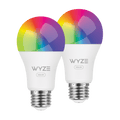
Wyze Bulb Color

Wyze Bulb Color

1100 Lumens, 16M Color Smart Bulb

Best Selling
Everyone's Top Pick
Pack
$24.98
In stock
Get it as soon as
30-day hassle-free returns.

Extra Bright

1100 Lumens

A black screen with no visible content.

16 Million Colors &

Tunable White

A black screen with no visible content.

Accurate Colors

90+ CRI

A black image of a bed.

Automate Sleep Routines

A blue and white logo for Wyze.
Wyze.com Exclusive BENEFITS
18-month extended warranty

Get an 18-mo extended warranty when you buy this product on wyze.com. Also get special bundles, unique promos, + rewards with each order

Wyze Bulb Color went to Mardi Gras, and thought it was drab. It yawned at the Holi Festival in India. It fell asleep at the fireworks show on the 4th of July. Wyze Bulb Color is an insufferable snob, but it's tough to get excited when you're the greatest 16 million color smart bulb on earth. It has a dimmable option, yes, but takes personal offense if you use it.

View full details
  • A black background with a single light bulb shining in the center.

    Extra Bright 1100 Lumens

  • A black screen with no visible content.

    16 Million Colors & Tunable White

  • A black screen with no visible content.

    Accurate Colors 90+ CRI

  • A black image of a bed.

    Automate Sleep Routines

Wyze Bulb Color Specs

Dimensions & Weight

  • 2.5” x 2.5” x 5”
  • 0.31 lbs

Lumens

  • 30-1100

Color Temperature

  • 1800K - 6500K

Color Rendering Index

  • 90+

Power

  • 12 watts

Working Voltage

  • AC 120V~60 Hz

Bulb Shape

  • A19

Base Type

  • E26

Life Expectancy

  • 25,000 Hours

Connectivity & Compatibility

  • 802.11 b/g/n, 2.4GHz, Bluetooth
  • Phone Compatibility: Android 9.0+, iOS 15.0+
  • Integrations: Alexa, Google Assistant, IFTTT

Weather & Temperature

  • Suitable for damp locations
  • Not for use in totally enclosed luminaires
  • Operating temp: -4°F - 104°F

Operating Humidity

  • 0-85%

Regulatory & Compliance 

  • Energy Star
  • CUL
  • UL
  • FCC
  • IC
  • CA Title 20
  • Prop 65
  • ES

Wyze Bulb Color 2 Pack

  • Wyze Bulb Color x 2
  • Quick Start Guide x 1

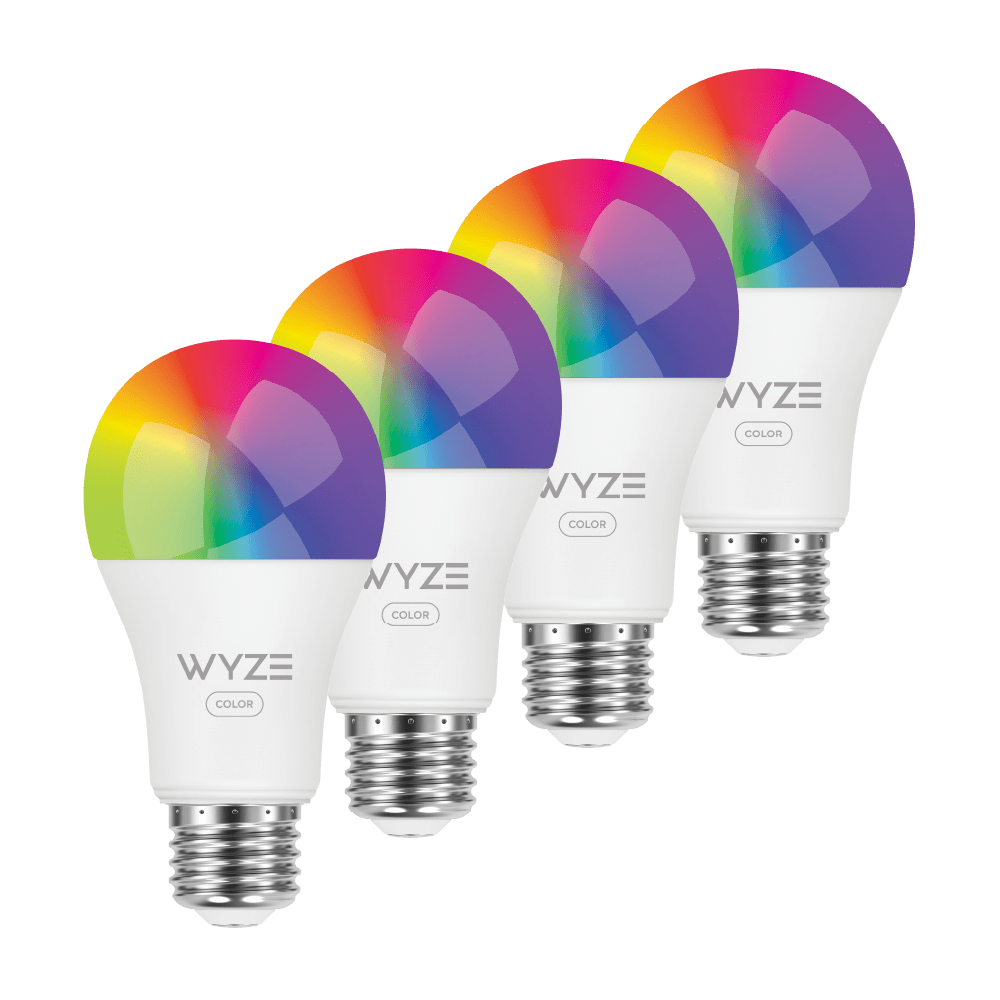
Wyze Bulb Color 4 Pack

  • Wyze Bulb Color x 4
  • Quick Start Guide x 1

Brighter. Dimmer. Better.

Most color bulbs max out at 800lm. Tune ours brighter (1100lm/75W), dimmer (30lm/2W), or anywhere between with a wide-ranging lumen output that’s as intense or as subtle as you need.

A purple and pink couch with a lamp on a table in front of it.

16 million colors

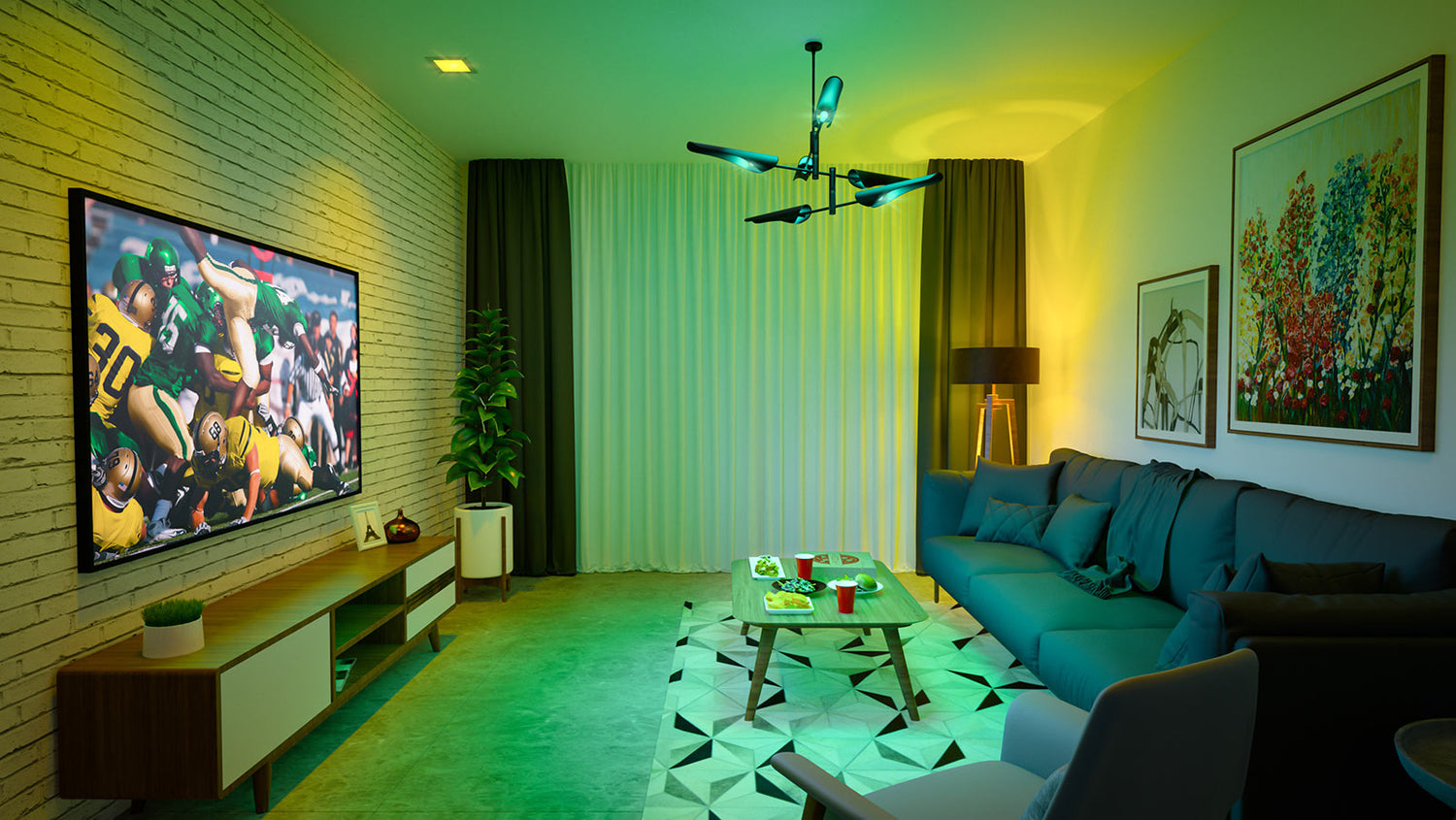
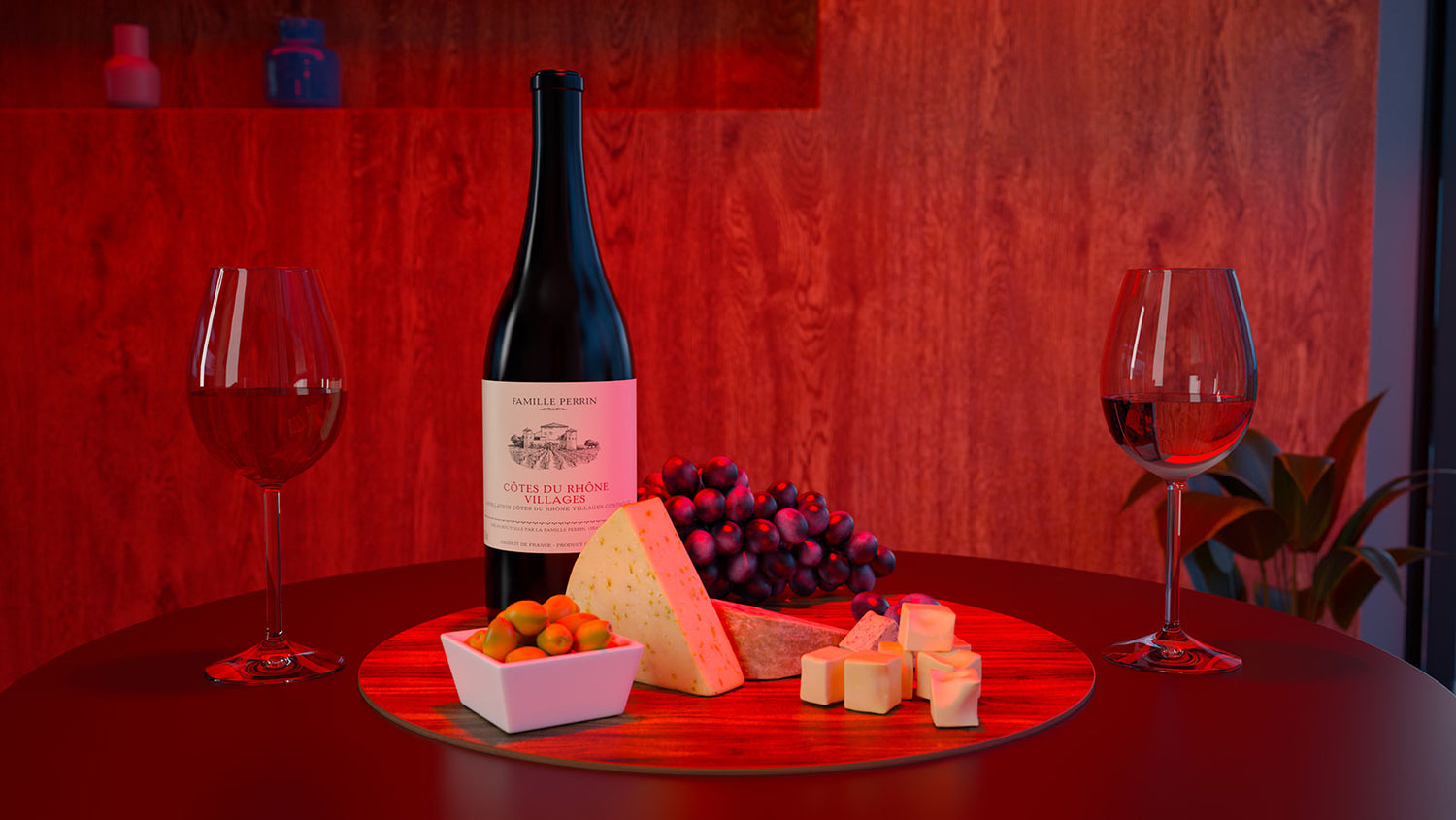
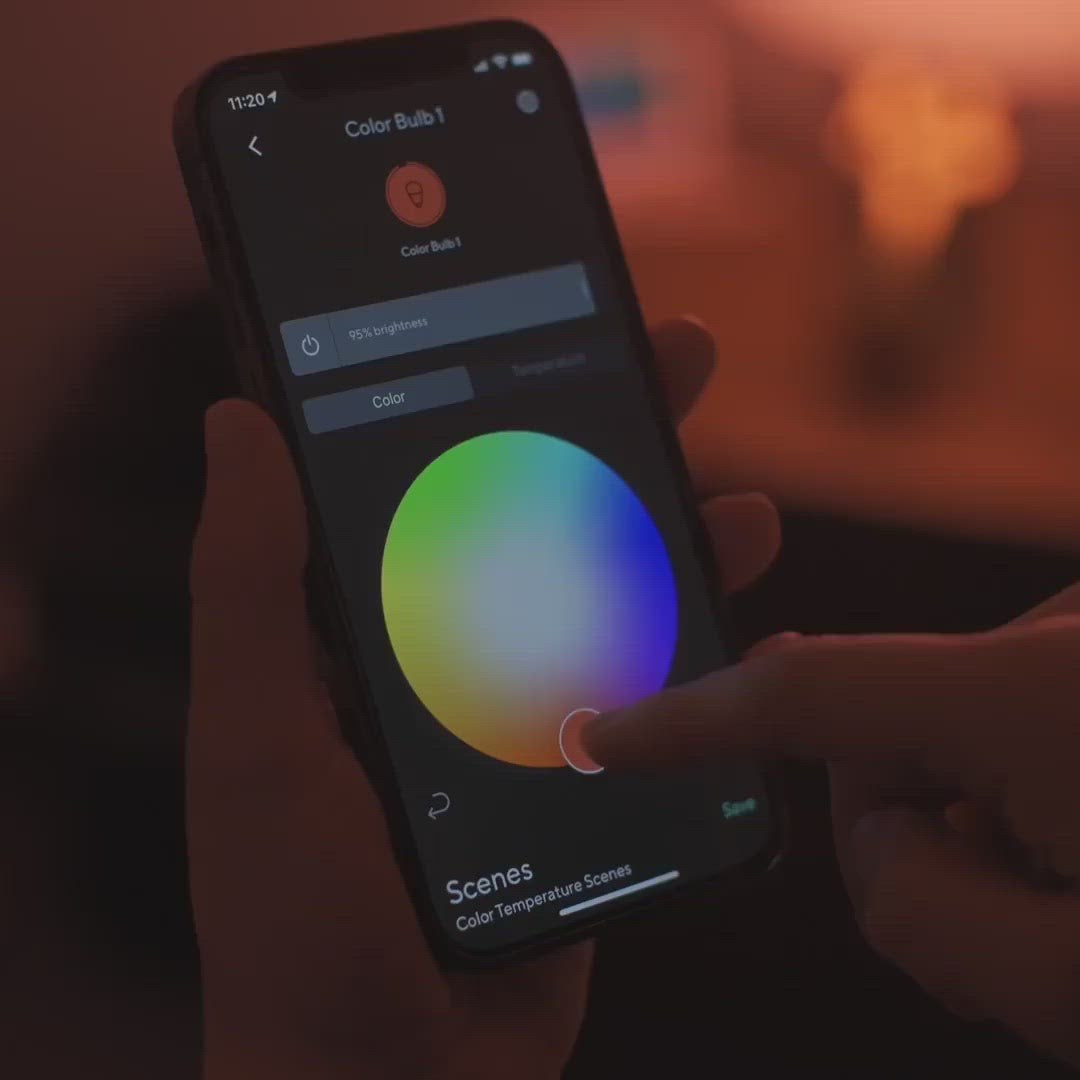
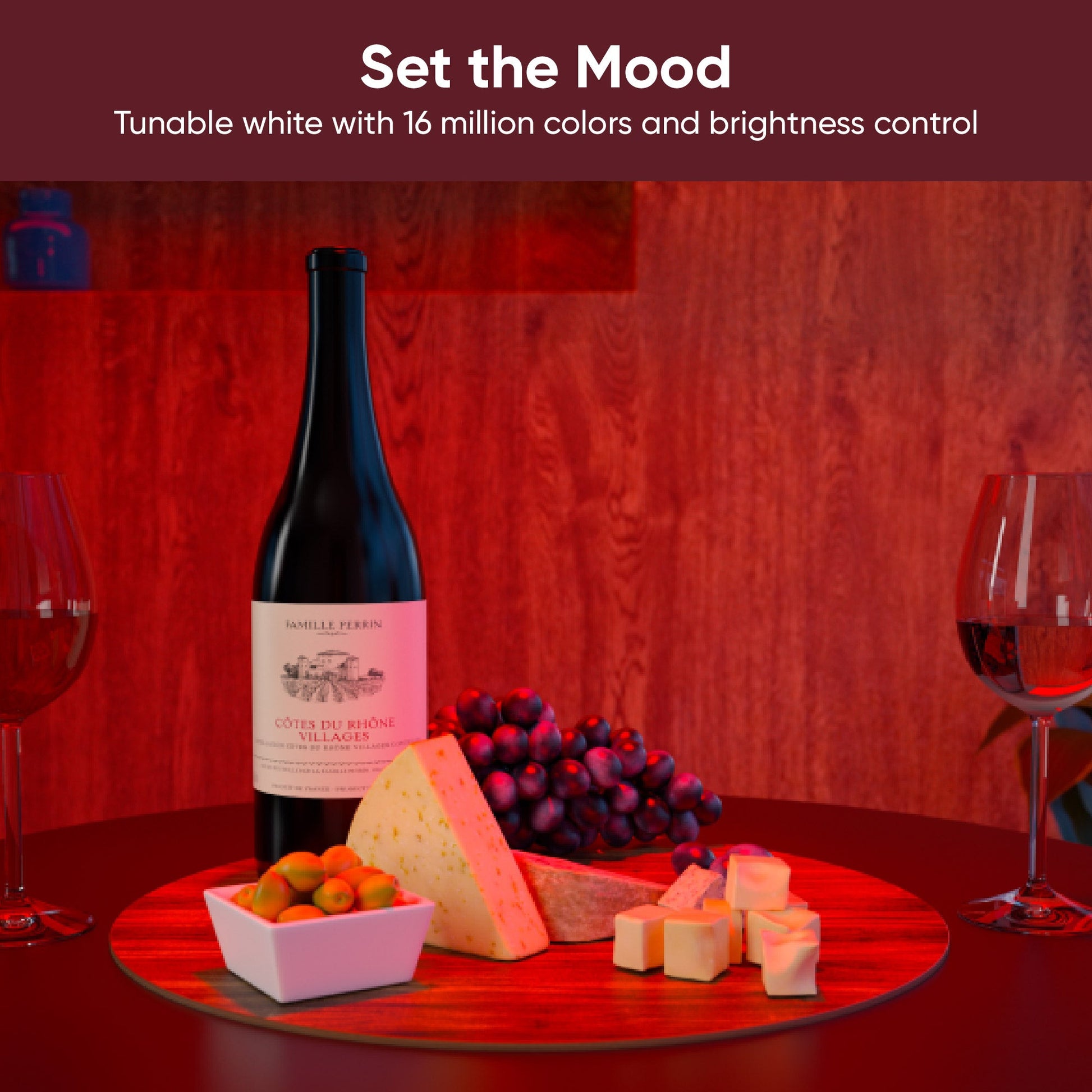
Whether it’s game day or wine night, precise color control in the Wyze app lets you turn moments into memories.

A living room with a blue couch, a table with a red cup on it, and a green and yellow lighting system. A bottle of wine is displayed on a table with a plate of cheese and grapes.

Game Day

Wine Night

Create custom presets to instantly change scenes with just a tap.

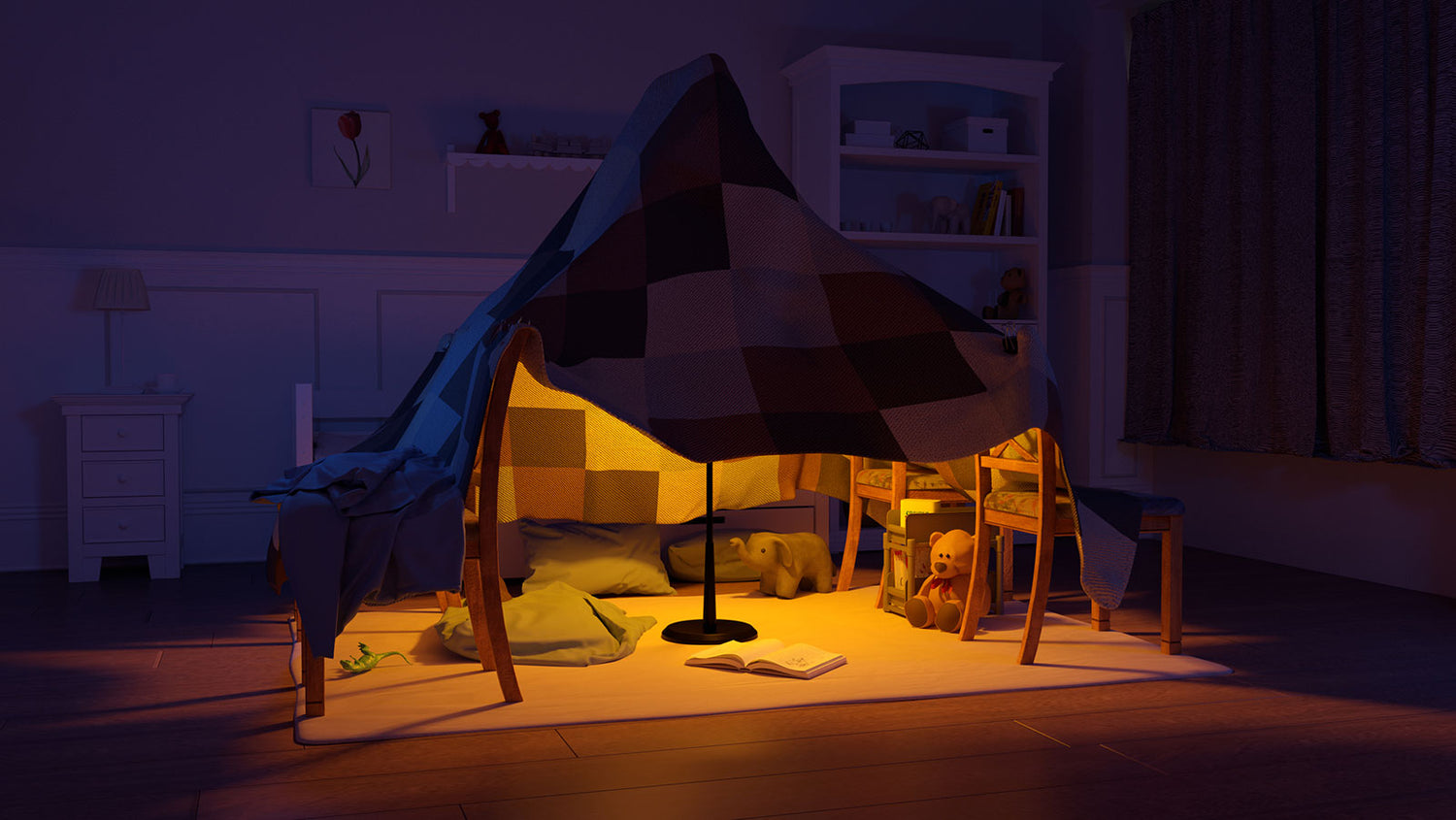
Fort Night, Blue Light, Extra Bright or Warmer Light

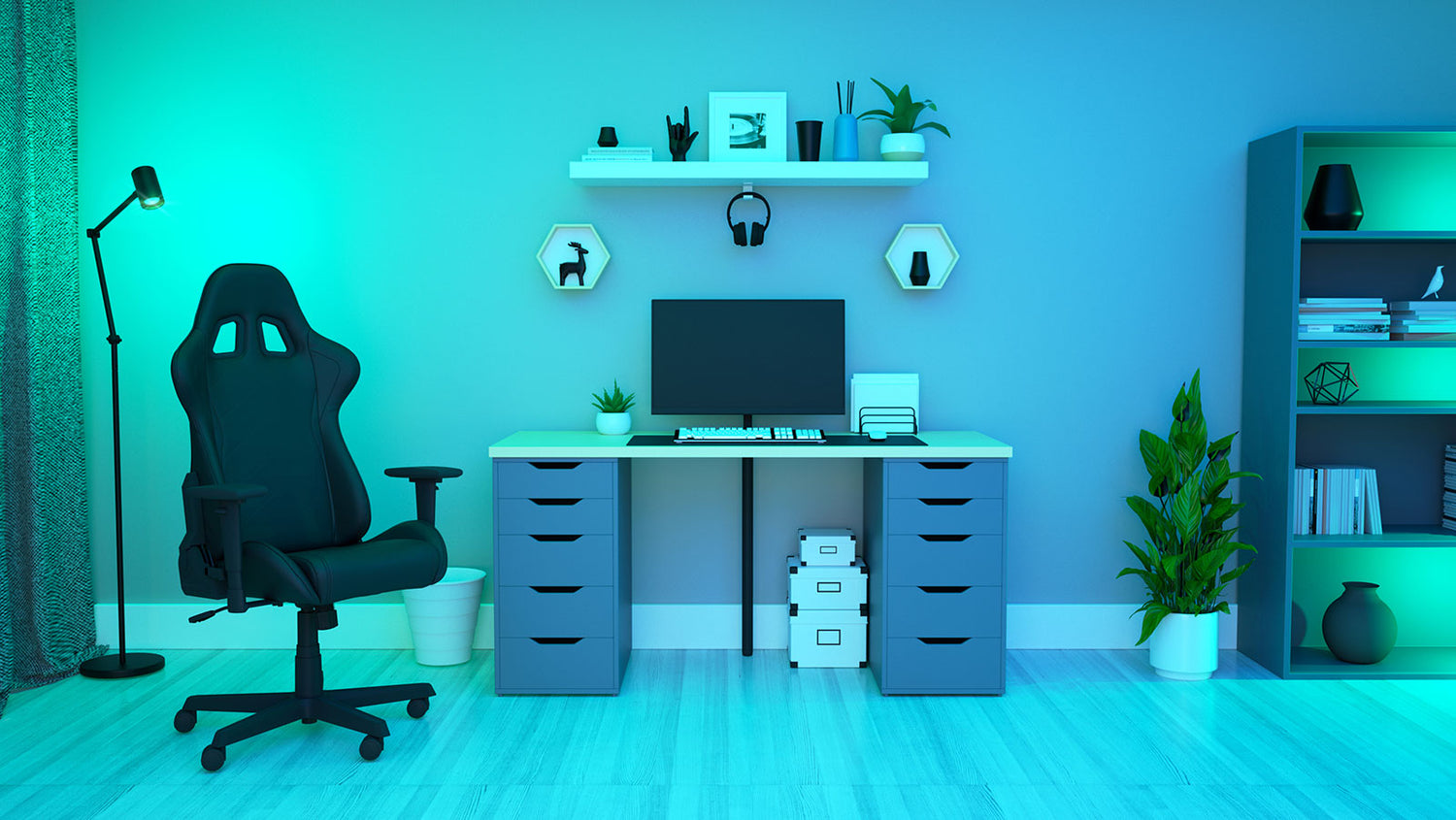
A cozy fort made of blankets and pillows with a yellow light inside. A computer desk with a monitor, keyboard, and mouse.

Fort Night

Blue Light

A light bulb is turned on in a bathroom.

White light temperature control

Cool it down and focus or warm it up and relax. Dedicated white light controls let you choose the perfect setting for your activity.

90+ CRI Rating

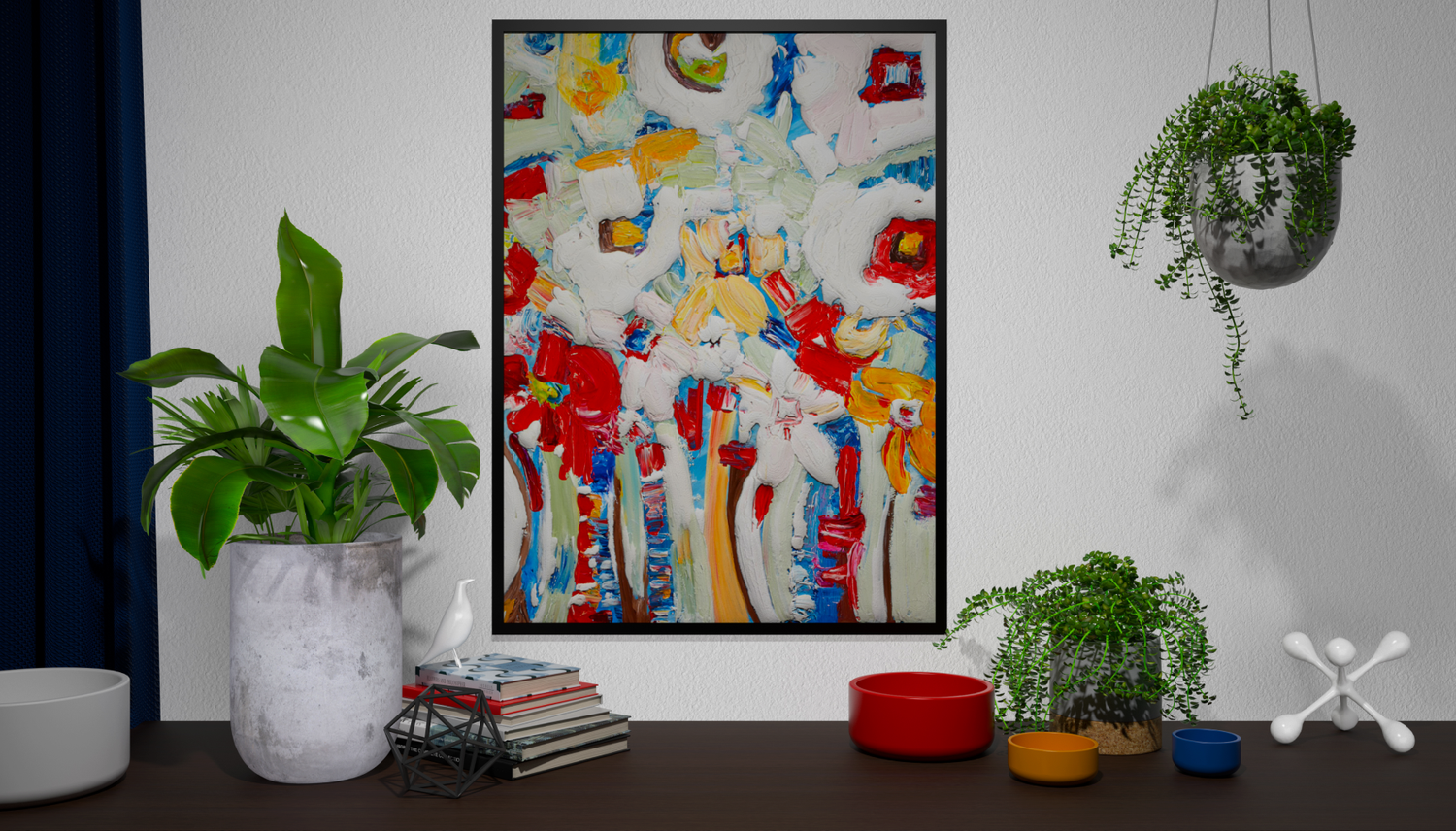
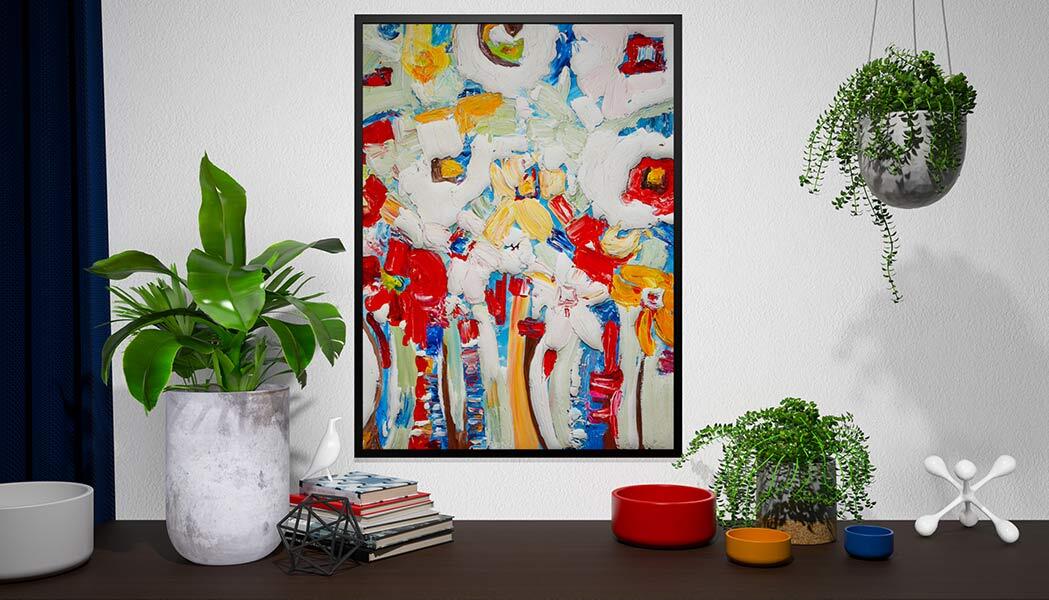
See truer and more brilliant colors in your home with an advanced Color Rendering Index (CRI) rating. Never mistake navy or black in your closet again.

A painting of a tree with red flowers on a white background. A painting of flowers in a vase.

Dull, washed out colors

Vibrant, true colors with increased CRI

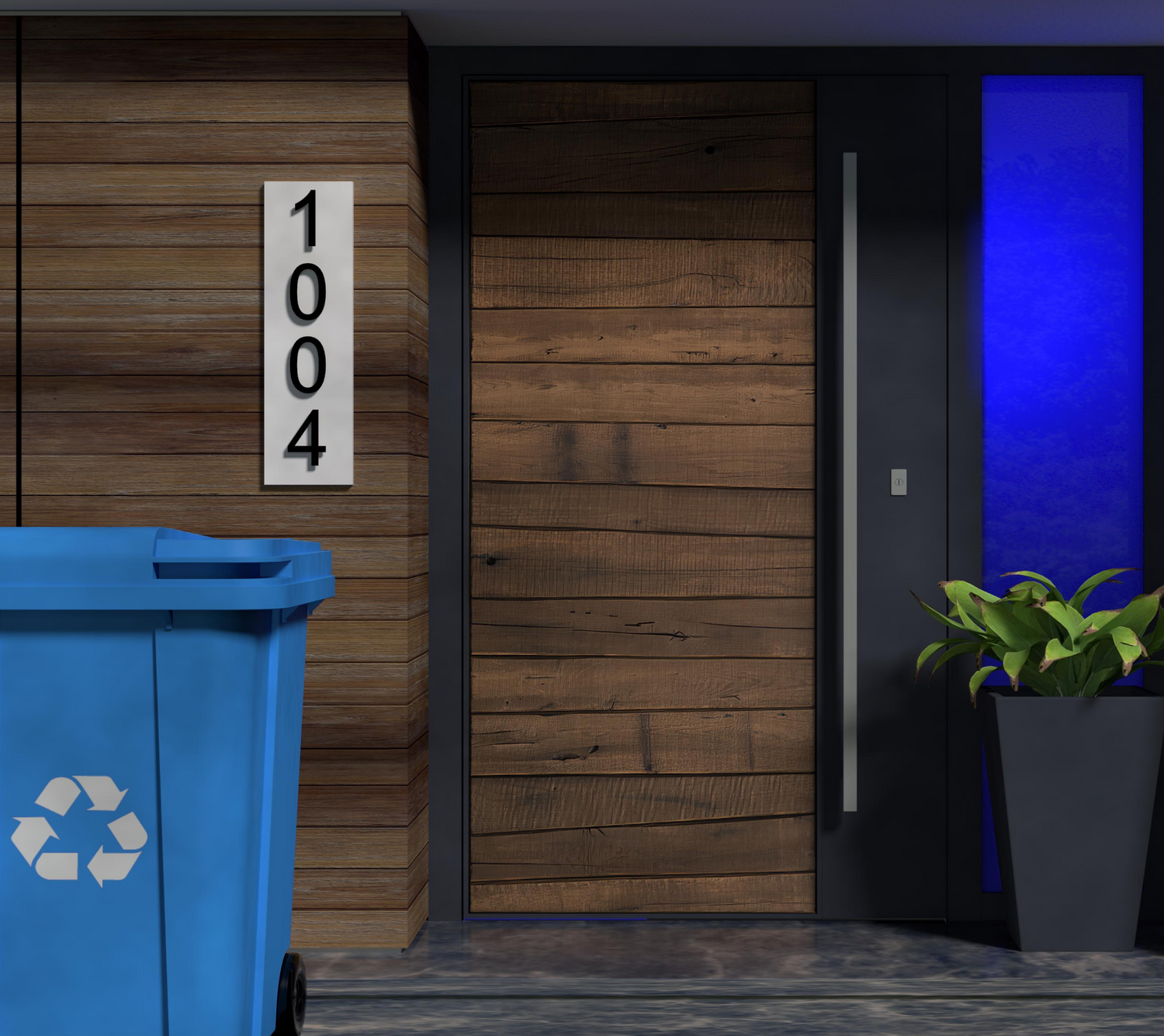
Blue light recycling bin.

Brilliant notifications

Shine a brighter light on important reminders. Create time-based color events or automate using other Wyze devices to create powerful visual notifications all in the Wyze app. Never forget to take the bins curbside again.

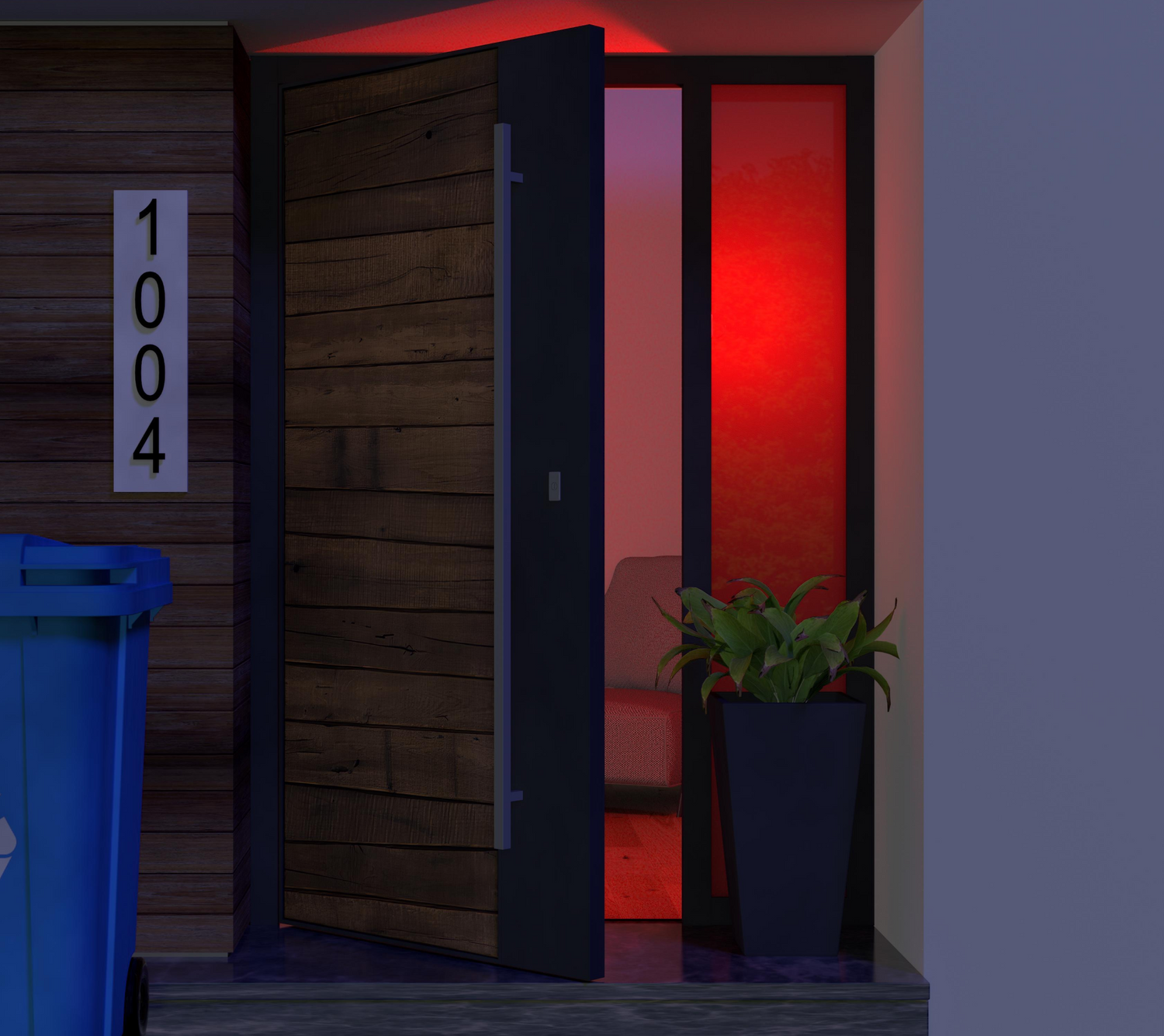
A door with a red light on it.

Did you forget to shut your door?

Trigger a warning with Wyze Color Bulb and Wyze Sense Motion Sensors or Entry Sensors.

Sleep Routines

Wake up or fall asleep to custom lighting routines that gradually illuminate or darken with time. It’s like having your own personal sunrise and sunset.

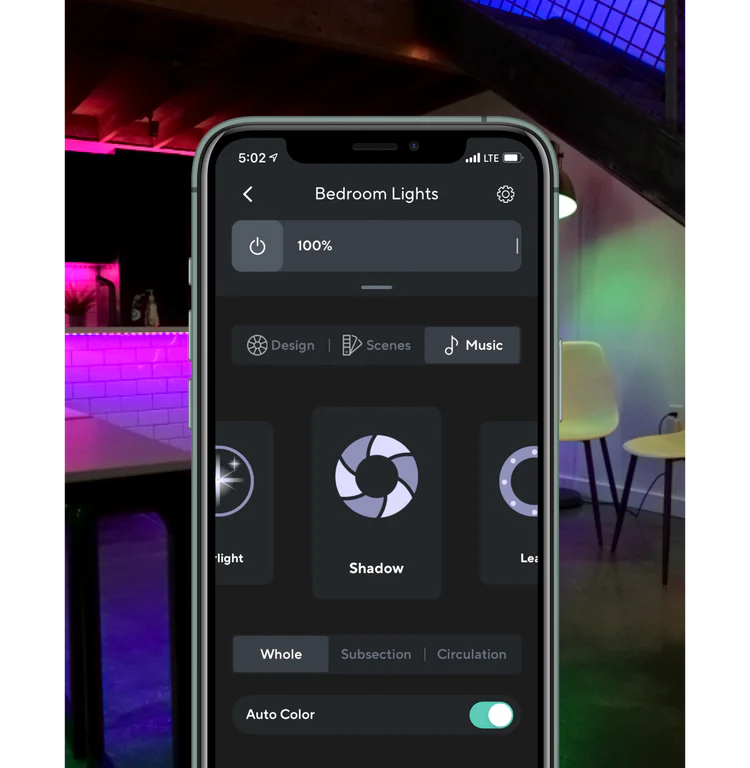
A smartphone app showing a color bulb setting.

Dance to the beat of the music

Group with Wyze Light Strip or Wyze Light Strip Pro to Sync your lights to the beat of your favorite tracks with Music Mode. Your dance videos (and dance parties) just got a serious glow-up. 

*Requires Wyze Bulb Color to be grouped with Wyze Light Strip or Wyze Light Strip Pro

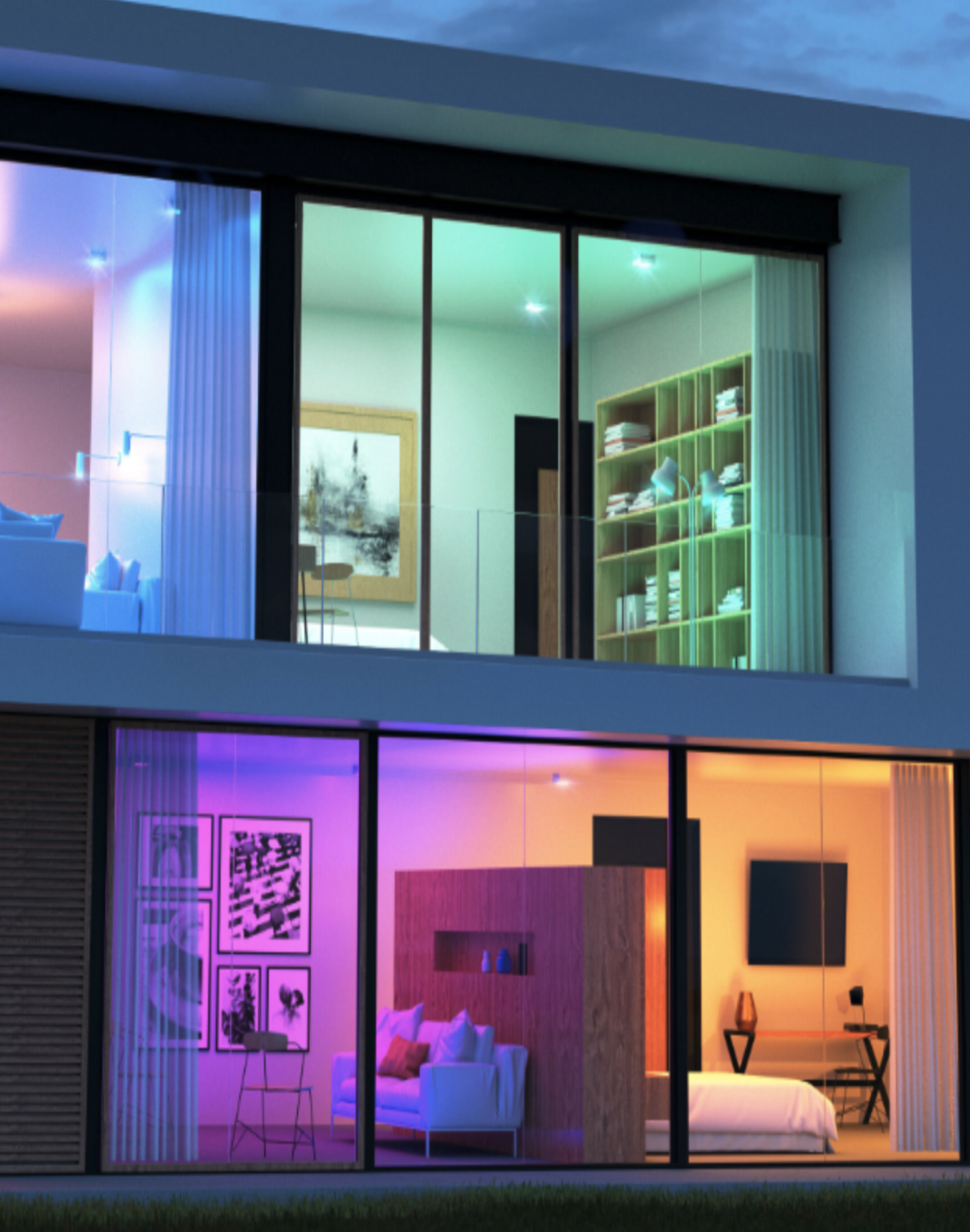
A screen shot of a room with different colored lights on.

Smart controls you'd expect

Your voice is now your light switch. Command your lights with your voice by asking Alexa or Google Assistant to turn them on/off, adjust brightness, or change color.

Make it look like someone's home whenever you are away. Just enable "Vacation Mode" in the Wyze app and our bulb does the rest.

Group Wyze Bulb Color together and with Wyze Light Strips for greater and more efficient control.

Support Articles

Setting up your new Wyze Bulb Color is as easy as screwing it in, and connecting to Wi-Fi in the Wyze app. You can even set up multiple color bulbs at once!

To set up your Wyze Bulb Color:

  1. In the Wyze app, tap Home, then tap the plus sign + on the top right.
  2. On the Add menu, tap Device.
  3. Tap Power & Lighting > Wyze Bulb Color or Wyze Bulb Color BR30.
  4. Install your color bulb into the lamp or light socket that will be powering it, and turn on the power. Want to set up several color bulbs? Install all of them into light sockets now. You can set up a lot of bulbs at once. We've tested up to 25! The color bulb(s) will automatically begin to pulse. Not pulsing? Turn the light off and on 3 times to enter pairing mode. You must toggle power to the light off and on 3 times within 6 seconds, with less than 2 seconds between each toggle.
  5. If prompted by the Wyze app, allow access to your location and BluetoothⓇ. Tap OK.
  6. Select your 2.4 GHz Wi-Fi network and enter your network password. Tap Connect.
  7. On the next screen, you'll see your bulb(s) connecting to the network.
  8. Once connected, name your light(s) and edit the icon(s). Tap on your Wyze Bulb Color name, then type in the pop-up to edit. Tap Next. If you're setting up multiple bulbs, they will each glow a specific color during setup. Name each one accordingly.
    Tap an icon, then choose an icon from the list. Tap Done.
  9. Tap Finish Naming to complete the setup.
  10. Enjoy your new Wyze device!

Download the Quick Start Guide for Wyze Bulb Color in this article.

Below is the Quick Start Guide for Wyze Bulb Color, a short manual for how to get started.

This guide is a short user manual with the basics about Wyze Bulb Color including:

  • What's in the box for Wyze Bulb Color.
  • How to download the Wyze app.
  • How to set up your Wyze Bulb Color.
  • Tips for using your Wyze Bulb Color.

Sharing lets other people access and use your Wyze Bulb Color in the Wyze app. Have a family member or other close friend who wants to turn on / off your lights? Learn how below.

Important: Only share your Wyze devices with people you know and trust.

To share your Wyze Bulb Color:

  1. In the Wyze app, tap on your Wyze Bulb Color.
  2. Tap on the Settings gear, then Share Device.
  3. Either select someone from your Recent Shares or enter their email address.
  4. Tap Share.

What can a shared user do?

Shared users can:

  • View the Wyze Bulb Color main screen.
  • View the current brightness, color, and temperature.
  • Change the brightness, color, and temperature.
  • Turn the bulb on and off.
  • Create and save Scenes.
  • View and change the bulb Settings. Create Shortcuts, Schedules, and Device Triggers.Set up Sleep Routines.Turn on and off Vacation Mode.Change the Power Loss Recovery settings.
  • View the Device Info.
  • Submit a log when troubleshooting Wyze Bulb Color.
  • Remove the device from their Wyze app. This will not remove the device from the primary user's Wyze app.

Shared users cannot:

  • Change the Wyze Bulb Color's Device Icon.
  • Share a device shared with them.
  • Rename a device shared with them.

Keep in mind

  • There is no limit to the number of users you can share your Wyze devices with.
  • There is no limit to he number of Wyze devices you can share.
  • The sharing feature is set per device. To share multiple devices, you'll have to invite users to each manually.
Added to your cart
FREE shipping on orders $59+
Subtotal
$0.00
View cart