Passer aux informations produit
1 de 6

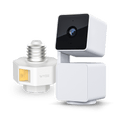
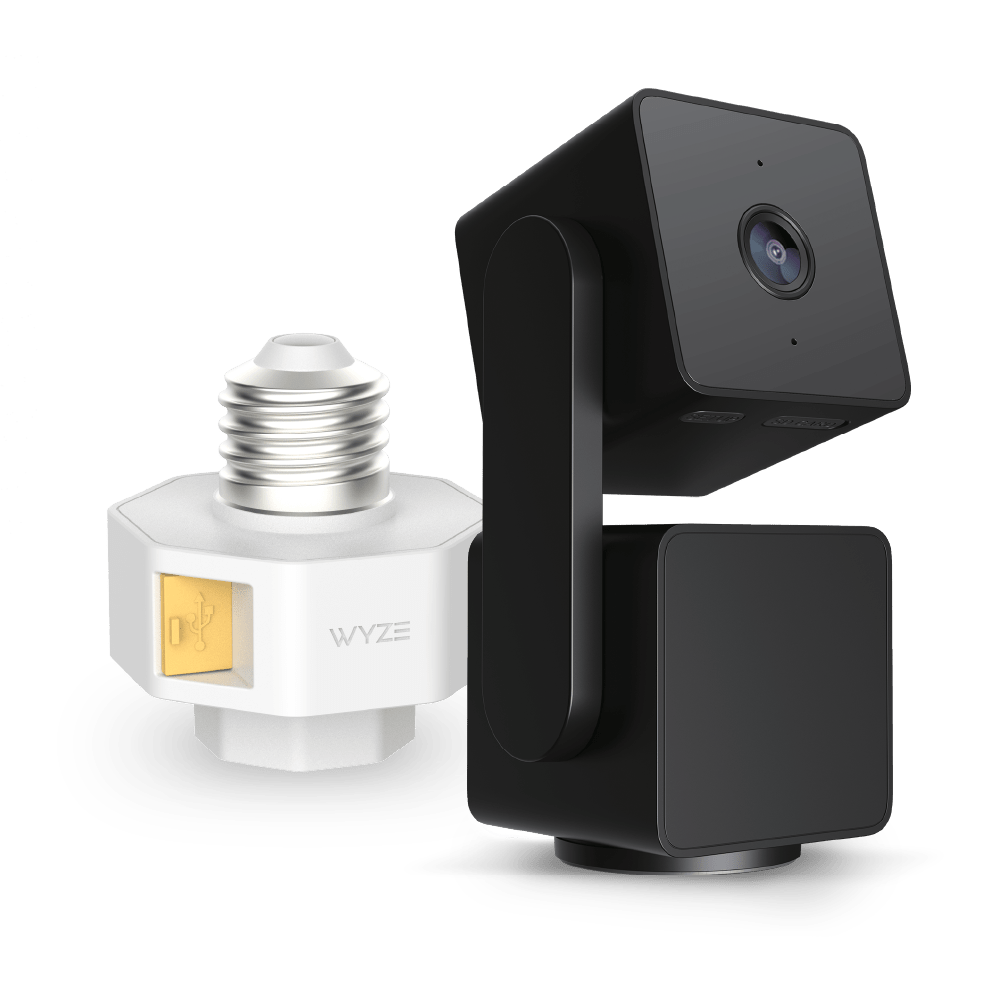
Pack Pan v3 + Douille de lampe v2

Pack Pan v3 + Douille de lampe v2

Rendez votre éclairage extérieur intelligent tout en alimentant un Pan v3.

$58.96 $61.96
En stock
Get it as soon as
Retours sans tracas sous 30 jours.
A blue and white logo for Wyze.
AVANTAGES exclusifs de Wyze.com
Garantie prolongée de 18 mois

Bénéficiez d'une garantie prolongée de 18 mois à l'achat de ce produit sur wyze.com. Profitez également de lots spéciaux, de promotions uniques et de récompenses à chaque commande

Optimisez votre éclairage extérieur grâce à ce duo performant. Avec notre nouvelle douille, vous pouvez désormais alimenter la Pan v3 sans avoir besoin d'une prise de courant.
Voir les détails complets
  • A black camera with a white lens.

    Alimentez facilement les caméras Wyze

    Aucun tressage de rallonge créatif requis. Compatible avec Cam v3/v3 Pro/Cam v4/OG/Pan v3/Pan v4.

  • A black screen with no visible content.

    Lumières à détection de mouvement

    Transforme les ampoules standard en éclairages de sécurité à détection de mouvement.

  • A black background with no visible text or objects.

    Liaison sans limites

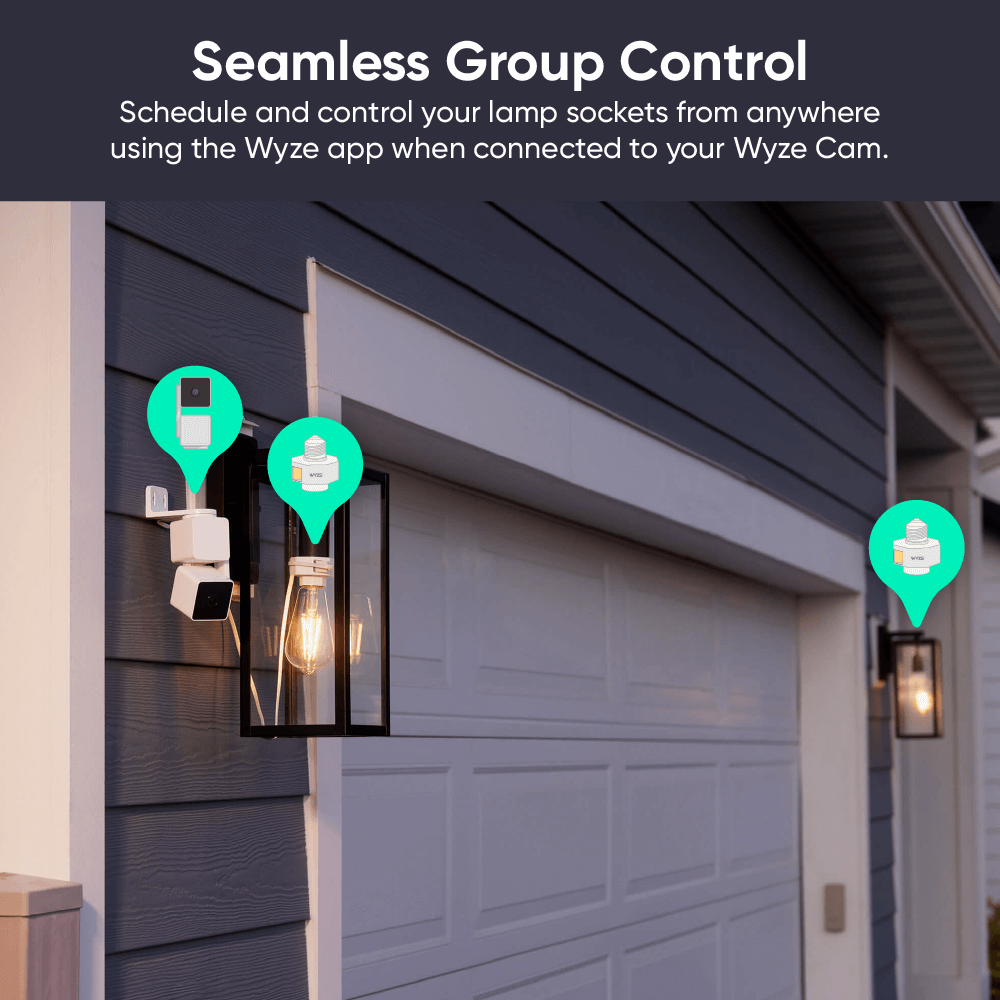
    Attribuez un nombre illimité de douilles à votre éclairage automatisé et contrôlé par groupe via votre caméra Wyze Cam.

  • A black screen with no visible content.

    Programmation du crépuscule à l'aube

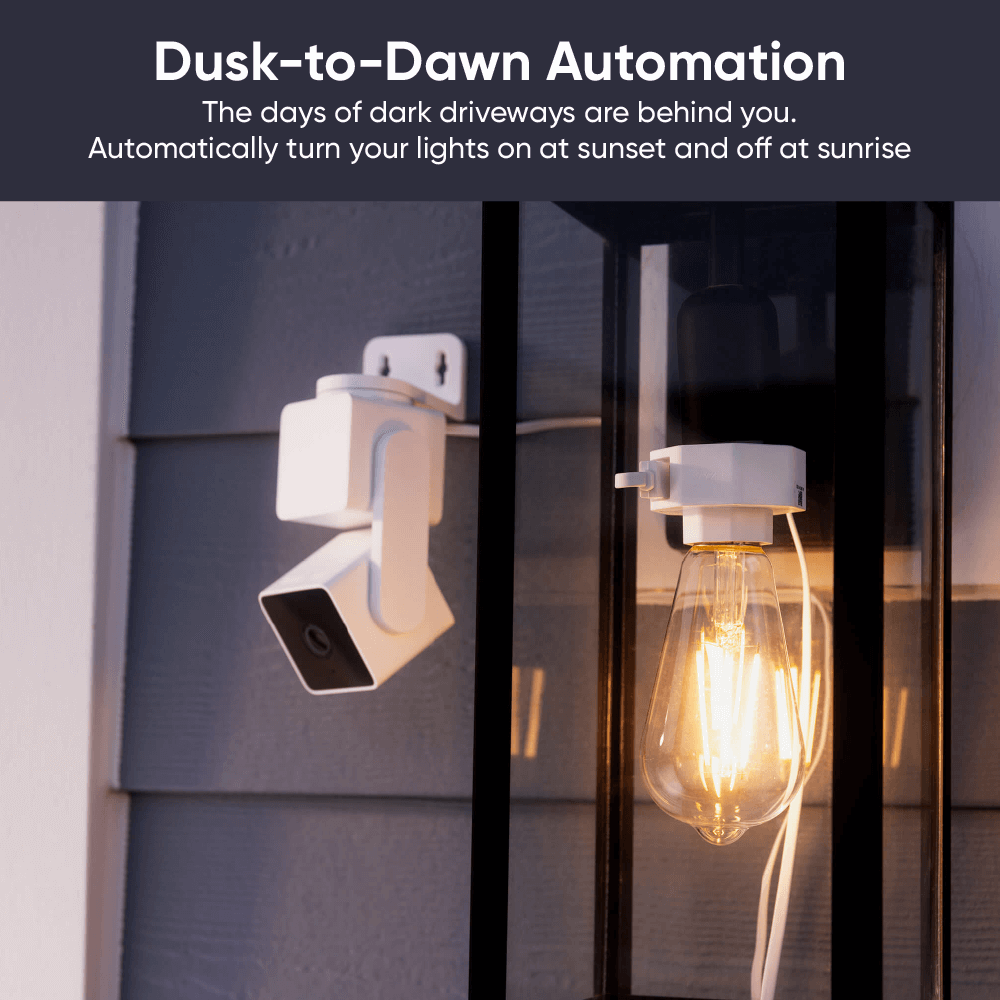
    Allumez automatiquement vos lumières au coucher du soleil et éteignez-les au lever du soleil.

Caractéristiques de la douille de lampe Wyze v2

  • Couleur : Blanc
  • Matériaux : Polycarbonate, plastique
  • Dimensions : 56,5 mm x 56,5 mm x 65 mm
  • Poids : 80 g
  • Type de connecteur : E26
Pouvoir
  • Entrée/sortie de la douille de lampe : 120 V~, 60 Hz
  • Puissance maximale de la lampe : 20 W
Compatibilité
  • Téléphone : Android 7.0+, iOS 12.0+
  • Caméra : Wyze Cam v3/v3 Pro/v4, Cam OG et Cam Pan v3.
Connectivité
  • Wi-Fi 802.11 b/g/n, 2,4 GHz, Bluetooth
Température de fonctionnement
  • -4°F ~ 120°F (-20°C, ~ 50°C)
Résistance aux intempéries
  • Non résistant aux intempéries ni à l'eau. Convient aux endroits humides.
Certifications
  • FCC, IC UL496, CA65, TSCA, RoHS
Langues
  • Anglais
Garantie
  • 1 an
Wyze Cam Pan v3
Remarque : En raison de limitations thermiques, les ampoules à incandescence ne peuvent pas être utilisées avec cette douille. Nous recommandons l’utilisation d’une ampoule fluocompacte ou LED de moins de 20 W, comme l’ampoule Wyze blanche.
Pan v3 + Douille de lampe v2

Pan v3

  • 1x Wyze Cam Pan v3
  • 1 câble micro USB de 1,8 m
  • 1 adaptateur secteur
  • 1x Kit de montage (Veuillez noter:La conception de notre support de fixation a été modifiée. Les clients peuvent recevoir l'un ou l'autre modèle, indépendamment de celui figurant sur l'emballage. Cela n'affectera toutefois pas la fonctionnalité.Pour en savoir plus, cliquez ici..)
  • 1x Guide de démarrage rapide

Douille de lampe v3

  • 1x Douille de lampe v2
  • 1 autocollant
  • 1x Guide de démarrage rapide

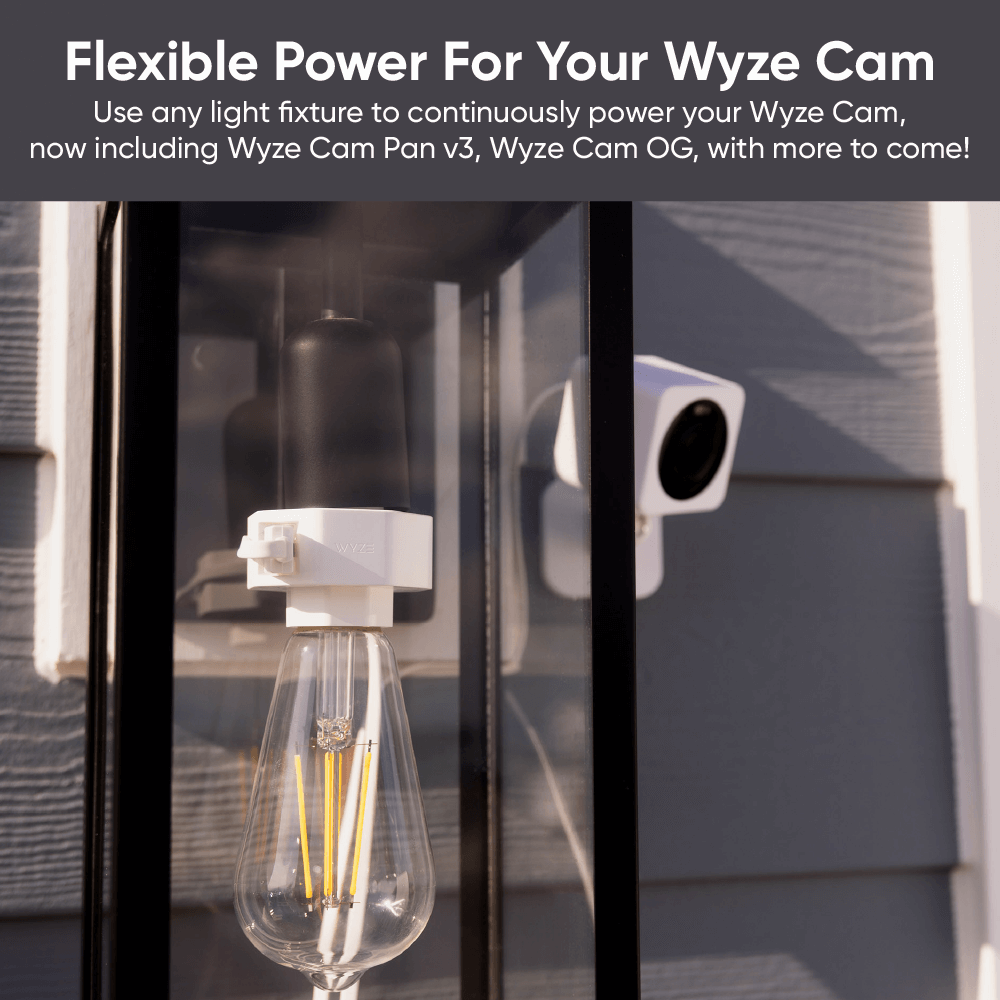
Alimentation flexible pour vos caméras Wyze, maintenant incluant Pan v4.

Évitez les branchements et les risques d'électrocution (à moins que cela ne vous intéresse). Utilisez l'électricité de votre luminaire extérieur pour alimenter en continu votre Wyze Cam v3/v3 Pro/v4, Wyze Cam OG, Wyze Cam Pan v3 ou Wyze Cam Pan v4. Fini les câbles disgracieux et les tracas.

A white light bulb with a camera attached to it.
A person holding a light bulb in their hand.

Passez à un éclairage intelligent en quelques secondes.

La douille Wyze Lamp Socket v2 et les caméras Wyze compatibles fonctionnent ensemble pour rendre votre éclairage extérieur intelligent. La douille alimente la caméra et la caméra assure le contrôle de la douille ! Gérez vos lumières où que vous soyez grâce à l’application Wyze.

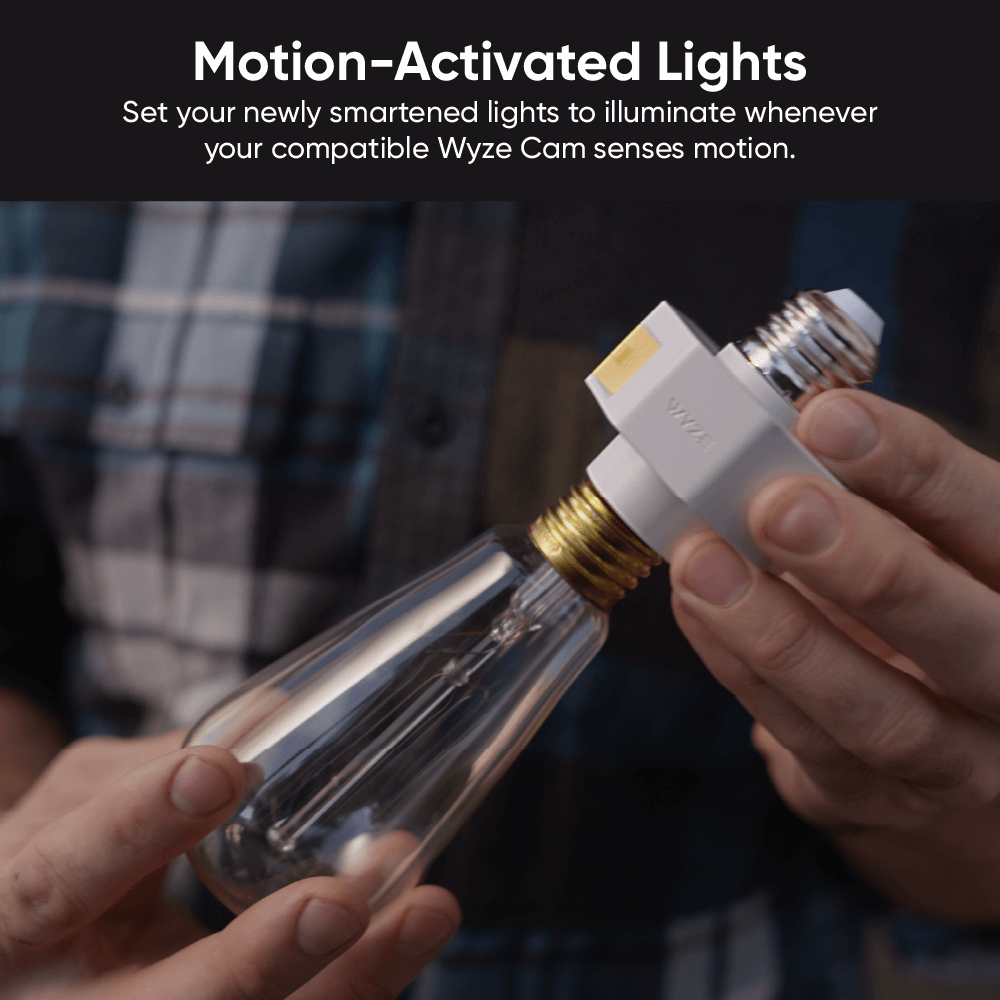
Illuminez votre chemin vers Lumières activées par le mouvement.

Configurez vos ampoules connectées pour qu'elles s'allument dès que votre caméra Wyze Cam compatible détecte un mouvement. Votre ancien luminaire se transforme ainsi en un modèle de sécurité élégant et moderne !

A smart home security camera and light bulb in a fixture on a wall.

Reliez facilement plusieurs prises pour une couverture et un contrôle accrus.

Attribuez un nombre illimité de douilles à votre éclairage automatisé et contrôlé par groupe grâce à votre caméra Wyze. Programmez et contrôlez ensuite votre installation intelligente où que vous soyez grâce à l'application Wyze.

A Wyze Lamp Socket v2 is hanging on the side of a garage.

Automatisation du crépuscule à l'aube.

Vous êtes le voisin qui laisse la lumière du porche allumée pendant ses vacances ? Eh bien, il va falloir trouver d’autres choses à oublier. Vos tongs, par exemple ?

A tiny light bulb in a black and white frame.

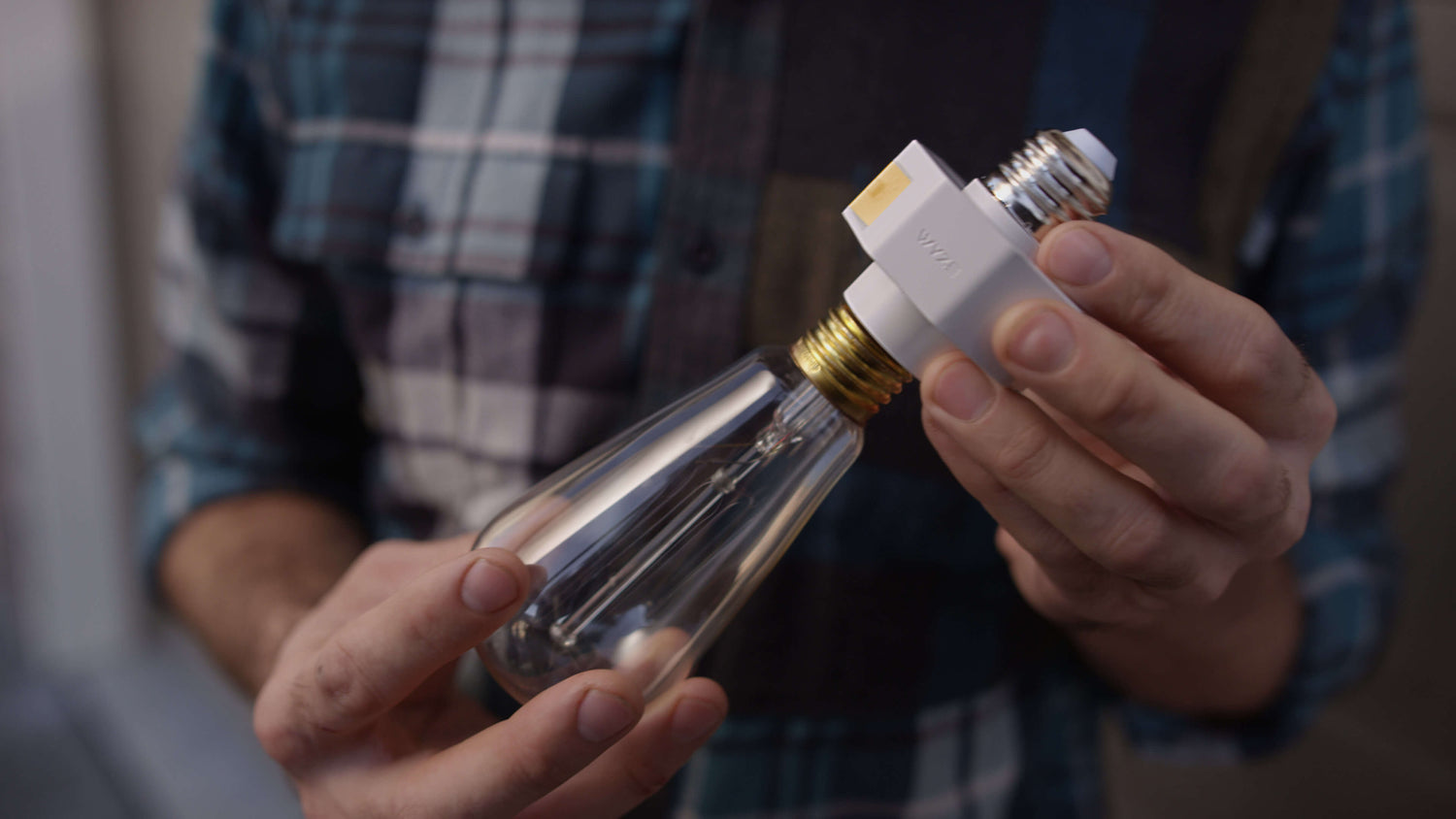
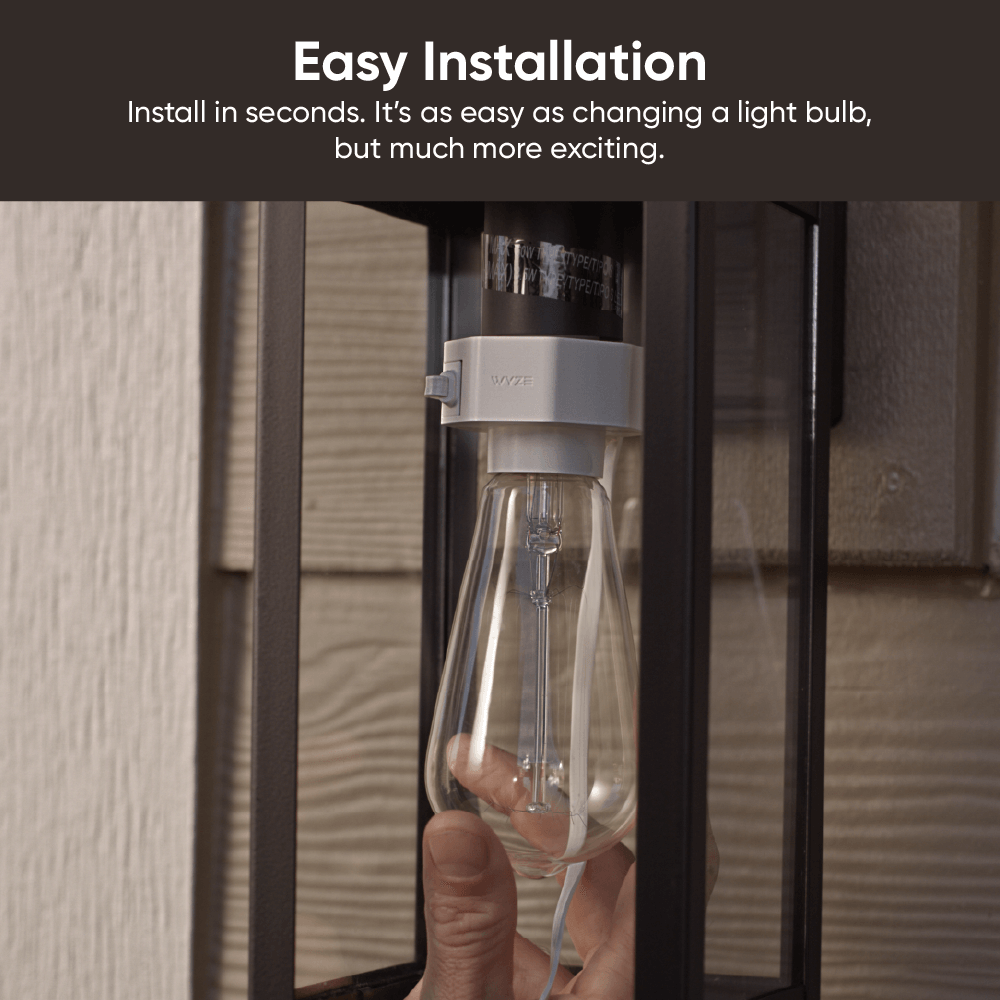
Aussi simple que de visser une ampoule.

Certaines installations sont aussi simples que de visser une ampoule. D'autres sont littéralement identiques. La douille Wyze Lamp Socket v2 appartient à cette dernière catégorie.

Cette vidéo concerne notre douille de lampe v1, mais le processus d'installation reste tout aussi simple.

Remarque : En raison de limitations thermiques, les ampoules à incandescence ne peuvent pas être utilisées avec cette douille. Nous recommandons l’utilisation d’une ampoule fluocompacte ou LED de moins de 20 W, comme l’ampoule Wyze blanche .

Support Articles

Before you begin setup:

  1. Download the Wyze app on your smartphone or tablet.
  2. Connect your device to a 2.4 GHz Wi-Fi network and enable Bluetooth.
  3. Unpack your Wyze Lamp Socket v2, removing all plastic and packing materials.
  4. Plug the camera into power using the included USB cable and power adapter.The camera’s status light will turn solid red when powered. When flashing, it’s ready for setup.
  5. Wyze Lamp Socket v2 does not link with Wyze Lamp Socket v1. See Additional Notes.

To set up Wyze Lamp Socket v2 + power existing Wyze Cam

You have a compatible Wyze Cam already set up. Follow these steps to power your camera via the lamp socket, then set up and pair the lamp socket.

  1. In the Wyze app, tap Home, then tap the plus sign + on the top right.
  2. On the Add menu, tap Device.
  3. Tap Cameras > Others > Wyze Cam Lamp Socket v2.
  4. Tap Next.
  5. Shut off power to the lamp socket at your light switch or circuit breaker, then tap Next in the app.If you're not sure how to do this, tap Show me how.
  6. Unscrew your bulb from the socket, then tap Next.
  7. If already plugged into power, unplug your camera from its current power source. Tap Next.
  8. Plug the USB end from your Wyze Cam into the USB port on your Wyze Lamp Socket. Tap Next.
  9. Install your lamp socket by screwing it in, then tap Next in the app.
  10. Tap Yes, Power a Wyze Cam.Wyze Lamp Socket v2 works with Wyze Cam v3, v3 Pro, v4, OG, Wyze Duo Cam Pan, and Wyze Cam Pan v3/v4.
  11. Tap Yes, the Camera is Set Up.
  12. Success! Your lamps socket and camera have been installed.
  13. If you want to install another lamp socket, tap Yes, Install Another.Repeat the steps to install another Wyze Lamp Socket v2.
  14. If you're done, tap No, Finish Installation.
  15. Turn power to the lamp socket on at the switch or circuit breaker. Tap Next.
  16. Now it's time to pair your lamp socket to its Wyze Cam vie Bluetooth. Tap Next.
  17. Select your compatible Wyze Cam from the list, then tap Next.
  18. Your lamp socket is now connected to your Wyze Cam. Tap No, Finish.

To set up Wyze Lamp Socket v2 to an existing Wyze Cam

You have a compatible Wyze Cam already set up. Follow these steps to set up and pair the lamp socket, without powering a Wyze Cam.

  1. In the Wyze app, tap Home, then tap the plus sign + on the top right.
  2. On the Add menu, tap Device.
  3. Tap Others > Wyze Cam Lamp Socket.
  4. Tap Next.
  5. Shut off power to the lamp socket at your light switch or circuit breaker, then tap Next in the app.If you're not sure how to do this, tap Show me how.
  6. Unscrew your bulb from the socket, then tap Next.
  7. Install your lamp socket by screwing it in, then tap Next in the app.
  8. Tap No, Skip and Continue.Wyze Lamp Socket v2 works with Wyze Cam v3, v3 Pro, v4, OG, Wyze Duo Cam Pan and Wyze Cam Pan v3/v4.
  9. Tap Yes, the Camera is Set Up.
  10. Success! Your lamps socket and camera have been installed.
  11. If you want to install another lamp socket, tap Yes, Install Another.Repeat the steps to install another Wyze Lamp Socket v2.
  12. If you're done, tap No, Finish Installation.
  13. Turn power to the lamp socket on at the switch or circuit breaker. Tap Next.
  14. Now it's time to pair your lamp socket to its Wyze Cam vie Bluetooth. Tap Next.
  15. Select your compatible Wyze Cam from the list, then tap Next.
  16. Your lamp socket is now paired to your Wyze Cam. Tap No, Finish.
Additional Notes:
  • Wyze Lamp Socket v2 is only compatible with Wyze Cam v3, Wyze Cam v3 Pro, Wyze Cam v4, Wyze Cam OG, Wyze Duo Cam Pan, and Wyze Cam Pan v3/v4.
  • Wyze Lamp Socket v2 can technically work with Wyze Lamp Socket v1, but only connected to the same the same compatible Wyze Cam v3 or Wyze Cam v4. They cannot be linked to each other, but they can both be paired to and controlled by the same Wyze Cam v3 or Wyze Cam v4.

Download the Quick Start Guide for Wyze Lamp Socket v2 in this article.

Below is the Quick Start Guide for Wyze Lamp Socket v2, a short manual for how to get started.

This guide is a short user manual with the basics about Wyze Lamp Socket v2, including:

  • What's in the box for Wyze Lamp Socket with a Wyze Cam.
  • How to download the Wyze app.
  • A diagram of Wyze Cam v3 and Wyze Lamp Socket v2.
  • How to set up Wyze Lamp Socket with a Wyze Cam.
  • How to install Wyze Lamp Socket with a Wyze Cam.
  • How to read the status lights on the lamp socket.

Problem

You are unable to get Wyze Lamp Socket v2 to set up and/or connect to Wi-Fi.

Troubleshooting

  1. Confirm that the Wyze app is up to date.In your Wyze app, navigate to the Account tab > tap About.Your current app version will be listed beneath the Wyze logo.Compare your app version to the latest app version listed on our Release Notes & Firmware page.If you find that your Wyze app is out of date, head over to your mobile device’s app store and update the Wyze app.
  2. Check that the firmware for the attached Wyze Cam is up to date.You can check this by going to the Account tab > Firmware Update.If there is an update available for the camera, please move forward with updating it.
  3. Ensure that BluetoothⓇ is enabled for the Wyze app in your phone/tablet settings.Toggle BluetoothⓇ off/on.
  4. Verify that Location Permissions are enabled for the Wyze app in your phone/tablet settings.Make sure that it is set to Always or While Using the App.For iOS users, make sure that Precise Location is turned on.
  5. Check the status light on the lamp socket to make sure that it is flashing red before beginning the setup process.If there is no status light, refer to My Wyze Lamp Socket v2 is not turning on.If the status light is something other than flashing red, factory reset Wyze Lamp Socket v2 and begin again.
  6. Make sure that you have properly completed the steps listed in our Wyze Lamp Socket v2 Setup Guide.
  7. Verify that you’re trying to connect the attached camera to a 2.4 GHz Wi-Fi network.Wyze Lamp Socket v2 is not compatible with 5 GHz Wi-Fi networks.
  8. Check that you have at least one compatible Wyze Cam that is set up and functional under your Wyze account.Wyze Lamp Socket v2 cannot be paired with shared devices.
  9. If stuck at the “adding device” page: Manually change the phone/tablet’s time zone to a US city time zone. Note: Be sure the city is in the same time zone as you are! Continue with the setup process, then change the time zone back to the correct one.
  10. Try moving the device to a different socket, closer to the Wi-Fi router.
  11. Reboot the Wi-Fi router.
  12. Power cycle Wyze Lamp Socket v2.Manually turn off the socket via the light switch for 10 seconds, then turn it back on.Note: This will power cycle both Wyze Lamp Socket v2 and any attached Wyze Cam.
  13. Factory reset Wyze Lamp Socket v2.Turn the light switch associated with the lamp socket off and on quickly 3 times.Wait for the status to start flashing red, then set up Wyze Lamp Socket v2 as new.
Added to your cart
Livraison GRATUITE pour les commandes de 59 $ et plus
Subtotal
$0.00
View cart