Ir directamente a la información del producto
1 de 7

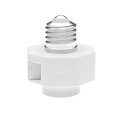
Portalámparas Wyze

Portalámparas Wyze

Alimentación para exteriores para cámara v3/v4

Top Accessory
Commonly Bundled Item
Estilo
$14.98
En existencias
Get it as soon as
Devoluciones sin problemas de 30 días.

Motion-Activated Lights

Linkability Without Limits

Assign all lamp sockets to group controlled lighting

Dusk to Dawn

Scheduling

Conveniently Power

Wyze Cams

A blue and white logo for Wyze.
VENTAJAS Exclusivas de Wyze.com
Garantía extendida de 18 meses

Obtenga una garantía extendida de 18 meses al comprar este producto en wyze.com. También obtenga paquetes especiales, promociones únicas y recompensas con cada pedido

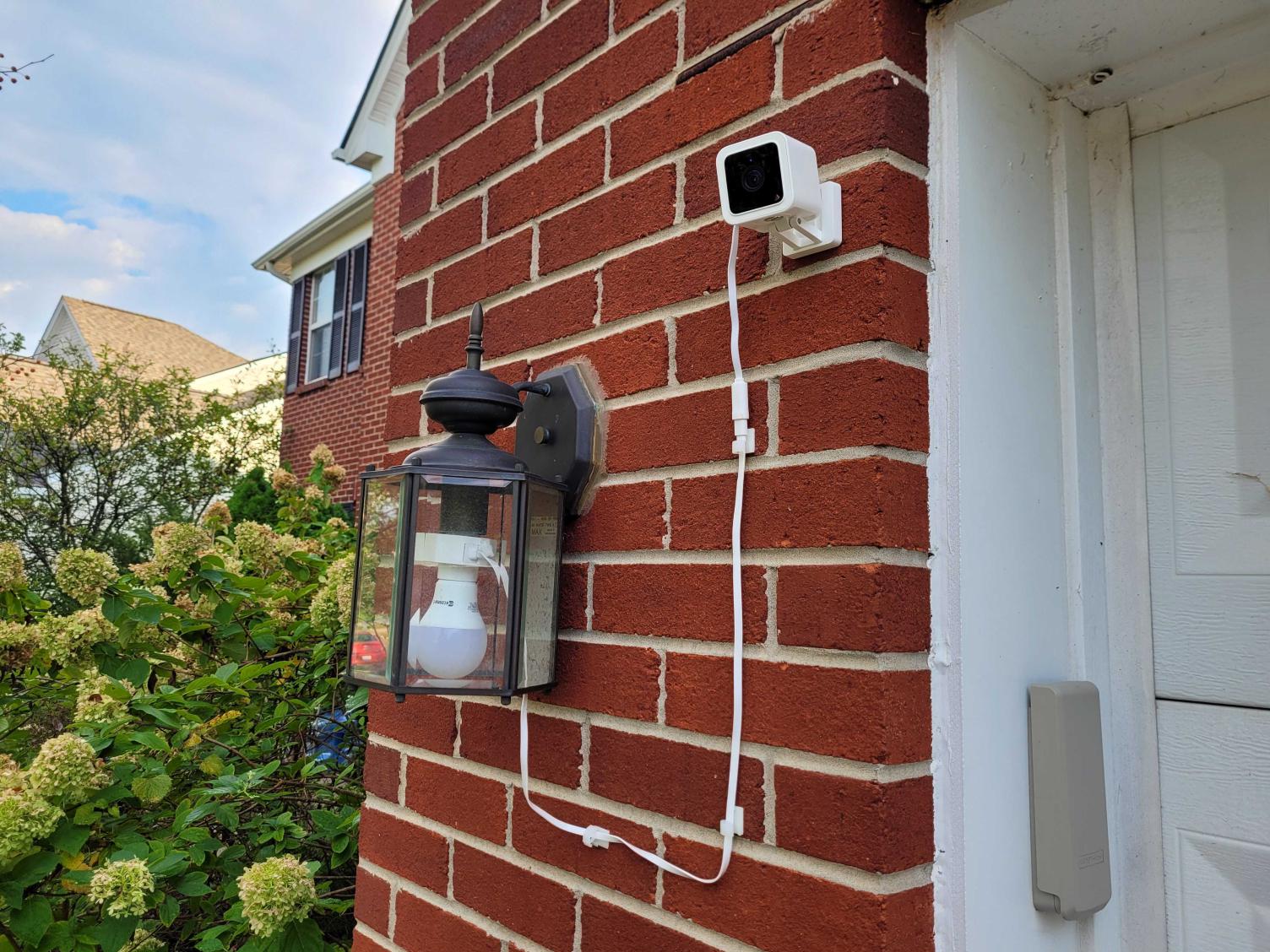
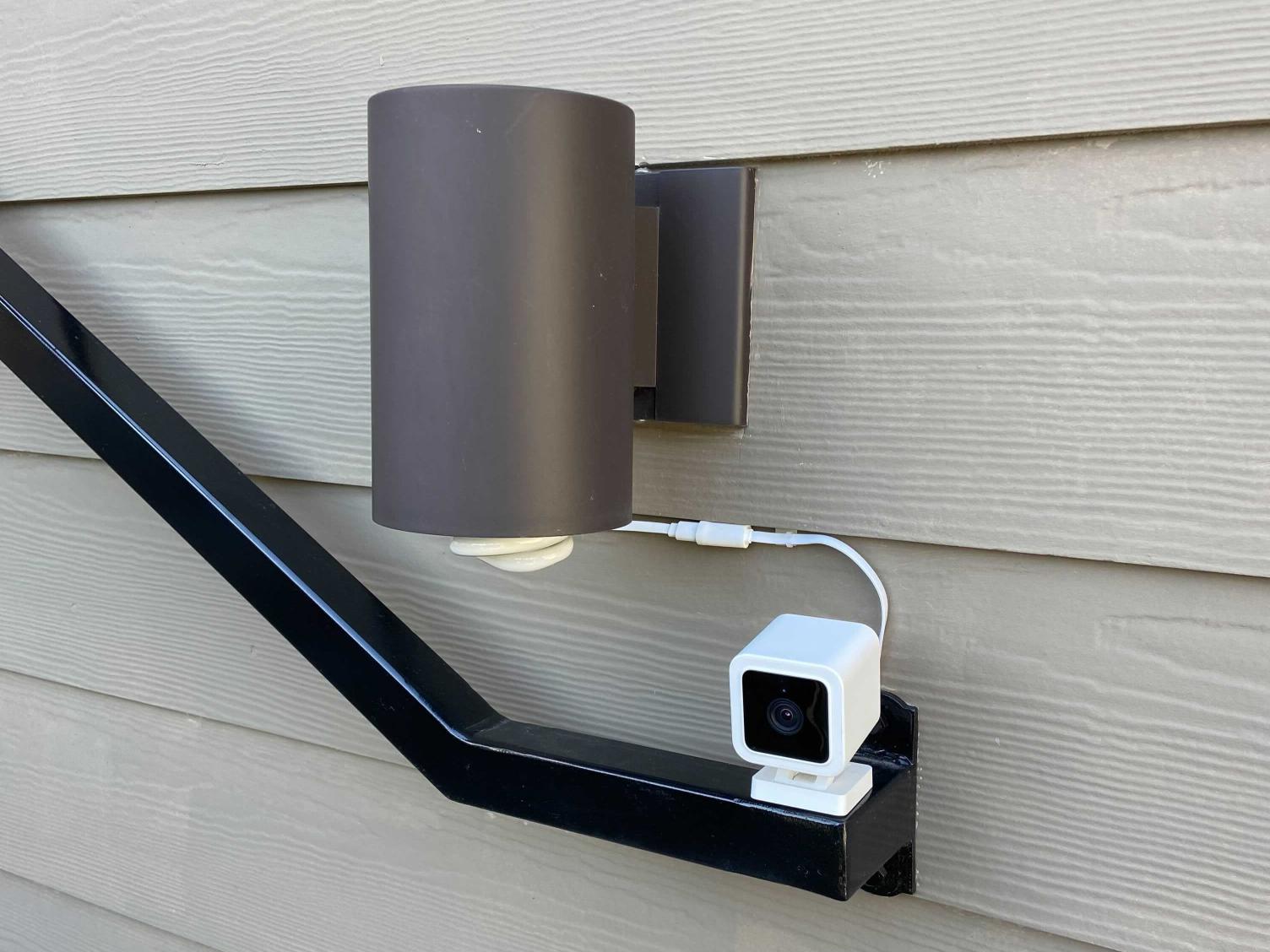
Haz que tu iluminación exterior sea inteligente. Alimenta las Wyze Cam v3 y v4 sin necesidad de enchufes.

El modelo original del portalámparas Wyze.

Ver todos los detalles
  • A purple and black square with the word "On" written in it.

    Alimenta cómodamente la Wyze Cam v3/v4

    No es necesario tejer cables de extensión de forma creativa.

  • A person running with a purple background.

    Luces activadas por movimiento

    Convierte bombillas estándar en luces de seguridad activadas por movimiento.

  • A purple light bulb with a purple circle around it.

    Vinculabilidad

    Conecte de forma inalámbrica hasta 5 portalámparas.

  • A purple sun icon with a frowning face.

    Programación del anochecer al amanecer

    Enciende automáticamente tus luces al atardecer y apágalas al amanecer.

Detalles del dispositivo de casquillo de lámpara Wyze

  • Color: Blanco
  • Materiales: policarbonato, plástico
  • Dimensiones: 56,5 mm x 56,5 mm x 65 mm
  • Peso: 80 g
  • Tipo de conector de enchufe: E26
Fuerza
  • Portalámparas Entrada/Salida 120 V, 60 Hz
  • Potencia máxima de la lámpara: 30 W
  • Cable USB de 75 cm/30 pulgadas
  • Puertos USB: 1 tipo A, salida USB: 5 W/5 V, 1 A, USB 1.1
Compatibilidad
  • Teléfono: Android 7.0+, iOS 12.0+
  • Cámara: Wyze Cam v3/v4
Conectividad
  • 802.11 b/g/n, 2,4 GHz, Bluetooth
Temperatura de funcionamiento
  • -4 °F ~ 120 °F (-20 °C, ~ 50 °C)
Resistencia a la intemperie
  • No es impermeable ni resistente a la intemperie. Apto para lugares húmedos.
Certificaciones
  • ETL, CETL, UL

Detalles del dispositivo Wyze Cam v3

  • Color: Blanco, con detalles en negro.
  • Materiales: Policarbonato
  • Lente: Vidrio + Plástico
  • Dimensiones de la cámara: 52 mm (largo) x 51 mm (ancho) x 58,5 mm (profundidad)
  • Peso de la cámara: 98,8 g
Compatibilidad del teléfono
  • Android 7.0+ y iOS 12.0+
Mostrar
  • Resolución: FHD 1920x1080p
  • Ángulo de visión: 130º diagonal
Visión nocturna
  • Luces infrarrojas 4x940 nm, 4x850 nm
  • Visión diurna/nocturna
Audio
  • Micrófono: ECM
  • Altavoz: 80 db, resistente al agua
  • Conversación bidireccional simultánea
  • Sirena
Métodos de alimentación
  • Adaptador de corriente: Interior 5v/1A
  • Portalámparas Wyze (se vende por separado)
  • Adaptador de corriente para exteriores (se vende por separado)
  • Cable: Cable USB plano de 6 pies

Sensor
  • Sensor de luz estelar CMOS
Indicador LED
  • Delantero. Rojo + Azul.
Conectividad
  • Wi-Fi de 2,4 GHz
Almacenamiento
  • Almacenamiento local (se requiere tarjeta microSD)
  • Nube
Temperatura de funcionamiento
  • -5 °F - 113 °F (-20 °C - 45 °C)
Resistencia a la intemperie
  • Resistente a la intemperie IP65, interior/exterior
Certificaciones
  • Certificación FCC, IC, UL e IP65
Idiomas
  • Inglés
Garantía
  • 1 año

Portalámparas (solamente)
  • Portalámparas Wyze x1
  • Cable USB x1
  • Clips para cables USB x6
  • Anclajes de pared x6
  • Tornillos x6
  • Guía de inicio rápido x1

Paquete de portalámparas + Wyze Cam v3
  • Portalámparas Wyze x1
  • Cámara Wyze v3 x1
  • Cable USB x1
  • Clips para cables USB x6
  • Clips para cables x6
  • Anclajes de pared x6
  • Tornillos para cámara x2
  • Anclajes de pared para cámara x2
  • Placa de pared para cámara x1
  • Cinta de montaje para cámara x1
  • Guía de inicio rápido x1

Users can leave the power switch on all the time, but the light doesn’t need to stay on all the time, to save power. The light will be turned on when a motion or person is detected.

Turn them all on (up to 5) within 30 seconds and they will find themselves, link, and form a group. Once they form a group, you can control each lamp socket in the group at the same time.

Only 1 (one) Wyze Cam v3 or Cam v4 per lamp socket.

Yes absolutely. All sockets are connected wirelessly and can be turned on/off simultaneously. We currently support up to 5 lamp sockets linked in one group.

No, each Wyze Lamp Socket comes with a dedicated cable to connect to a v3/v4. Do not use any other Wyze Cam v3/v4 cable.

No, it is not weatherproof or IP-rated. It is UL rated for Damp Locations, and must be protected from direct rain and water.

We use the advanced motion detection from Wyze Cam v3 or v4 to detect motion and turn on your light.

Alimentación flexible para tu Wyze Cam v3/v4

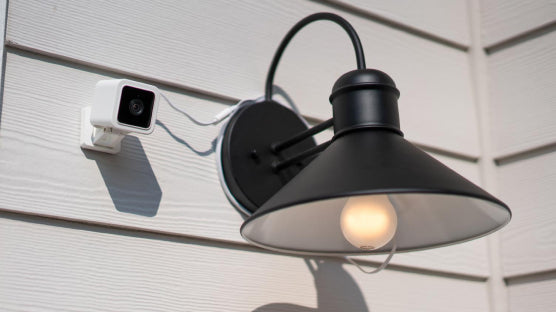
Olvídate del cableado y la electrocución (a menos que te gusten ese tipo de cosas). Aprovecha la electricidad de tu lámpara exterior para alimentar continuamente tu Wyze Cam v3/v4. Se acabaron las combinaciones creativas de cables. Se acabaron los cables largos y feos. Se acabaron las complicaciones.

A black lamp with a white bulb.
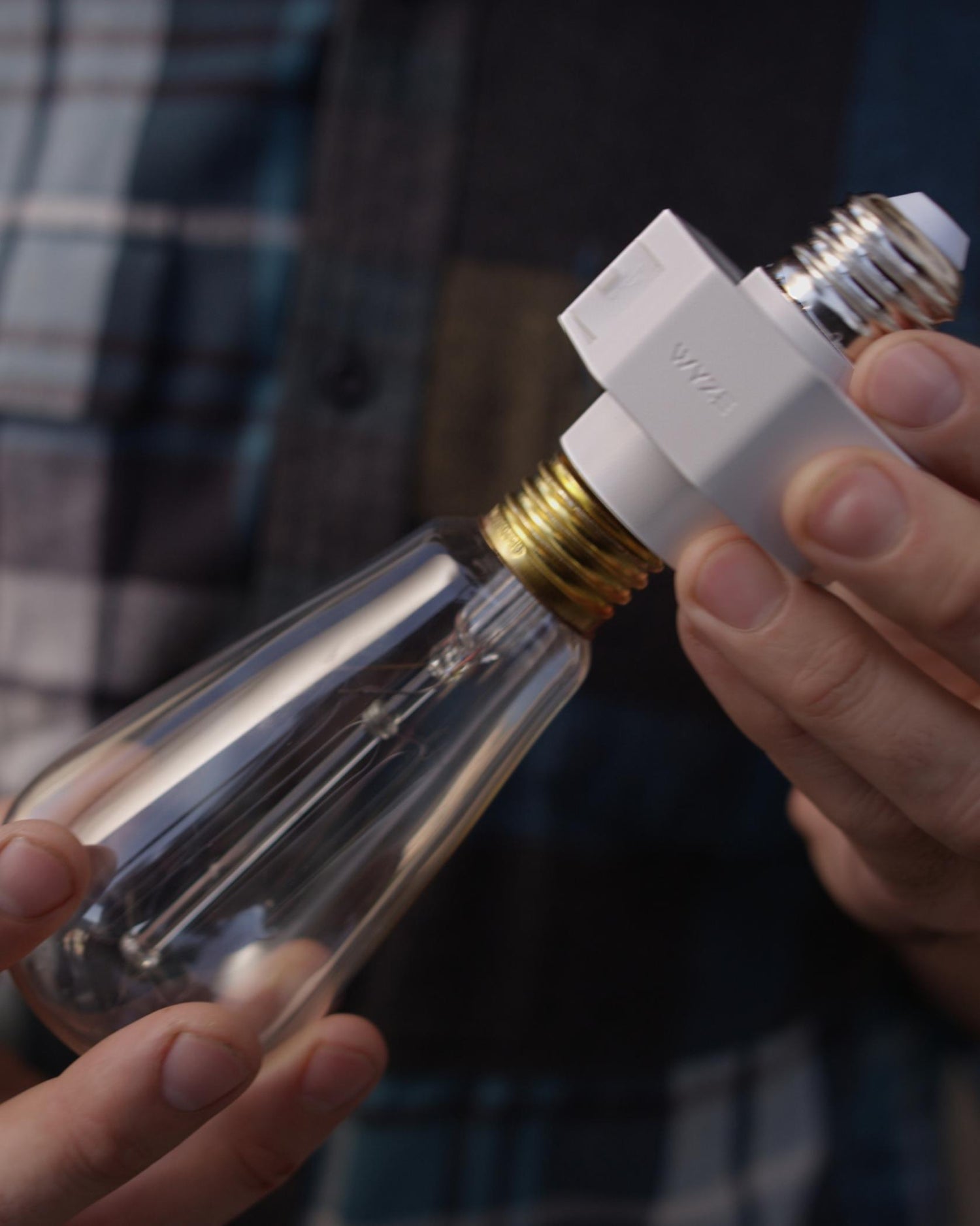
A person holding a Wyze Lamp Socket with an Edison bulb attached.

Actualice a la iluminación inteligente en segundos.

El portalámparas Wyze y la Wyze Cam v3 se combinan para hacer que tu iluminación exterior sea inteligente. ¡El portalámparas alimenta la cámara y la cámara le da inteligencia al portalámparas! ¡Una relación simbiótica perfecta, como la del hipopótamo y el picabueyes! ¡Cántala con nosotros! ¡Simbiótico! ¡Simbiótico!

Ilumina tu camino con luces activadas por movimiento.

Configura tus nuevas luces inteligentes para que se iluminen cuando Wyze Cam v3/v4 detecte movimiento o sonido. ¡Ahora tu antigua lámpara es un modelo de seguridad de vanguardia y sofisticación!

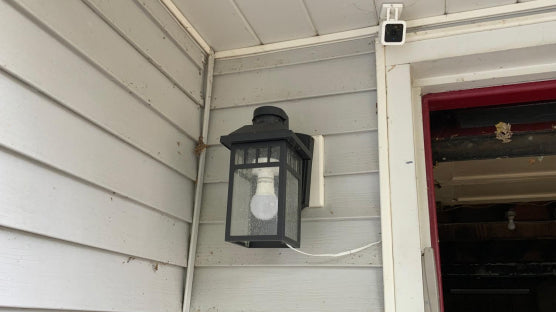
A light fixture with a white bulb.

Conecte fácilmente múltiples enchufes para lograr una mayor cobertura y control.

Conecta automáticamente hasta 5 portalámparas para una sincronización olímpica de tu iluminación exterior. Después, programa y controla tu nueva configuración inteligente desde cualquier lugar con la app Wyze.

A black garage door with a green box on it.

Automatización del anochecer al amanecer.

¿Eres de los vecinos que dejan las luces del porche encendidas durante las vacaciones? Pues ahora tendrás que buscar cosas nuevas que olvidar. ¿Quizás tus chanclas?

Inspírate

¡Vea cómo los usuarios de Wyze utilizan su portalámparas Wyze!

Tan fácil como enroscar una bombilla.

Algunas instalaciones son tan fáciles como enroscar una bombilla. Otras son prácticamente iguales. El portalámparas Wyze se encuentra en esta última categoría.

Support Articles

Before you begin setup:

  1. Download the Wyze app on your smartphone or tablet.
  2. Connect your device to a 2.4 GHz Wi-Fi network.
  3. Unpack your Wyze Lamp Socket Starter Kit or Expansion Kit, removing all plastic and packing materials.
  4. Plug the camera into power using the included USB cable and power adapter. The camera’s status light will turn solid red when powered. When flashing, it’s ready for setup.

To set up Wyze Lamp Socket + Wyze Cam v3/v4:

  1. In the Wyze app, tap Home, then tap the plus sign + on the top right.
  2. On the Add menu, tap Device.
  3. Tap Cameras > Wyze Cam Lamp Socket.
  4. Tap Set up lamp socket with Wyze Cam v3/v4.
  5. Go to where you'd like to install your camera and lamp socket.
  6. Check your Wi-Fi signal strength. Depending on your signal strength, tap Start Installation or Continue Setup.
  7. Shut off power to the lamp socket at your circuit breaker, then tap Next in the app.
    If you're not sure how to do this, tap Show me how.
  8. Unscrew your bulb from the socket, then tap Next.
  9. On the lamp socket, find and open the USB port.
  10. Plug the USB end into your Wyze Lamp Socket. Tap Next in the app.
  11. Screw your bulb into Wyze Lamp Socket into your lamp / light fixture. Tap Next.
  12. Plug your Wyze Cam into Wyze Lamp Socket. Tap Next. See the photo in the app for how to do this.
  13. If this is the only lamp socket you have to install, tap Only have one socket. If you have more (up to 4 more) sockets to install, tap Install more sockets.Follow the steps to install each socket.
  14. At your circuit breaker, turn on power to your socket. Tap Next. Your Wyze Cam's status light will begin flashing red if powered and connected properly.
  15. Your lamp socket is set up. Continue below to set up your camera.

To set up your Wyze Cam v3/v4:

  1. Pull the base from your camera and single-press SETUP under the camera. It will say “Ready to connect”
  2. In the app, check the box next to “I heard, “Ready to connect”."
  3. Tap Next.
  4. Select your 2.4 GHz Wi-Fi network and enter your network password. Tap Next. Tap the icon in the password field to display the password to ensure it was entered correctly.
  5. Scan the QR code on the Wyze app. Hold your camera up to your phone screen with the QR code displaying. It will say “QR code scanned please wait.” then “Setup completed.”
  6. In the app, check the box next to “I heard, “QR code scanned”."
  7. Tap Next. You’re set up, it’s time to name your device.
  8. Name your Wyze Cam using the text field, or by choosing a suggestion.
  9. Tap Finish when done.
  10. If you want to share your device, tap Share Device. If not, tap Maybe later.

Additional Note: Wyze Lamp Socket is only compatible with Wyze Cam v3 and Wyze Cam v4.

Download the Quick Start Guide for Wyze Lamp Socket in this article.

Below is the Quick Start Guide for Wyze Lamp Socket, a short manual for how to get started.

This guide is a short user manual with the basics about Wyze Lamp Socket, including:

  • What's in the box for Wyze Lamp Socket with a Wyze Cam v3.
  • How to download the Wyze app.
  • A diagram of Wyze Cam v3 and Wyze Lamp Socket.
  • How to set up Wyze Lamp Socket with a Wyze Cam v3.
  • How to install Wyze Lamp Socket with a Wyze Cam v3.
  • How to read the status lights.

To learn all about Automations, Shortcuts, Schedules and Device & Service Triggers, start with the article: Using Automations with the Wyze app.

How do Automations work with Wyze Bulb Color?

Automations help control your Wyze Lamp Socket, making it easier to turn it on/off with a single tap in the app, have it turn on/off at a scheduled time or when triggered by another device.

  • Shortcuts run actions with a tap in the Wyze app.
  • Schedules control devices based on the time of day.
  • Device & Service Triggers connect multiple Wyze devices so one can trigger another.
  • Location Triggers control devices based on your location.

An example Shortcut with the Wyze Lamp Socket

To create a shortcut to turn on your Wyze Lamp Socket with a single tap from the Home screen.

  1. In the Wyze app, tap Home, then tap the plus sign + on the top right.
  2. On the Add menu, tap Automation > Shortcut.
  3. Add a name for the shortcut in the text box under the star icon. Try "Turn off lamp socket."
  4. Tap Add Action. Tap on your Wyze Lamp Socket from the list.Tap Turn on, then Save.
  5. When finished, tap Save.

Your shortcut will display at the top of the Automations tab. To add it to the Favorites tab, tap the star icon on the shortcut.

An example Schedule with the Wyze Lamp Socket

To create a schedule to turn on your Wyze Lamp Socket every day at sunset.

  1. In the Wyze app, tap Home, then tap the plus sign + on the top right.
  2. On the Add menu, tap Automation > Schedule.
  3. Tap Name (Optional). Enter a name for the schedule. Try "Turn on outside lamp"Tap Save.
  4. Tap Add Action, then the Wyze Lamp Socket you want to create a schedule for.
  5. Select Turn on lamp socket, then Save.
  6. Tap Start Time. Tap Sunset. If prompted, tap Set Location and confirm your location. Tap Save. If you'd like, you can set the start time 0-59 minutes Before or After sunset. Tap Save.
  7. When you're all set, tap Save.

An example Device Trigger with Wyze Lamp Socket

To create a device trigger that turns on your Wyze Lamp Socket for 3 minutes when a Wyze Battery Cam Pro detects motion.

  1. In the Wyze app, tap Home, then tap the plus sign + on the top right.
  2. On the Add menu, tap Automation > Device & Service Trigger.
  3. Tap Name (Optional). Enter a name for the trigger. Try "Spotlight turns on the lamp."Tap Save.
  4. Tap Device & Service Trigger. Select your Wyze Battery Cam Pro.Tap Detects motion, then Save.
  5. Tap Add Action. Select your Wyze Lamp Socket.Tap Turn on lamp socket for, scroll to 3 min, then Save.
  6. When done, tap Save.

An example Location Trigger with Wyze Lamp Socket

To create a location trigger to turn on Wyze Lamp Socket when you arrive home.

  1. In the Wyze app, tap Home, then tap the plus sign + on the top right.
  2. On the Add menu, tap Automation > Location Trigger.
  3. Tap Name (Optional). Enter a name for the trigger. Try "Turn on when I arrive"Tap Save.
  4. Tap I arrive.
  5. Confirm the location displayed in the list.
  6. Tap Add Action. Select your Wyze Lamp Socket.Tap Turn on, then Save.
  7. Optionally, tap to add a Time that this trigger is active.
  8. When done, tap Save.
Added to your cart
Envío GRATIS en pedidos de $59+
Subtotal
$0.00
View cart