Ir directamente al contenido
View our Accessibility Statement
Ir directamente a la información del producto
1 de 12

Cámara Wyze Bulb

Cámara Wyze Bulb

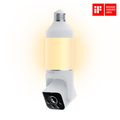
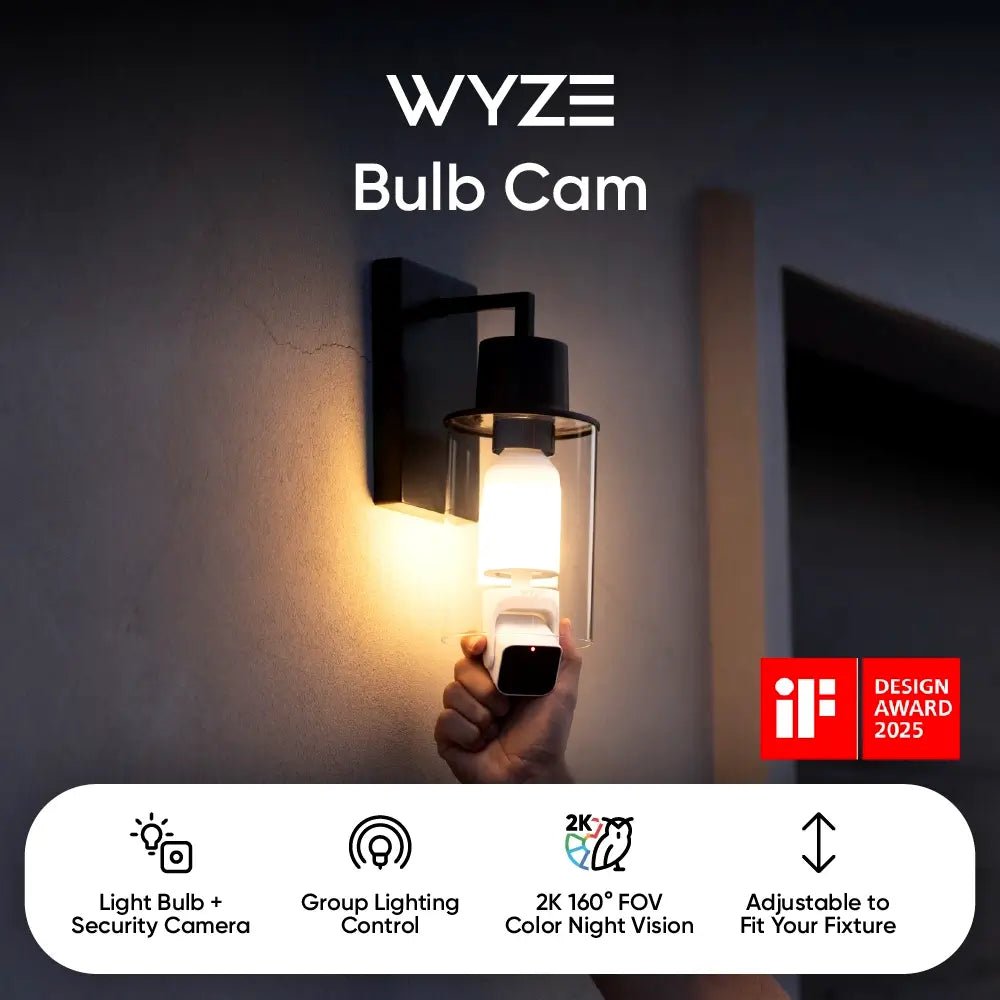
2K Camera Built into a Smart Bulb

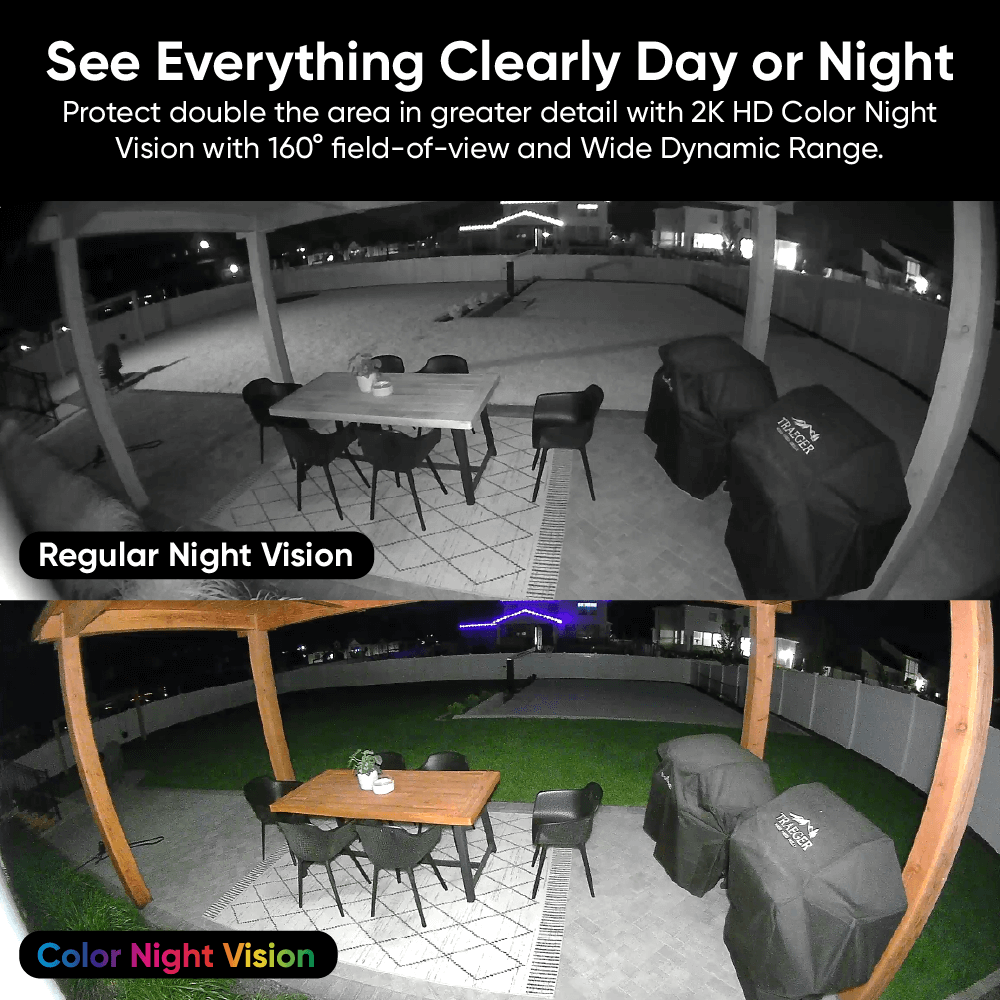
2K Color Night Vision

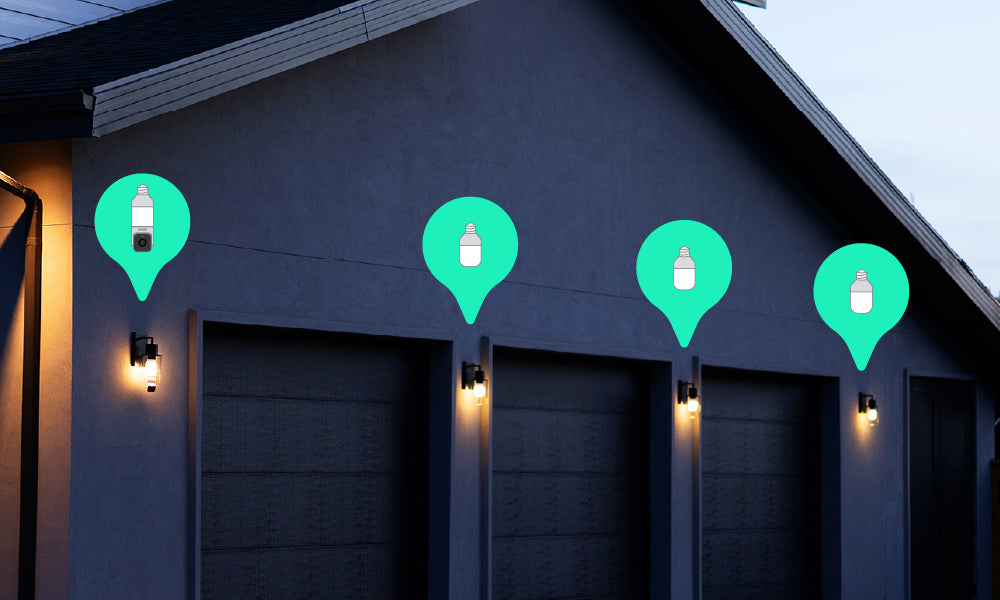
Group Lights Together

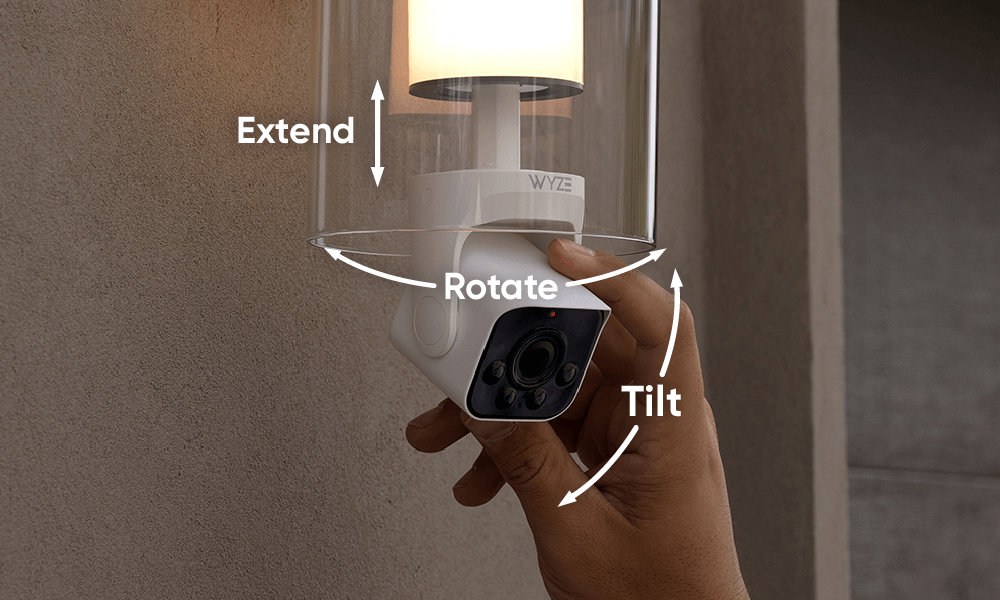
Manually extend, rotate and tilt

160 Degree View

Eliminate Blind Spots

Cantidad por paquete
Add ons
$49.98
Quantity: 1
1
2
3
4
5
6
7
En existencias
Get it as soon as
30-day hassle-free returns.
En existencias
A blue and white logo for Wyze.
VENTAJAS Exclusivas de Wyze.com
Garantía extendida de 18 meses

Obtenga una garantía extendida de 18 meses al comprar este producto en wyze.com. También obtenga paquetes especiales, promociones únicas y recompensas con cada pedido

Ver todos los detalles
  • A black image of a bulb with a camera.

    Una bombilla + cámara de seguridad

    Una solución de seguridad exterior todo en uno.

  • A colorful logo for a Wyze Bulb Cam.

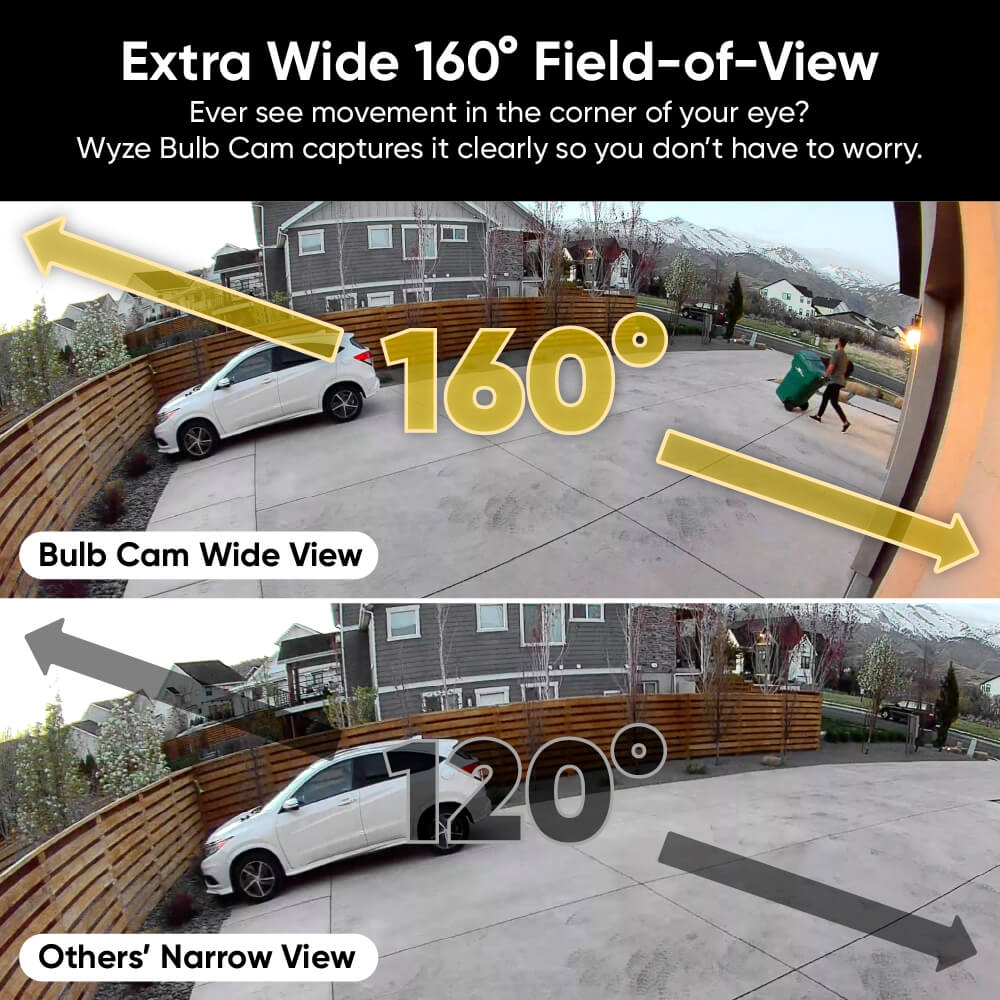
    Visión nocturna en color 2K con campo de visión de 160°

    Vea más de todo, de día o de noche, con un amplio campo de visión.

  • Wyze Bulb Cam Shopify 12

    Iluminación de grupo mejorada

    Empareja hasta 5 bombillas Wyze. Personaliza el brillo y los horarios.

  • Wyze Bulb Cam Shopify 13

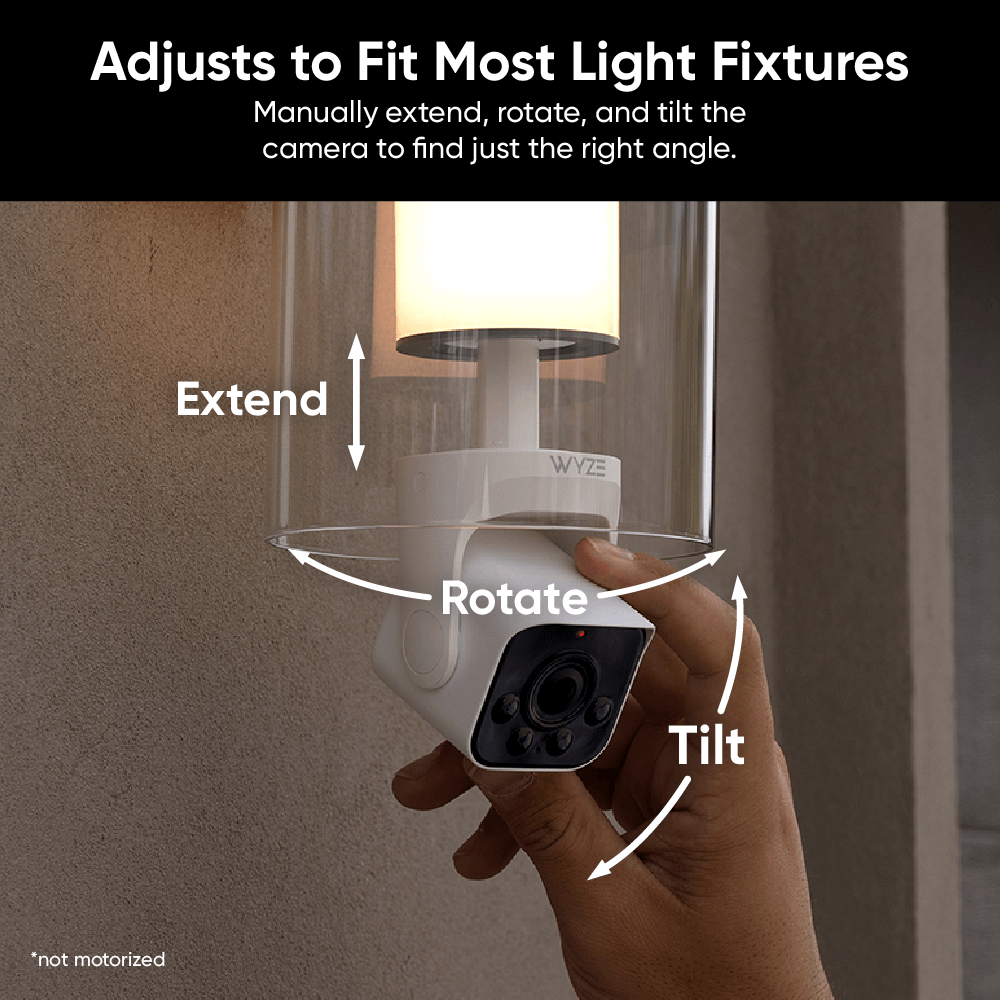
    Se ajusta para adaptarse a la mayoría de los artefactos de iluminación

    Extienda, gire e incline manualmente la cámara para encontrar el ángulo correcto.

Wyze Bulb Cam Tech Specs

Materials & Colors
  • Model: WYZECBC
  • Body: Plastic
  • Lens: Glass and Plastic
  • Bulb Base: Metal
  • Certifications: FCC, IC, UL, IP65
  • Telescoping Length: 1.18 in (3 cm)
Power
  • 120V AC Input 
  • Standard E26 Socket Only
  • 15 watts
Video
  • Resolution: 2K (2304 x 1296)
  • Field of View: 166° diagonal, 144° horizontal, 82.5° vertical
  • Frame Rate: Daytime: 20 FPS, Nighttime: 15 FPS
  • Functionality: Color Night Vision / IR Night Vision, Digital Zoom
Audio
  • Microphone: Built-in, digital
  • Siren: 95 dB at 4 in
  • 2-Way Audio
Lighting
  • Brightness: up to 800 lm
  • Color Temperature: 3000K 
  • Controls: Manual, Motion-Activated Light, Ambient Light, Schedule, Wyze Automations
  • IR Lights: 4x 850nm
Storage and Alerts
  • Alerts: Push notifications, Motion Warning
  • Cloud Storage: stored in the AWS cloud (Wyze Service subscription required)
  • Local Storage:
  • Supports 8 GB, 16 GB, and 32 GB microSD cards in FAT32 format
  • Supports up to 256 GB microSD cards in exFAT format

Connectivity and Compatibility
  • OS Requirements: Android 7.0+ or iOS 14.0+
  • Wi-Fi: IEEE 802.11 b/g/n 2.4 GHz, Wi-Fi 6
  • Bluetooth®: Bluetooth® Low Energy (BLE), Bluetooth® 4.2
  • Linking: Up to 5 Wyze Accessory Bulbs
Weather and Temperature
  • Weather Resistance: 
  • Camera portion: IP65
  • Bulb portion: UL Damp
  • Operating Temperature: -4°F - 122°F (-20°C - 50°C)
  • Storage Temperature: -40°F - 176°F (-40°C - 80°C)
Warranty
  • 1-year product warranty

Wyze Bulb Cam

  • 1x Wyze Bulb Cam
  • 1x “Do Not Turn OFF” Sticker
  • 1x Quick Start Guide

Yes, the camera part of the bulb camera is IP65 weatherproof and can be installed in outdoor sconces. However, most socket adapters are not waterproof. Please keep the socket connection from having direct contact with water.

Yes! Wyze Bulb Cam has a microSD card slot for local storage, and you can record 24/7 and store videos locally. It supports microSD cards up to 32GB in FAT32 and up to 256GB in exFAT format.

No, the camera position must be manually adjusted.

Yes, Wyze Bulb Cam and Wyze Accessory Bulb are dimmable via the Wyze app. The brightness can be set up to 800 lumens, and has an Ambient Light mode which provides constant, low-level ambient lighting until motion is detected and automatically switches to increased brightness.

No, Wyze Bulb Cam and Wyze Accessory Bulb’s color temperature are fixed at 3000K and cannot be changed.

No, it only supports 2.4 GHz networks.

Wyze Bulb Cam supports Wyze Automations with both bulb cameras and Wyze Bulbs. For the best experience and lowest latency though, we recommend pairing Wyze Accessory Bulbs to your Wyze Bulb Cam. 

It fits most sconces with an inner depth of less than 7.87 in (20 cm), from socket base to sconce edge. For larger sconces, we recommend using a Wyze Lamp Socket and Wyze Cam v4. 

We recommend installing Wyze Bulb Cam and Wyze Accessory Bulb directly into the socket and not the Wyze Lamp Socket accessory.

Support Articles

¿Es una cámara? ¿Es una bombilla? Sí.

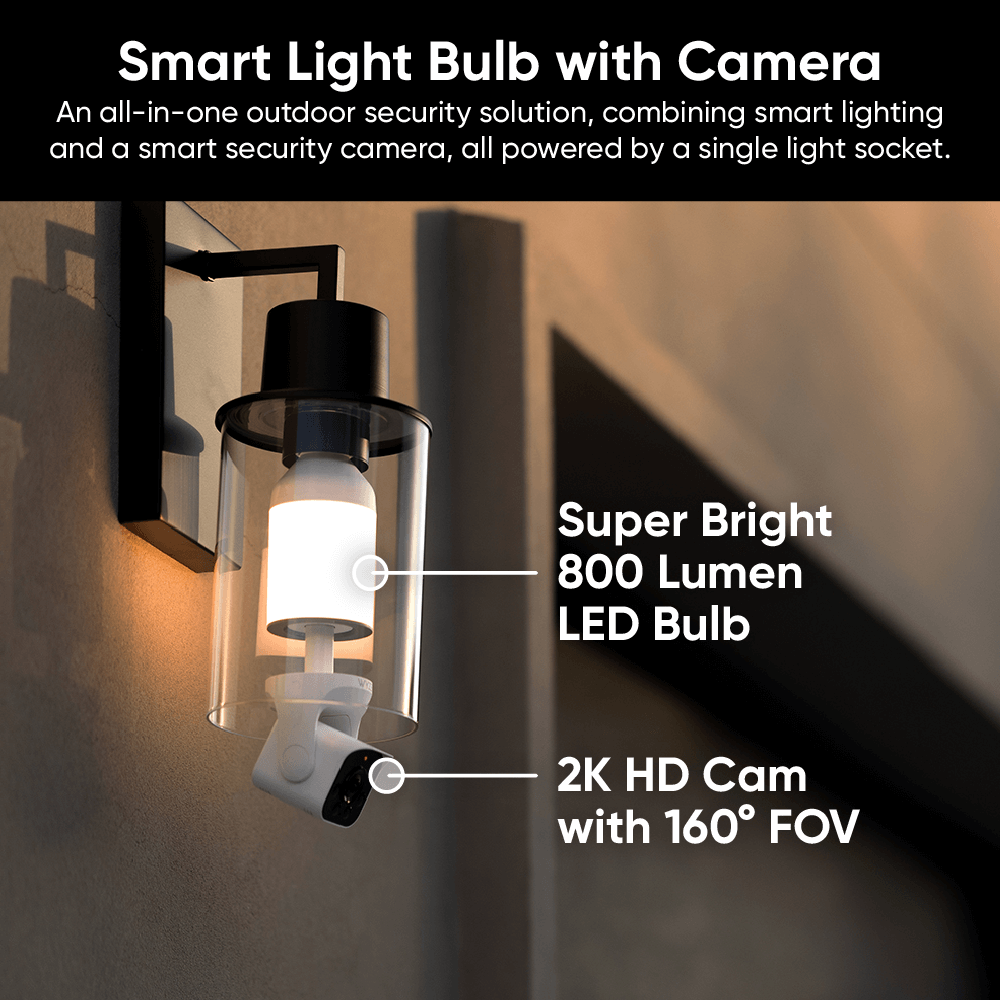
Es una... ¿cambulbera inteligente? Digamos que es una solución integral de seguridad para exteriores que se alimenta cómodamente con una lámpara.

La vista amplia de 160° permite ver más espacio

Un campo de visión súper amplio protege más espacio que una mamá bailarina guardando asientos para el recital de verano.

A person riding a skateboard in a driveway.
A hand adjusting the camera head of the Wyze Bulb Cam.

Se ajusta para adaptarse a la mayoría de los artefactos de iluminación

Extienda, mueva y incline manualmente la cámara para encontrar el ángulo correcto.

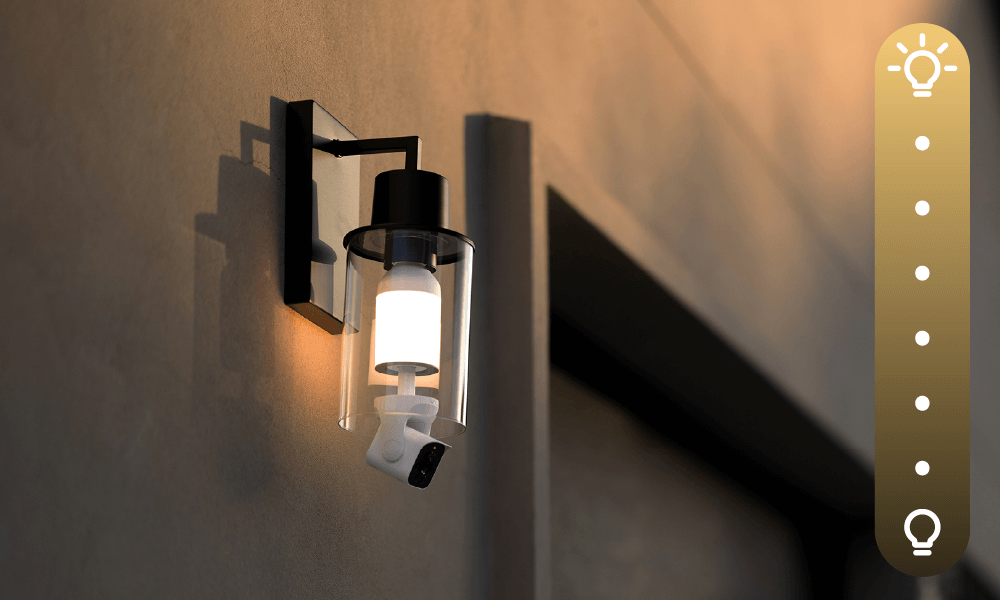
A Wyze Bulb Cam is mounted on a wall, providing security and illumination.

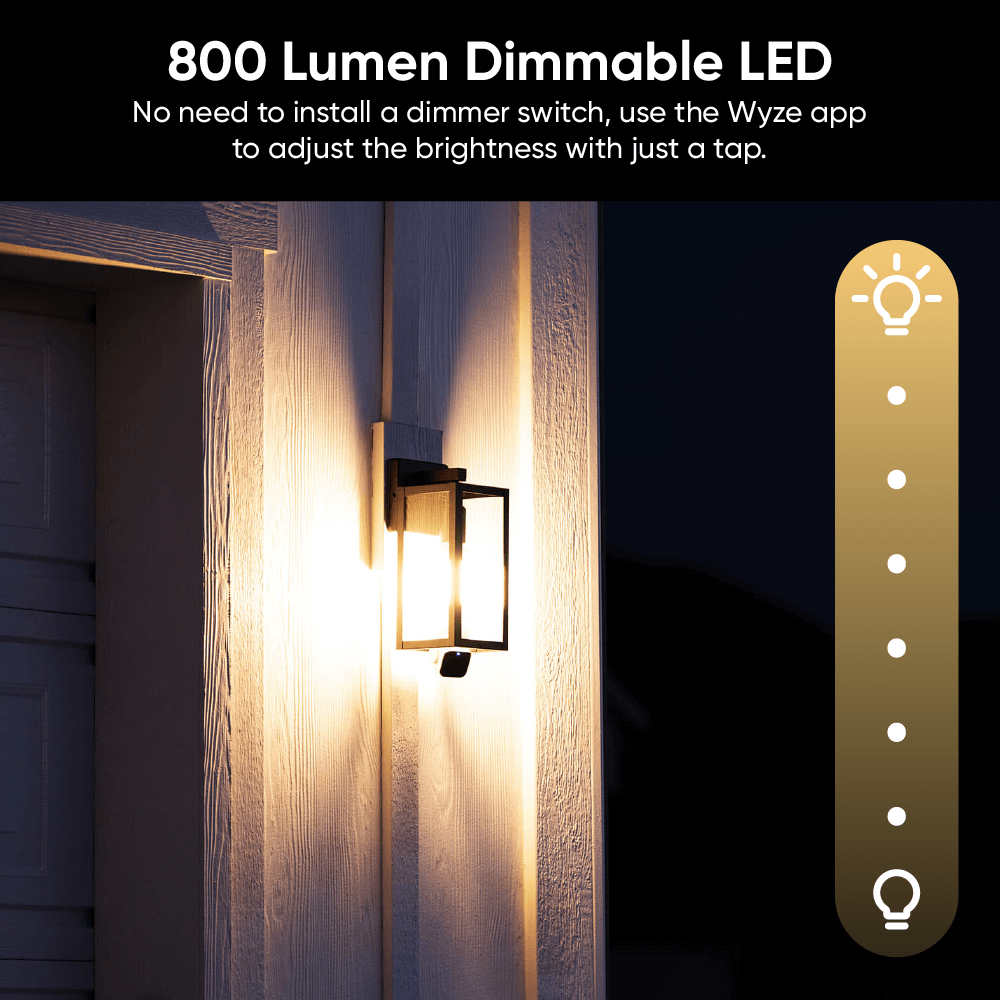
Bombilla LED regulable de 800 lúmenes

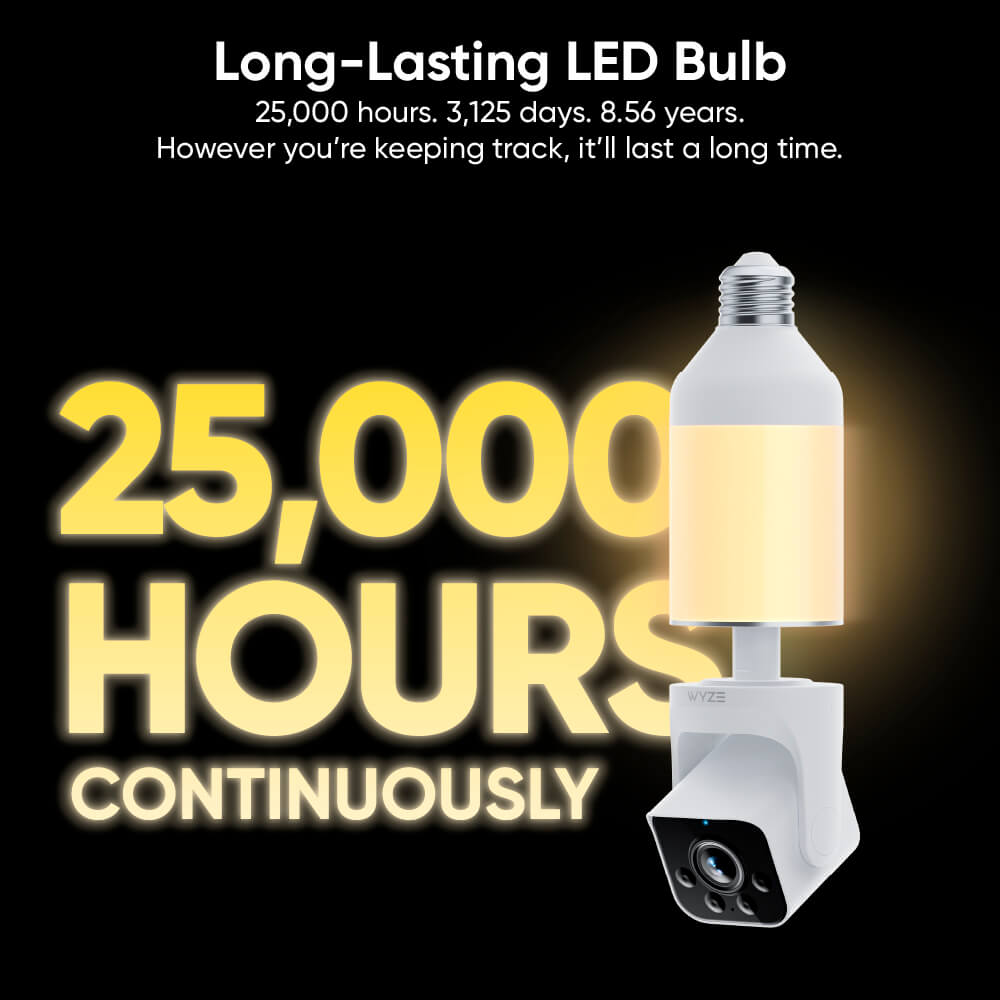
Las bombillas tradicionales son aburridas. Diseñamos esta bombilla para que luzca moderna y elegante (igual que tú). Personaliza el brillo de estas bombillas LED de larga duración para lograr la iluminación perfecta.

Works with Wyze Accessory Bulb

Meet the sidekick that's full of bright ideas. It's 800 lumens, dimmable, and works exclusively with Wyze Bulb Cam.

Wyze Bulb Cam Shopify
Two green lights on a building.

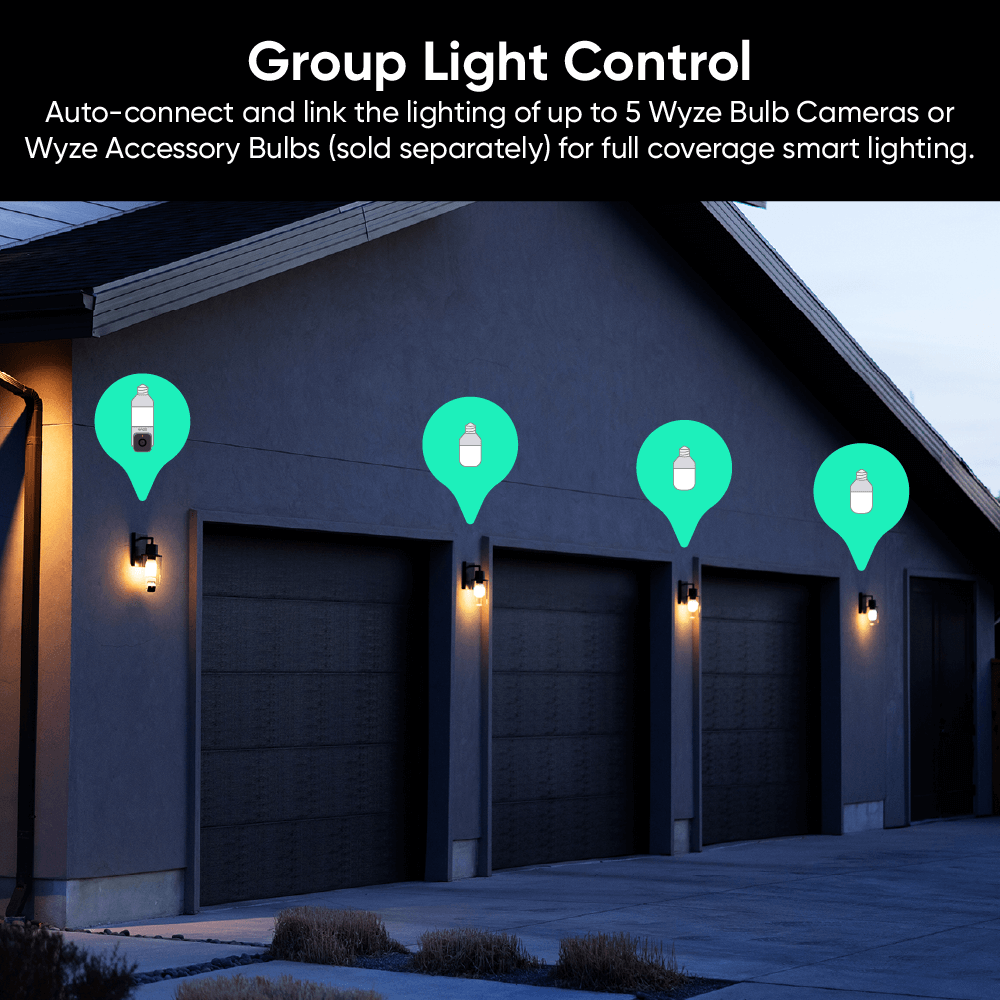
Control de iluminación de grupo mejorado

Conecta automáticamente hasta 5 bombillas adicionales para una iluminación inteligente de cobertura total. Personaliza el brillo y programa horarios. ¿Luces activadas por movimiento? ¡Sí, también pueden!

A person is holding a Wyze Bulb Cam in their hand.

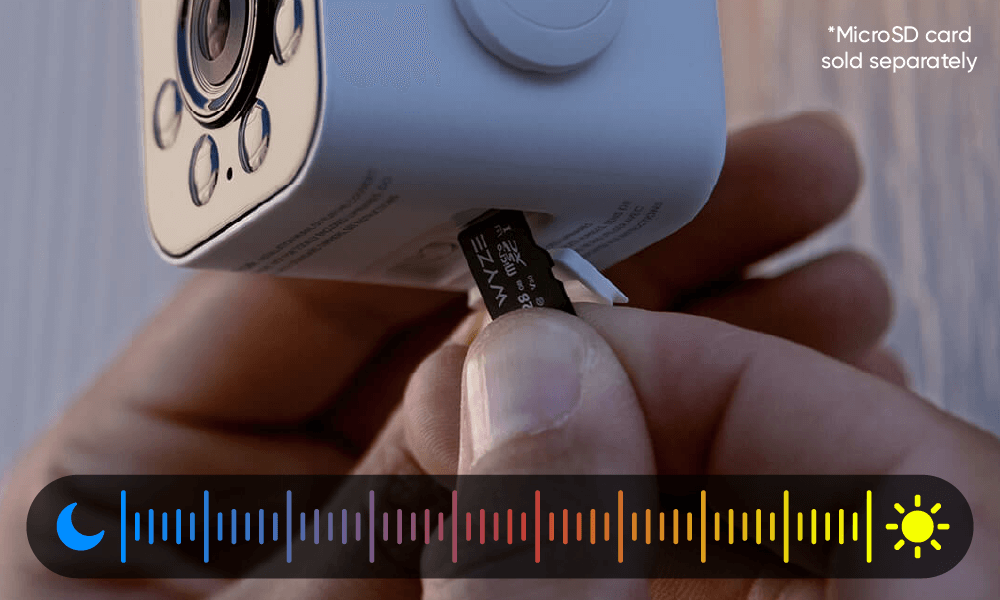
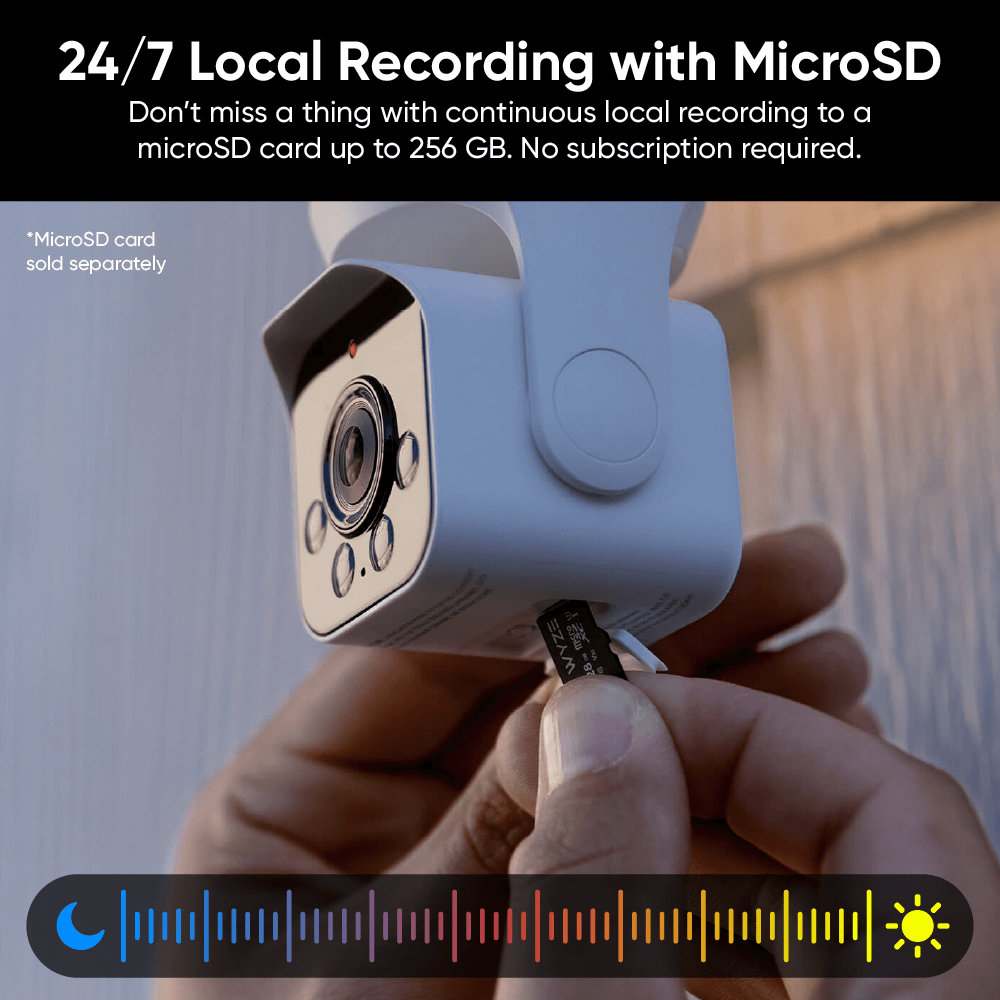
Grabación local 24/7 con tarjeta MicroSD*

No te pierdas nada con la grabación local continua en una tarjeta microSD de hasta 256 GB. Sin suscripción.

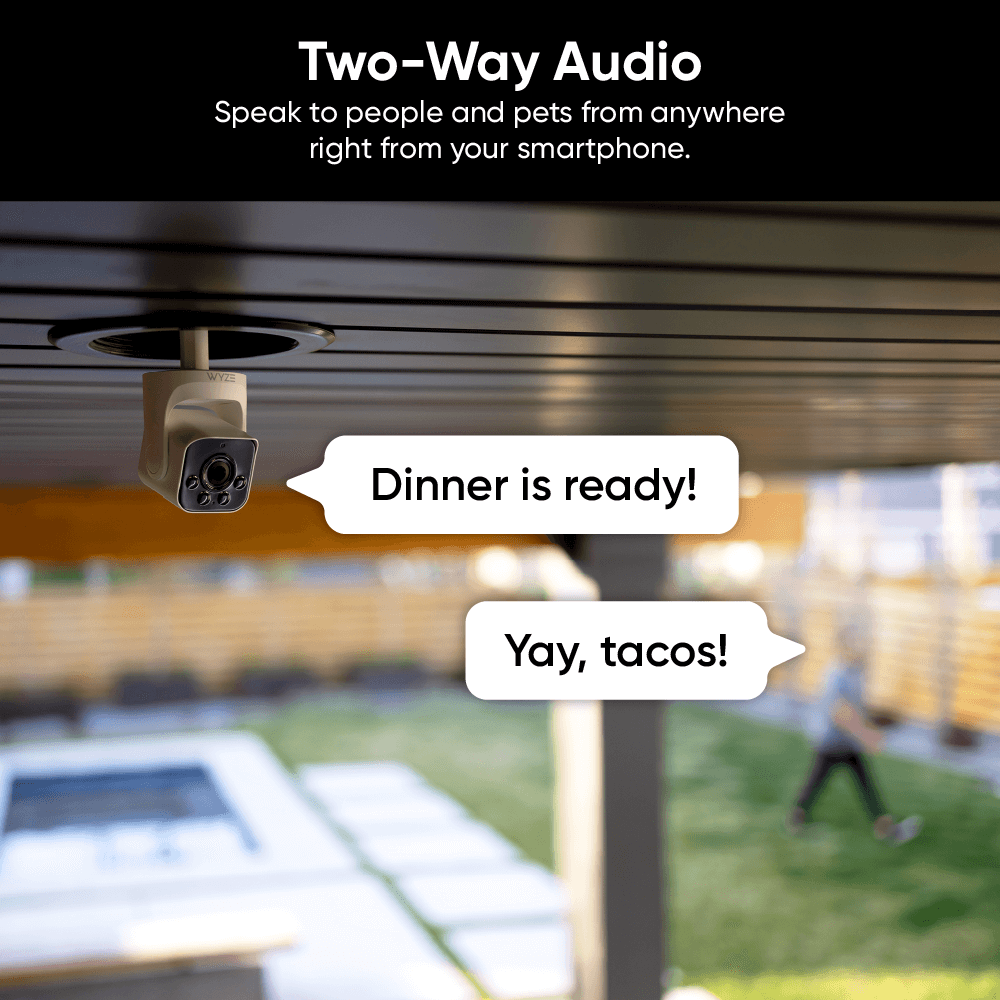
  • Wyze Bulb Cam Shopify 07: A Wyze outdoor camera is being used for dinner.

    Audio bidireccional

    Habla con personas y mascotas desde cualquier lugar directamente desde tu teléfono inteligente.

  • Wyze Bulb Cam Shopify 03

    Características de detección

    Recibe notificaciones en tu teléfono inteligente cuando se detecte movimiento.

  • A person is adjusting a Wyze Bulb Cam.

    Notificaciones de IA y alertas descriptivas

    Personaliza tus detecciones y notificaciones. Recibe alertas detalladas de lo que sucede con las Alertas Descriptivas, disponibles con Cam Unlimited Pro. Haz clic para obtener más información .

  • A person is standing in front of a garage with a car inside.

    Efectos de iluminación + Sirena

    Las luces intermitentes y una sirena incorporada ahuyentarán a la gente más rápido que una invitación de marketing multinivel.

Instalación tan fácil como...

Solo se necesitan unos pocos giros de muñeca para instalarlo. Dile adiós a las configuraciones complicadas, los cables desordenados y los cables antiestéticos.

Configuraciones brillantes

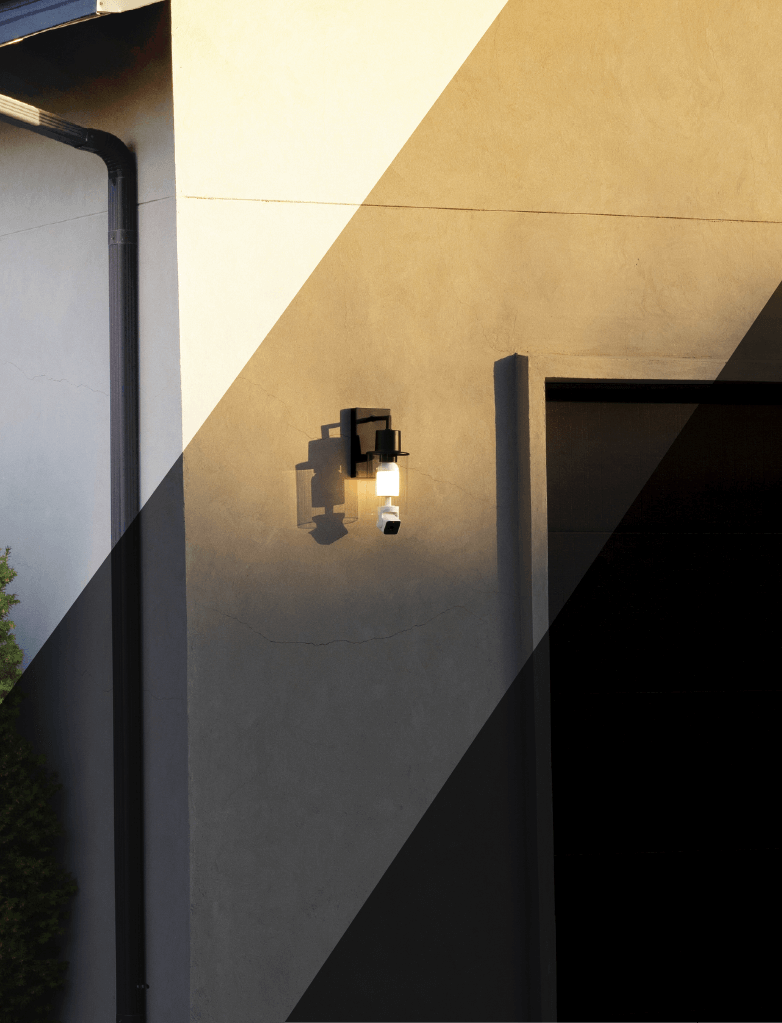
Vea cómo se ve Wyze Bulb Cam con varios accesorios para exteriores.

Wyze Bulb Cam Shopify
A Wyze Bulb Cam is shown in an outdoor fixture that is split between the morning, evening, and night.
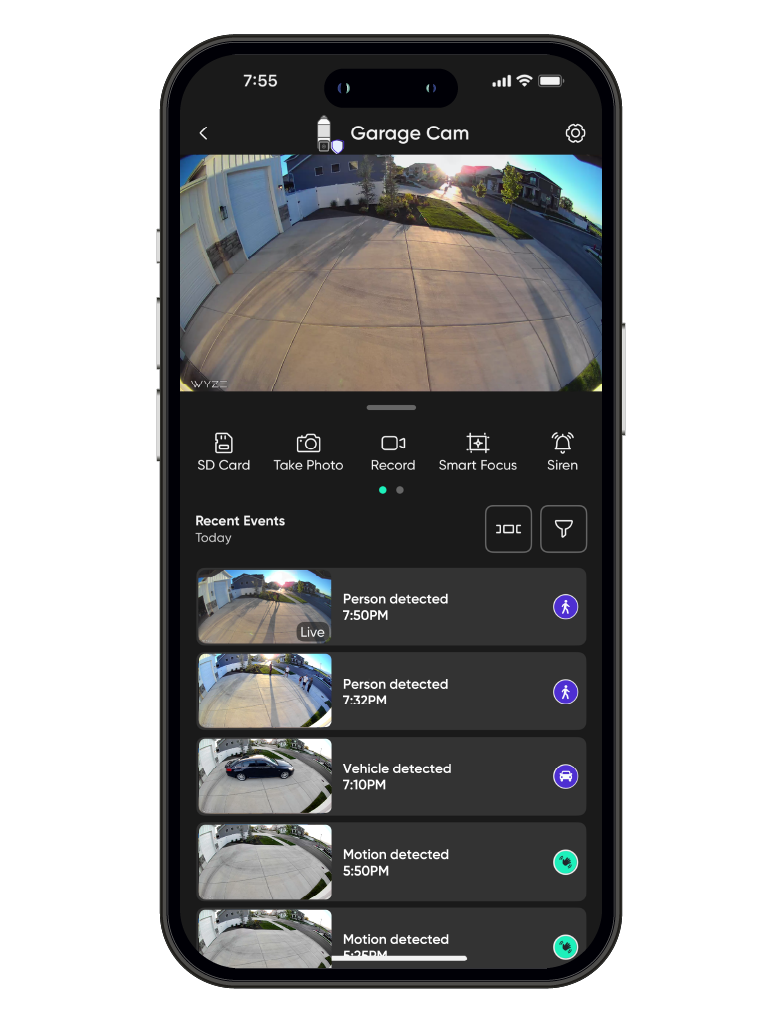
A smartphone displaying a garage camera app.
A smartphone screen displays a Wyze Bulb Cam.
A Wyze Bulb Cam is displayed on a table.

¿Eres de los vecinos que dejan las luces del porche encendidas durante las vacaciones? Pues ahora tendrás que buscar cosas nuevas que olvidar. ¿Quizás tus chanclas?

¿Te perdiste algo? ¡Claro que no! Porque estás usando una cámara compatible con la mejor app de hogar inteligente del mundo. Solo tienes que tocar para revisar los eventos grabados desde donde estés.

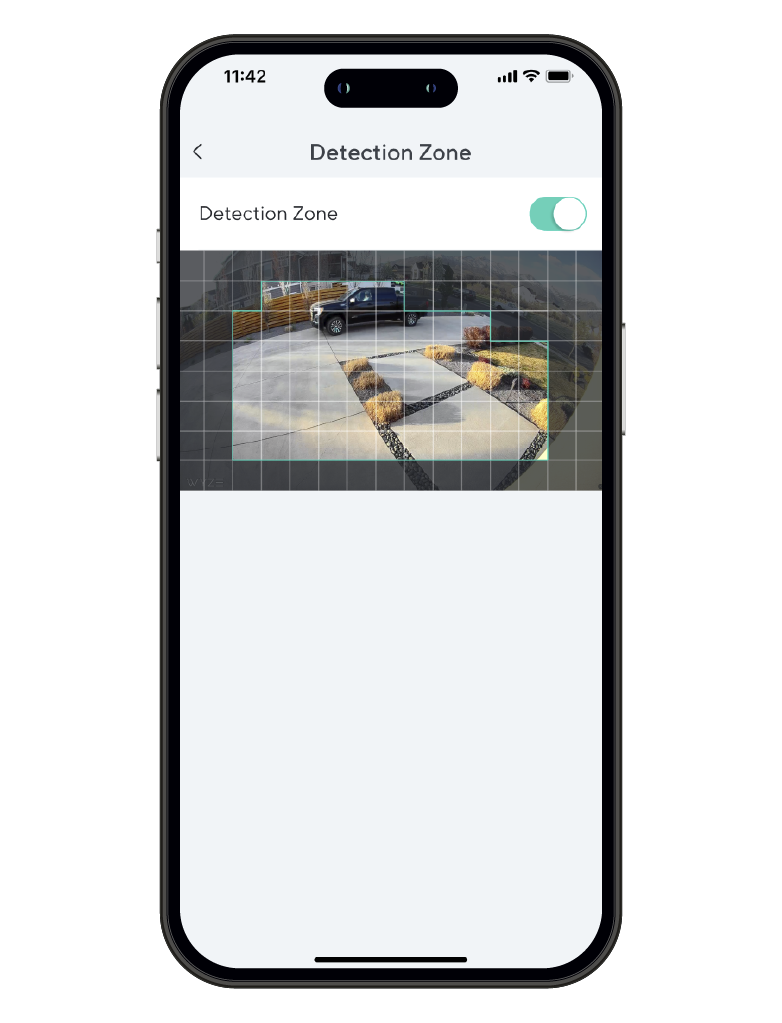
Monitor specific areas for motion so you only receive notifications when it matters.

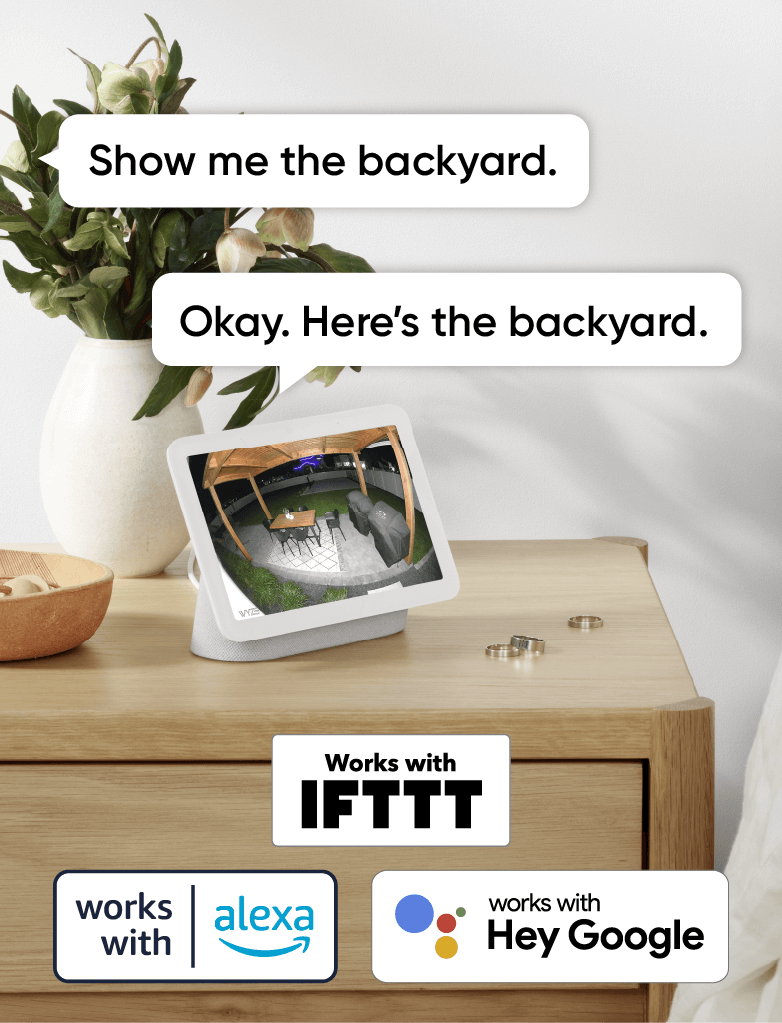
Comodidad y personalización a tu alcance con integraciones como Amazon Alexa, Google Assistant, IFTTT y Wyze Rules.

Comprobación de ajuste de Clear View

Utilice el diagrama a continuación para confirmar la distancia de seguridad en su luminaria. Para un rendimiento óptimo, la lente de la cámara debe sobresalir del borde inferior de la luminaria o aplique.

Mirar a través del vidrio o la carcasa del dispositivo puede causar problemas de detección de movimiento, reflejos no deseados y mala calidad de imagen.

Wyze Bulb Cam is a 2-in-1 outdoor security camera and smart LED light bulb. This is a refurbished product.
Bulb Cam utiliza un casquillo E26 estándar
  • A Wyze Bulb Cam is shown in a dimly lit room.

    Bombilla accesoria

    Conecte y sincronice automáticamente la iluminación de hasta 5 bombillas accesorias Wyze (se venden por separado) para lograr una iluminación inteligente de cobertura total.

  • A hand is holding a Wyze Bulb Cam.

    Tarjeta SD

    No te pierdas nada con la grabación local continua en una tarjeta microSD de hasta 256 GB. Sin suscripción.

Wyze Bulb Cam Support Articles

Setting up your new Wyze Bulb Cam is as easy as screwing it in, and connecting to Bluetooth in the Wyze app. You can even pair your accessory bulbs at the same time!

Before Setup: Start with the Wyze Bulb Cam Installation Guide to shut off power and install your bulb cam and accessory bulbs.

To set up your Wyze Bulb Cam:

  1. With your bulb cam and optional accessory bulbs powered, tap Begin Setup.
  2. If the camera doesn't automatically sound with "Ready to connect," press the SETUP button under the camera to reset the camera.
  3. Check the box "It said, 'Ready to connect'" then tap Next.
  4. The Wyze app will search for your Wyze Bulb Cam, and attempt to pair automatically with Bluetooth.
  5. Select and sign in to your network, and tap Next.
  6. Give your Wyze Bulb Cam a name! Tap Finish. You'll be prompted to try a Wyze Service, like Cam Plus. You can tap Continue, or the X to cancel.You'll be prompted with some Things to Try, which you can Skip.
  7. Manually adjust your Wyze Bulb Cam for the best viewing angle. Pull down on the camera to extend the telescopic rod if needed.
  8. If you've installed any accessory bulbs and want to pair them, tap Yes. You must pair your accessory bulbs to a bulb cam
  9. The Wyze app will search for your Wyze Accessory Bulbs. Tap Pair.
  10. Once done searching for and pairing your accessory bulbs, tap Done.

Installing your new Wyze Bulb Cam is as easy as screwing it in, and turning on the power to the socket. You can even install and set up accessory bulbs at the same time!

Before installation: At the electrical panel or light switch, shut off power to your existing light fixture before proceeding. Then, check that your socket type is a standard E26 socket.

What's in the box?

  • Wyze Bulb Cam x 1
  • "Do Not Turn OFF" sticker x 1
  • Quick Start Guide x 1

To install your Wyze Bulb Cam:

  1. In the Wyze app, tap Home, then tap the plus sign + on the top right.
  2. On the Add menu, tap Device.
  3. Tap Cameras > Others > Wyze Bulb Cam.
  4. On the Add Cam menu, tap Wyze Bulb Cam.
  5. Check your socket type to ensure it's a standard E26 socket. Tap Next.
  6. Check your sconce, to ensure it's an open fixture. Tap Next.
  7. If you haven't already, shut off power to your light fixture. Tap Next.
  8. Unscrew your existing bulb from the lamp socket. Tap Next. 🔥 Be careful! Your existing bulb may be hot.
  9. Install your Wyze Bulb Cam by twisting it into the socket - easy! Tap Next. If you have any Wyze Accessory Bulbs to install, install them now. Tap Next.
  10. Turn on power to your Wyze Bulb Cam and accessory bulbs (if installed). Tap Next. The status light on the camera will turn on when powered. If the status light doesn't turn on or flash, press the SETUP button to reset the camera.

Now that your Wyze Bulb Cam is installed and powered, the next step is to set it up. Check out our Wyze Bulb Cam Setup Guide here.

Installing your new Wyze Accessory Bulb is as easy as screwing it in, and turning on the power to the socket. You can even install and link up to 5 total accessory bulbs at the same time!

Before installation: At the electrical panel or light switch, shut off power to your existing light fixture before proceeding. Then, check that your socket type is a standard E26 socket.

What's in the box?

  • Wyze Accessory Bulb x 1
  • Quick Start Guide x 1

To install your Wyze Accessory Bulb:

  1. In the Wyze app, tap Home, then tap the plus sign + on the top right.
  2. On the Add menu, tap Device.
  3. Tap Cameras > Wyze Bulb Cam > Accessory Bulb.
  4. Check your socket type to ensure it's a standard E26 socket. Tap Next.
  5. Check your sconce, to ensure it's an open fixture. Tap Next.
  6. If you haven't already, shut off power to your light fixture. Tap Next.
  7. Unscrew your existing bulb from the lamp socket. Tap Next. 🔥 Be careful! Your existing bulb may be hot.
  8. Install your Wyze Accessory Bulb by twisting it into the socket - easy! Tap Next.
  9. Turn on power to your accessory bulb(s). Tap Next.
  10. Select a device to pair your accessory bulb with. Your existing Bulb Cam or Accessory Bulb will search for your bulb.
  11. When your bulb is found, tap Pair then Done.

All Wyze Cams have a handy status light that helps determine what state the device is in. You'll find the status light on the front of your Wyze Bulb Cam. No light? Make sure it's properly connected to power.

Wyze Bulb Cam Status Light Guide

  • Solid red light - The camera is powered on and initializing, recording an event, or you are watching the live stream.
  • Flashing red light - The camera is ready to connect.
  • Flashing red and blue light - Connection is in progress.
  • Flashing blue light - The camera is connected and finishing setup.
  • Solid blue light - The camera is powered and fully connected.
  • Solid purple light - The firmware is being updated.

Note: Wyze Accessory Bulb does not have a status light, but you can check its online status in the Wyze app by going to Wyze Bulb Cam settings > Bulb Settings > Linked Accessory Bulbs.

Added to your cart
Envío GRATIS en pedidos de $59+
Subtotal
$0.00
View cart