Ir directamente a la información del producto
1 de 7

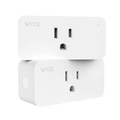
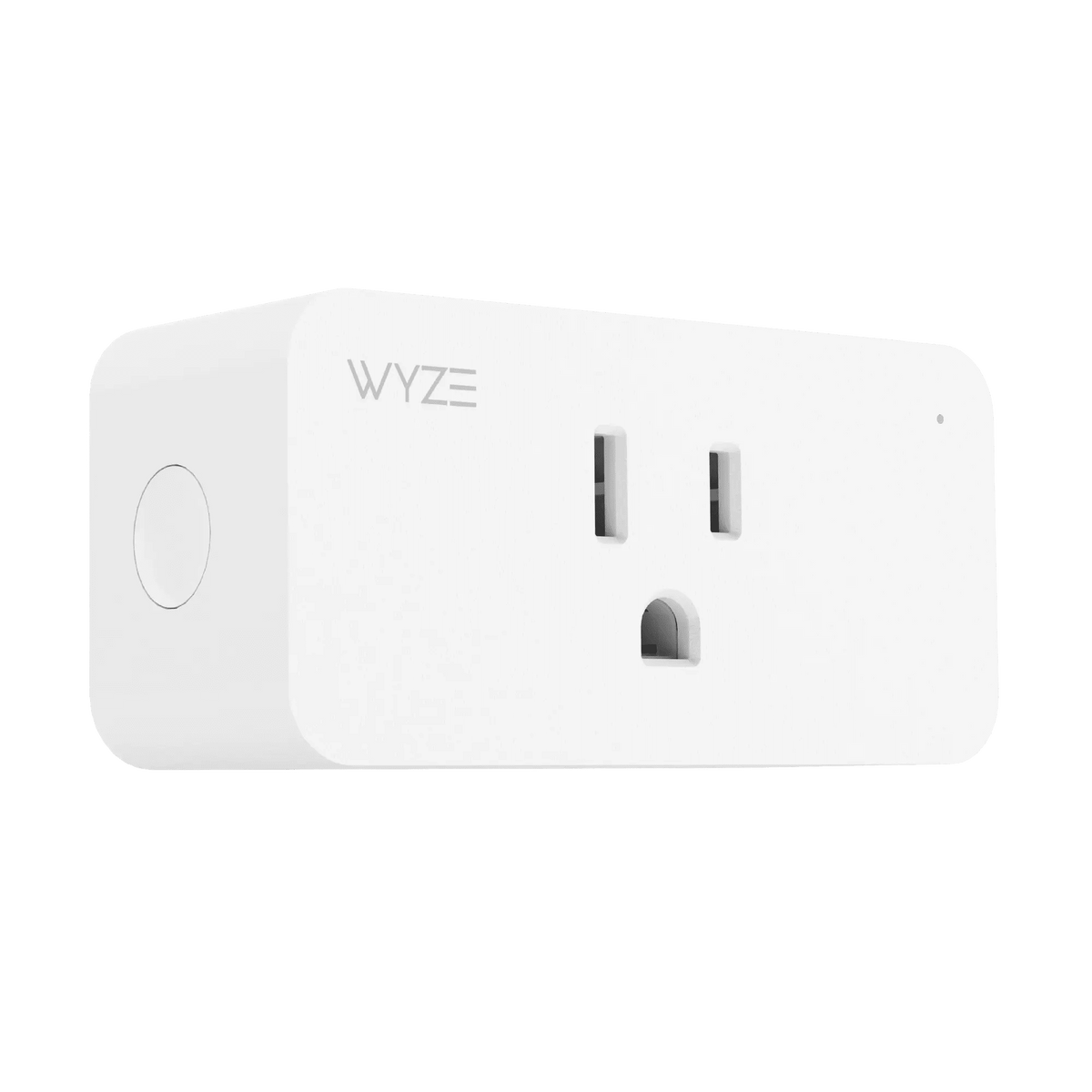
Enchufe Wyze

Enchufe Wyze

Toma de corriente inteligente de pared

Enchufe Wyze (Cantidad)
$29.98
En existencias
Get it as soon as
30-day hassle-free returns.
En existencias
A blue and white logo for Wyze.
VENTAJAS Exclusivas de Wyze.com
Garantía extendida de 18 meses

Obtenga una garantía extendida de 18 meses al comprar este producto en wyze.com. También obtenga paquetes especiales, promociones únicas y recompensas con cada pedido

Empieza a vivir en el futuro. ¡Convierte tus dispositivos en inteligentes!

Ver todos los detalles
  • A black image of a phone being held.

    Controla otros dispositivos Wyze

  • Funciona con una aplicación

    Funciona con una aplicación

  • A black background with a white microphone icon.

    Works with Alexa and Google Assistant

  • A black background with a white calendar icon.

    Crea horarios y usa el modo vacaciones

Peso y materiales

  • Color: Blanco
  • Peso: 5,3 oz.
  • Dimensiones (largo x ancho x alto):
    2,7" x 2,0" x 1,5"

Resistencia a la intemperie

  • Solo para uso en interiores

Temperatura de funcionamiento

  • -4 °F - 104 °F / -20 °C - 40 °C

Aporte

  • 100-120 VCA, 60 Hz 15 A

Producción

  • 15 A máx.

Compatibilidad

  • Android 5.0+, iOS 9.0+

Certificaciones
ETL

Garantía
1 año


Conectividad
Wi-Fi de 2,4 GHz

Integraciones
Alexa, Asistente de Google, IFTTT

  • Enchufe Wyze x 2
  • Guía de inicio rápido x 1

Control from anywhere.

Wyze Plug gives you a simple way to turn on/off any outlet remotely. Easily control, lamps, fans, and other devices from the palm of your hand. No hub required.

A blue coffee maker with a white cup and a black plug.
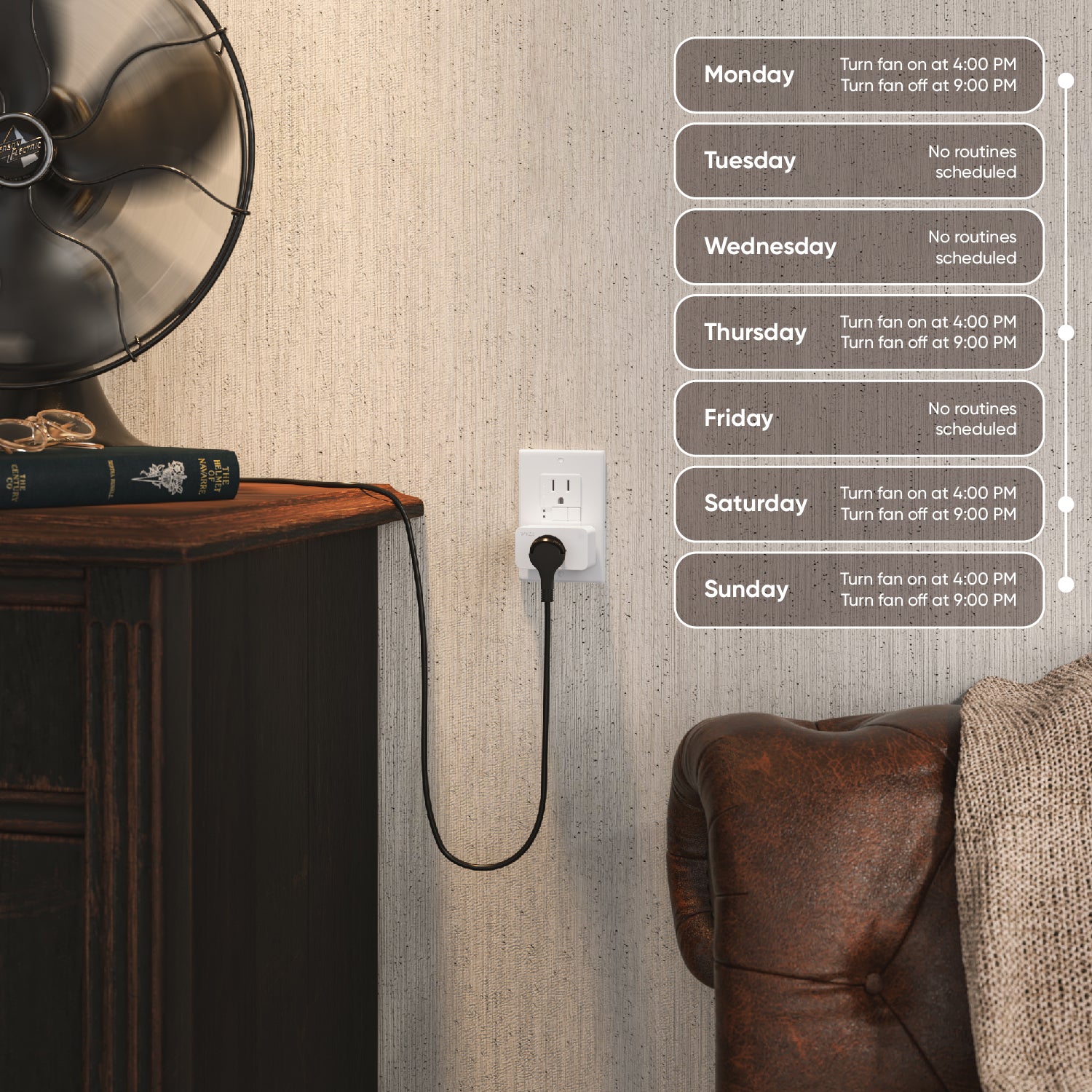
A desk fan plugged into a wall outlet.

Mantén las luces apagadas cuando estés en el trabajo

Ahorre energía con la programación.

It's time to the hassle out energy savings.

Create schedules for your devices to turn on/off automatically at certain times of day or when you leave the house.

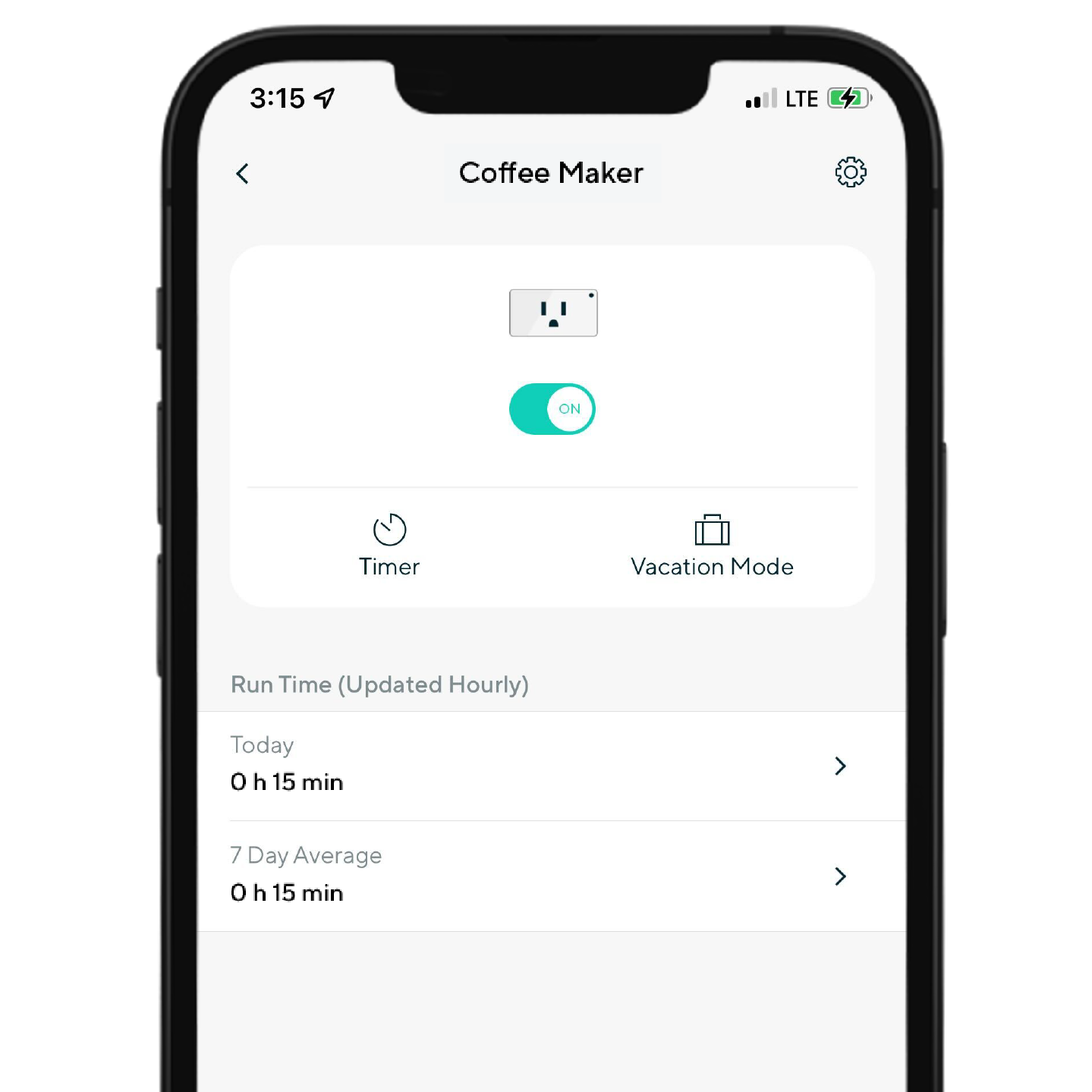
A phone screen with a coffee maker app on it.

Control con una potente aplicación gratuita Wyze

Controles rápidos en la aplicación Wyze.

Check to see if you left your Wyze Plug on and tap to turn it off remotely, right from the Wyze app.

Easily view daily and weekly run times and group multiple plugs together, controlling them all with one tap.

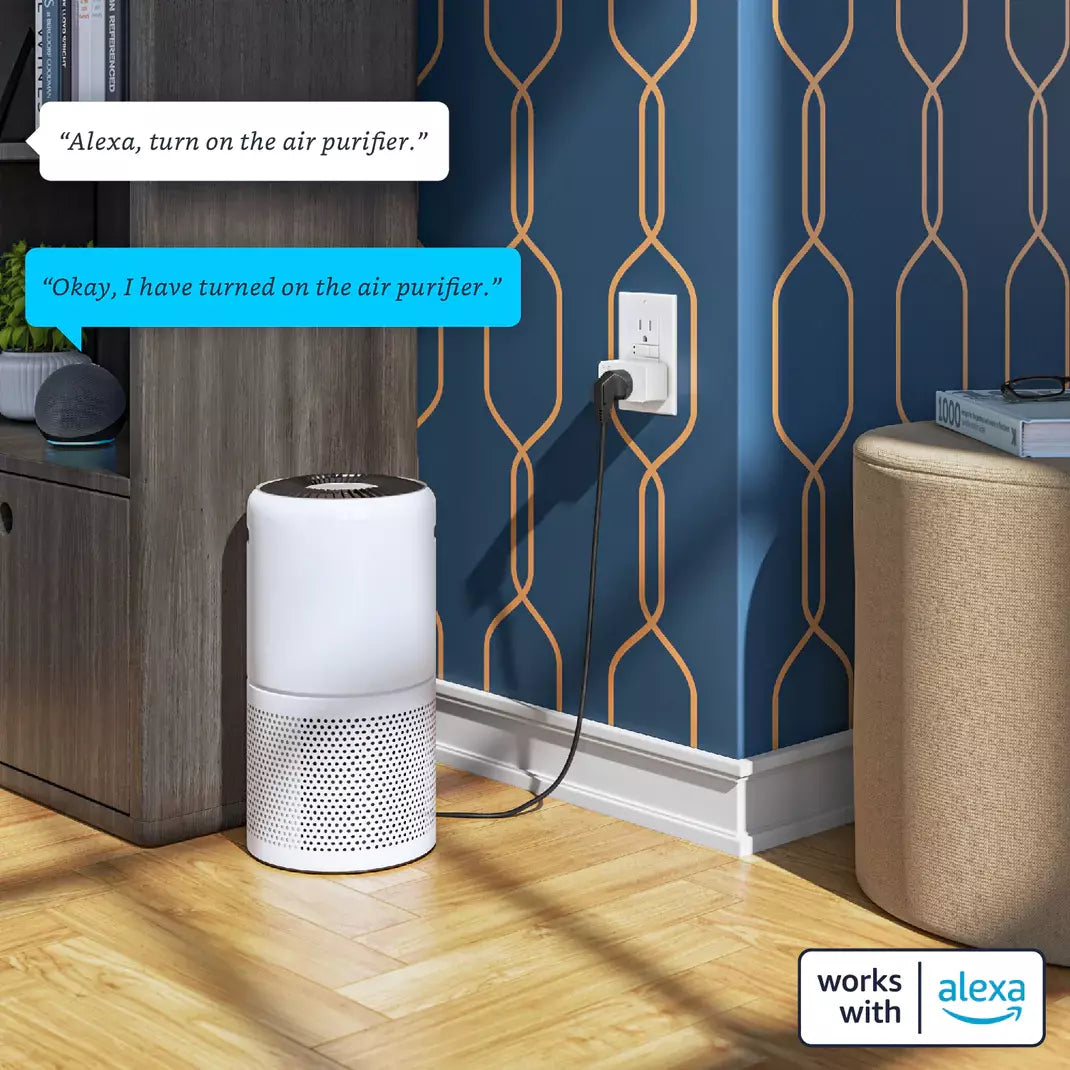
Air purifier with Alexa integration.

Utilice comandos de voz

Funciona con Alexa y Google.

Got your hands full? Command your devices using just your voice with Amazon Alexa and Google Assistant.

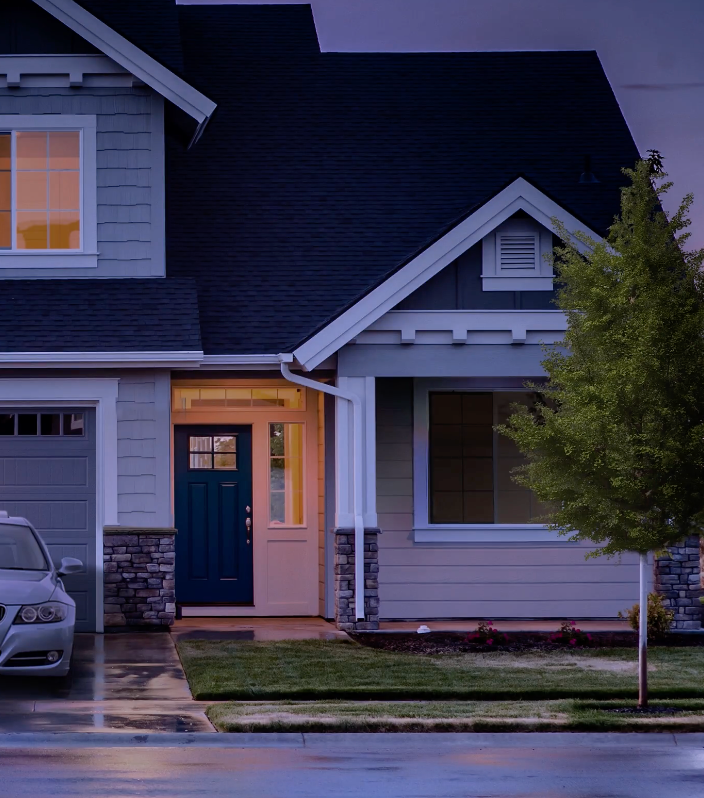
A house with a blue door and a white roof.

Haz que parezca que estás en casa

Modo vacaciones.

When enabled, Wyze Plug can turn your stuff on and off at random making it look like you're home, so people think twice about coming over uninvited.

An ecosystem that works together.

Your individual Wyze devices are awesome. As a team, the possibilities are endless. A light switch that unlocks the door. A lock that flips on the lights and cranks the AC. All of our smart devices can talk, what they say is up to you.

Image wall room with Wyze Cam v3, Wyze Thermostat, Wyze Switch, Wyze Video Doorbell, Wyze Floodlight and Wyze Lock
A white camera on a wall.

Support Articles

Download the Quick Start Guide for Wyze Plug in this article.

Below is the Quick Start Guide for Wyze Plug, a short manual for how to get started.

This guide is a short user manual with the basics about Wyze Plug including:

  • What's in the box for Wyze Plug.
  • How to download the Wyze app.
  • How to set up your Wyze Plug.
  • How to read the status lights for Wyze Plug.

Wyze Plug is a smart plug you can control using Wi-Fi. Any device plugged into your Wyze Plug becomes a smart device that you can turn on and off with your smartphone.

Heads up: Check the back of your Wyze Plug for a key icon. If it has one, setting up your plug will be faster thanks to BluetoothⓇ.

To set up your Wyze Plug (2021 Version):

  1. In the Wyze app, tap Home, then tap the plus sign + on the top right.
  2. On the Add menu, tap Device.
  3. Tap Power & Lighting > Wyze Plug.
  4. Make sure BluetoothⓇ is enabled on your phone.
  5. Insert your Wyze Plug into an outlet. The status light on the plug will flash blue, indicating it’s in pairing mode.
  6. In the Wyze app, tap Next. The app will set up your plug automatically. Make sure your phone is close to the plug.
  7. Once the plug is found and set up, select your network and enter your network password. Tap Next.
  8. If you bought your plug in 2021 or later, BluetoothⓇ pairing will be completed automatically.*
  9. Enter a name for your Wyze Plug, then tap Finish.
  10. On the Things to Try page, select Create or edit a device group to organize your Wyze devices into new or existing groups, or select Share this device to give family and friends access to your new Wyze device. Tap Skip to do this later.
  11. You’re all set. Enjoy your new Wyze device!

*If you bought your plug before 2021, tap I bought my plug before 2021. on the Bluetooth setup page then follow the steps below.

  1. Insert your Wyze Plug into an outlet. The status light on the plug will flash blue, indicating it’s in pairing mode.
  2. Then select your 2.4 GHz Wi-Fi network and enter your network password. Tap Next.
  3. Select your Wyze Plug’s Wi-Fi and tap Connect.
  4. Back in the Wyze app, the plug will finish connecting automatically.
  5. Once complete, the status light will stop flashing and the app will prompt you to name the device.
  6. Enter a name for your Wyze Plug, then tap Finish.
  7. Set up some automations on the Things to Try* page, or tap Skip.
  8. You’re all set. Enjoy your new Wyze device!

Things to Try: Tap Create or edit a device group, Share this device, Automate your device, or Skip. These are quick ways to set up a few automations before you finish setup. When you complete a task, it'll display a green checkmark ✅. You can move on from this page by tapping Skip.

Additional Notes:

  • Android, Samsung users: When connecting to your Wyze Plug’s network, be sure to stay connected to the Wi-Fi network when prompted that the network doesn’t have an internet connection instead of switching to mobile data. If you switch to mobile data, the setup process will stop.
  • Android, non-Samsung users: When connecting to your Wyze Plug’s network, be sure to accept the pop-up stating the network has no internet. Dismissing or denying this message will stop the setup process.
  • iOS 13+ users: Please check to make sure the Location Services permission is allowed in your settings. Here’s how to do this: Open the Settings app on your phone. Go to Privacy Settings. Go to Location Services. Make sure that the Wyze app is granted permission to use this while it’s running.
  • Note: If you have your Wyze Plug in a wall outlet that’s controlled by an on/off switch, ensure that the switch is turned on.
Added to your cart
Envío GRATIS en pedidos de $59+
Subtotal
$0.00
View cart