Skip to product information
1 of 7

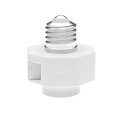
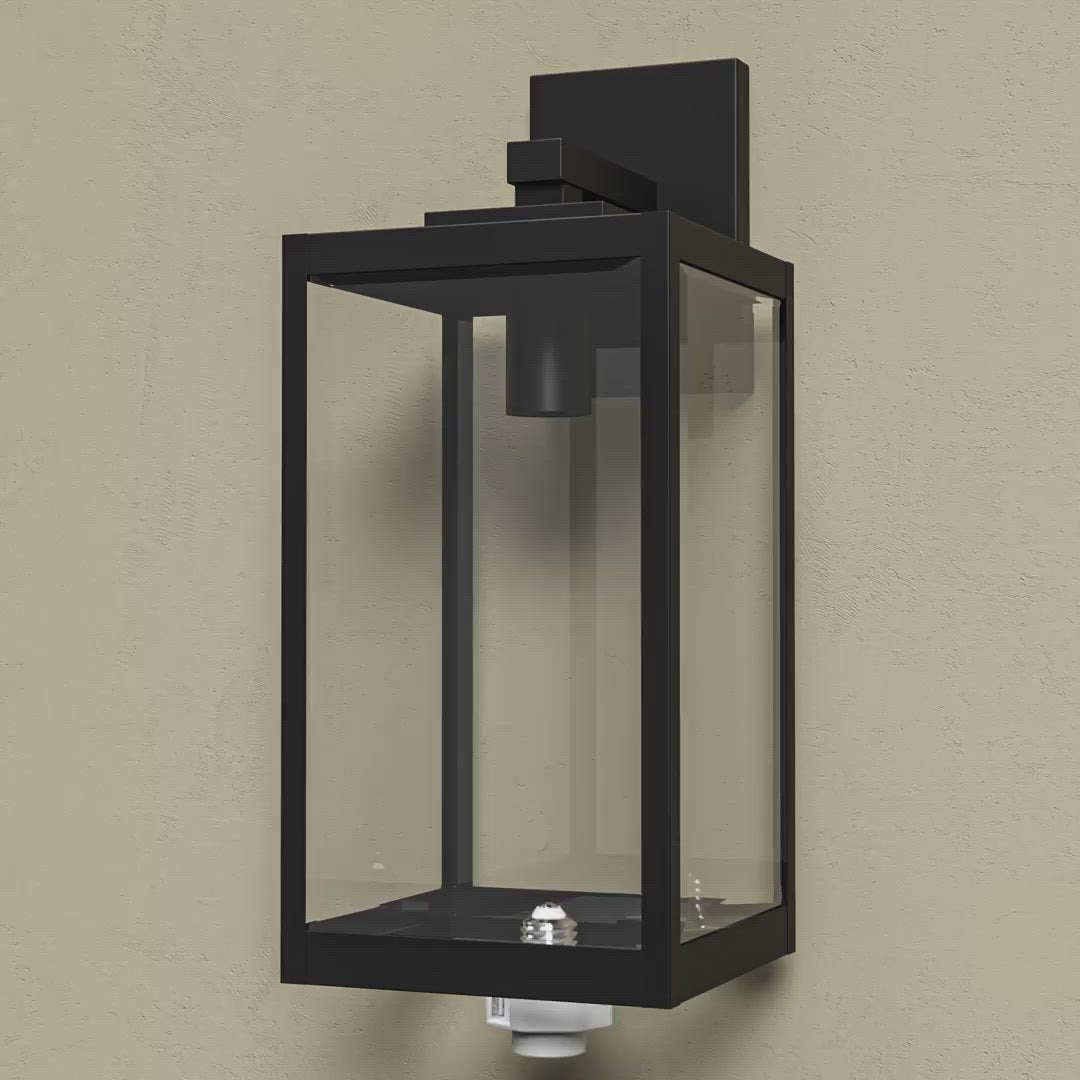
Wyze Lamp Socket

Wyze Lamp Socket

Outdoor Power for Cam v3/v4

Top Accessory
Commonly Bundled Item
Style
$14.98
In stock
Get it as soon as
30-day hassle-free returns.

Motion-Activated Lights

Linkability Without Limits

Assign all lamp sockets to group controlled lighting

Dusk to Dawn

Scheduling

Conveniently Power

Wyze Cams

A blue and white logo for Wyze.
Wyze.com Exclusive BENEFITS
18-month extended warranty

Get an 18-mo extended warranty when you buy this product on wyze.com. Also get special bundles, unique promos, + rewards with each order

Make your exterior lighting smart. Power Wyze Cam v3 and v4 without a plug.

The original model of the Wyze Lamp Socket.


View full details
  • A purple and black square with the word "On" written in it.

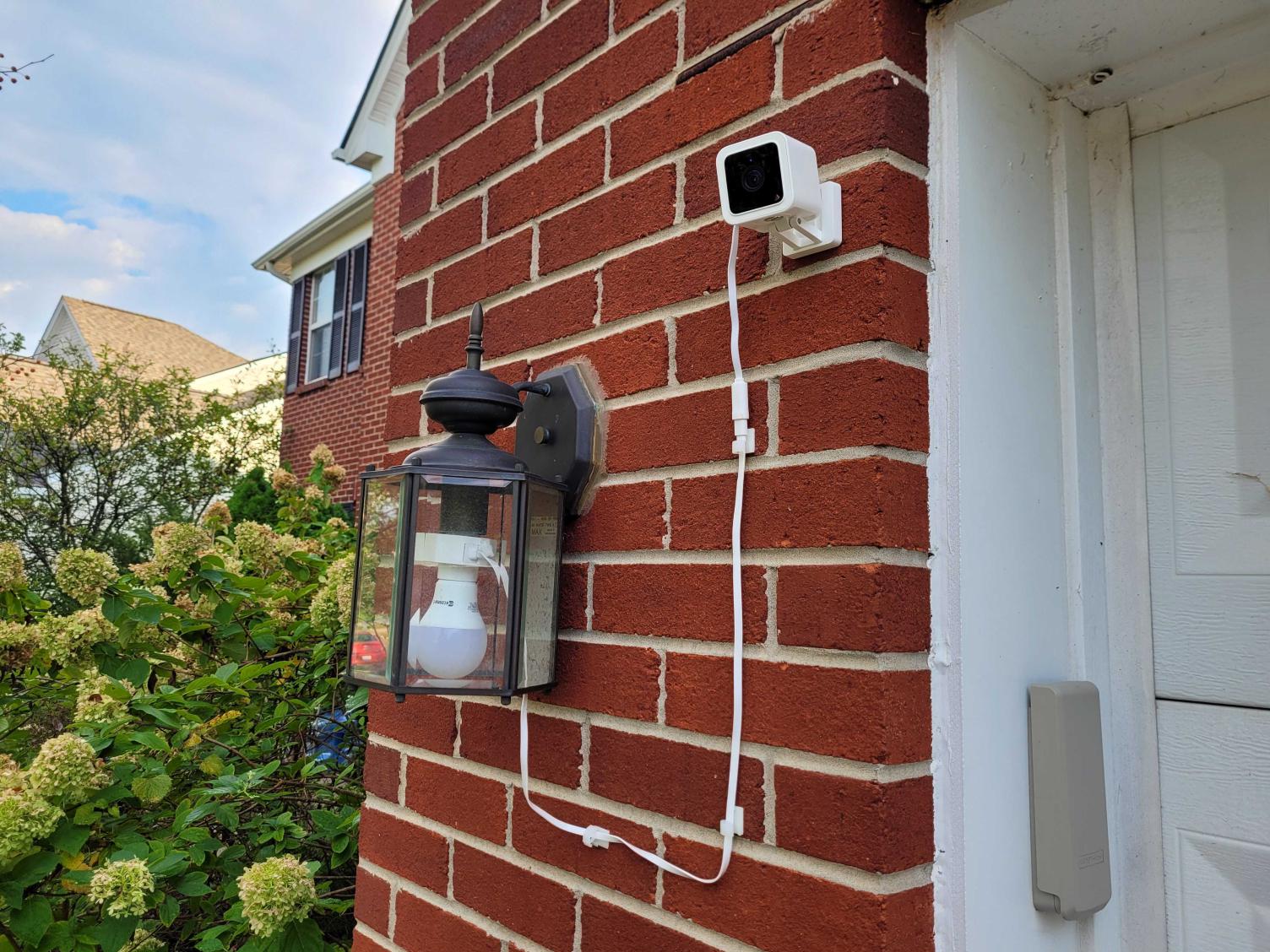
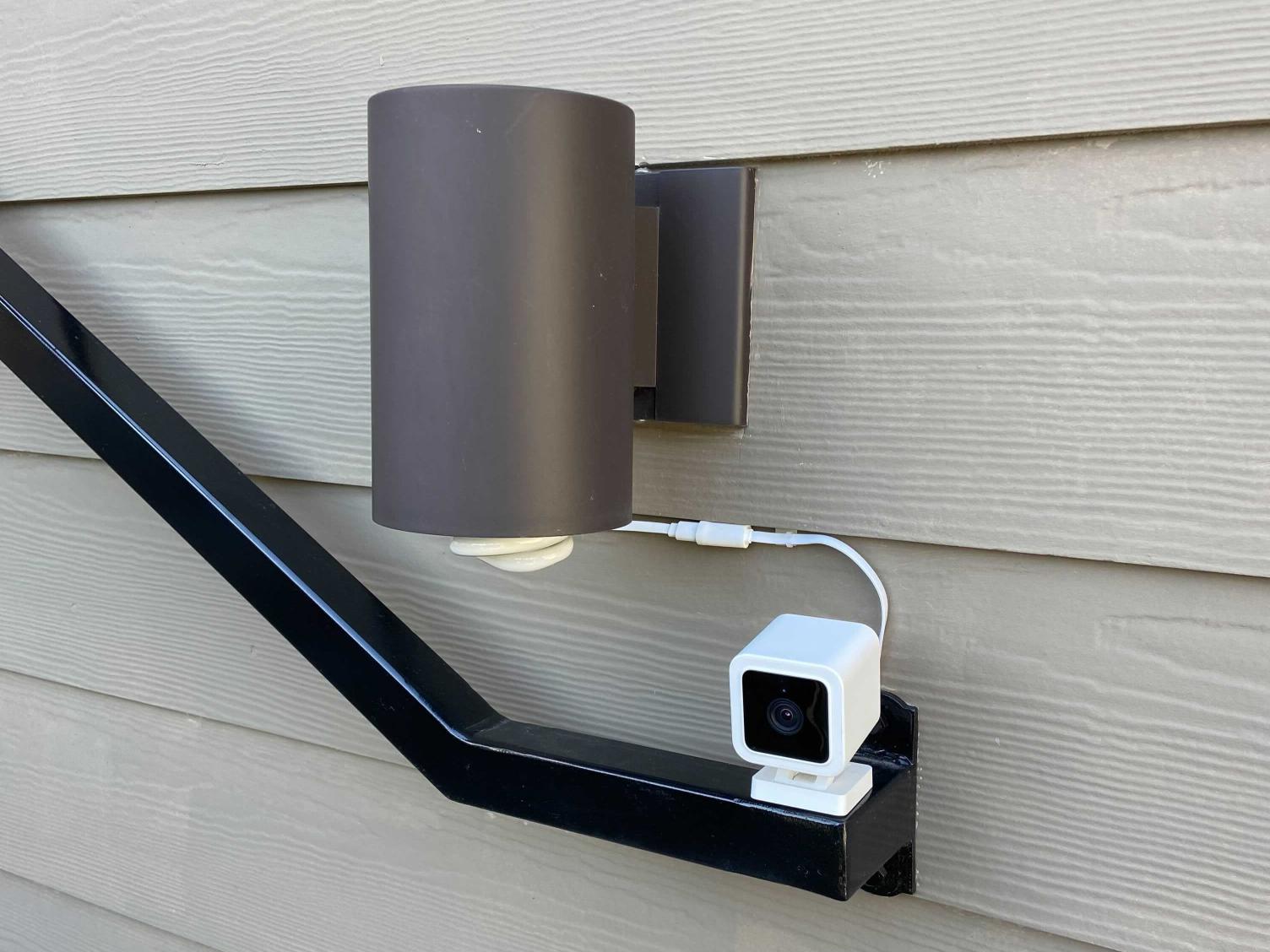
    Conveniently Powers Wyze Cam v3/v4

    No creative extension cord weaving required.

  • A person running with a purple background.

    Motion-Activated Lights

    Converts standard bulbs into motion-activated security lights.

  • A purple light bulb with a purple circle around it.

    Linkability

    Wirelessly link up to 5 lamp sockets together.

  • A purple sun icon with a frowning face.

    Dusk to Dawn Scheduling

    Automatically turn your lights on at sunset and off at sunrise.

Wyze Lamp Socket Device Details

  • Color: White
  • Materials: Polycarbonate, Plastic
  • Dimensions: 56.5mm x 56.5mm x 65mm
  • Weight: 80 g
  • Socket Connector Type: E26
Power
  • Lamp Socket Input/Output120V, 60Hz
  • Max Lamp Power30W
  • USB Cable75 cm / 30 inches
  • USB Ports1 Type-AUSB Output5W/ 5V1A, USB 1.1
Compatibility
  • Phone: Android 7.0+, iOS 12.0+
  • Camera: Wyze Cam v3/v4
Connectivity
  • 802.11 b/g/n, 2.4GHz, Bluetooth
Operating temperature
  • -4°F ~ 120°F (-20°C, ~ 50°C)
Weather Resistance
  • Not weatherproof or waterproof. Suitable for damp locations.
Certifications
  • ETL, CETL, UL

Wyze Cam v3 Device Details

  • Color: White, with black accents
  • Materials: Polycarbonate
  • Lens: Glass + Plastic
  • Camera Dimensions: 52 mm (L) x 51 mm (W) x 58.5 mm (D)
  • Camera Weight: 98.8g
Phone Compatibility
  • Android 7.0+ and iOS 12.0+
Display
  • Resolution: FHD 1920x1080p
  • Viewing angle: 130º diagonal
Night Vision
  • IR Lights 4x940 nm, 4x850 nm
  • Day/Night Vision
Audio
  • Mic: ECM
  • Speaker: 80 db, waterproof
  • Simultaneous 2-way Talk
  • Siren
Powering methods
  • Power Adapter: Indoor 5v/1A
  • Wyze Lamp Socket (sold separately)
  • Outdoor Power Adapter (sold separately)
  • Cable: 6 Feet Flat USB Cable

Sensor
  • CMOS Starlight Sensor
LED Indicator
  • Front. Red + Blue.
Connectivity
  • 2.4GHz WiFi
Storage
  • Local Storage (microSD card required)
  • Cloud
Operating Temperature
  • -5°F - 113°F (-20°C - 45°C)
Weather Resistance
  • IP65 Weather resistant, Indoor/Outdoor
Certifications
  • FCC, IC, UL and IP65 Certified
Languages
  • English
Warranty
  • 1-Year

Lamp Socket (only)
  • Wyze Lamp Socket x1
  • USB Cable x1
  • USB Cable Clips x6
  • Wall Anchors x6
  • Screws x6
  • Quick Start Guide x1

Lamp Socket + Wyze Cam v3 Bundle
  • Wyze Lamp Socket x1
  • Wyze Cam v3 x1
  • USB Cable x1
  • USB Cable Clips x6
  • Cable Clips x6
  • Wall Anchors x6
  • Camera Screws x2
  • Camera Wall Anchors x2
  • Camera Wall Plate x1
  • Camera Mounting Tape x1
  • Quick Start Guide x1

Users can leave the power switch on all the time, but the light doesn’t need to stay on all the time, to save power. The light will be turned on when a motion or person is detected.

Turn them all on (up to 5) within 30 seconds and they will find themselves, link, and form a group. Once they form a group, you can control each lamp socket in the group at the same time.

Only 1 (one) Wyze Cam v3 or Cam v4 per lamp socket.

Yes absolutely. All sockets are connected wirelessly and can be turned on/off simultaneously. We currently support up to 5 lamp sockets linked in one group.

No, each Wyze Lamp Socket comes with a dedicated cable to connect to a v3/v4. Do not use any other Wyze Cam v3/v4 cable.

No, it is not weatherproof or IP-rated. It is UL rated for Damp Locations, and must be protected from direct rain and water.

We use the advanced motion detection from Wyze Cam v3 or v4 to detect motion and turn on your light.

Flexible power for your Wyze Cam v3/v4

Skip the wiring and electrocution (unless you're into that sort of thing). Harness the electricity from your outdoor light fixture to continously power your Wyze Cam v3/v4. No more creative cord compositions. No long, ugly wires. No hassle.

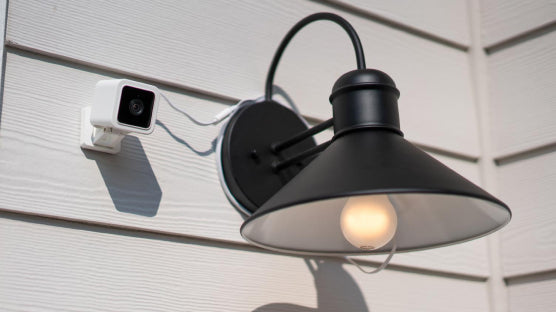
A black lamp with a white bulb.
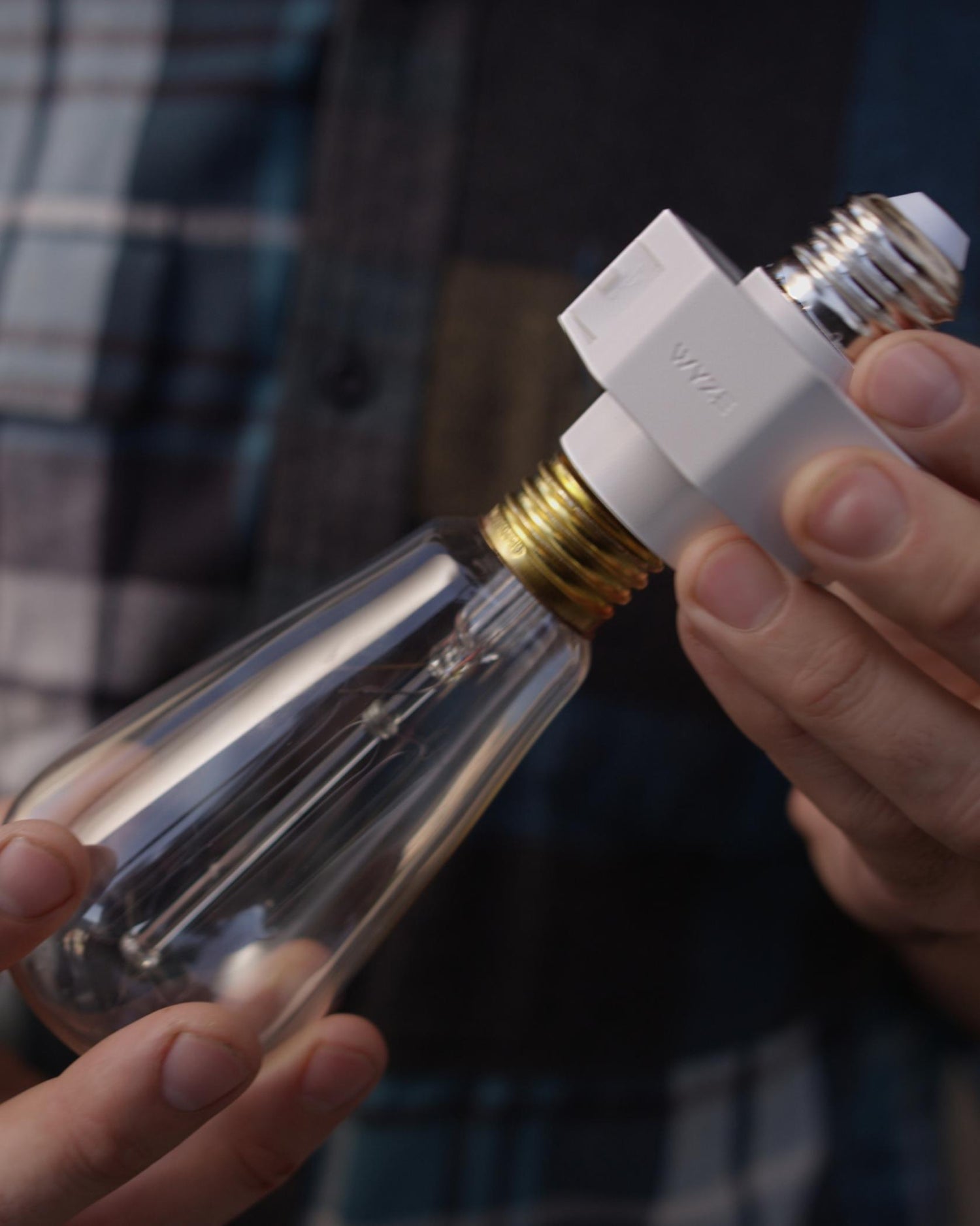
A person holding a Wyze Lamp Socket with an Edison bulb attached.

Upgrade to smart lighting in seconds.

Wyze Lamp Socket and Wyze Cam v3 work together to make your existing outdoor lighting smart. The socket gives the camera power and the camera gives the socket brains! A perfect, symbiotic relationship, just like Hippo and Oxpecker! Sing it with us! Symbiotic! Symbiotic!

Illuminate your way to motion activated lights.

Set your newly smartened lights to illuminate whenever Wyze Cam v3/v4 senses motion or sound. Now your old light fixture is a cutting-edge model of sleek security sophistication!

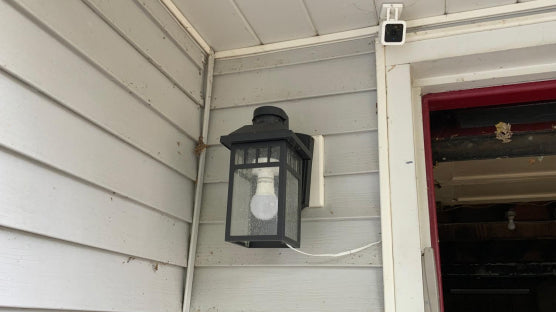
A light fixture with a white bulb.

Easily link multiple sockets for greater coverage and control.

Auto-connect up to 5 lamp sockets for Olympics-worthy synchronization of your outdoor lighting. Then schedule and control your newly smart setup from anywhere using the Wyze app.

A black garage door with a green box on it.

Dusk to Dawn Automation.

Are you the neighbor that leaves their porch lights on while they’re on vacation? Well, now you’ll need to find new things to forget. Maybe your flip-flops?

Get Inspired

See how Wyze users are using their Wyze Lamp Socket!

As easy as screwing in a light bulb.

Some installations are as easy as screwing in a lightbulb. Other installations are literally the exact same as screwing in a lightbulb. Wyze Lamp Socket falls in the latter category.

Support Articles

Before you begin setup:

  1. Download the Wyze app on your smartphone or tablet.
  2. Connect your device to a 2.4 GHz Wi-Fi network.
  3. Unpack your Wyze Lamp Socket Starter Kit or Expansion Kit, removing all plastic and packing materials.
  4. Plug the camera into power using the included USB cable and power adapter. The camera’s status light will turn solid red when powered. When flashing, it’s ready for setup.

To set up Wyze Lamp Socket + Wyze Cam v3/v4:

  1. In the Wyze app, tap Home, then tap the plus sign + on the top right.
  2. On the Add menu, tap Device.
  3. Tap Cameras > Wyze Cam Lamp Socket.
  4. Tap Set up lamp socket with Wyze Cam v3/v4.
  5. Go to where you'd like to install your camera and lamp socket.
  6. Check your Wi-Fi signal strength. Depending on your signal strength, tap Start Installation or Continue Setup.
  7. Shut off power to the lamp socket at your circuit breaker, then tap Next in the app.
    If you're not sure how to do this, tap Show me how.
  8. Unscrew your bulb from the socket, then tap Next.
  9. On the lamp socket, find and open the USB port.
  10. Plug the USB end into your Wyze Lamp Socket. Tap Next in the app.
  11. Screw your bulb into Wyze Lamp Socket into your lamp / light fixture. Tap Next.
  12. Plug your Wyze Cam into Wyze Lamp Socket. Tap Next. See the photo in the app for how to do this.
  13. If this is the only lamp socket you have to install, tap Only have one socket. If you have more (up to 4 more) sockets to install, tap Install more sockets.Follow the steps to install each socket.
  14. At your circuit breaker, turn on power to your socket. Tap Next. Your Wyze Cam's status light will begin flashing red if powered and connected properly.
  15. Your lamp socket is set up. Continue below to set up your camera.

To set up your Wyze Cam v3/v4:

  1. Pull the base from your camera and single-press SETUP under the camera. It will say “Ready to connect”
  2. In the app, check the box next to “I heard, “Ready to connect”."
  3. Tap Next.
  4. Select your 2.4 GHz Wi-Fi network and enter your network password. Tap Next. Tap the icon in the password field to display the password to ensure it was entered correctly.
  5. Scan the QR code on the Wyze app. Hold your camera up to your phone screen with the QR code displaying. It will say “QR code scanned please wait.” then “Setup completed.”
  6. In the app, check the box next to “I heard, “QR code scanned”."
  7. Tap Next. You’re set up, it’s time to name your device.
  8. Name your Wyze Cam using the text field, or by choosing a suggestion.
  9. Tap Finish when done.
  10. If you want to share your device, tap Share Device. If not, tap Maybe later.

Additional Note: Wyze Lamp Socket is only compatible with Wyze Cam v3 and Wyze Cam v4.

Download the Quick Start Guide for Wyze Lamp Socket in this article.

Below is the Quick Start Guide for Wyze Lamp Socket, a short manual for how to get started.

This guide is a short user manual with the basics about Wyze Lamp Socket, including:

  • What's in the box for Wyze Lamp Socket with a Wyze Cam v3.
  • How to download the Wyze app.
  • A diagram of Wyze Cam v3 and Wyze Lamp Socket.
  • How to set up Wyze Lamp Socket with a Wyze Cam v3.
  • How to install Wyze Lamp Socket with a Wyze Cam v3.
  • How to read the status lights.

To learn all about Automations, Shortcuts, Schedules and Device & Service Triggers, start with the article: Using Automations with the Wyze app.

How do Automations work with Wyze Bulb Color?

Automations help control your Wyze Lamp Socket, making it easier to turn it on/off with a single tap in the app, have it turn on/off at a scheduled time or when triggered by another device.

  • Shortcuts run actions with a tap in the Wyze app.
  • Schedules control devices based on the time of day.
  • Device & Service Triggers connect multiple Wyze devices so one can trigger another.
  • Location Triggers control devices based on your location.

An example Shortcut with the Wyze Lamp Socket

To create a shortcut to turn on your Wyze Lamp Socket with a single tap from the Home screen.

  1. In the Wyze app, tap Home, then tap the plus sign + on the top right.
  2. On the Add menu, tap Automation > Shortcut.
  3. Add a name for the shortcut in the text box under the star icon. Try "Turn off lamp socket."
  4. Tap Add Action. Tap on your Wyze Lamp Socket from the list.Tap Turn on, then Save.
  5. When finished, tap Save.

Your shortcut will display at the top of the Automations tab. To add it to the Favorites tab, tap the star icon on the shortcut.

An example Schedule with the Wyze Lamp Socket

To create a schedule to turn on your Wyze Lamp Socket every day at sunset.

  1. In the Wyze app, tap Home, then tap the plus sign + on the top right.
  2. On the Add menu, tap Automation > Schedule.
  3. Tap Name (Optional). Enter a name for the schedule. Try "Turn on outside lamp"Tap Save.
  4. Tap Add Action, then the Wyze Lamp Socket you want to create a schedule for.
  5. Select Turn on lamp socket, then Save.
  6. Tap Start Time. Tap Sunset. If prompted, tap Set Location and confirm your location. Tap Save. If you'd like, you can set the start time 0-59 minutes Before or After sunset. Tap Save.
  7. When you're all set, tap Save.

An example Device Trigger with Wyze Lamp Socket

To create a device trigger that turns on your Wyze Lamp Socket for 3 minutes when a Wyze Battery Cam Pro detects motion.

  1. In the Wyze app, tap Home, then tap the plus sign + on the top right.
  2. On the Add menu, tap Automation > Device & Service Trigger.
  3. Tap Name (Optional). Enter a name for the trigger. Try "Spotlight turns on the lamp."Tap Save.
  4. Tap Device & Service Trigger. Select your Wyze Battery Cam Pro.Tap Detects motion, then Save.
  5. Tap Add Action. Select your Wyze Lamp Socket.Tap Turn on lamp socket for, scroll to 3 min, then Save.
  6. When done, tap Save.

An example Location Trigger with Wyze Lamp Socket

To create a location trigger to turn on Wyze Lamp Socket when you arrive home.

  1. In the Wyze app, tap Home, then tap the plus sign + on the top right.
  2. On the Add menu, tap Automation > Location Trigger.
  3. Tap Name (Optional). Enter a name for the trigger. Try "Turn on when I arrive"Tap Save.
  4. Tap I arrive.
  5. Confirm the location displayed in the list.
  6. Tap Add Action. Select your Wyze Lamp Socket.Tap Turn on, then Save.
  7. Optionally, tap to add a Time that this trigger is active.
  8. When done, tap Save.
Added to your cart
FREE shipping on orders $59+
Subtotal
$0.00
View cart