Skip to product information
1 of 7

Wyze Cam Pan v3

Wyze Cam Pan v3

360° 1080p Cam with Night Vision

Color
Pack
Add ons
$44.98
In stock
Get it as soon as
30-day hassle-free returns.
In stock
$0.00 FREE / 1 month
14-Day Cloud Storage
Smart Detections & Notifications
Subscriber Discount

*Cam Plus subscription auto renews at $2.99/month/cam after the first month. No commitment, cancel anytime. Plan is not compatible with existing Cam Plus Unlimited plans.

A blue and white logo for Wyze.
Wyze.com Exclusive BENEFITS
18-month extended warranty

Get an 18-mo extended warranty when you buy this product on wyze.com. Also get special bundles, unique promos, + rewards with each order

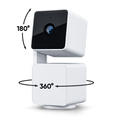
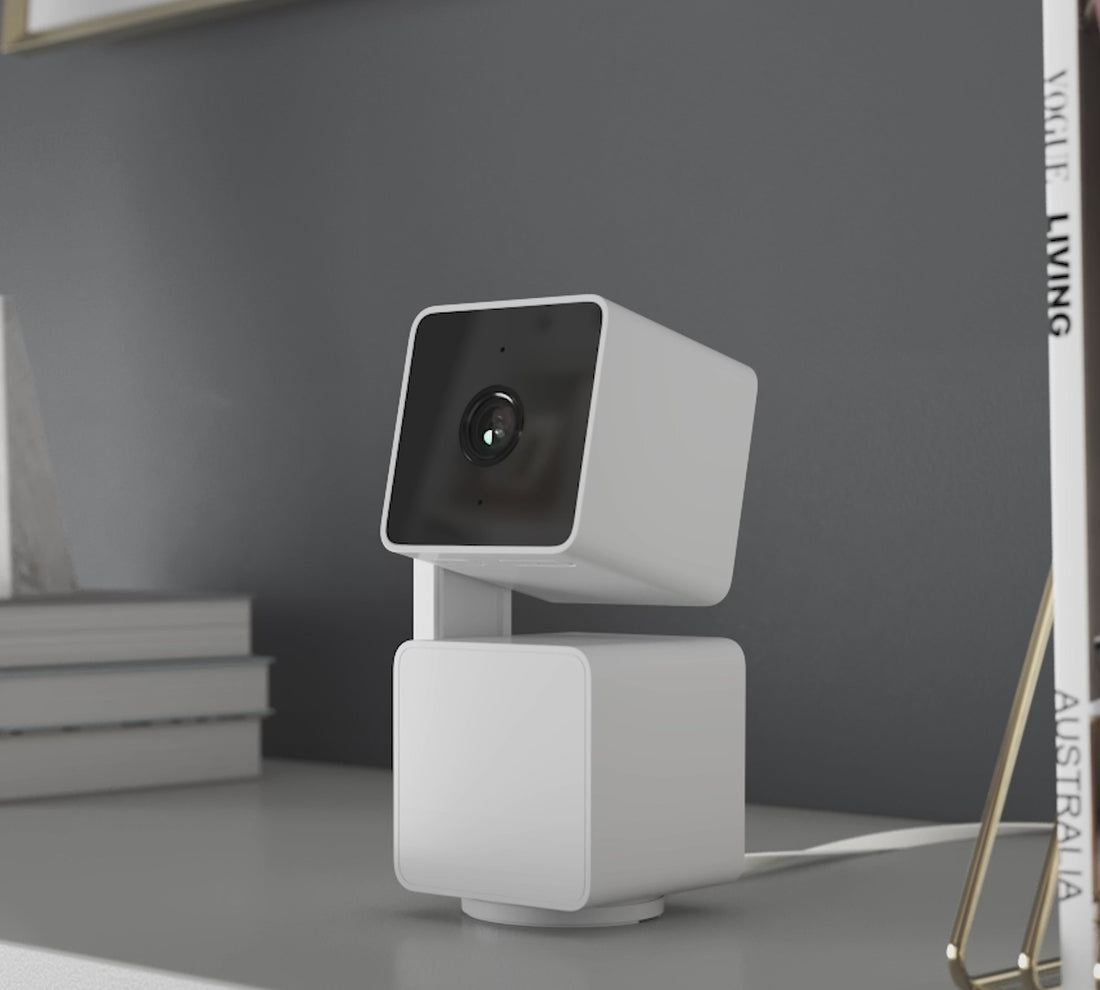
Wyze Cam Pan v3 is a redesigned indoor/outdoor, 360° pan and 180° tilt security camera, and is fully IP65 weather resistant.

*For safe outdoor use, Pan v3 requires a Wyze Outdoor Power Adapter (sold separately).

View full details
  • Weather-resistant camera lens.

    Indoor/Outdoor IP65 Weatherproof

  • WyzeCam Pan V2 Icon.

    Remotely Spins 360°/Tilts 180°

  • Fast motion icon.

    Automatic Motion-Tracking

  • A black background with a white logo for Streamline HQ Technology.

    Privacy Mode

Wyze Cam Pan v3 Specs

Color & Materials

  • Color: White
  • Finish: Matte
  • Body: Polycarbonate  
  • Lens: Glass + plastic
  • CPU: 1.5 GHz
  • Image Sensor: 1/2.9'' CMOS
  • LED indicator: Front. Red + Blue
  • Night Vision: 4 IR LEDs (850 nm)

Dimensions & Weight

  • 124mm (H) x 60mm (W) x 63mm (D)
  • 11.29 oz (320 g)

Video

  • Video Encoding: H.264
  • Video FPS: Daytime - 20 fps; Nighttime - 15 fps
  • Video Resolution: 1920 x 1080 (1080p)

View Range

  • 360° horizontal, 180° vertical

Field-of-view

  • 120° FOV

Additional Details

  • Digital Zoom: 8x
  • Mount: Screw 1/4" - 20
  • Circular Base: Diameter 1.69" (43mm)
  • Ports: 1 micro USB
  • Memory: 128 Mb
  • Rotation Speed: Up to 110° per second
  • Audio: Built-in speaker and microphone; 2-way audio; Noise & Echo cancellation
  • Alerts: Push notifications
  • Night Vision and Color Night Vision

Power

  • Power Cable Length: 6" (1.8 m)
  • Power Adapter Input: 110-240V (AC/DC)
  • Power Adapter Output: 5V/2000mA

Connectivity & Compatibility

  • 802.11 b/g/n, 2.4GHz (5GHz Wi-Fi not supported)
  • Phone Compatibility: Android 9.0+, iOS 15.0+
  • Integrations: Alexa, Google Assistant, IFTTT
  • Upload speed 1.0 Mbps for SD, 1.5 Mbps for HD

Storage

  • Supports up to 256 GB microSD in ExFAT format

Weather & Temperature

  • Operating temp: -20°C - 50°C (-4°F - 122°F)
  • IP65 Water Resistance

Certifications

  • FCC, IC, UL, TSCA, IP65

Language

  • English

Warranty
  • 1-Year

Important note

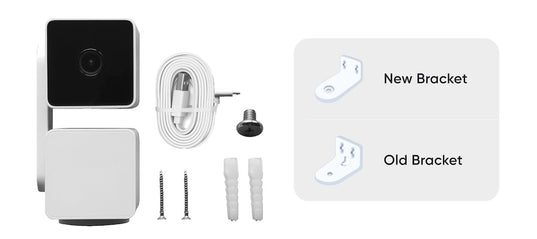
  • Wyze Cam Pan v3 comes with one of two versions of the Mounting Kit, as shown here. The Mounting Kit pictured on the product packaging is currently of the original design but the package could contain the new design. Both mounts allow you to install the Pan v3 upside down.
A white cord plugged into a device.
  • Wyze Cam Pan v3
  • 6' micro USB Cable
  • Power Adapter
  • Mounting Kit (Please note: There has a been change in our mounting bracket's design. Customers may get either design regardless of the design on the packaging. However, this shouldn't affect functionality. Learn more here.)
  • Quick Start Guide

Please check the help center and see if we’ve got what you need. Alternatively, you may also find the list of related camera parts here.

Wyze Cam Pan v3 has an entirely new, innovative design that doubles the total tilt range to 180º and produces 52% less dBA noise when rotating. It is also our first IP65-rated weather-resistant pan camera, ready to be used outdoors with the included mounting kit that lets you mount it literally anywhere - even upside-down. Lastly, it has Privacy Mode which points the camera lens down towards the camera body and obstructs any view.

No, Wyze Cam Pan v3 is powered via a 1.8 m USB cable.

1920 x 1080p Full HD.

Yes, it will return to its previous position. 

Yes, Wyze Cam Pan v3 is IP65-rated and can be used both indoors and outdoors. Just be sure to cover the SD card slot to avoid water damage. Wyze Outdoor Power Adapter v2 is required for outdoor use.

No, Wyze Cam Pan v3 is powered via a 1.8 m USB cable.

Day: 20 frames per second (fps); Night: 15 fps.

No, Wyze Cam Pan v3 only supports 2.4 GHz networks.

Yes, Wyze Cam Pan v3 supports Wyze Web View. (Requires subscription to Cam Plus or Cam Protect) (https://view.wyze.com/)

No, it does not. Cam Plus Lite is only available on cameras released before April 2022.

Wyze Cam Pan v3 is equipped with a starlight sensor that allows the camera to see color in extremely low light conditions, allowing you to see full color at night. To use it, turn off Night Vision in low light conditions.

There has a been change in our mounting bracket's design. Customers may get either design regardless of the design on the packaging. However, this shouldn't affect functionality. Please check our support site if you need more details.

Take Wyze Cam Pan v3 outside.

Not just an indoor cat anymore. With IP65 water resistance* you can automatically patrol your property in any weather.

A white camera with a black lens.

Automatic motion-tracking.

Those cans never knew what hit them, but Pan v3 did. That's because it detects motion, follows, and records it automatically. Its upgraded tracking motor is quieter than a gossiping church mouse, so it won't wake napping babies or startle pets.

...wait till' the end 😂

See the whole room with 360° pan and 180° tilt.

Now with double the tilt coverage, Pan v3 can look straight up and down. Just like my middle school gym teacher, but way less judgy. It was an awkward time for me, okay?

Privacy Mode.

You just sat down to binge watch that show. You also decided that pants were optional today.

So, you enable Privacy Mode in the Wyze app and Pan v3 spins and points 180° straight down, eliminating it's field of view and turning off. You relax. You push play.

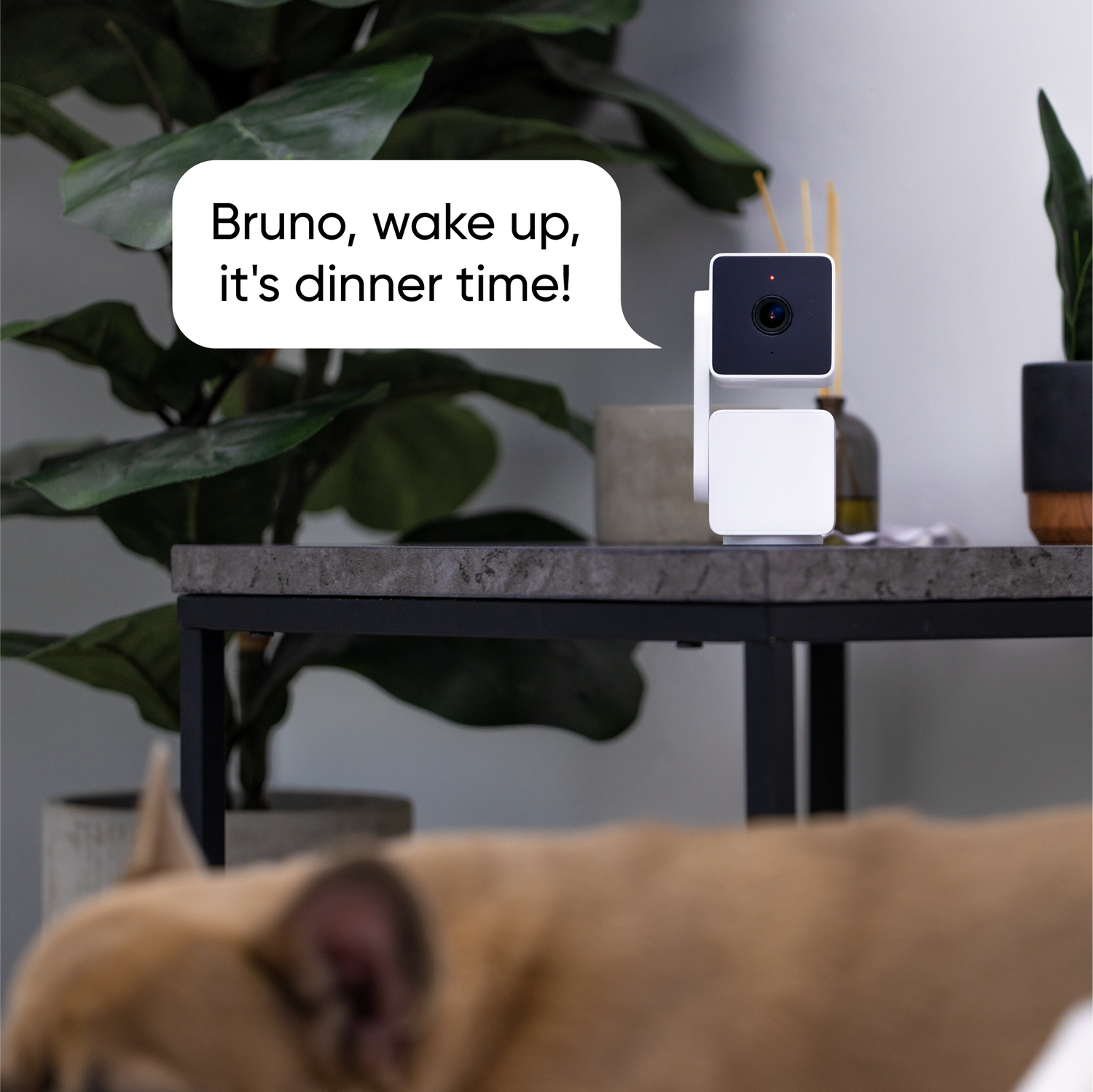
A dog with a speech bubble that says "Bruno, wake up, it's dinner time!

Two-Way Audio.

Data shows only 10% of users scroll this far down a page, and we assume even less actually read this text.

You probably know what two-way audio is by now, but basically you can speak through the Wyze app, and that sound will come out of the camera. And you can listen as people talk to the camera, and that sound travels through a black hole that formed when Marty McFly kissed the high school version of his own mom, and then it comes out of your phone.

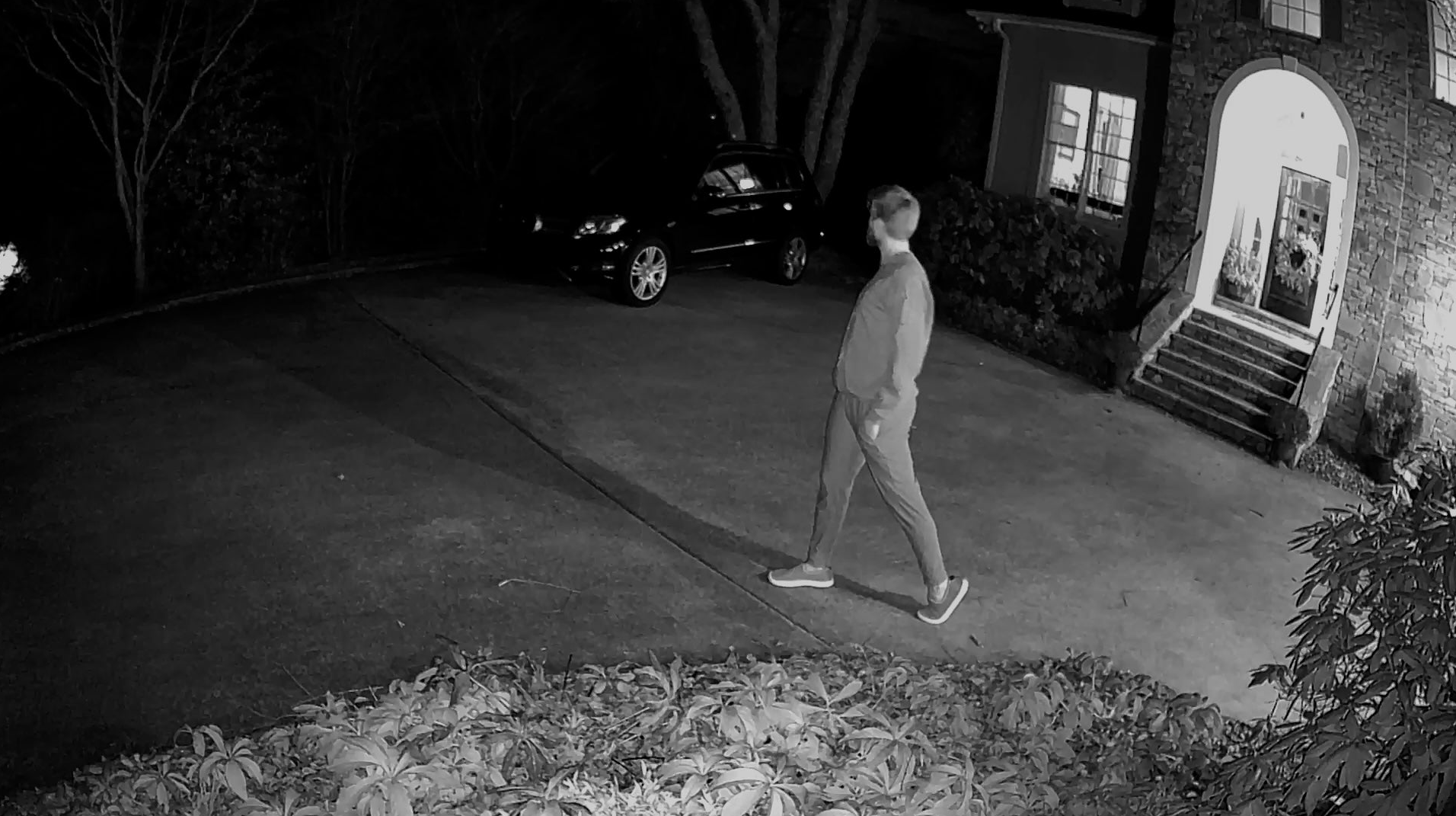
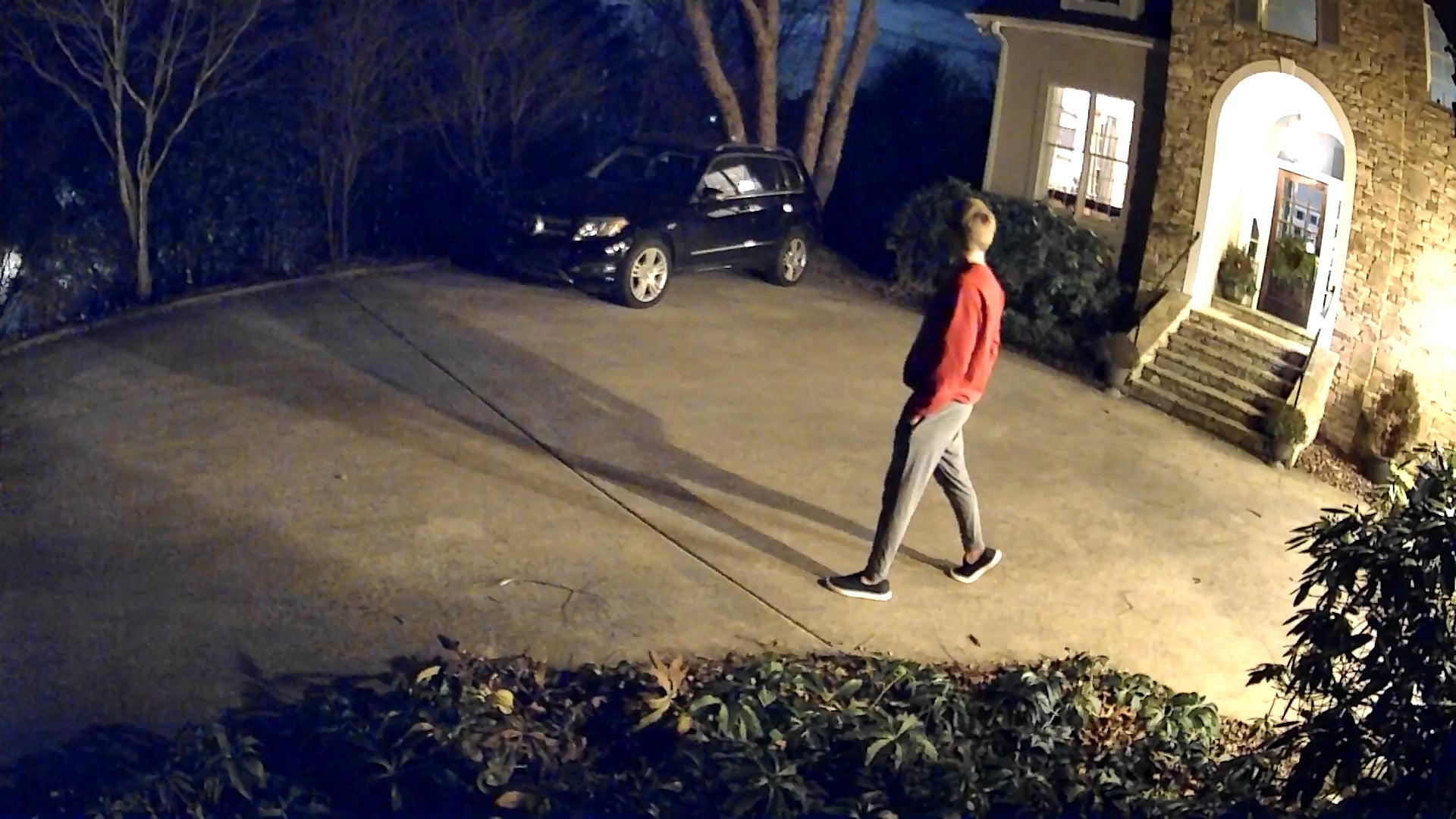
Detailed security with Color Night Vision

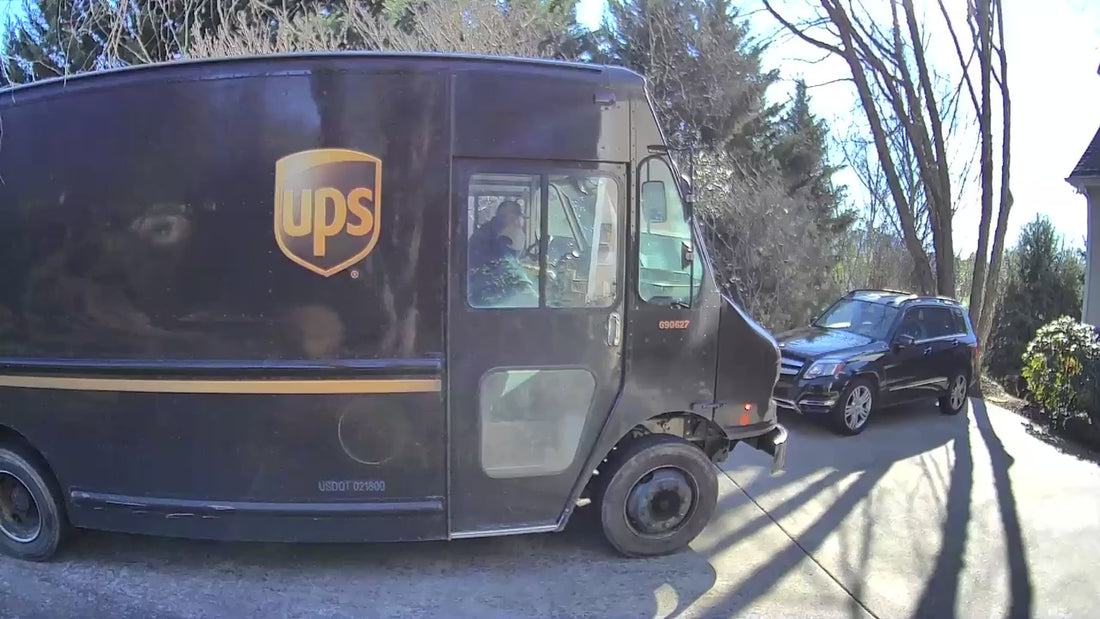
Watched a black and white movie recently? We haven't either, because every detail matters. That's why we've made Color Night Vision standard across all of our security cameras with Starlight Sensor.

  • A man walking on a sidewalk at night.

    $150 Competitor Cam

  • A man walking in front of a car.

    Wyze Cam Pan v3

Wyze Cam Power Adapter v2 laid out against a white background.

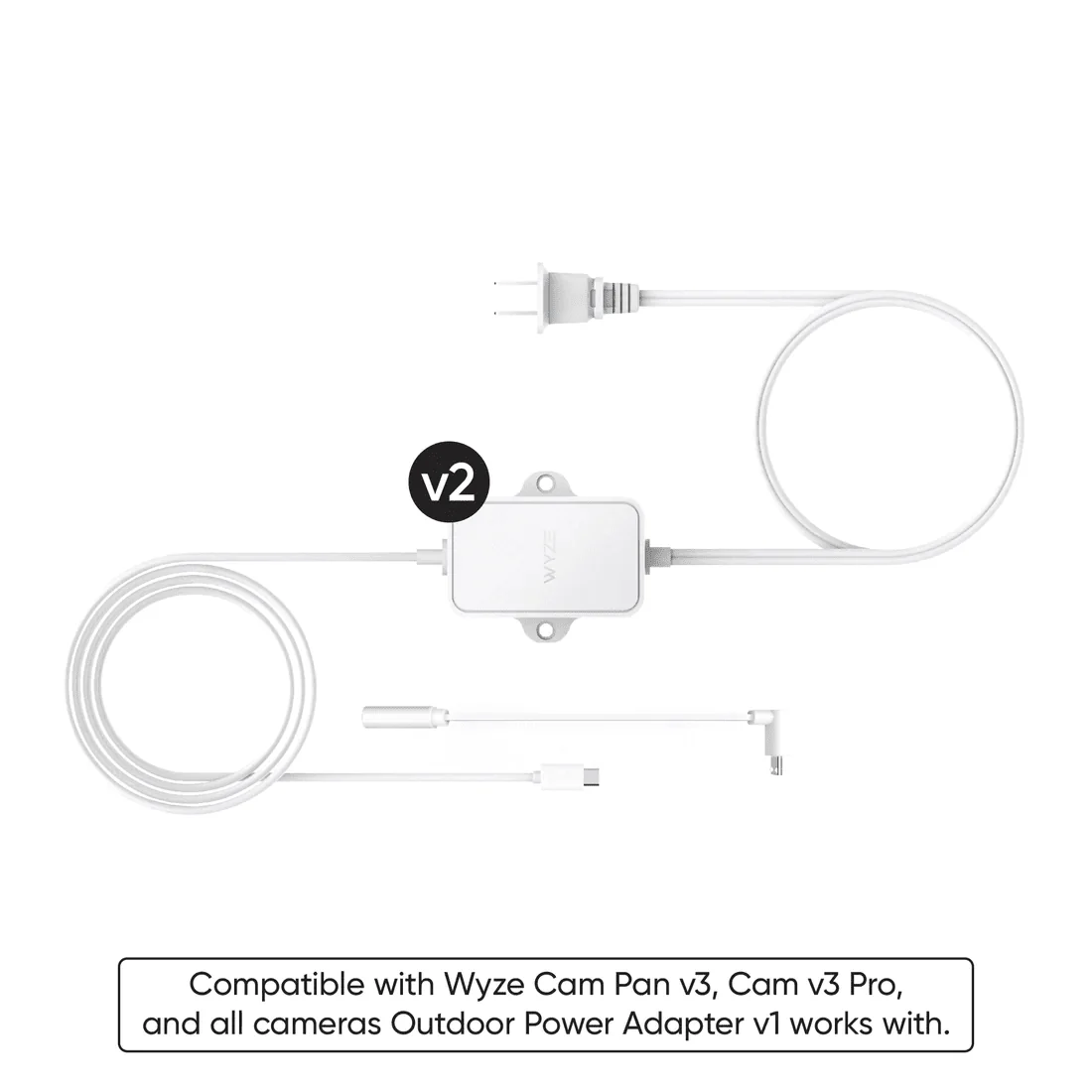
Add a Wyze Outdoor Power Adapter + L-shaped MicroUSB

Ready for rain, snow, or shine. Pair your camera with an adapter made for the outdoors. The Wyze Outdoor Power Adapter + L-shaped MicroUSB is designed to work with Wyze Cam Pan v3.

Learn more

Great out of the box. Even better with Cam Plus.

Biscuits AND gravy. Rainbows AND unicorns. Jay-Z AND Beyonce. Local storage AND smarter security options. 👇

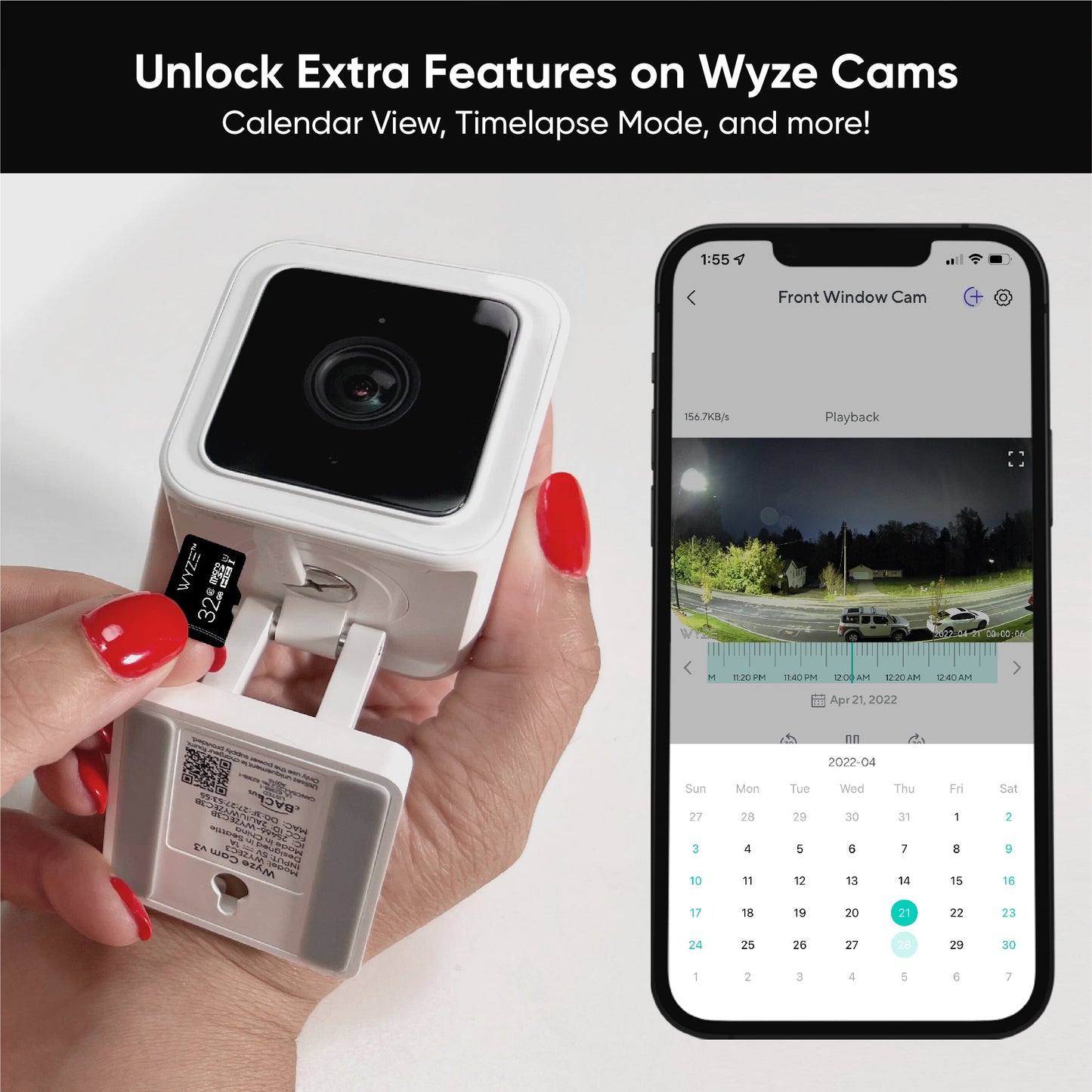
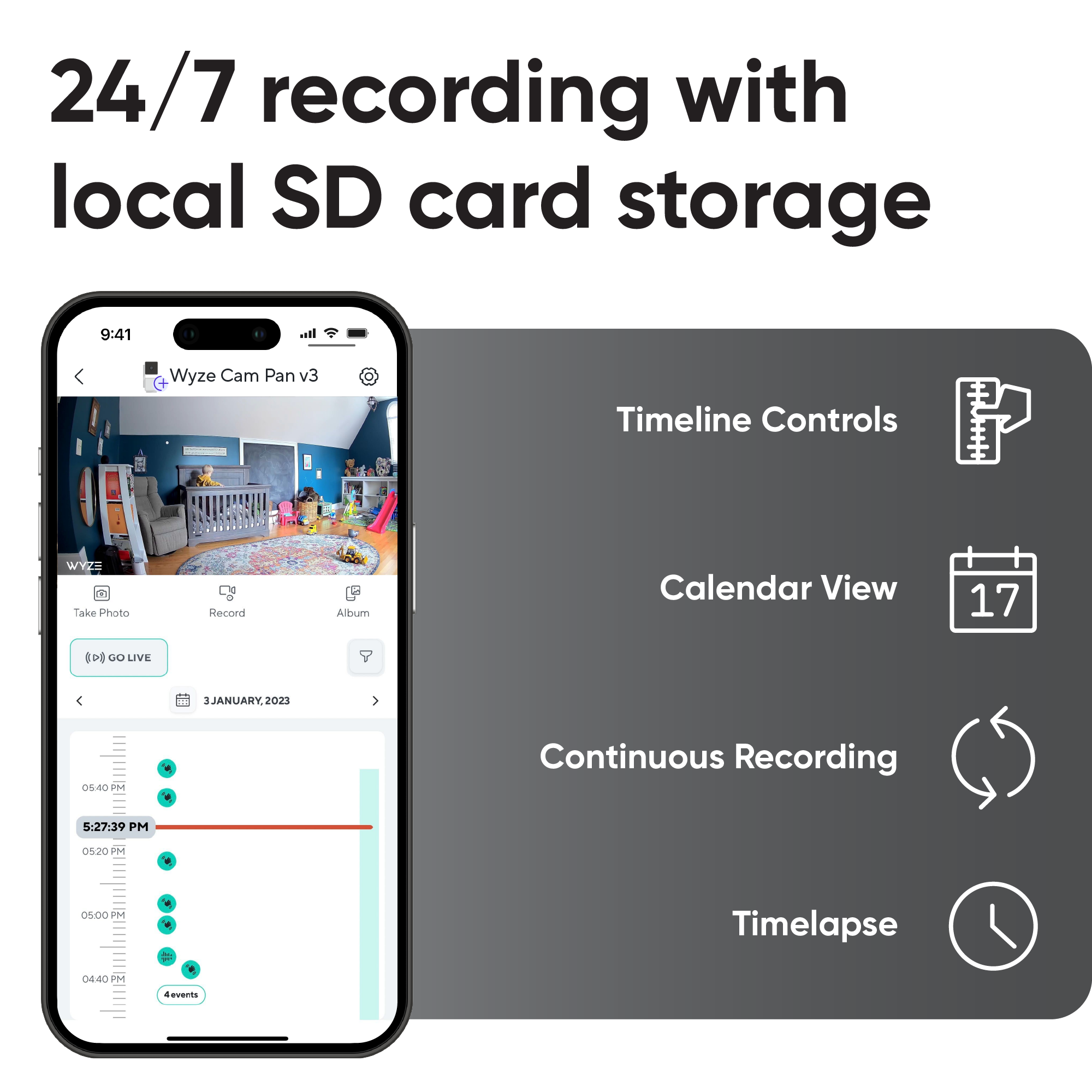
  • 24/7 recording with local SD card storage.
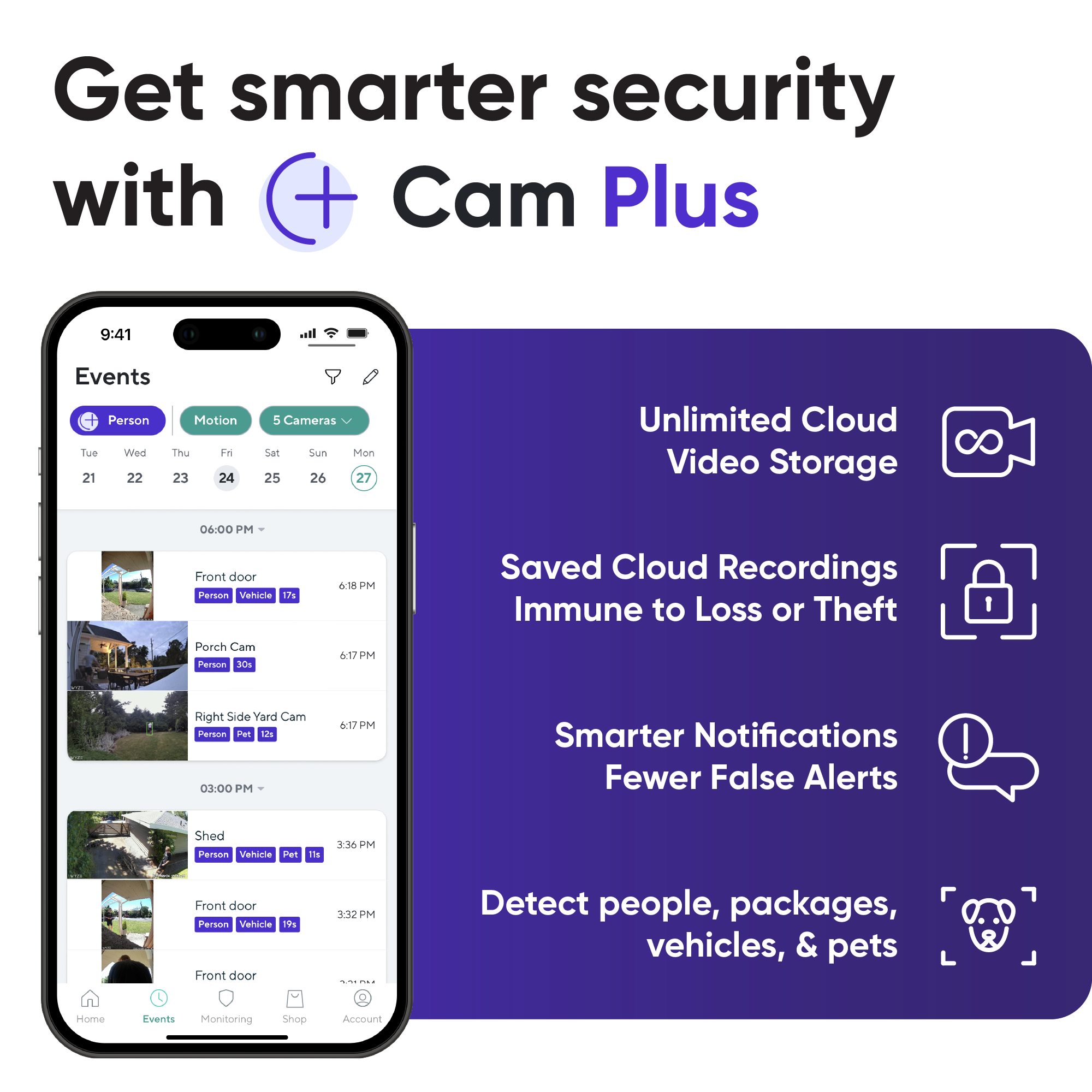
  • Get smarter security with Cam Plus.
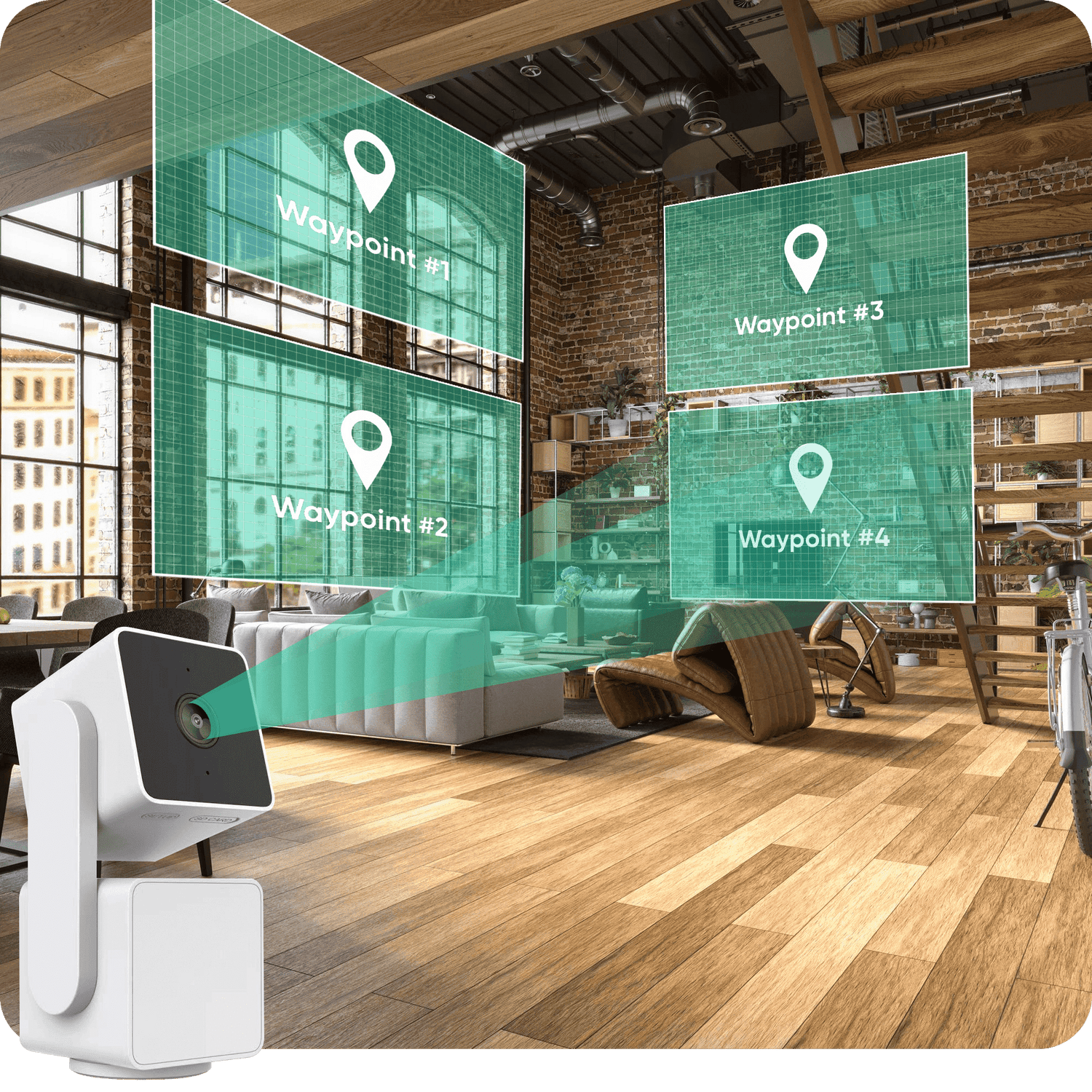
A Wyze device is displayed in a living room with a waypoint map.
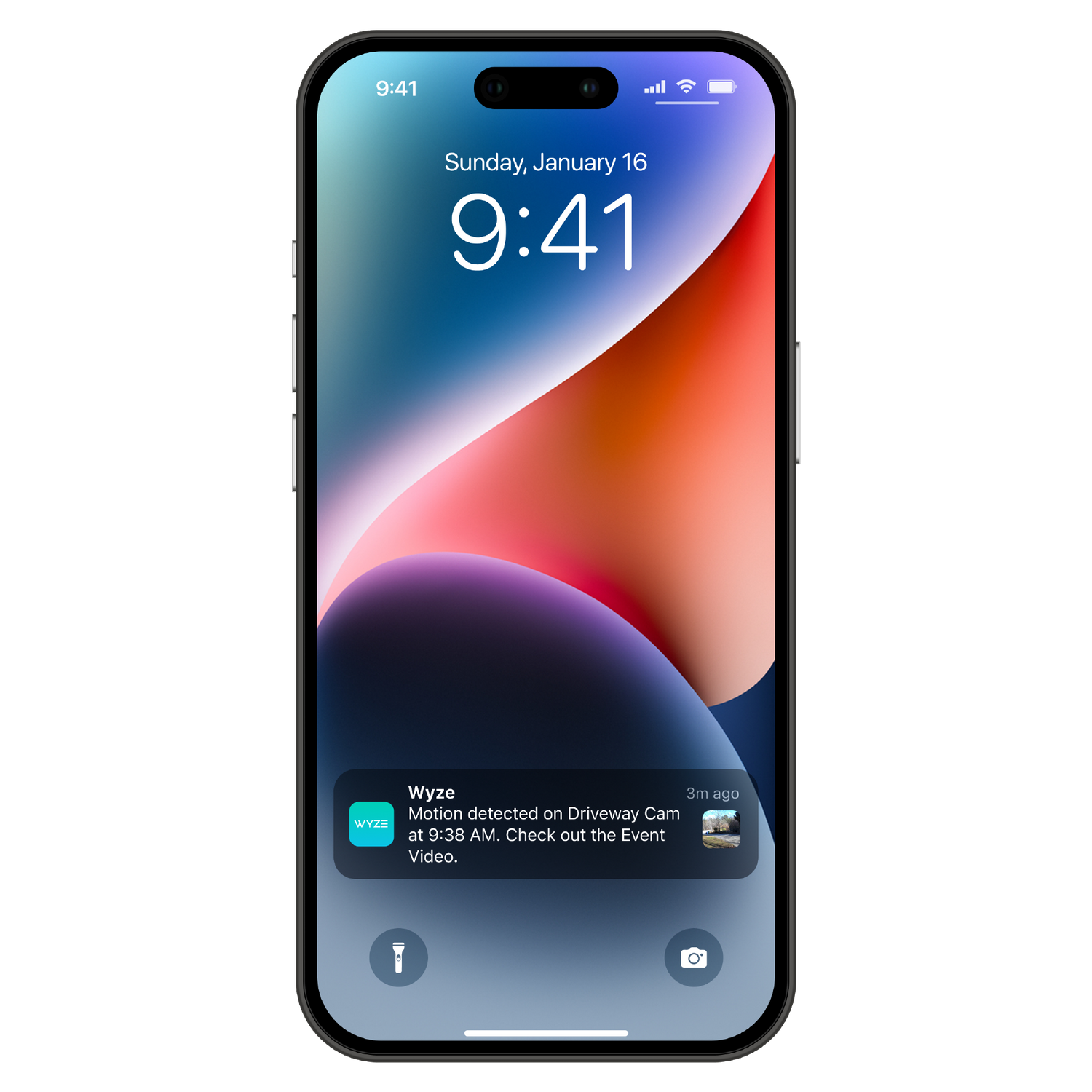
A smartphone with a Wyze notification on the lock screen.
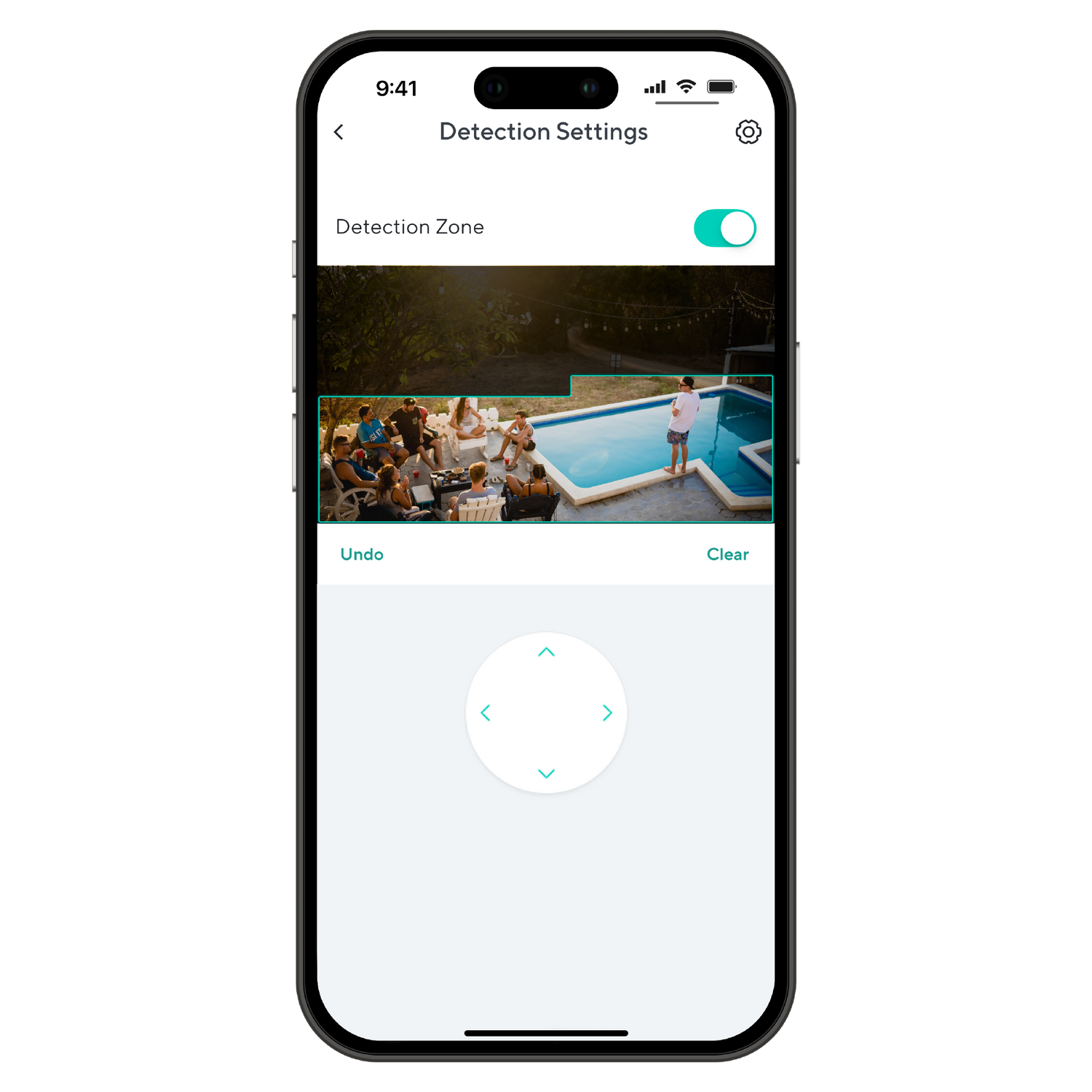
A smartphone screen displaying a detection zone.
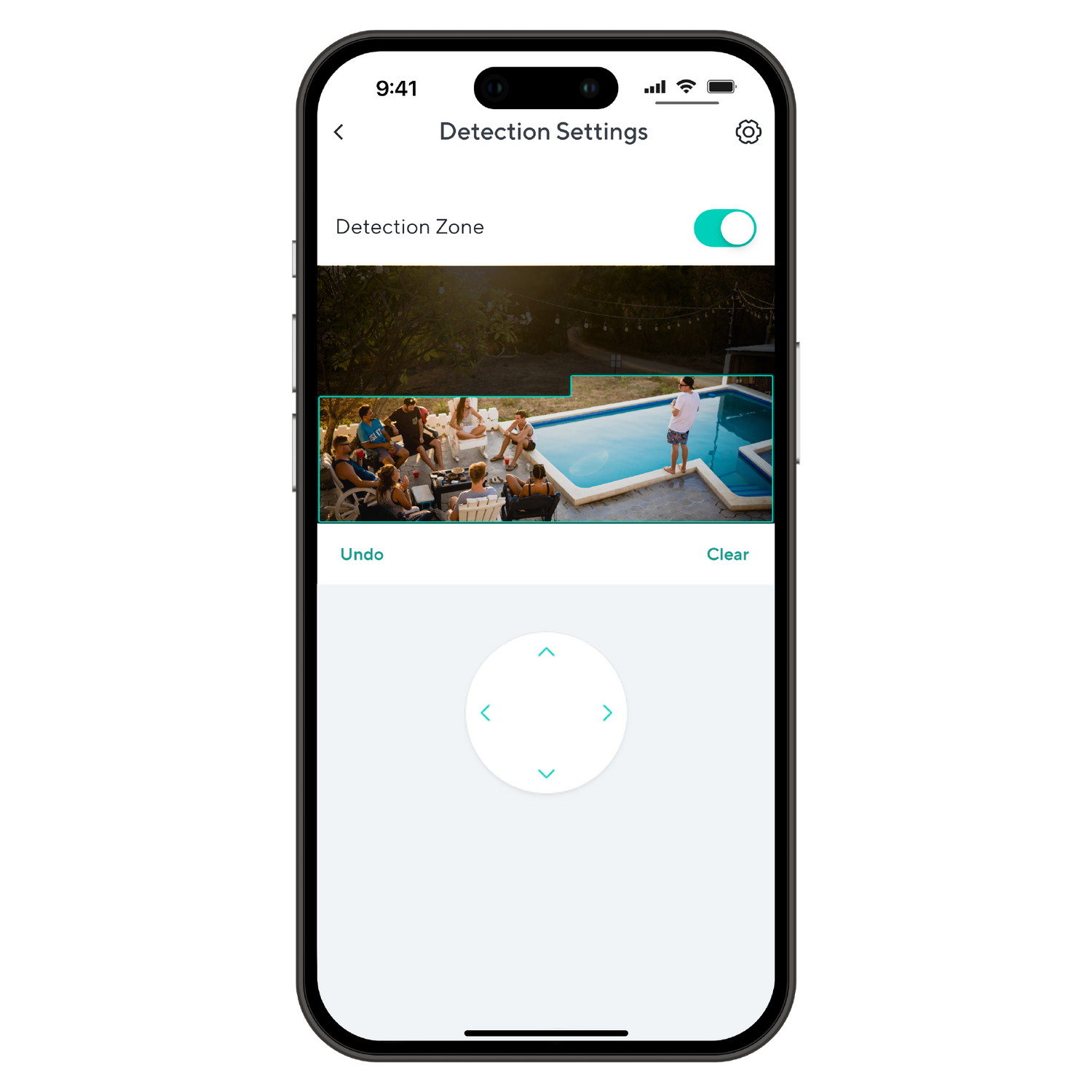
A smartphone screen displaying a picture of a pool area with people in it.
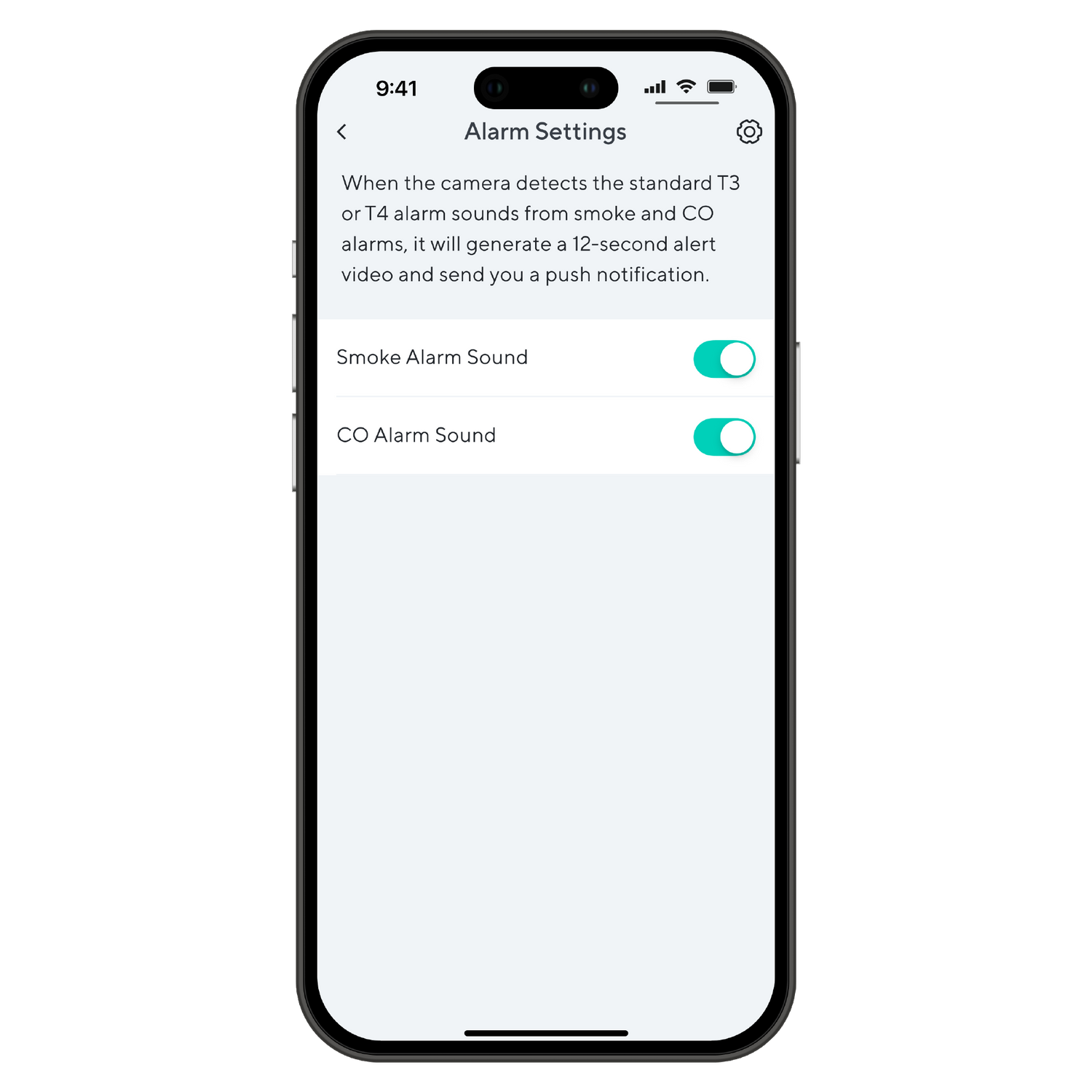
A smartphone screen displaying an alarm settings page with options to toggle notifications for Smoke Alarm Sound and CO.

Packed with app features.

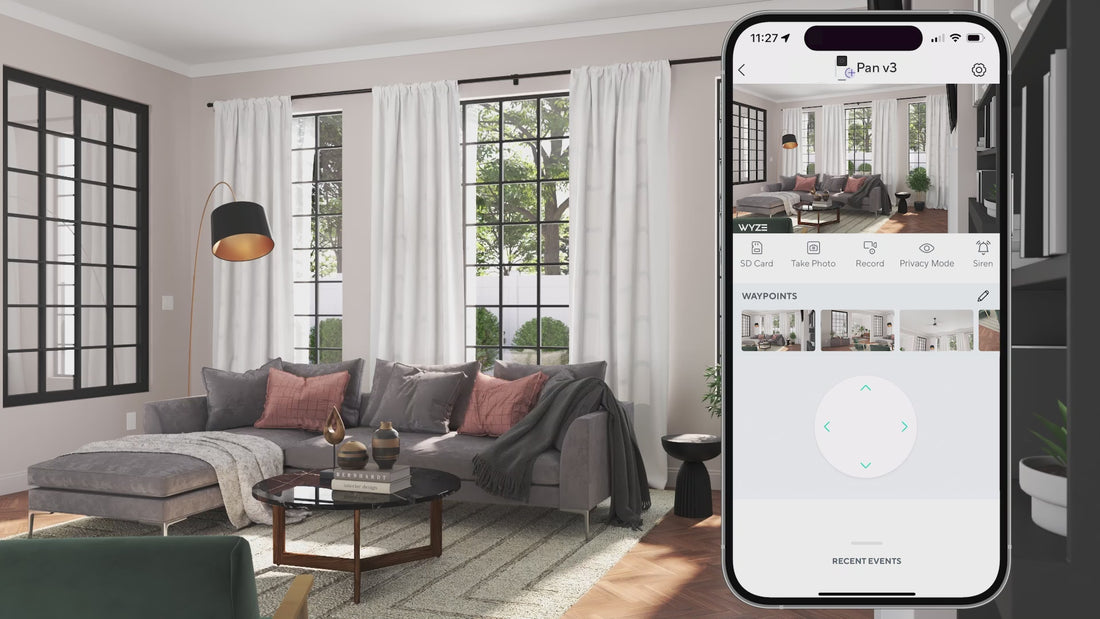
Patrol your room with Pan Scan™. Set the camera’s patrol route with up to 4 custom waypoints.

Wyze Cam Pan v3 sends your phone instant alerts when either motion or sound is detected. With Cam Plus, you can get advanced notifications, like if Wyze Cam hears a crying baby or a barking pet.

Set custom detection areas so you only receive motion notifications from areas of interest.

Receive an alert the moment Wyze Cam hears a Smoke or CO alarm go off, so even if you're not at home, you'll know if an alarm is sounding.

*Requires Wyze Outdoor Power Adapter + L-shaped MicroUSB (sold separately) for outdoor use.

Support Articles

Before you begin setup:

  1. Download the Wyze app on your smartphone or tablet.
  2. Connect your device to a 2.4 GHz Wi-Fi network.
  3. Unpack your Wyze Cam Pan v3 box, removing all plastic and packing materials.Be sure to remove the plastic film from the lens.
  4. Plug the camera into power using the included USB cable and power adapter.The camera’s status light will turn solid red when powered. When flashing, it’s ready for setup.

To set up your Wyze Cam Pan v3:

  1. In the Wyze app, tap Home, then tap + plus sign on the top right.
  2. On the Add menu, tap Device.
  3. Tap Cameras > Pan and Tilt Camera > Wyze Cam Pan v3.
  4. With your camera plugged into an outlet, tap Next in the app.
  5. Select your 2.4 GHz Wi-Fi network and enter your network password. Tap Next.Tap the icon in the password field to display the password to ensure it was entered correctly.
  6. Under the camera lens, single-press the SETUP button. It will say “ready to connect”.The camera may say “ready to connect” without pressing the SETUP button. If so, continue with setup. Note: Single-pressing the SETUP button does not factory reset, clear data or unbind your Wyze Cam Pan v3.
  7. In the app, check the box next to I heard, “Ready to connect”.
  8. Tap Next.
  9. Scan the QR code on the Wyze app.Hold your camera up to your phone screen with the QR code displaying. It will say “QR code scanned, please wait” then “setup completed”.
  10. In the app, check the box next to I heard, “QR code scanned”.
  11. After the camera is set up and connected, it will say "setup completed".
  12. Tap Next. You’re set up, it’s time to name your device.
  13. Name your Wyze Cam Pan v3 using the text field, or by choosing a suggestion.
  14. Tap Finish when done.
  15. You may have a prompt to a free trial of Cam Plus. Tap Continue.
  16. Set up some automations on the Things to Try* page, or tap Skip.
  17. Enjoy your new Wyze device!

Things to Try: Tap Create or edit a device group, Share this device, Automate your device, or Skip. These are quick ways to set up a few automations before you finish setup. When you complete a task, it'll display a green checkmark ✅. You can move on from this page by tapping Skip.

Additional Notes:

  • Wyze Cam Pan v3 only works on 2.4 GHz Wi-Fi networks. If you are connected to a 5 GHz network, switch to a 2.4 GHz network before setting up your device.
  • Having trouble scanning your QR code? A few tips to help:Hold your camera 6-10 inches away from your phone screen.Slowly move the QR code on the screen away from the camera, then closer.Tilt your phone screen slightly in case there's a glare.Turn your phone upside down. If you're on iOS, turn off "Invert Colors". Make sure the QR code isn't distorted.If you have an older device, the screen may be too small. Try a different device.If your screen is cracked or scratched, the code may be distorted. Try a different device.If you're using a beta version of the Wyze app, make sure the cursor is not on the QR code.

Haven't set up your Wyze Cam Pan v3 yet? Check out Wyze Cam Pan v3 Setup Guide before installing.

You can set your Wyze Cam Pan v3 anywhere. But if you want it up higher, you'll need to mount it with the included Mounting Kit*.

Wyze Cam Pan v3 mounted with Mounting Kit Version B.

To mount your Wyze Cam Pan v3: with Version A:

  1. Place the Mounting Bracket included in your Mounting Kit to the wall.Rotate the bracket if you're mounting the camera near the ceiling and want it upside down.Make sure your bracket has at least 150 mm of space above and below it, and 30 mm around.
  2. Mark your drill holes with a pencil.
  3. Use a 6mm drill to drill holes at the pencil marks.
  4. Drill the bracket screws into the wall or anchors.Your bracket screws should be exactly 21 mm apart.
  5. Insert the power cable into the camera, then plug the USB end into the adapter.When powered, the status light on the camera will light up.
  6. Align the hole at the bottom of the camera to the bracket and attach with the included screw.
  7. Hang the bracket from the two screws upside down, like this:

To mount your Wyze Cam Pan v3: with Version B:

  1. Place the Mounting Bracket included in your Mounting Kit to the wall.Rotate the bracket if you're mounting the camera near the ceiling and want it upside down.Make sure your bracket has at least 150 mm of space above and below it, and 30 mm around.
  2. Mark your drill holes with a pencil.
  3. Use a 6mm drill to drill holes at the pencil marks.
  4. Drill the bracket screws into the wall or anchors until halfway inserted.
  5. Place the mounting bracket over your screws, and finish drilling in the screws until the bracket is firmly attached to the wall.
  6. Pass the included power cable through the hole in the mounting bracket, and insert the cable into the bottom of your camera.When powered, the status light on the camera will light up.
  7. Using your screwdriver and the binding screw, attach the bottom of your camera the mounting bracket, like this:

Problem

You're using the Wyze app to position your Wyze Cam Pan v3, but it isn't moving as expected. It may not be rotating, or can only turn in one direction.

Note: This is usually caused by manually bumping or adjusting your Wyze Cam Pan v3, which causes it to lose track of its position. All you need to do is recalibrate the camera position and try again.

Troubleshooting

  1. Recalibrate the position of your Wyze Cam Pan v3. In the Wyze app, tap Wyze Cam Pan v3 > Settings > Advanced Settings> Motor Controls > Reset Position > Reset.
  2. Confirm your Wyze app is up to date. In your Wyze app, go to the Account tab > tap About.Your current app version is under the Wyze logo. Compare your app version to the latest app version listed here on our Release Notes & Firmware page.If you find that your Wyze app is out of date, head over to your mobile device’s app store, and update the Wyze app.
  3. Check that your Wyze Cam Pan v3’s firmware is up to date. You can check this by going to the Account tab > Firmware Update.If there is an update available for the camera, please move forward with updating it.
  4. Ensure there is nothing blocking the camera’s ability to move.
  5. Toggle Privacy Mode off/on from underneath the camera’s live stream.
Added to your cart
FREE shipping on orders $59+
Subtotal
$0.00
View cart