Ir directamente a la información del producto

Bombilla auxiliar Wyze (reacondicionada)

Bombilla auxiliar Wyze (reacondicionada)

SALE
$10.98 $16.98SAVE 37%
Agotado
Get it as soon as
Este producto no es elegible para devoluciones.
Agotado
A blue and white logo for Wyze.
VENTAJAS Exclusivas de Wyze.com
Garantía extendida de 12 meses

Obtenga una garantía extendida de 12 meses al comprar productos reacondicionados en wyze.com. También obtenga paquetes especiales, promociones únicas y recompensas con cada pedido

Logotipo de Wyze Refurbished

Este es un producto Wyze reacondicionado. ¿Qué significa eso? Es un producto Wyze como nuevo , completamente probado y con garantía de funcionamiento, ahora a un precio aún mejor. Venta final, pero decisión de Wyze.
Ver todos los detalles
  • A black image of a Wyze Bulb Cam.

    Simple y brillante

    Proporciona una iluminación clara y confiable. 800 lúmenes.

  • A black image of a bulb with a camera.

    Compañero perfecto

    Diseñado para Wyze Bulb Cam.

  • A black background with a white star icon.

    Instalación muy sencilla

    Se enrosca como cualquier bombilla E26 estándar.

  • A black screen with no visible content.

    Calidad asequible

    Ilumina tu hogar sin gastar una fortuna.

Light up your life with Wyze Accessory Bulbs

Meet the sidekick that's full of bright ideas. It's 800 lumens, a standard E26 socket, dimmable, and works exclusively with Wyze Bulb Cam.

Wyze Bulb Cam Shopify
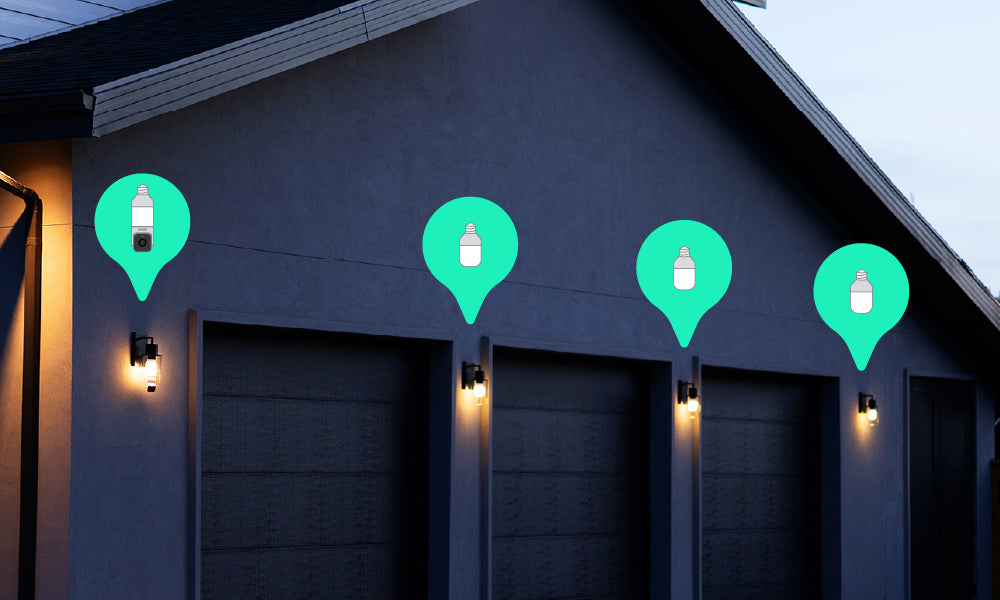
Two green lights on a building.

Control de iluminación de grupo mejorado

Conecta automáticamente hasta 5 focos auxiliares con una sola Wyze Bulb Cam para una iluminación inteligente de cobertura total. Personaliza el brillo y programa horarios. ¿Luces activadas por movimiento? ¡Sí, también pueden!

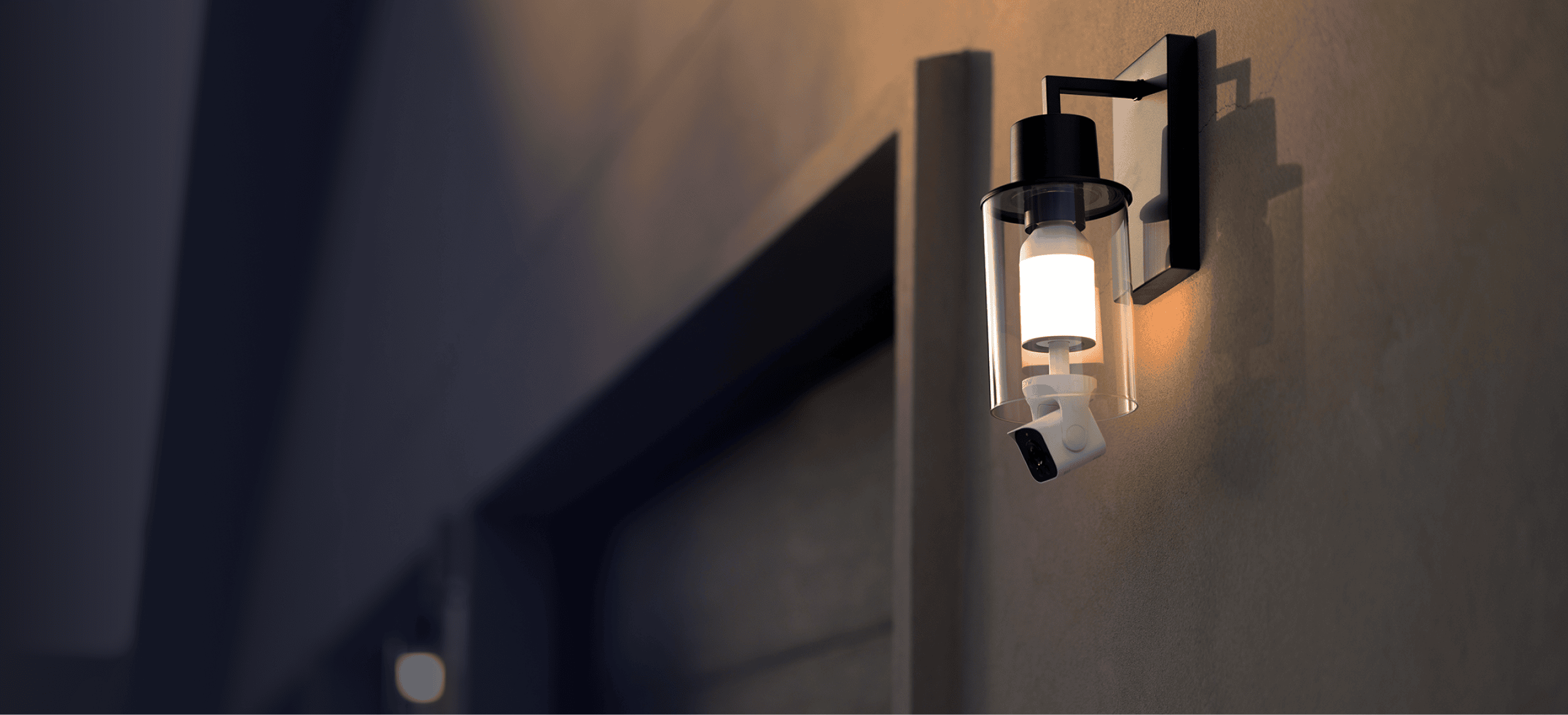
Combínalo con Wyze Bulb Cam para una configuración brillante

Vea cómo se ve Wyze Bulb Cam con varios accesorios para exteriores.

Wyze Bulb Cam Shopify

Support Articles

Wyze Bulb White is a smart bulb you can control with your mobile device using the Wyze app.

If you're setting up your Wyze Bulbs with a multi-way switch/socket, check out some alternate setup methods here.

New to Wyze? Before starting, download the Wyze app and enable BluetoothⓇ.

To set up your Wyze Bulb White:

  1. In the Wyze app, tap Home, then tap the plus sign + on the top right.
  2. On the Add menu, tap Device.
  3. Tap Power & Lighting > Wyze Bulb.
  4. Select your Wyze Bulb version. If your bulb says “White” under the Wyze logo, tap Wyze Bulb White. Install your Wyze Bulb into the lamp or light socket. Manually turn the light on and off 3 times. Your Wyze Bulb White will begin to pulse. You must toggle power to the light off and on 3 times within 6 seconds, with less than 2 seconds between each toggle. Tap Next in the Wyze app. Select your 2.4 GHz Wi-Fi network and enter your network password. Tap Next. Make sure the box next to your bulb is checked, then tap Next. Name your new Wyze Bulb White. Tap Finish Naming. If your bulb only shows the Wyze logo, tap Wyze Bulb (2019 version). Install your Wyze Bulb into the lamp or light socket. Manually turn the light on and off 3 times. Your Wyze Bulb will begin to pulse. You must toggle power to the light off and on 3 times within 6 seconds, with less than 2 seconds between each toggle. Tap Next in the Wyze app. Select your 2.4 GHz Wi-Fi network and enter your network password. Tap Next. On the next screen, you'll be prompted to connect to the Wyze Bulb network Tap Choose Wi-Fi. In your device's Wi-Fi settings screen, tap the network for your Wyze Bulb. The network looks like “wyze_smartbulb_apxxx”. Tap Next then select the Wyze Bulb’s Wi-Fi and tap Connect. Tap to return to the Wyze app, where you'll see Connecting... Once Wyze Bulb finishes connecting, it will stop pulsing. Name your new Wyze Bulb White. Tap Finish Naming.
  5. You’re all set. Enjoy your new Wyze device!

Additional Notes:

  • During setup, if the bulb doesn't start pulsing after turning the light on/off 3 times, try again while making sure that the bulb turns off completely, then on all the way after each flip of the switch. Wait at least 5 seconds after the 3rd cycle to see if the bulb begins pulsing.
  • If you have your Wyze Bulb in a socket that’s controlled by a dimmer switch, ensure that the switch is set to maximum brightness.
  • For iOS, make sure the Location Services permissions are enabled for the Wyze app. Open the Settings app, then Privacy > Location Services. Scroll down to the Wyze app, tap to open it, then select Always.
  • For Android, when connecting to the Wyze Bulb network, be sure to stay connected to the Wi-Fi network when prompted that the network doesn't have an internet connection, instead of switching to mobile data. If you switch to mobile data or close the prompt, the setup process will stop.

Download the Quick Start Guide for Wyze Bulb White in this article.

Below is the Quick Start Guide for Wyze Bulb White, a short manual for how to get started.

This guide is a short user manual with the basics about Wyze Bulb White including:

  • What's in the box for Wyze Bulb White.
  • How to download the Wyze app.
  • How to set up your Wyze Bulb White.
  • How to use voice assistants with Wyze Bulb White.

Integrate your Wyze Bulb White with Amazon Alexa to control your lights with your voice. Want to turn on all the Wyze bulbs in the house? Just ask Alexa.

Alexa Voice Commands for Wyze Bulb and Wyze Bulb Color:

To turn your Wyze Bulb on/off with Alexa, say:

  • "Alexa, turn (bulb name) off."
  • "Alexa, turn (bulb name) on."

To adjust the brightness, say:

  • "Alexa, set the (bulb name) to (0-100%)."

To adjust the color temperature, say:

  • "Alexa, set (bulb name) softer."
  • "Alexa, make the (bulb name) warmer."
  • "Alexa, set the (bulb name) cooler."
  • "Alexa, make the (bulb name) whiter."
  • "Alexa, make the (bulb name) warm white."
  • "Alexa, set the (bulb name) to daylight."

To adjust the color, say:

  • "Alexa, make the (bulb name) (color)."Example: Alexa, make (bulb name) pink.

Here is a list of words you can use to change a bulb to a specific color temperature or color (Wyze Bulb Color only).

Additional Notes:

  • The Wyze Skill works with all bulbs that are connected to your Wyze account, including bulbs shared with other users.
  • Name your bulb something easy, like "garage light" or "living room."
  • If power to your bulb is turned off using the light switch, Alexa will not be able to access the bulb to turn it on, set the brightness, etc.
Added to your cart
Envío GRATIS en pedidos de $59+
Subtotal
$0.00
View cart