Passer aux informations produit

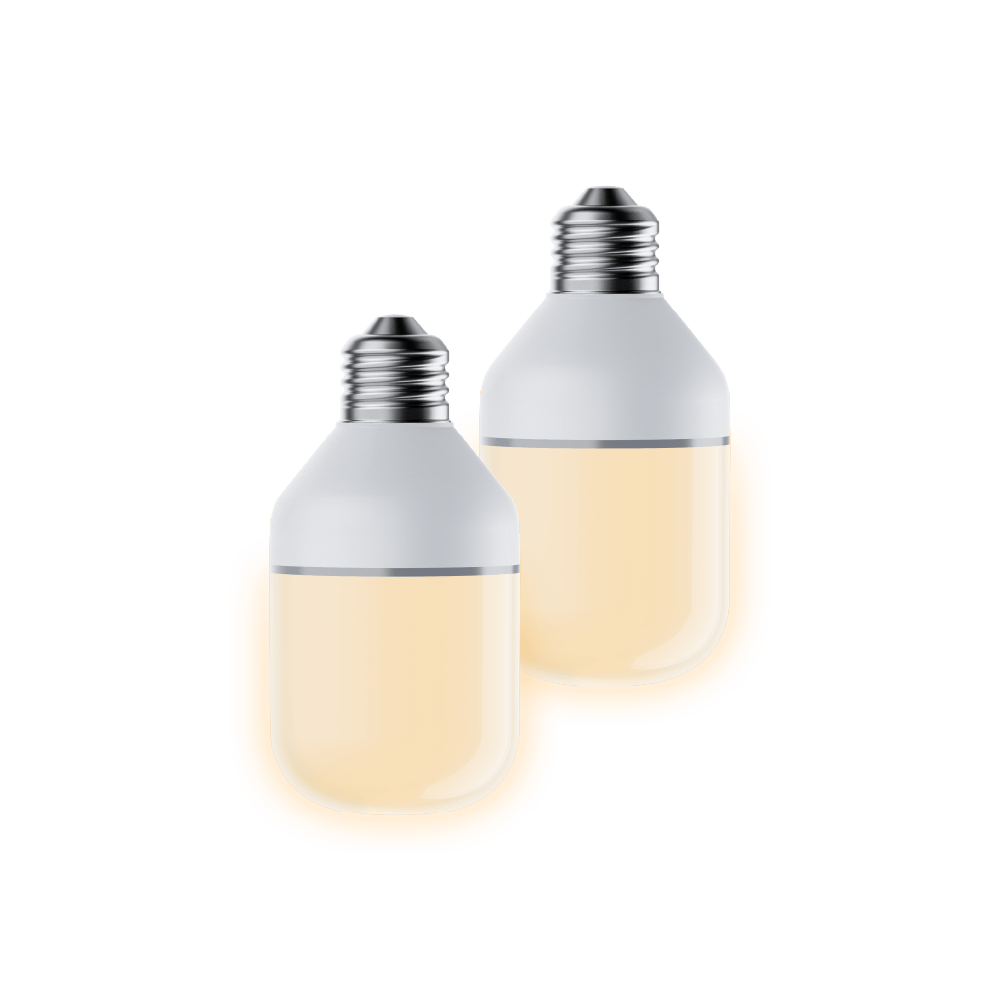
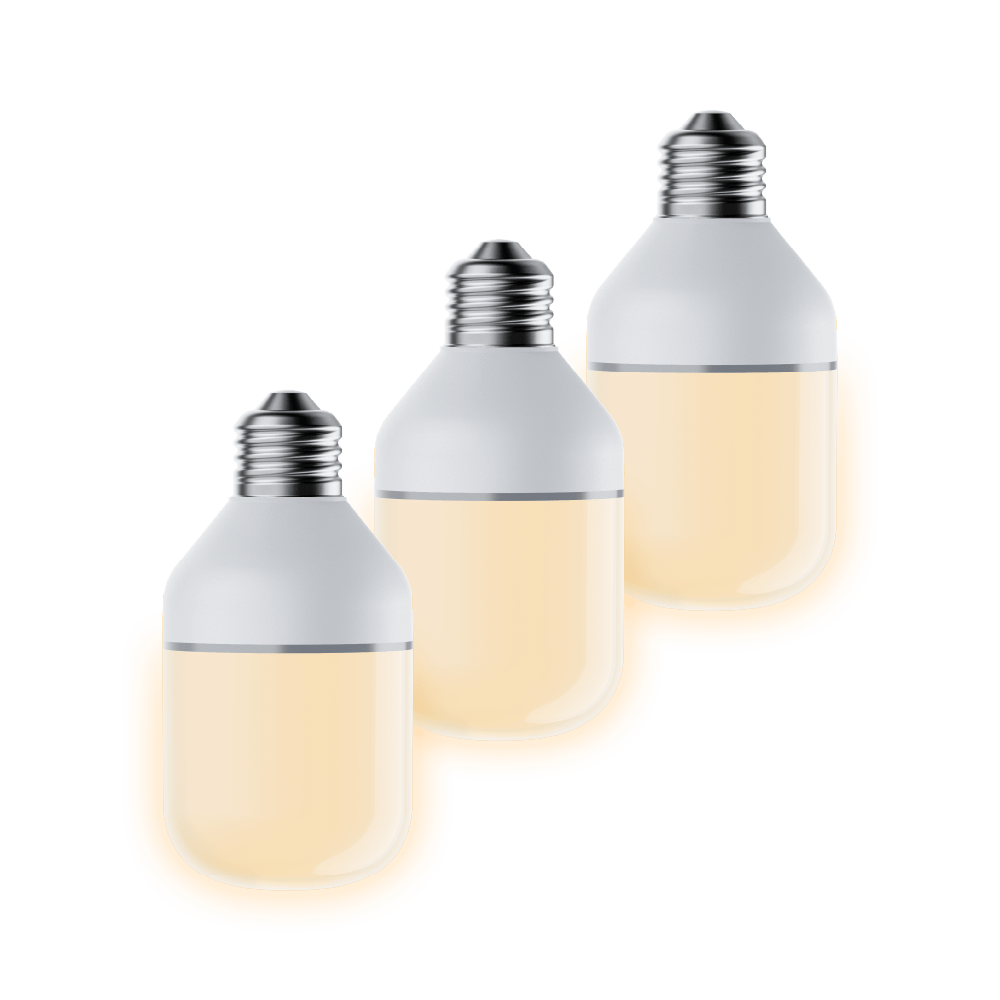
Ampoule accessoire Wyze

Ampoule accessoire Wyze

Ampoules de porche, une réalisation brillante.

Top Accessory
Commonly Bundled Item
Quantité
$16.98
En stock
Get it as soon as
Retours sans tracas sous 30 jours.

Delivers clear, dependable light

Designed for Wyze Bulb Cam

Easy Peasy Install

A stacked coin on a black background.

Affordable Quality

A blue and white logo for Wyze.
AVANTAGES exclusifs de Wyze.com
Garantie prolongée de 18 mois

Bénéficiez d'une garantie prolongée de 18 mois à l'achat de ce produit sur wyze.com. Profitez également de lots spéciaux, de promotions uniques et de récompenses à chaque commande

Vous avez la Wyze Bulb Cam ? Procurez-vous l'éclairage ! L'ampoule accessoire Wyze est le complément idéal de la technologie de caméra de pointe intégrée à notre Wyze Bulb Cam. Pas de fonctionnalités superflues, juste une luminosité fiable et performante à chaque utilisation.

Voir les détails complets
  • A black image of a Wyze Bulb Cam.

    Simple et lumineux

    Fournit un éclairage clair et fiable. 800 lumens.

  • A black image of a bulb with a camera.

    Partenaire idéal

    Conçu pour la caméra Wyze Bulb Cam.

  • A black background with a white star icon.

    Installation ultra facile

    Se visse comme n'importe quelle ampoule E26 standard.

  • A black screen with no visible content.

    Qualité Abordable

    Embellissez votre maison sans vous ruiner.

Spécifications techniques de l'ampoule accessoire Wyze

Matériaux et couleurs
  • Modèle : WYZECBCAB
  • Corps : Plastique
  • Culot de l'ampoule : Métal
  • Certifications : FCC, IC, UL, IP65
Pouvoir
  • Entrée 120 V CA
  • Douille standard E26 uniquement
  • 8 watts
Éclairage
  • Luminosité : jusqu'à 800 lm
  • Température de couleur : 3000 K
  • Commandes : Manuelle, Lumière ambiante, Programmation, Automatisations Wyze, Lumière à détection de mouvement (Nécessite la caméra Wyze Bulb Cam)
Connectivité et compatibilité
  • Configuration requise : Android 7.0+ ou iOS 14.0+
  • Bluetooth® : Bluetooth® Low Energy (BLE), Bluetooth®
  • Connexion : Jusqu'à 5 ampoules accessoires Wyze par ampoule Wyze Cam
Météo et température
  • Résistance aux intempéries : UL Dwemer
  • Température de fonctionnement : -4 °F à 122 °F (-20 °C à 50 °C)
  • Température de stockage : -40°F - 176°F (-40°C - 80°C)
Garantie
  • Garantie produit d'un an

Ampoule accessoire Wyze

  • 1 ampoule accessoire Wyze
  • 1x Guide de démarrage rapide

While the Wyze Bulb Cam is not necessary, we highly recommend having at least one to enable in app functionality for Wyze Accessory Bulbs. Without the Bulb Cam, your Accessory Bulbs will only function like normal (not-smart) light bulbs. Without in app functionality, you can only turn them on and off with an external switch. If you want a smart bulb and not a cam, please checkout our Wyze Bulb White or Wyze Bulb Color.

Yes, Wyze Accessory Bulbs are dimmable via the Wyze app if you have a Wyze Bulb Cam setup. The brightness can be set up to 800 lumens, and has an Ambient Light mode which provides constant, low-level ambient lighting until motion is detected and automatically switches to increased brightness.

No, Wyze Bulb Cam and Wyze Accessory Bulb’s color temperature are fixed at 3000K and cannot be changed.

Light up your life with Wyze Accessory Bulbs

Meet the sidekick that's full of bright ideas. It's 800 lumens, a standard E26 socket, dimmable, and works exclusively with Wyze Bulb Cam.

Wyze Bulb Cam Shopify
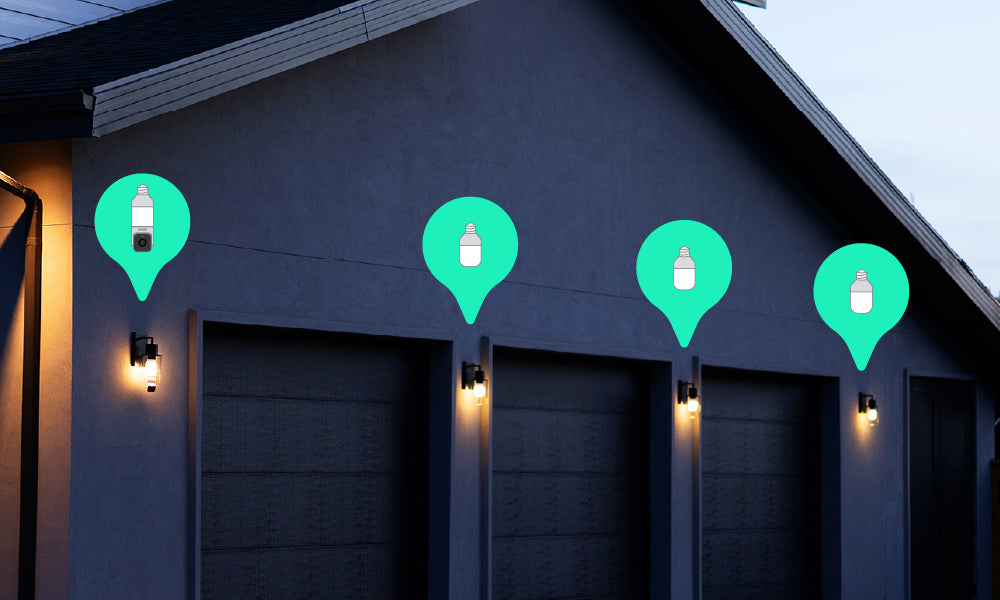
Two green lights on a building.

Contrôle amélioré de l'éclairage de groupe

Connectez automatiquement jusqu'à 5 ampoules accessoires avec une seule Wyze Bulb Cam pour un éclairage intelligent complet. Personnalisez la luminosité et programmez des horaires. Éclairage à détection de mouvement ? Oui, c'est possible aussi !

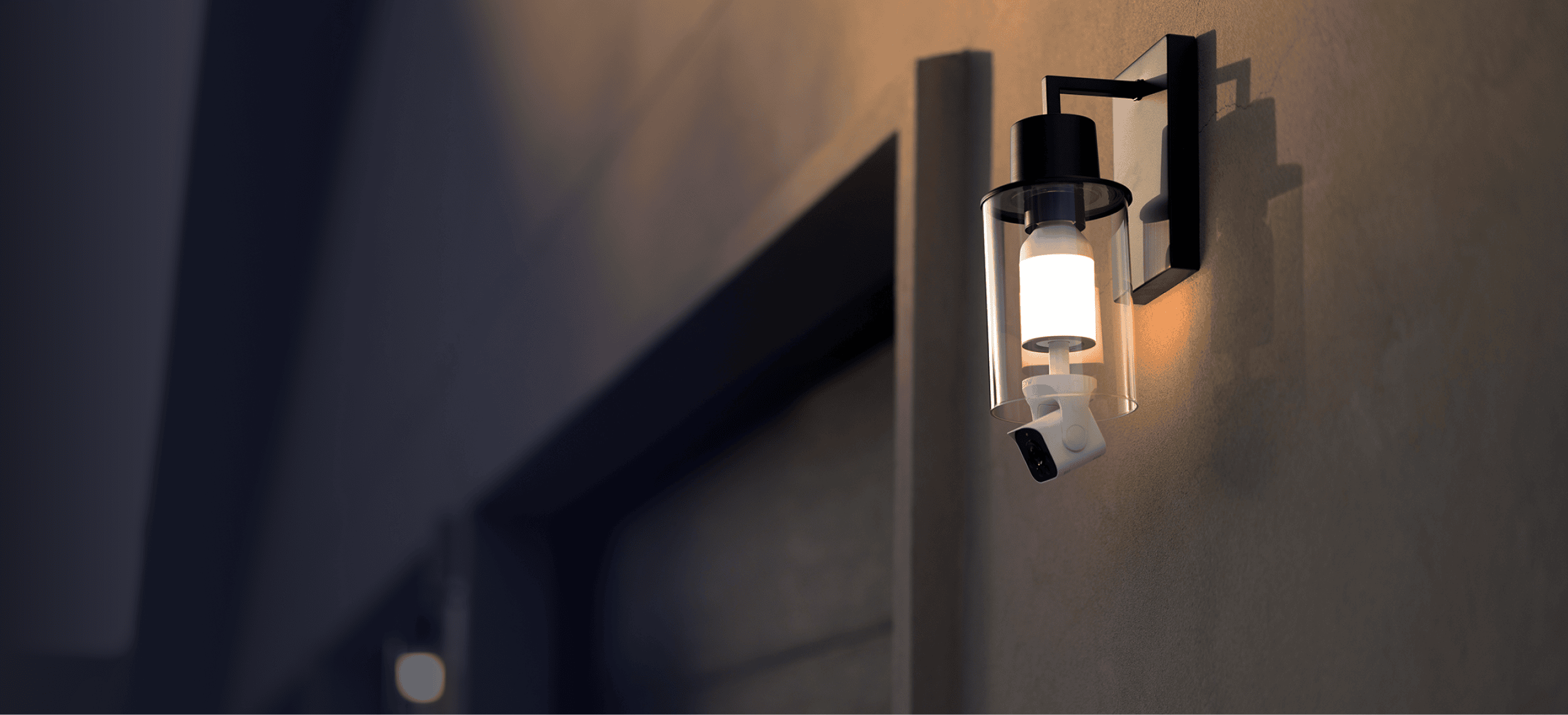
Associez-le à la Wyze Bulb Cam pour une configuration optimale.

Découvrez à quoi ressemble la Wyze Bulb Cam avec différents luminaires extérieurs.

Wyze Bulb Cam Shopify

Support Articles

Wyze Bulb White is a smart bulb you can control with your mobile device using the Wyze app.

If you're setting up your Wyze Bulbs with a multi-way switch/socket, check out some alternate setup methods here.

New to Wyze? Before starting, download the Wyze app and enable BluetoothⓇ.

To set up your Wyze Bulb White:

  1. In the Wyze app, tap Home, then tap the plus sign + on the top right.
  2. On the Add menu, tap Device.
  3. Tap Power & Lighting > Wyze Bulb.
  4. Select your Wyze Bulb version. If your bulb says “White” under the Wyze logo, tap Wyze Bulb White. Install your Wyze Bulb into the lamp or light socket. Manually turn the light on and off 3 times. Your Wyze Bulb White will begin to pulse. You must toggle power to the light off and on 3 times within 6 seconds, with less than 2 seconds between each toggle. Tap Next in the Wyze app. Select your 2.4 GHz Wi-Fi network and enter your network password. Tap Next. Make sure the box next to your bulb is checked, then tap Next. Name your new Wyze Bulb White. Tap Finish Naming. If your bulb only shows the Wyze logo, tap Wyze Bulb (2019 version). Install your Wyze Bulb into the lamp or light socket. Manually turn the light on and off 3 times. Your Wyze Bulb will begin to pulse. You must toggle power to the light off and on 3 times within 6 seconds, with less than 2 seconds between each toggle. Tap Next in the Wyze app. Select your 2.4 GHz Wi-Fi network and enter your network password. Tap Next. On the next screen, you'll be prompted to connect to the Wyze Bulb network Tap Choose Wi-Fi. In your device's Wi-Fi settings screen, tap the network for your Wyze Bulb. The network looks like “wyze_smartbulb_apxxx”. Tap Next then select the Wyze Bulb’s Wi-Fi and tap Connect. Tap to return to the Wyze app, where you'll see Connecting... Once Wyze Bulb finishes connecting, it will stop pulsing. Name your new Wyze Bulb White. Tap Finish Naming.
  5. You’re all set. Enjoy your new Wyze device!

Additional Notes:

  • During setup, if the bulb doesn't start pulsing after turning the light on/off 3 times, try again while making sure that the bulb turns off completely, then on all the way after each flip of the switch. Wait at least 5 seconds after the 3rd cycle to see if the bulb begins pulsing.
  • If you have your Wyze Bulb in a socket that’s controlled by a dimmer switch, ensure that the switch is set to maximum brightness.
  • For iOS, make sure the Location Services permissions are enabled for the Wyze app. Open the Settings app, then Privacy > Location Services. Scroll down to the Wyze app, tap to open it, then select Always.
  • For Android, when connecting to the Wyze Bulb network, be sure to stay connected to the Wi-Fi network when prompted that the network doesn't have an internet connection, instead of switching to mobile data. If you switch to mobile data or close the prompt, the setup process will stop.

Download the Quick Start Guide for Wyze Bulb White in this article.

Below is the Quick Start Guide for Wyze Bulb White, a short manual for how to get started.

This guide is a short user manual with the basics about Wyze Bulb White including:

  • What's in the box for Wyze Bulb White.
  • How to download the Wyze app.
  • How to set up your Wyze Bulb White.
  • How to use voice assistants with Wyze Bulb White.

Integrate your Wyze Bulb White with Amazon Alexa to control your lights with your voice. Want to turn on all the Wyze bulbs in the house? Just ask Alexa.

Alexa Voice Commands for Wyze Bulb and Wyze Bulb Color:

To turn your Wyze Bulb on/off with Alexa, say:

  • "Alexa, turn (bulb name) off."
  • "Alexa, turn (bulb name) on."

To adjust the brightness, say:

  • "Alexa, set the (bulb name) to (0-100%)."

To adjust the color temperature, say:

  • "Alexa, set (bulb name) softer."
  • "Alexa, make the (bulb name) warmer."
  • "Alexa, set the (bulb name) cooler."
  • "Alexa, make the (bulb name) whiter."
  • "Alexa, make the (bulb name) warm white."
  • "Alexa, set the (bulb name) to daylight."

To adjust the color, say:

  • "Alexa, make the (bulb name) (color)."Example: Alexa, make (bulb name) pink.

Here is a list of words you can use to change a bulb to a specific color temperature or color (Wyze Bulb Color only).

Additional Notes:

  • The Wyze Skill works with all bulbs that are connected to your Wyze account, including bulbs shared with other users.
  • Name your bulb something easy, like "garage light" or "living room."
  • If power to your bulb is turned off using the light switch, Alexa will not be able to access the bulb to turn it on, set the brightness, etc.
Added to your cart
Livraison GRATUITE pour les commandes de 59 $ et plus
Subtotal
$0.00
View cart