Passer aux informations produit
1 de 7

Douille de lampe Wyze

Douille de lampe Wyze

Alimentation extérieure pour Cam v3/v4

Style
$23.98CAD
Stock faible : 98 restant
Get it as soon as
Retours sans tracas sous 30 jours.
A blue and white logo for Wyze.
AVANTAGES exclusifs de Wyze.com
Garantie prolongée de 18 mois

Bénéficiez d'une garantie prolongée de 18 mois à l'achat de ce produit sur wyze.com. Profitez également de lots spéciaux, de promotions uniques et de récompenses à chaque commande

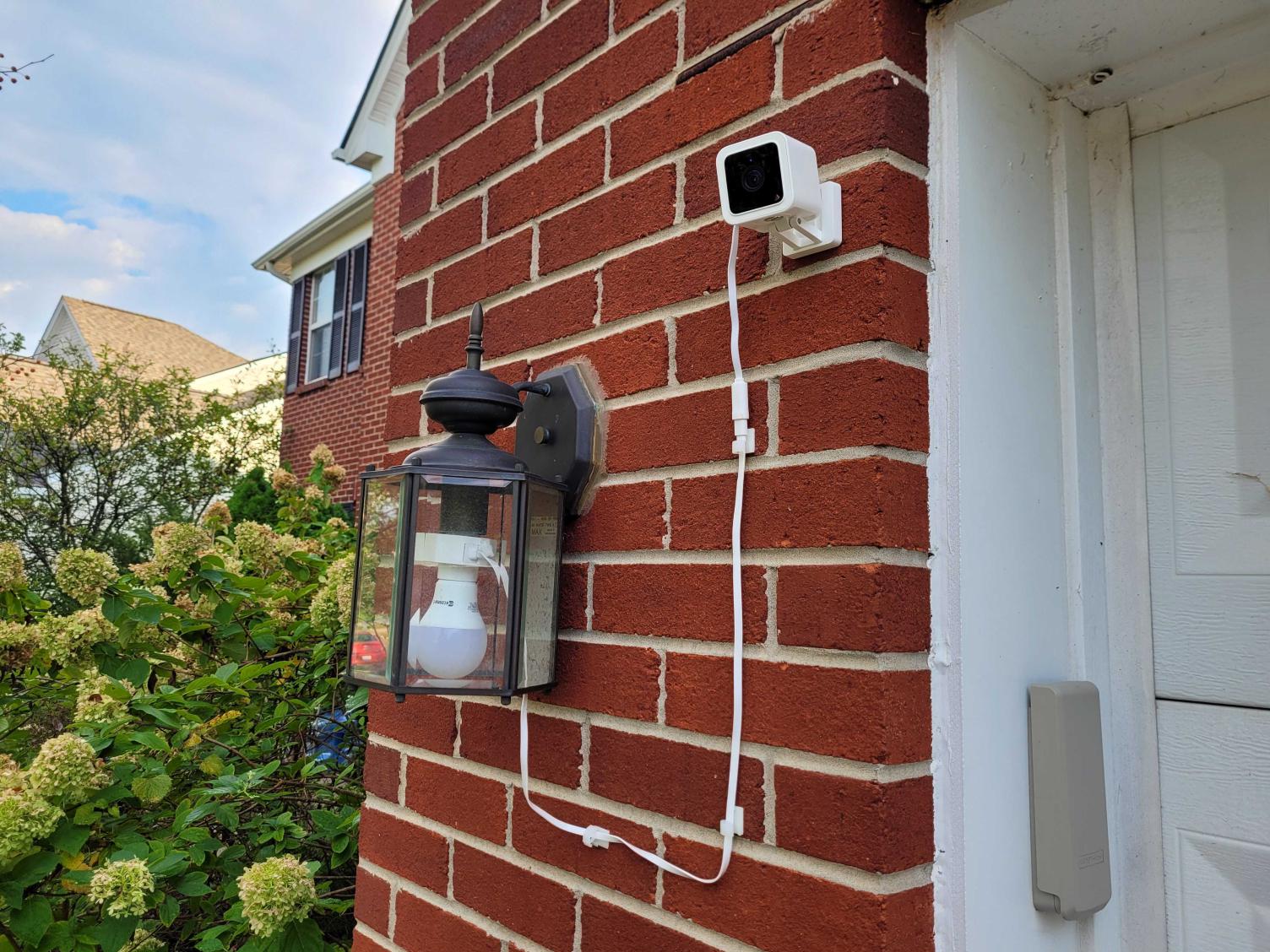
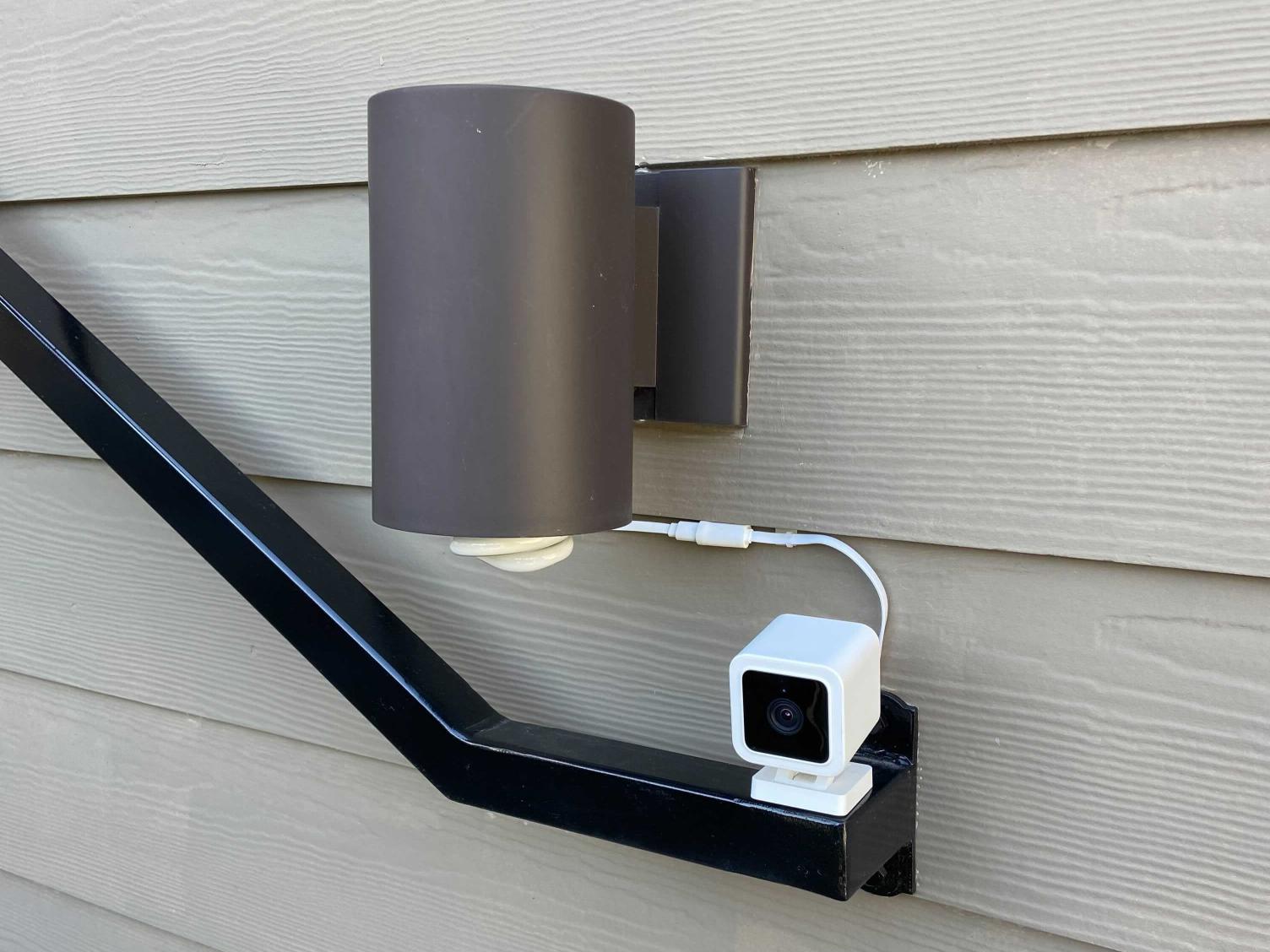
Transformez votre éclairage extérieur en un système intelligent. Alimentez les caméras Wyze Cam v3 et v4 sans prise.

Le modèle original de la douille de lampe Wyze.

Voir les détails complets
  • A purple and black square with the word "On" written in it.

    Alimente facilement la Wyze Cam v3/v4

    Aucun tressage créatif de rallonge n'est nécessaire.

  • A person running with a purple background.

    Lumières à détection de mouvement

    Transforme les ampoules standard en éclairages de sécurité à détection de mouvement.

  • A purple light bulb with a purple circle around it.

    Liabilité

    Connectez sans fil jusqu'à 5 douilles de lampe.

  • A purple sun icon with a frowning face.

    Programmation du crépuscule à l'aube

    Allumez automatiquement vos lumières au coucher du soleil et éteignez-les au lever du soleil.

Détails du dispositif de douille de lampe Wyze

  • Couleur : Blanc
  • Matériaux : Polycarbonate, plastique
  • Dimensions : 56,5 mm x 56,5 mm x 65 mm
  • Poids : 80 g
  • Type de connecteur : E26
Pouvoir
  • Entrée/sortie de la douille de lampe : 120 V, 60 Hz
  • Puissance maximale de la lampe : 30 W
  • Câble USB 75 cm / 30 pouces
  • Ports USB : 1 type A, sortie USB 5 W/5 V 1 A, USB 1.1
Compatibilité
  • Téléphone : Android 7.0+, iOS 12.0+
  • Caméra : Wyze Cam v3/v4
Connectivité
  • Wi-Fi 802.11 b/g/n, 2,4 GHz, Bluetooth
Température de fonctionnement
  • -4°F ~ 120°F (-20°C, ~ 50°C)
Résistance aux intempéries
  • Non résistant aux intempéries ni à l'eau. Convient aux endroits humides.
Certifications
  • ETL, CETL, UL

Détails de l'appareil Wyze Cam v3

  • Couleur : Blanc, avec des accents noirs
  • Matériaux : Polycarbonate
  • Lentille : Verre + Plastique
  • Dimensions de la caméra : 52 mm (L) x 51 mm (l) x 58,5 mm (P)
  • Poids de l'appareil photo : 98,8 g
Compatibilité téléphonique
  • Android 7.0+ et iOS 12.0+
Afficher
  • Résolution : FHD 1920x1080p
  • Angle de vision : 130º en diagonale
Vision nocturne
  • Lumières infrarouges 4x940 nm, 4x850 nm
  • Vision jour/nuit
Audio
  • Micro : ECM
  • Haut-parleur : 80 dB, étanche
  • Communication bidirectionnelle simultanée
  • Sirène
Méthodes d'alimentation
  • Adaptateur secteur : Usage intérieur 5 V/1 A
  • Douille de lampe Wyze (vendue séparément)
  • Adaptateur secteur extérieur (vendu séparément)
  • Câble : câble USB plat de 1,8 m

Capteur
  • Capteur CMOS Starlight
Indicateur LED
  • Face avant. Rouge + Bleu.
Connectivité
  • Wi-Fi 2,4 GHz
Stockage
  • Stockage local (carte microSD requise)
  • Nuage
Température de fonctionnement
  • -5°F - 113°F (-20°C - 45°C)
Résistance aux intempéries
  • Résistance aux intempéries IP65, utilisation intérieure/extérieure
Certifications
  • Certifié FCC, IC, UL et IP65
Langues
  • Anglais
Garantie
  • 1 an

Douille de lampe (uniquement)
  • Douille de lampe Wyze x1
  • Câble USB x1
  • 6 clips pour câble USB
  • 6 chevilles murales
  • 6 vis
  • Guide de démarrage rapide x1

Ensemble douille de lampe + caméra Wyze v3
  • Douille de lampe Wyze x1
  • Wyze Cam v3 x1
  • Câble USB x1
  • 6 clips pour câble USB
  • 6 clips de câble
  • 6 chevilles murales
  • 2 vis pour appareil photo
  • 2 fixations murales pour caméra
  • Plaque murale pour caméra x1
  • Ruban adhésif de fixation pour caméra x1
  • Guide de démarrage rapide x1

Users can leave the power switch on all the time, but the light doesn’t need to stay on all the time, to save power. The light will be turned on when a motion or person is detected.

Turn them all on (up to 5) within 30 seconds and they will find themselves, link, and form a group. Once they form a group, you can control each lamp socket in the group at the same time.

Only 1 (one) Wyze Cam v3 or Cam v4 per lamp socket.

Yes absolutely. All sockets are connected wirelessly and can be turned on/off simultaneously. We currently support up to 5 lamp sockets linked in one group.

No, each Wyze Lamp Socket comes with a dedicated cable to connect to a v3/v4. Do not use any other Wyze Cam v3/v4 cable.

No, it is not weatherproof or IP-rated. It is UL rated for Damp Locations, and must be protected from direct rain and water.

We use the advanced motion detection from Wyze Cam v3 or v4 to detect motion and turn on your light.

Alimentation flexible pour votre Wyze Cam v3/v4

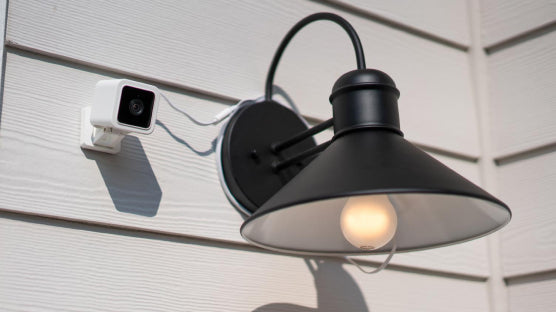
Évitez les branchements compliqués et les risques d'électrocution (à moins que ce soit votre truc). Utilisez l'électricité de votre luminaire extérieur pour alimenter en continu votre Wyze Cam v3/v4. Plus besoin de câbles compliqués. Plus de fils disgracieux. Plus de tracas.

A black lamp with a white bulb.
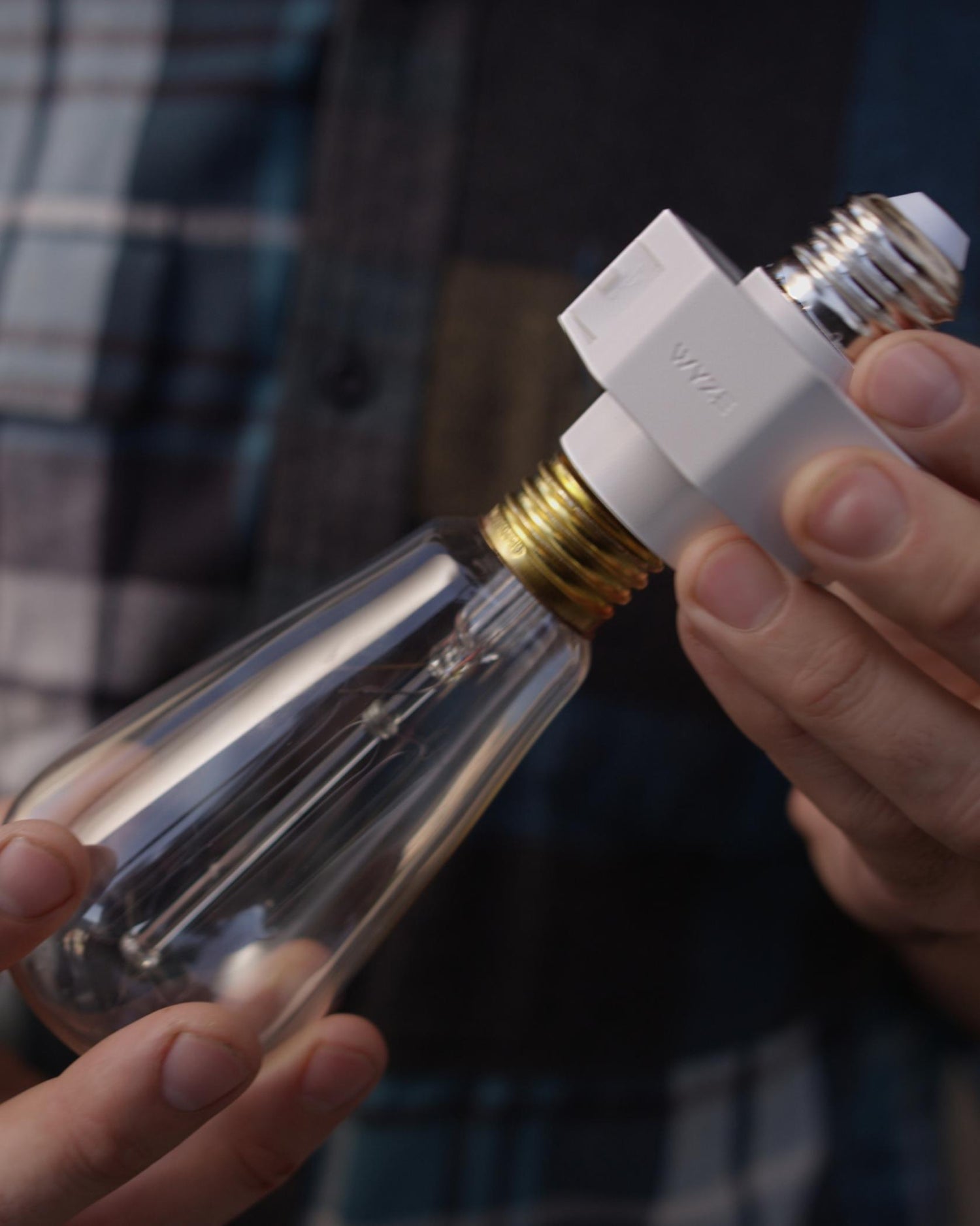
A person holding a Wyze Lamp Socket with an Edison bulb attached.

Passez à un éclairage intelligent en quelques secondes.

La douille Wyze et la caméra Wyze Cam v3 fonctionnent de concert pour rendre votre éclairage extérieur intelligent. La douille alimente la caméra et la caméra lui confère son intelligence ! Une relation symbiotique parfaite, à l'image de l'hippopotame et du piquebœuf ! Chantez avec nous : Symbiotique ! Symbiotique !

Illuminez votre chemin grâce aux lumières activées par le mouvement.

Configurez vos luminaires connectés pour qu'ils s'allument dès que votre caméra Wyze Cam v3/v4 détecte un mouvement ou un son. Votre ancien luminaire se transforme ainsi en un modèle de sécurité élégant et sophistiqué !

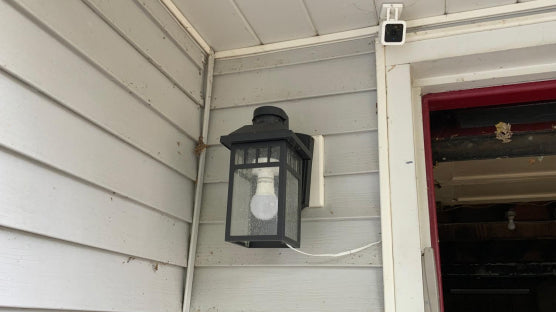
A light fixture with a white bulb.

Reliez facilement plusieurs prises pour une couverture et un contrôle accrus.

Connectez automatiquement jusqu'à 5 douilles pour une synchronisation parfaite de votre éclairage extérieur, digne des Jeux olympiques. Programmez et contrôlez ensuite votre installation intelligente où que vous soyez grâce à l'application Wyze.

A black garage door with a green box on it.

Automatisation du crépuscule à l'aube.

Vous êtes le voisin qui laisse la lumière du porche allumée pendant ses vacances ? Eh bien, il va falloir trouver d’autres choses à oublier. Vos tongs, par exemple ?

Laissez-vous inspirer

Découvrez comment les utilisateurs de Wyze utilisent leur douille pour lampe Wyze !

Aussi simple que de visser une ampoule.

Certaines installations sont aussi simples que de visser une ampoule. D'autres sont littéralement identiques. La douille Wyze appartient à cette dernière catégorie.

Support Articles

Before you begin setup:

  1. Download the Wyze app on your smartphone or tablet.
  2. Connect your device to a 2.4 GHz Wi-Fi network.
  3. Unpack your Wyze Lamp Socket Starter Kit or Expansion Kit, removing all plastic and packing materials.
  4. Plug the camera into power using the included USB cable and power adapter. The camera’s status light will turn solid red when powered. When flashing, it’s ready for setup.

To set up Wyze Lamp Socket + Wyze Cam v3/v4:

  1. In the Wyze app, tap Home, then tap the plus sign + on the top right.
  2. On the Add menu, tap Device.
  3. Tap Cameras > Wyze Cam Lamp Socket.
  4. Tap Set up lamp socket with Wyze Cam v3/v4.
  5. Go to where you'd like to install your camera and lamp socket.
  6. Check your Wi-Fi signal strength. Depending on your signal strength, tap Start Installation or Continue Setup.
  7. Shut off power to the lamp socket at your circuit breaker, then tap Next in the app.
    If you're not sure how to do this, tap Show me how.
  8. Unscrew your bulb from the socket, then tap Next.
  9. On the lamp socket, find and open the USB port.
  10. Plug the USB end into your Wyze Lamp Socket. Tap Next in the app.
  11. Screw your bulb into Wyze Lamp Socket into your lamp / light fixture. Tap Next.
  12. Plug your Wyze Cam into Wyze Lamp Socket. Tap Next. See the photo in the app for how to do this.
  13. If this is the only lamp socket you have to install, tap Only have one socket. If you have more (up to 4 more) sockets to install, tap Install more sockets.Follow the steps to install each socket.
  14. At your circuit breaker, turn on power to your socket. Tap Next. Your Wyze Cam's status light will begin flashing red if powered and connected properly.
  15. Your lamp socket is set up. Continue below to set up your camera.

To set up your Wyze Cam v3/v4:

  1. Pull the base from your camera and single-press SETUP under the camera. It will say “Ready to connect”
  2. In the app, check the box next to “I heard, “Ready to connect”."
  3. Tap Next.
  4. Select your 2.4 GHz Wi-Fi network and enter your network password. Tap Next. Tap the icon in the password field to display the password to ensure it was entered correctly.
  5. Scan the QR code on the Wyze app. Hold your camera up to your phone screen with the QR code displaying. It will say “QR code scanned please wait.” then “Setup completed.”
  6. In the app, check the box next to “I heard, “QR code scanned”."
  7. Tap Next. You’re set up, it’s time to name your device.
  8. Name your Wyze Cam using the text field, or by choosing a suggestion.
  9. Tap Finish when done.
  10. If you want to share your device, tap Share Device. If not, tap Maybe later.

Additional Note: Wyze Lamp Socket is only compatible with Wyze Cam v3 and Wyze Cam v4.

Download the Quick Start Guide for Wyze Lamp Socket in this article.

Below is the Quick Start Guide for Wyze Lamp Socket, a short manual for how to get started.

This guide is a short user manual with the basics about Wyze Lamp Socket, including:

  • What's in the box for Wyze Lamp Socket with a Wyze Cam v3.
  • How to download the Wyze app.
  • A diagram of Wyze Cam v3 and Wyze Lamp Socket.
  • How to set up Wyze Lamp Socket with a Wyze Cam v3.
  • How to install Wyze Lamp Socket with a Wyze Cam v3.
  • How to read the status lights.

To learn all about Automations, Shortcuts, Schedules and Device & Service Triggers, start with the article: Using Automations with the Wyze app.

How do Automations work with Wyze Bulb Color?

Automations help control your Wyze Lamp Socket, making it easier to turn it on/off with a single tap in the app, have it turn on/off at a scheduled time or when triggered by another device.

  • Shortcuts run actions with a tap in the Wyze app.
  • Schedules control devices based on the time of day.
  • Device & Service Triggers connect multiple Wyze devices so one can trigger another.
  • Location Triggers control devices based on your location.

An example Shortcut with the Wyze Lamp Socket

To create a shortcut to turn on your Wyze Lamp Socket with a single tap from the Home screen.

  1. In the Wyze app, tap Home, then tap the plus sign + on the top right.
  2. On the Add menu, tap Automation > Shortcut.
  3. Add a name for the shortcut in the text box under the star icon. Try "Turn off lamp socket."
  4. Tap Add Action. Tap on your Wyze Lamp Socket from the list.Tap Turn on, then Save.
  5. When finished, tap Save.

Your shortcut will display at the top of the Automations tab. To add it to the Favorites tab, tap the star icon on the shortcut.

An example Schedule with the Wyze Lamp Socket

To create a schedule to turn on your Wyze Lamp Socket every day at sunset.

  1. In the Wyze app, tap Home, then tap the plus sign + on the top right.
  2. On the Add menu, tap Automation > Schedule.
  3. Tap Name (Optional). Enter a name for the schedule. Try "Turn on outside lamp"Tap Save.
  4. Tap Add Action, then the Wyze Lamp Socket you want to create a schedule for.
  5. Select Turn on lamp socket, then Save.
  6. Tap Start Time. Tap Sunset. If prompted, tap Set Location and confirm your location. Tap Save. If you'd like, you can set the start time 0-59 minutes Before or After sunset. Tap Save.
  7. When you're all set, tap Save.

An example Device Trigger with Wyze Lamp Socket

To create a device trigger that turns on your Wyze Lamp Socket for 3 minutes when a Wyze Battery Cam Pro detects motion.

  1. In the Wyze app, tap Home, then tap the plus sign + on the top right.
  2. On the Add menu, tap Automation > Device & Service Trigger.
  3. Tap Name (Optional). Enter a name for the trigger. Try "Spotlight turns on the lamp."Tap Save.
  4. Tap Device & Service Trigger. Select your Wyze Battery Cam Pro.Tap Detects motion, then Save.
  5. Tap Add Action. Select your Wyze Lamp Socket.Tap Turn on lamp socket for, scroll to 3 min, then Save.
  6. When done, tap Save.

An example Location Trigger with Wyze Lamp Socket

To create a location trigger to turn on Wyze Lamp Socket when you arrive home.

  1. In the Wyze app, tap Home, then tap the plus sign + on the top right.
  2. On the Add menu, tap Automation > Location Trigger.
  3. Tap Name (Optional). Enter a name for the trigger. Try "Turn on when I arrive"Tap Save.
  4. Tap I arrive.
  5. Confirm the location displayed in the list.
  6. Tap Add Action. Select your Wyze Lamp Socket.Tap Turn on, then Save.
  7. Optionally, tap to add a Time that this trigger is active.
  8. When done, tap Save.
Added to your cart
Livraison GRATUITE pour les commandes de 59 $ et plus
Subtotal
$0.00
View cart