Passer au contenu
View our Accessibility Statement
Passer aux informations produit
1 de 13

Caméra d'ampoule Wyze

Caméra d'ampoule Wyze

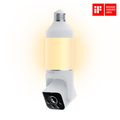
2K Camera Built into a Smart Bulb

2K Color Night Vision

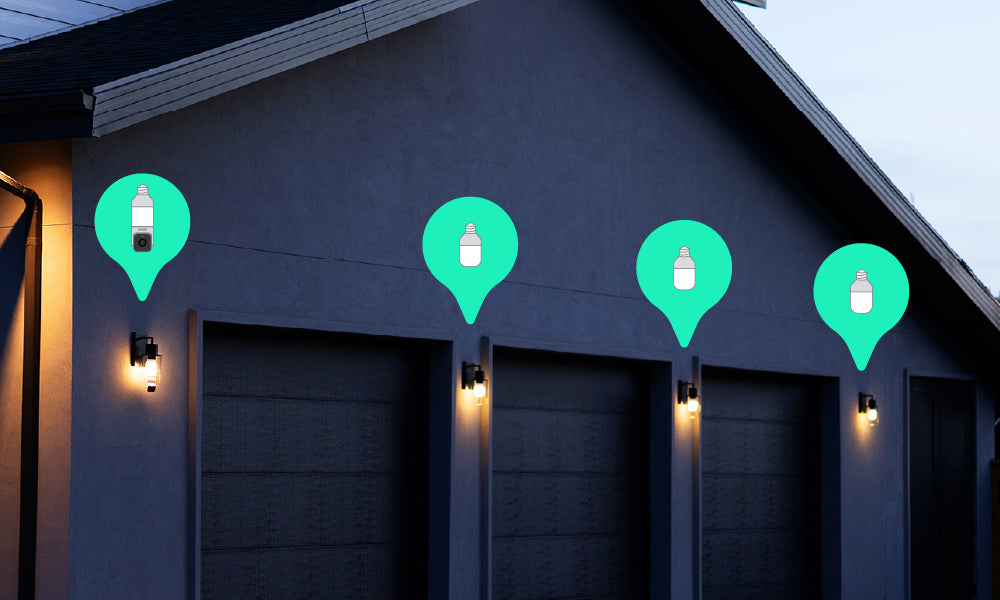
Group Lights Together

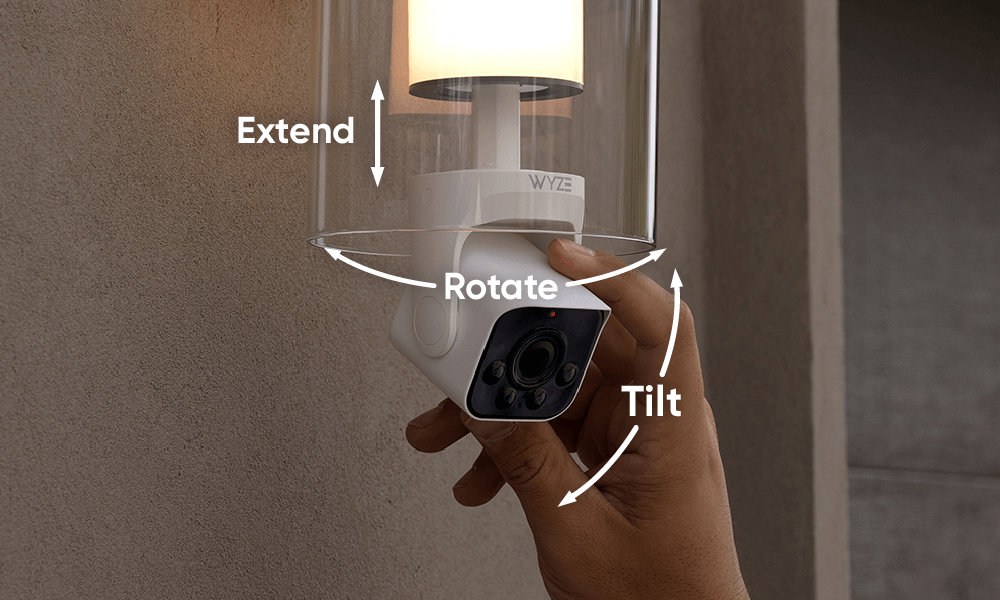
Manually extend, rotate and tilt

160 Degree View

Eliminate Blind Spots

Style
$64.98CAD
Quantity: 1
1
2
3
4
5
6
7
En rupture de stock
Get it as soon as
Retours sans tracas sous 30 jours.
En rupture de stock
A blue and white logo for Wyze.
AVANTAGES exclusifs de Wyze.com
Garantie prolongée de 18 mois

Bénéficiez d'une garantie prolongée de 18 mois à l'achat de ce produit sur wyze.com. Profitez également de lots spéciaux, de promotions uniques et de récompenses à chaque commande

Voir les détails complets
  • A black image of a bulb with a camera.

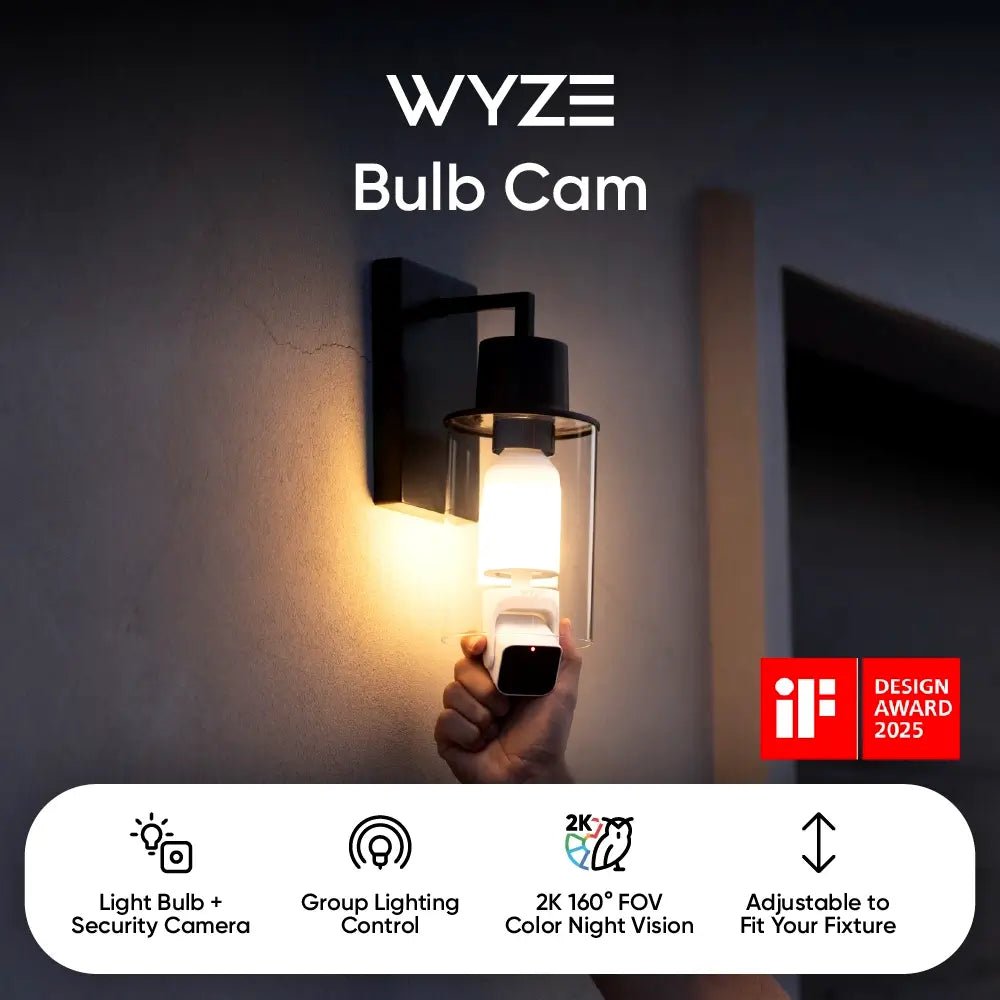
    Une ampoule + une caméra de sécurité

    Une solution de sécurité extérieure tout-en-un.

  • A colorful logo for a Wyze Bulb Cam.

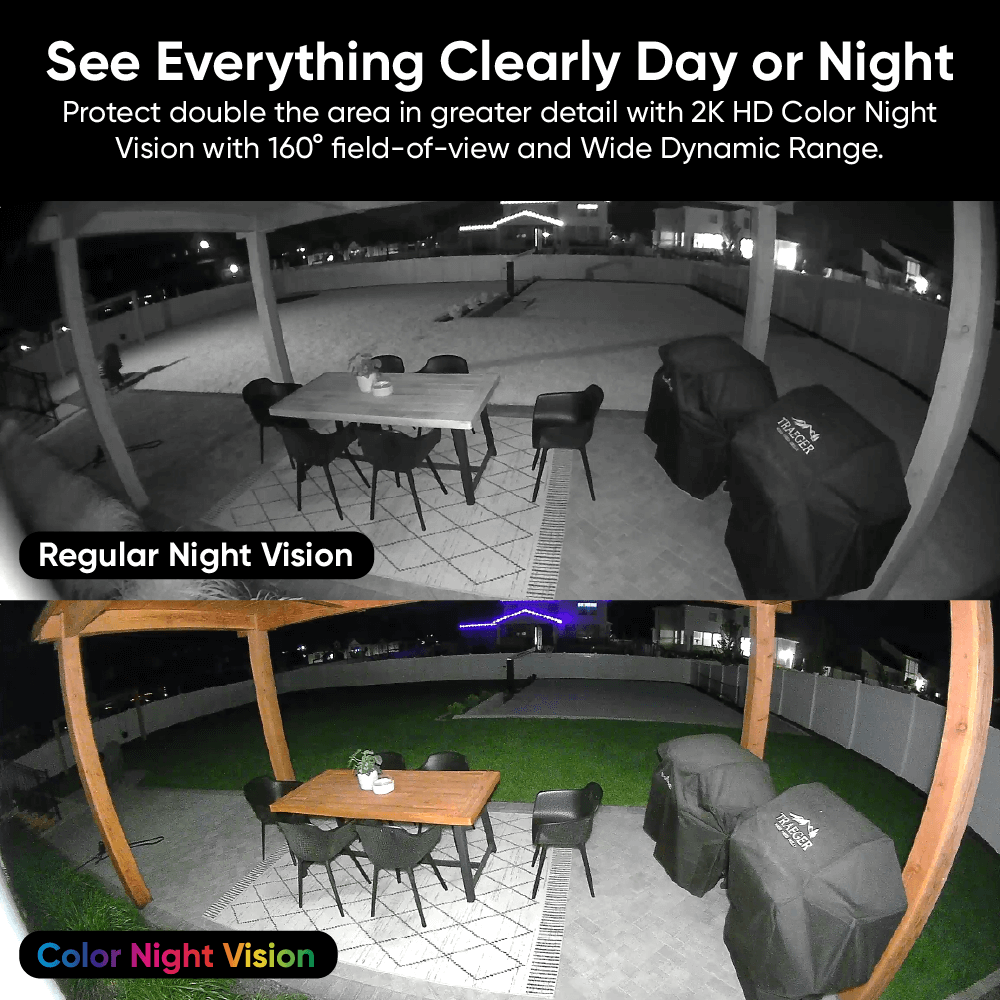
    Vision nocturne couleur 2K avec champ de vision de 160°

    Profitez d'une vue imprenable, de jour comme de nuit, grâce à un large champ de vision.

  • Wyze Bulb Cam Shopify 12

    Éclairage de groupe amélioré

    Associez jusqu'à 5 ampoules accessoires Wyze. Personnalisez la luminosité et les horaires.

  • Wyze Bulb Cam Shopify 13

    S'adapte à la plupart des luminaires

    Déployez, faites pivoter et inclinez manuellement la caméra pour trouver l'angle parfait.

Wyze Bulb Cam Tech Specs

Materials & Colors
  • Model: WYZECBC
  • Body: Plastic
  • Lens: Glass and Plastic
  • Bulb Base: Metal
  • Certifications: FCC, IC, UL, IP65
  • Telescoping Length: 1.18 in (3 cm)
Power
  • 120V AC Input 
  • Standard E26 Socket Only
  • 15 watts
Video
  • Resolution: 2K (2304 x 1296)
  • Field of View: 166° diagonal, 144° horizontal, 82.5° vertical
  • Frame Rate: Daytime: 20 FPS, Nighttime: 15 FPS
  • Functionality: Color Night Vision / IR Night Vision, Digital Zoom
Audio
  • Microphone: Built-in, digital
  • Siren: 95 dB at 4 in
  • 2-Way Audio
Lighting
  • Brightness: up to 800 lm
  • Color Temperature: 3000K 
  • Controls: Manual, Motion-Activated Light, Ambient Light, Schedule, Wyze Automations
  • IR Lights: 4x 850nm
Storage and Alerts
  • Alerts: Push notifications, Motion Warning
  • Cloud Storage: stored in the AWS cloud (Wyze Service subscription required)
  • Local Storage:
  • Supports 8 GB, 16 GB, and 32 GB microSD cards in FAT32 format
  • Supports up to 256 GB microSD cards in exFAT format

Connectivity and Compatibility
  • OS Requirements: Android 7.0+ or iOS 14.0+
  • Wi-Fi: IEEE 802.11 b/g/n 2.4 GHz, Wi-Fi 6
  • Bluetooth®: Bluetooth® Low Energy (BLE), Bluetooth® 4.2
  • Linking: Up to 5 Wyze Accessory Bulbs
Weather and Temperature
  • Weather Resistance: 
  • Camera portion: IP65
  • Bulb portion: UL Damp
  • Operating Temperature: -4°F - 122°F (-20°C - 50°C)
  • Storage Temperature: -40°F - 176°F (-40°C - 80°C)
Warranty
  • 1-year product warranty

Wyze Bulb Cam

  • 1x Wyze Bulb Cam
  • 1x “Do Not Turn OFF” Sticker
  • 1x Quick Start Guide

Yes, the camera part of the bulb camera is IP65 weatherproof and can be installed in outdoor sconces. However, most socket adapters are not waterproof. Please keep the socket connection from having direct contact with water.

Yes! Wyze Bulb Cam has a microSD card slot for local storage, and you can record 24/7 and store videos locally. It supports microSD cards up to 32GB in FAT32 and up to 256GB in exFAT format.

No, the camera position must be manually adjusted.

Yes, Wyze Bulb Cam and Wyze Accessory Bulb are dimmable via the Wyze app. The brightness can be set up to 800 lumens, and has an Ambient Light mode which provides constant, low-level ambient lighting until motion is detected and automatically switches to increased brightness.

No, Wyze Bulb Cam and Wyze Accessory Bulb’s color temperature are fixed at 3000K and cannot be changed.

No, it only supports 2.4 GHz networks.

Wyze Bulb Cam supports Wyze Automations with both bulb cameras and Wyze Bulbs. For the best experience and lowest latency though, we recommend pairing Wyze Accessory Bulbs to your Wyze Bulb Cam. 

It fits most sconces with an inner depth of less than 7.87 in (20 cm), from socket base to sconce edge. For larger sconces, we recommend using a Wyze Lamp Socket and Wyze Cam v4. 

We recommend installing Wyze Bulb Cam and Wyze Accessory Bulb directly into the socket and not the Wyze Lamp Socket accessory.

Support Articles

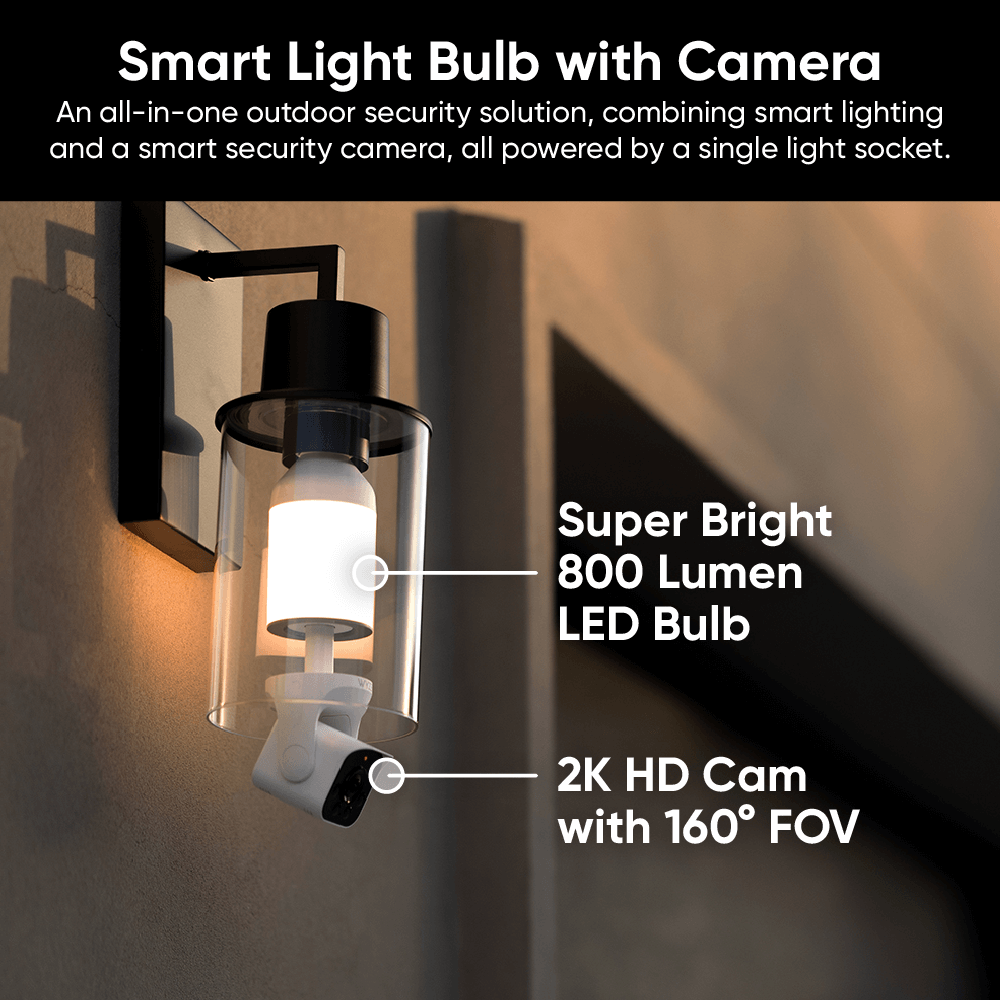
Est-ce un appareil photo ? Est-ce une ampoule ? Oui.

C'est une... cambulbera intelligente ? Disons simplement une solution de sécurité extérieure tout-en-un, alimentée de façon pratique par un luminaire.

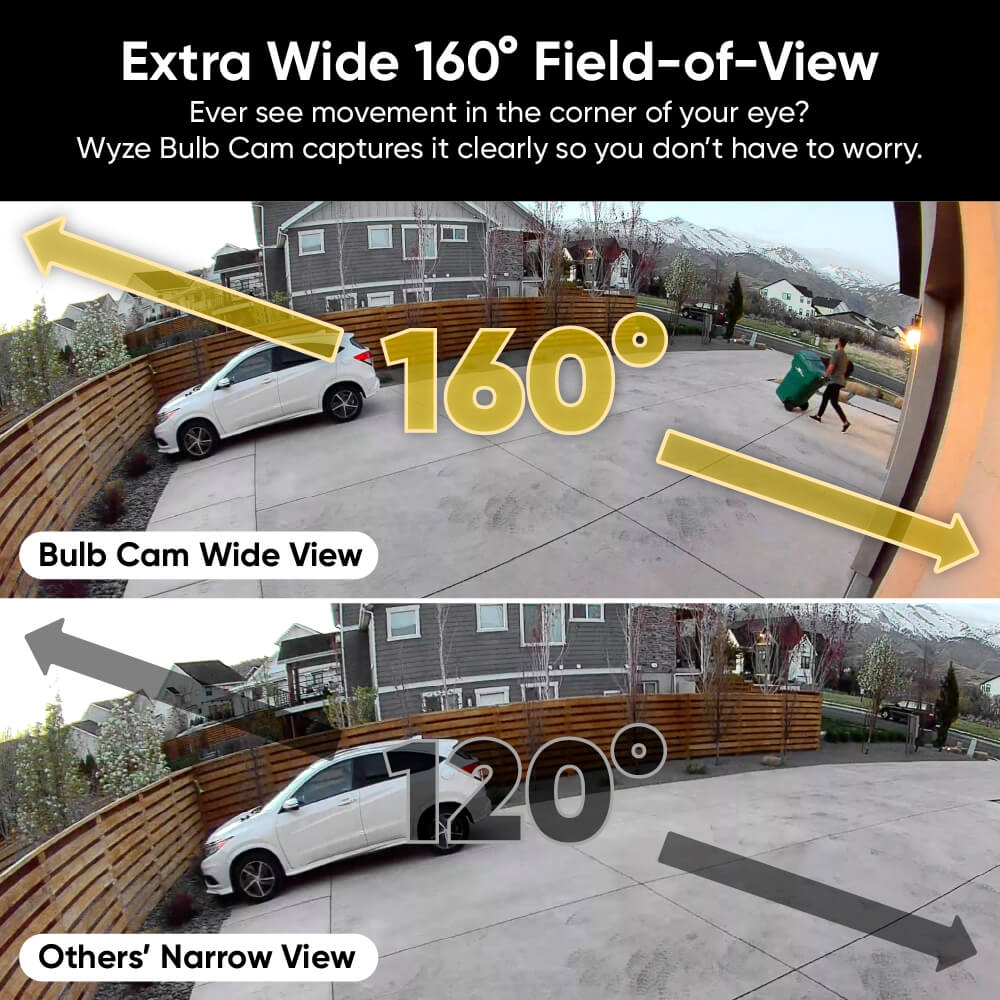
Vue panoramique à 160° pour une vision plus large de l'espace

Un champ de vision ultra-large permet de préserver plus d'espace qu'une mère de danseuse réservant des places pour le spectacle de fin d'année.

A person riding a skateboard in a driveway.
A hand adjusting the camera head of the Wyze Bulb Cam.

S'adapte à la plupart des luminaires

Déplacez manuellement la caméra par voie aérienne, panoramique et inclinée pour trouver l'angle parfait.

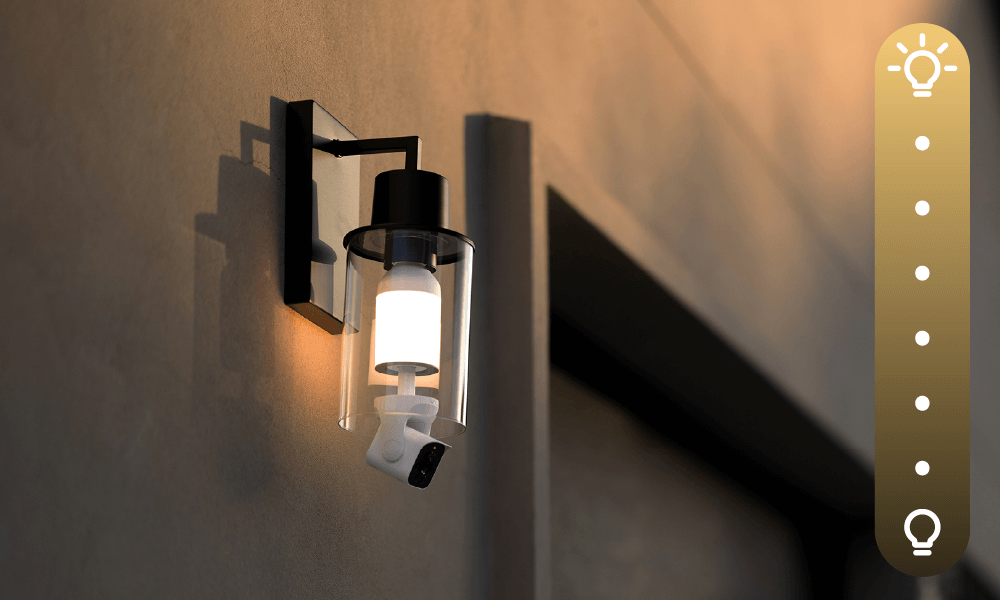
A Wyze Bulb Cam is mounted on a wall, providing security and illumination.

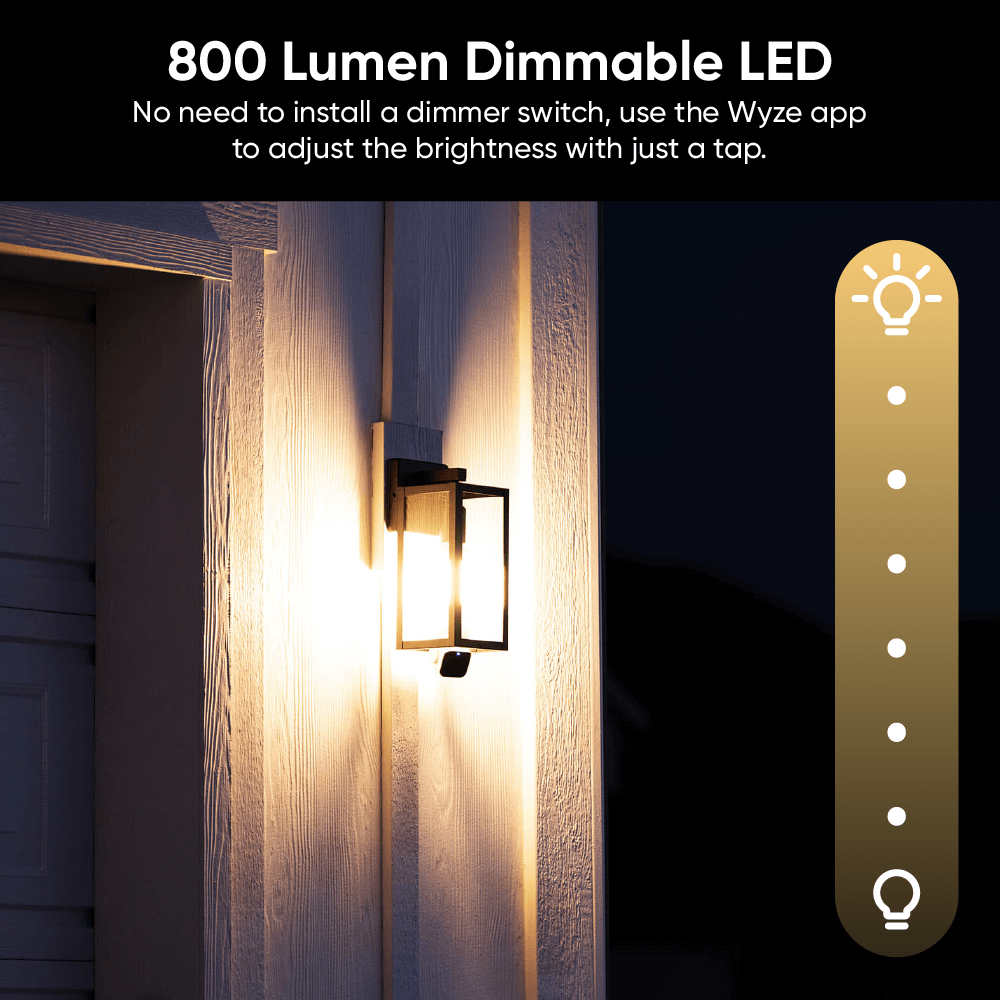
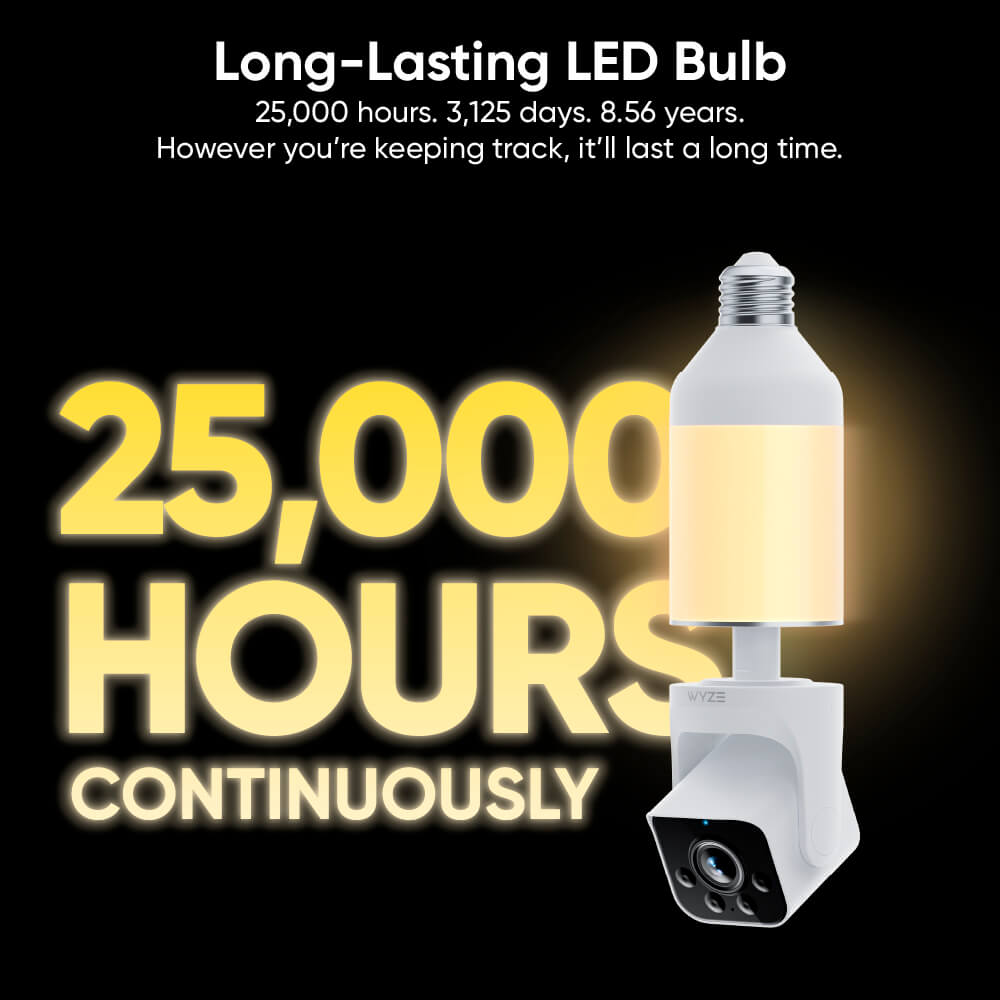
Ampoule LED à intensité variable de 800 lumens

Les ampoules traditionnelles sont ternes. Nous avons conçu cette ampoule pour qu'elle soit moderne et élégante (à votre image). Personnalisez la luminosité de ces ampoules LED longue durée pour obtenir l'éclairage parfait.

Works with Wyze Accessory Bulb

Meet the sidekick that's full of bright ideas. It's 800 lumens, dimmable, and works exclusively with Wyze Bulb Cam.

Wyze Bulb Cam Shopify
Two green lights on a building.

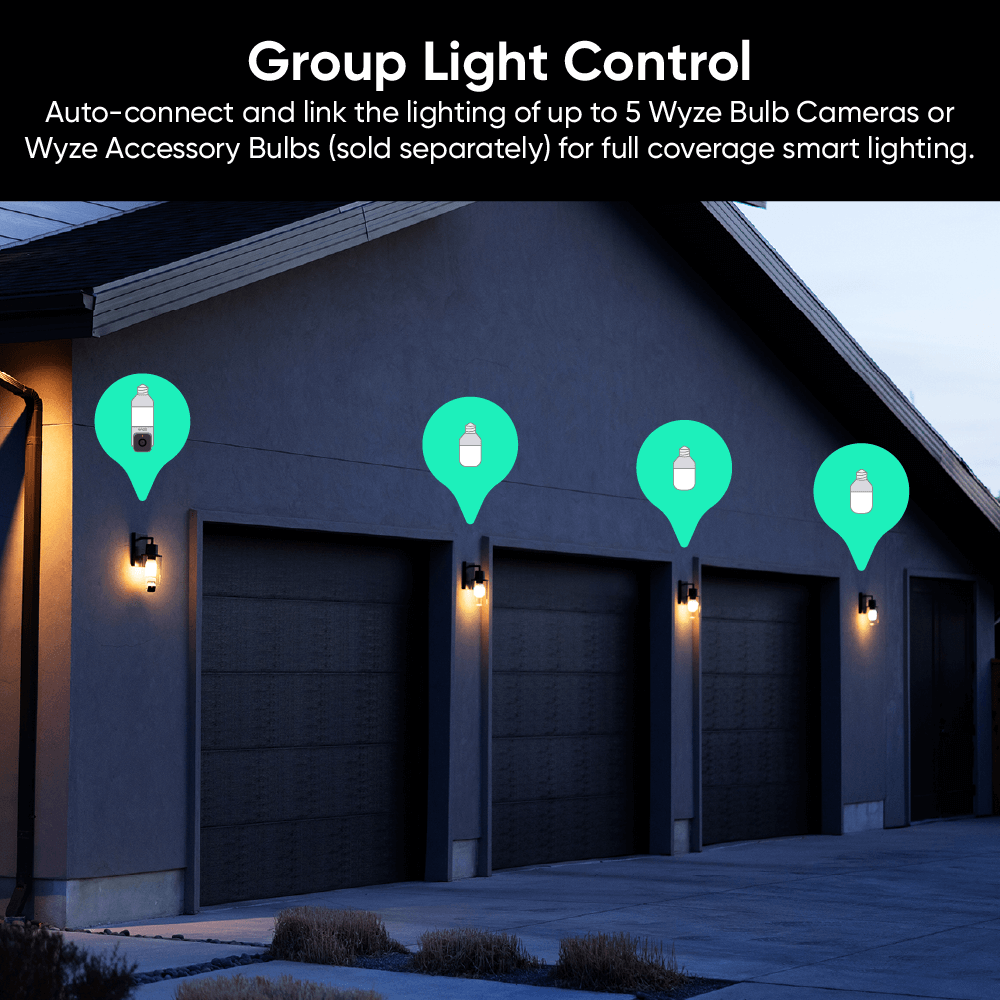
Contrôle amélioré de l'éclairage de groupe

Connectez automatiquement jusqu'à 5 ampoules accessoires pour un éclairage intelligent complet. Personnalisez la luminosité et programmez des horaires. Éclairage à détection de mouvement ? Oui, c'est possible aussi !

A person is holding a Wyze Bulb Cam in their hand.

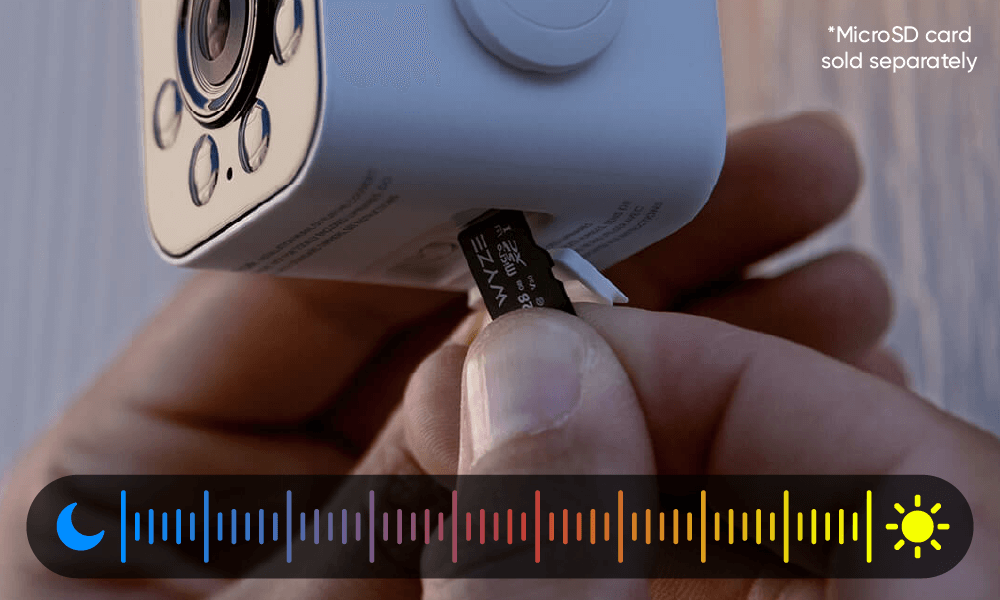
Enregistrement local 24h/24 et 7j/7 avec carte microSD*

Ne manquez rien grâce à l'enregistrement local continu sur carte microSD jusqu'à 256 Go. Aucun abonnement requis.

  • Wyze Bulb Cam Shopify 07: A Wyze outdoor camera is being used for dinner.

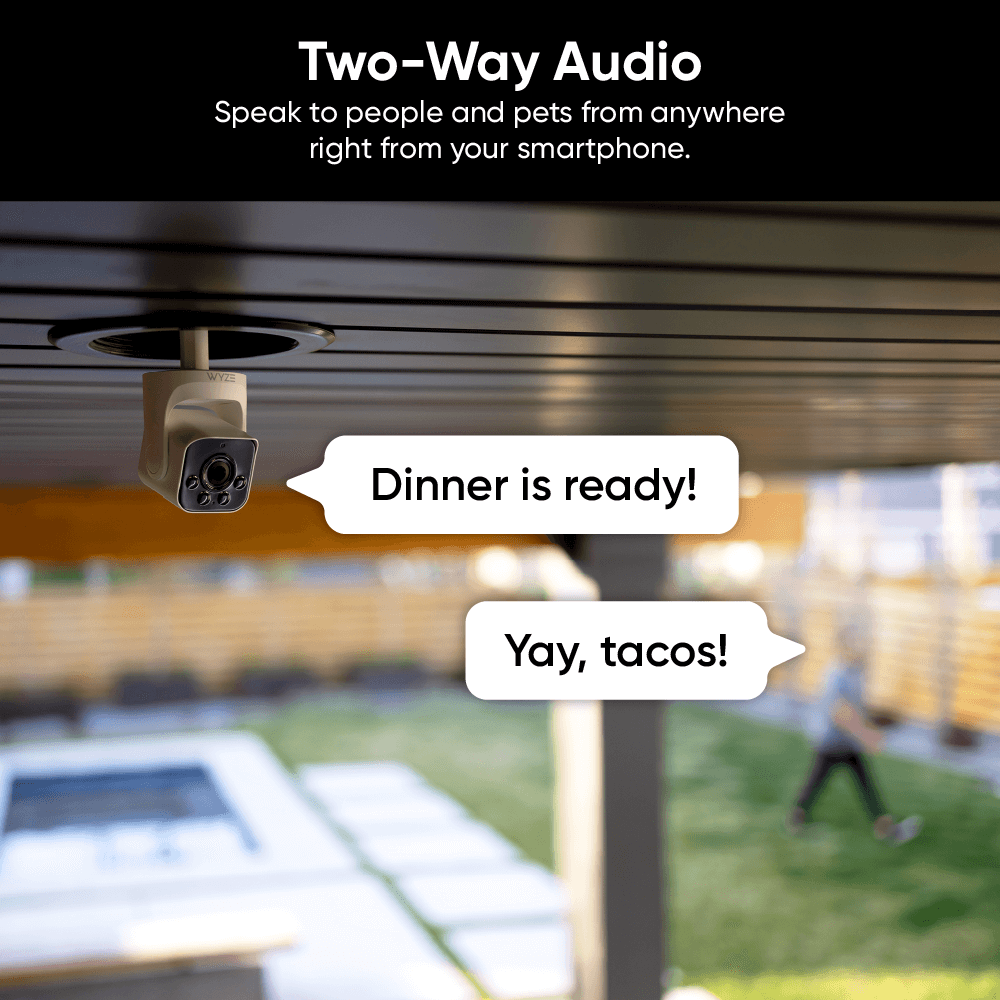
    Audio bidirectionnel

    Parlez aux personnes et aux animaux domestiques où que vous soyez, directement depuis votre smartphone.

  • Wyze Bulb Cam Shopify 03

    Fonctionnalités de détection

    Recevez une notification sur votre smartphone lorsqu'un mouvement est détecté.

  • A person is adjusting a Wyze Bulb Cam.

    Notifications IA et alertes descriptives

    Personnalisez vos détections et notifications. Recevez des alertes détaillées grâce aux alertes descriptives, disponibles avec Cam Unlimited Pro. Cliquez pour en savoir plus .

  • A person is standing in front of a garage with a car inside.

    Effets lumineux + Sirène

    Des lumières clignotantes et une sirène intégrée feront fuir les gens plus rapidement qu'une invitation à un marketing multiniveau.

Installation aussi simple que...

Quelques mouvements du poignet suffisent pour l'installer. Dites adieu aux installations compliquées, aux câbles emmêlés et aux fils disgracieux.

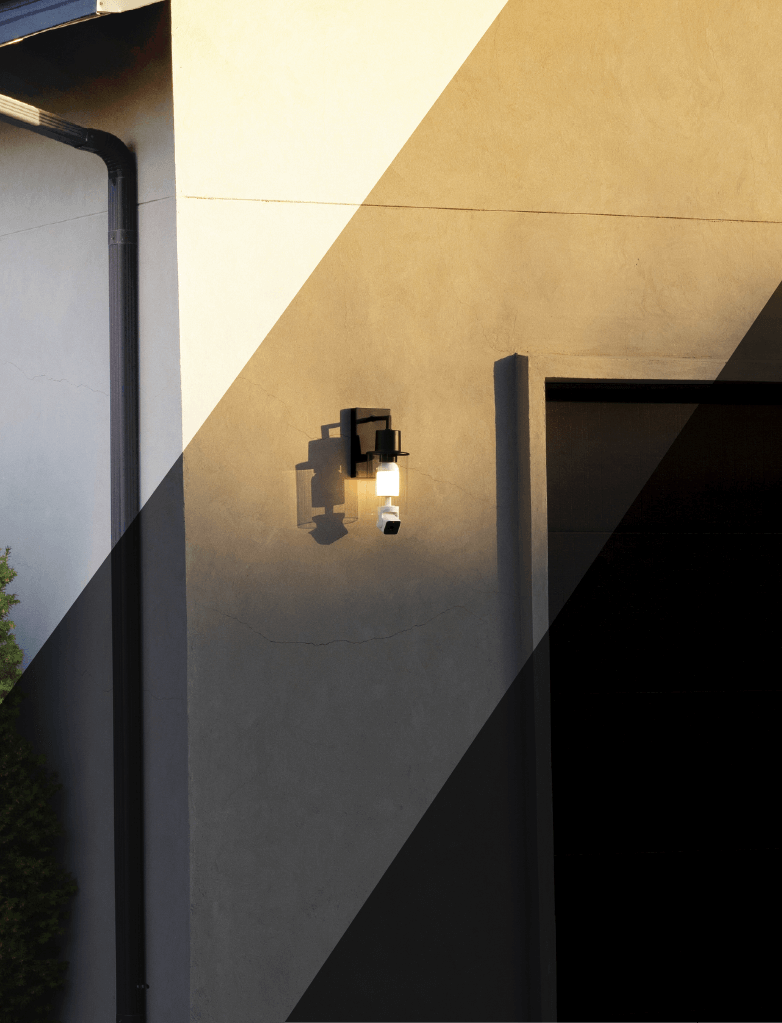
Installations brillantes

Découvrez à quoi ressemble la Wyze Bulb Cam avec différents luminaires extérieurs.

Wyze Bulb Cam Shopify
A Wyze Bulb Cam is shown in an outdoor fixture that is split between the morning, evening, and night.
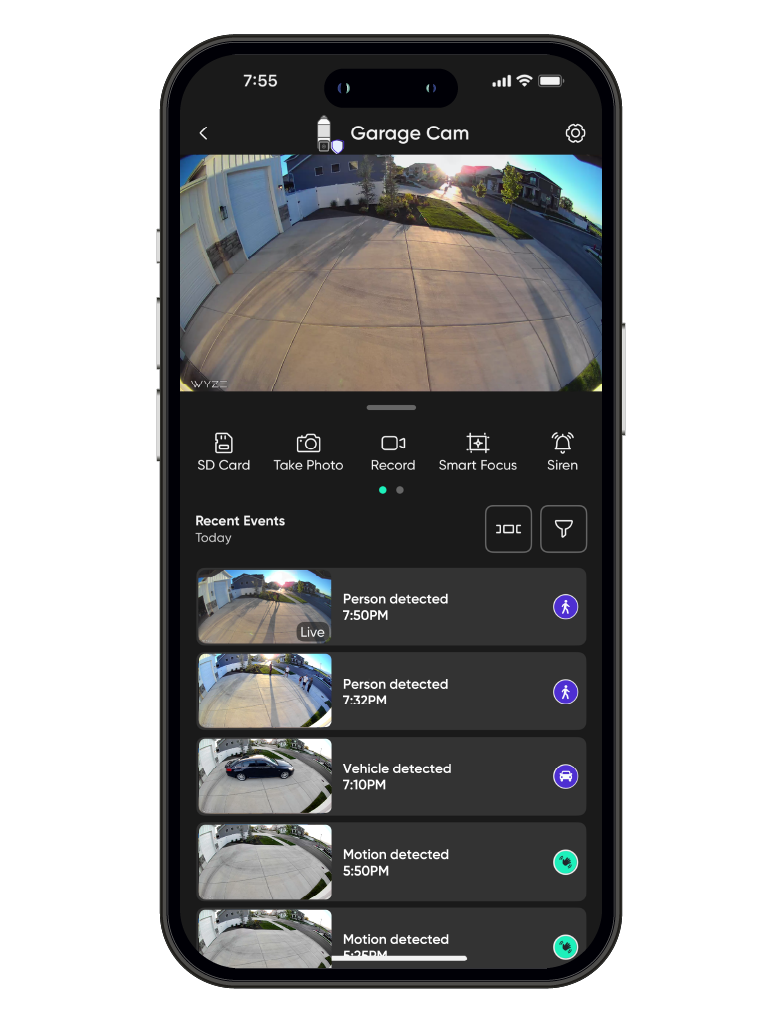
A smartphone displaying a garage camera app.
A smartphone screen displays a Wyze Bulb Cam.
A Wyze Bulb Cam is displayed on a table.

Vous êtes le voisin qui laisse la lumière du porche allumée pendant ses vacances ? Eh bien, il va falloir trouver d’autres choses à oublier. Vos tongs, par exemple ?

Vous avez raté quelque chose ? Bien sûr que non ! Grâce à votre caméra et à la meilleure application domotique au monde, visionnez les enregistrements d'un simple clic, où que vous soyez.

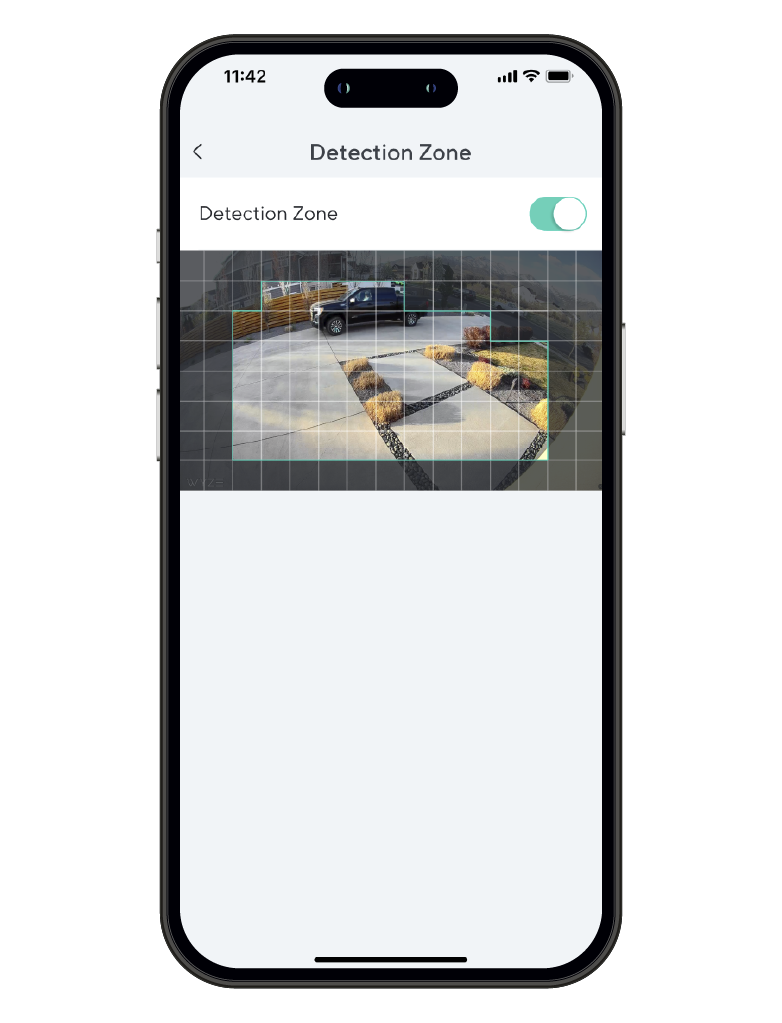
Surveillez des zones spécifiques pour détecter les mouvements et ne recevez de notifications que lorsque c'est important.

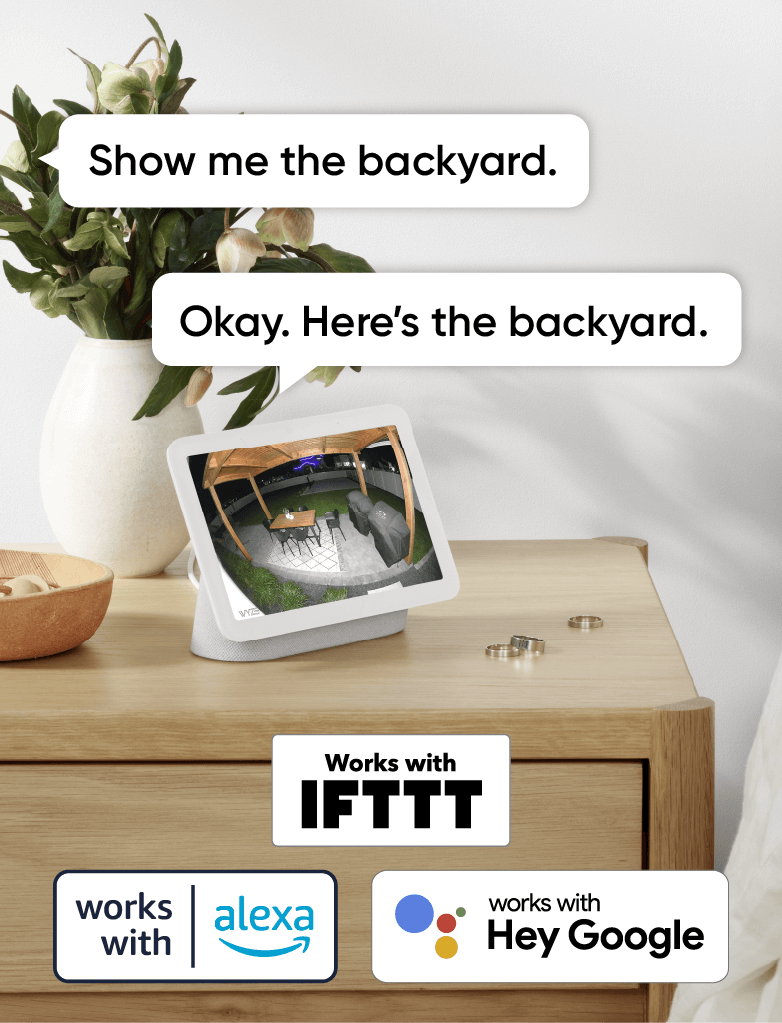
Un confort et une personnalisation à portée de main grâce à des intégrations comme Amazon Alexa, Google Assistant, IFTTT et Wyze Rules.

Contrôle d'ajustement Clear View

Utilisez le schéma ci-dessous pour vérifier le dégagement nécessaire dans votre luminaire. Pour une performance optimale, l'objectif de la caméra doit dépasser du bord inférieur de votre luminaire ou applique.

La visualisation à travers une vitre ou un boîtier peut entraîner des problèmes de détection de mouvement, des reflets indésirables et une mauvaise qualité d'image.

Wyze Bulb Cam is a 2-in-1 outdoor security camera and smart LED light bulb. This is a refurbished product.
Bulb Cam utilise une douille standard E26
  • A Wyze Bulb Cam is shown in a dimly lit room.

    Ampoule accessoire

    Connectez et synchronisez automatiquement l'éclairage de jusqu'à 5 ampoules accessoires Wyze (vendues séparément) pour une couverture complète de l'éclairage intelligent.

  • A hand is holding a Wyze Bulb Cam.

    Carte SD

    Ne manquez rien grâce à l'enregistrement local continu sur carte microSD jusqu'à 256 Go. Aucun abonnement requis.

Wyze Bulb Cam Support Articles

Setting up your new Wyze Bulb Cam is as easy as screwing it in, and connecting to Bluetooth in the Wyze app. You can even pair your accessory bulbs at the same time!

Before Setup: Start with the Wyze Bulb Cam Installation Guide to shut off power and install your bulb cam and accessory bulbs.

To set up your Wyze Bulb Cam:

  1. With your bulb cam and optional accessory bulbs powered, tap Begin Setup.
  2. If the camera doesn't automatically sound with "Ready to connect," press the SETUP button under the camera to reset the camera.
  3. Check the box "It said, 'Ready to connect'" then tap Next.
  4. The Wyze app will search for your Wyze Bulb Cam, and attempt to pair automatically with Bluetooth.
  5. Select and sign in to your network, and tap Next.
  6. Give your Wyze Bulb Cam a name! Tap Finish. You'll be prompted to try a Wyze Service, like Cam Plus. You can tap Continue, or the X to cancel.You'll be prompted with some Things to Try, which you can Skip.
  7. Manually adjust your Wyze Bulb Cam for the best viewing angle. Pull down on the camera to extend the telescopic rod if needed.
  8. If you've installed any accessory bulbs and want to pair them, tap Yes. You must pair your accessory bulbs to a bulb cam
  9. The Wyze app will search for your Wyze Accessory Bulbs. Tap Pair.
  10. Once done searching for and pairing your accessory bulbs, tap Done.

Installing your new Wyze Bulb Cam is as easy as screwing it in, and turning on the power to the socket. You can even install and set up accessory bulbs at the same time!

Before installation: At the electrical panel or light switch, shut off power to your existing light fixture before proceeding. Then, check that your socket type is a standard E26 socket.

What's in the box?

  • Wyze Bulb Cam x 1
  • "Do Not Turn OFF" sticker x 1
  • Quick Start Guide x 1

To install your Wyze Bulb Cam:

  1. In the Wyze app, tap Home, then tap the plus sign + on the top right.
  2. On the Add menu, tap Device.
  3. Tap Cameras > Others > Wyze Bulb Cam.
  4. On the Add Cam menu, tap Wyze Bulb Cam.
  5. Check your socket type to ensure it's a standard E26 socket. Tap Next.
  6. Check your sconce, to ensure it's an open fixture. Tap Next.
  7. If you haven't already, shut off power to your light fixture. Tap Next.
  8. Unscrew your existing bulb from the lamp socket. Tap Next. 🔥 Be careful! Your existing bulb may be hot.
  9. Install your Wyze Bulb Cam by twisting it into the socket - easy! Tap Next. If you have any Wyze Accessory Bulbs to install, install them now. Tap Next.
  10. Turn on power to your Wyze Bulb Cam and accessory bulbs (if installed). Tap Next. The status light on the camera will turn on when powered. If the status light doesn't turn on or flash, press the SETUP button to reset the camera.

Now that your Wyze Bulb Cam is installed and powered, the next step is to set it up. Check out our Wyze Bulb Cam Setup Guide here.

Installing your new Wyze Accessory Bulb is as easy as screwing it in, and turning on the power to the socket. You can even install and link up to 5 total accessory bulbs at the same time!

Before installation: At the electrical panel or light switch, shut off power to your existing light fixture before proceeding. Then, check that your socket type is a standard E26 socket.

What's in the box?

  • Wyze Accessory Bulb x 1
  • Quick Start Guide x 1

To install your Wyze Accessory Bulb:

  1. In the Wyze app, tap Home, then tap the plus sign + on the top right.
  2. On the Add menu, tap Device.
  3. Tap Cameras > Wyze Bulb Cam > Accessory Bulb.
  4. Check your socket type to ensure it's a standard E26 socket. Tap Next.
  5. Check your sconce, to ensure it's an open fixture. Tap Next.
  6. If you haven't already, shut off power to your light fixture. Tap Next.
  7. Unscrew your existing bulb from the lamp socket. Tap Next. 🔥 Be careful! Your existing bulb may be hot.
  8. Install your Wyze Accessory Bulb by twisting it into the socket - easy! Tap Next.
  9. Turn on power to your accessory bulb(s). Tap Next.
  10. Select a device to pair your accessory bulb with. Your existing Bulb Cam or Accessory Bulb will search for your bulb.
  11. When your bulb is found, tap Pair then Done.

All Wyze Cams have a handy status light that helps determine what state the device is in. You'll find the status light on the front of your Wyze Bulb Cam. No light? Make sure it's properly connected to power.

Wyze Bulb Cam Status Light Guide

  • Solid red light - The camera is powered on and initializing, recording an event, or you are watching the live stream.
  • Flashing red light - The camera is ready to connect.
  • Flashing red and blue light - Connection is in progress.
  • Flashing blue light - The camera is connected and finishing setup.
  • Solid blue light - The camera is powered and fully connected.
  • Solid purple light - The firmware is being updated.

Note: Wyze Accessory Bulb does not have a status light, but you can check its online status in the Wyze app by going to Wyze Bulb Cam settings > Bulb Settings > Linked Accessory Bulbs.

Added to your cart
Livraison GRATUITE pour les commandes de 59 $ et plus
Subtotal
$0.00
View cart