Skip to product information

Floodlight + OG Security Kit

Floodlight + OG Security Kit

Color
$166.98 $168.98CAD
In stock
Get it as soon as
30-day hassle-free returns.
A blue and white logo for Wyze.
Wyze.com Exclusive BENEFITS
18-month extended warranty

Get an 18-mo extended warranty when you buy this product on wyze.com. Also get special bundles, unique promos, + rewards with each order

With this much lumen power, you'll dominate the dark, and spot the bad guys, with ease.

View full details
  • A colorful logo for a company.

    2K HD Resolution & Color Night Vision

    Capture more details.

  • A black image with a wide angle lens.

    160° View + 270° PIR Motion Detection

    Eliminate blind spots.

  • A sun icon with a black background.

    2800 Super-Bright LEDs

    Dimmable & adjustable.

  • A black screen with a message about syncing a microSD card.

    24/7 Recording with MicroSD Card

    MicroSD card sold separately. Add AI alerts and cloud backup with Cam Plus.

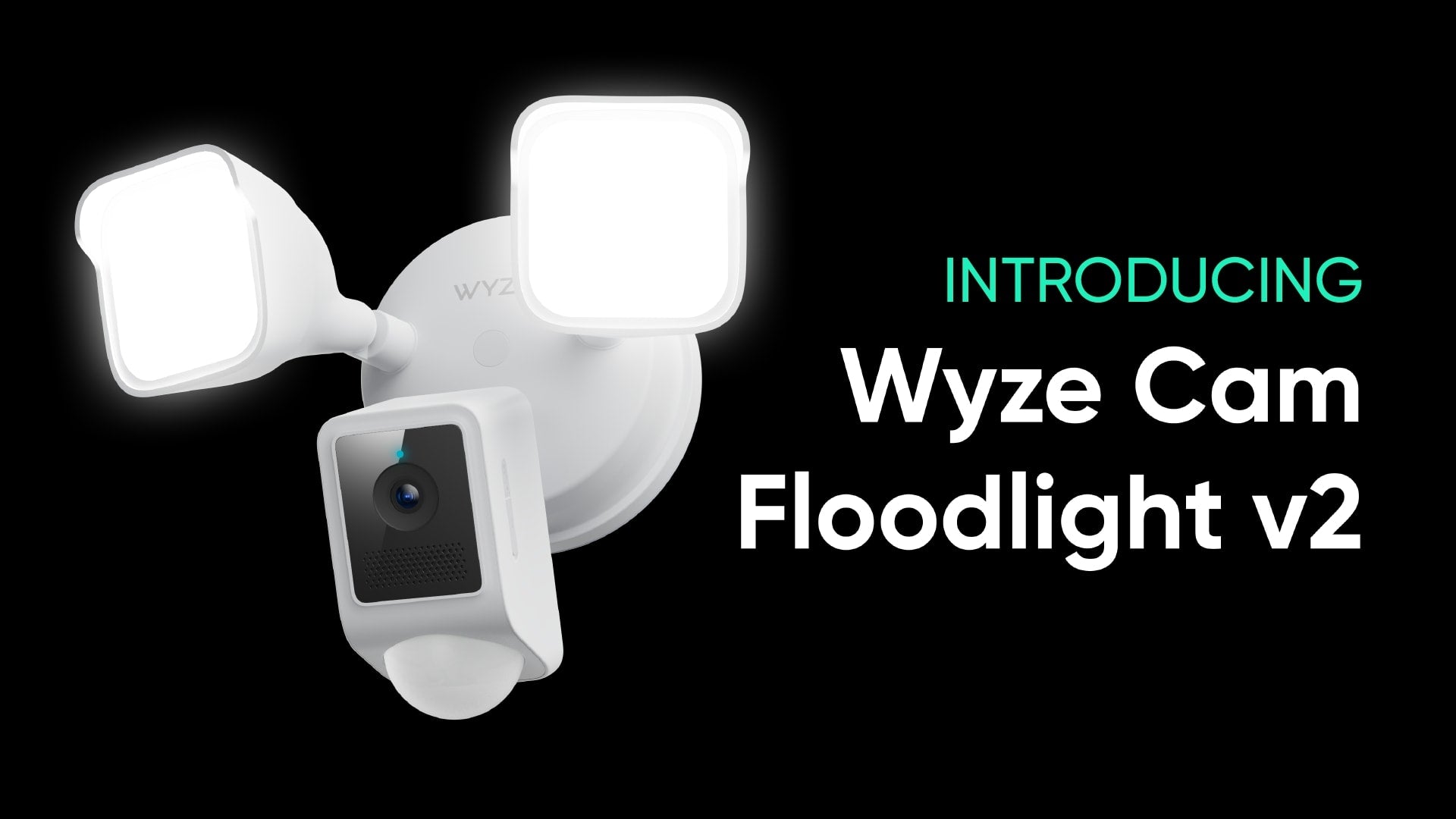
Wyze Cam Floodlight v2

  • Color: White or Black
  • Finish: Matte
  • Mount: Wall/Ceiling
  • Body: Polycarbonate
  • Lens: Glass + Plastic
  • 2 dimmable LED light panels
  • 2800 total lumens of brightness
  • 5000K color temperature
  • Dimmable: Yes
  • 2K (2304 x 1296)
  • Night Vision
  • Color Night Vision
  • Hardwired 110 - 120V AC
  • -4°F - 140°F (-20°C - 60°C)
  • IP65 Water Resistance
  • Safe for outdoor use

Learn more

Wyze Cam OG

  • Power Adapter: Input - 110-240V (AC/DC) Output - 5V/1A
  • Video FPS: Daytime - 20 FPS Nighttime - 15 FPS
  • Video Encoding: H.264
  • Video Resolution: 1920 x 1080 (1080p)
  • 2 spotlight (5000K, 40 lumens)
  • 802.11 b/g/n, 2.4 GHz Wi-Fi
  • Phone Compatibility: Android 9.0+, iOS 15.0+
  • Integrations: Alexa, Google Assistant, IFTTT
    Weather Resistance: Indoor and Outdoor (IP65)
  • Operating: -4°F - 131°F (-20°C - 55°C)
  • Storage: -40°F - 158°F (-40°C - 70°C)
  • Power Cable Length: 6 ft (1.8 m)
  • Ports: 1 micro USB
  • Night Vision: 4 IR LEDs (850nm)
  • Digital Zoom: 8x
  • Field-of-View-OG: 121.4°(DFOV), 102.3°(HFOV), 54.1°(VFOV)
  • Audio: Built-in Speaker & Microphone; Noise & Echo Cancellation
  • Local Storage: Supports up to 256 GB microSD in exFAT format

Learn more

Connectivity & Compatibility

  • IEEE802.11 b/g/n. Wi-Fi 2.4G b/g/n
  • Phone Compatibility: Android 9.0+, iOS 15.0+
  • Integrations: Alexa, Google Assistant, IFTTT

Connectivity & Compatibility

  • Warranty: 1 Year
Wyze Cam Floodlight v2:
  • x1 - Wyze Cam Floodlight v2
  • x1 - Quick Start Guide
  • x1 - Mounting Accessory Kit
  • x2 -Bracket Screws (#6, #8, and #10)
  • x1 - Ground Screw
  • x1 - Floodlight Screw
  • x1 - Rubber Stopper
  • x1 - Mounting Bracket
  • x2 - Wire Nuts
  • x1 - Hook x
Wyze Cam OG (Standard):
  • x1 - Camera
  • x1 - Indoor Power Adapter
  • x1 - USB Cable
  • x1 - Wall Anchors
  • x1 - Wall Plate
  • x1 - Mounting Screws (M4)
  • x1 - Quick Start Guide

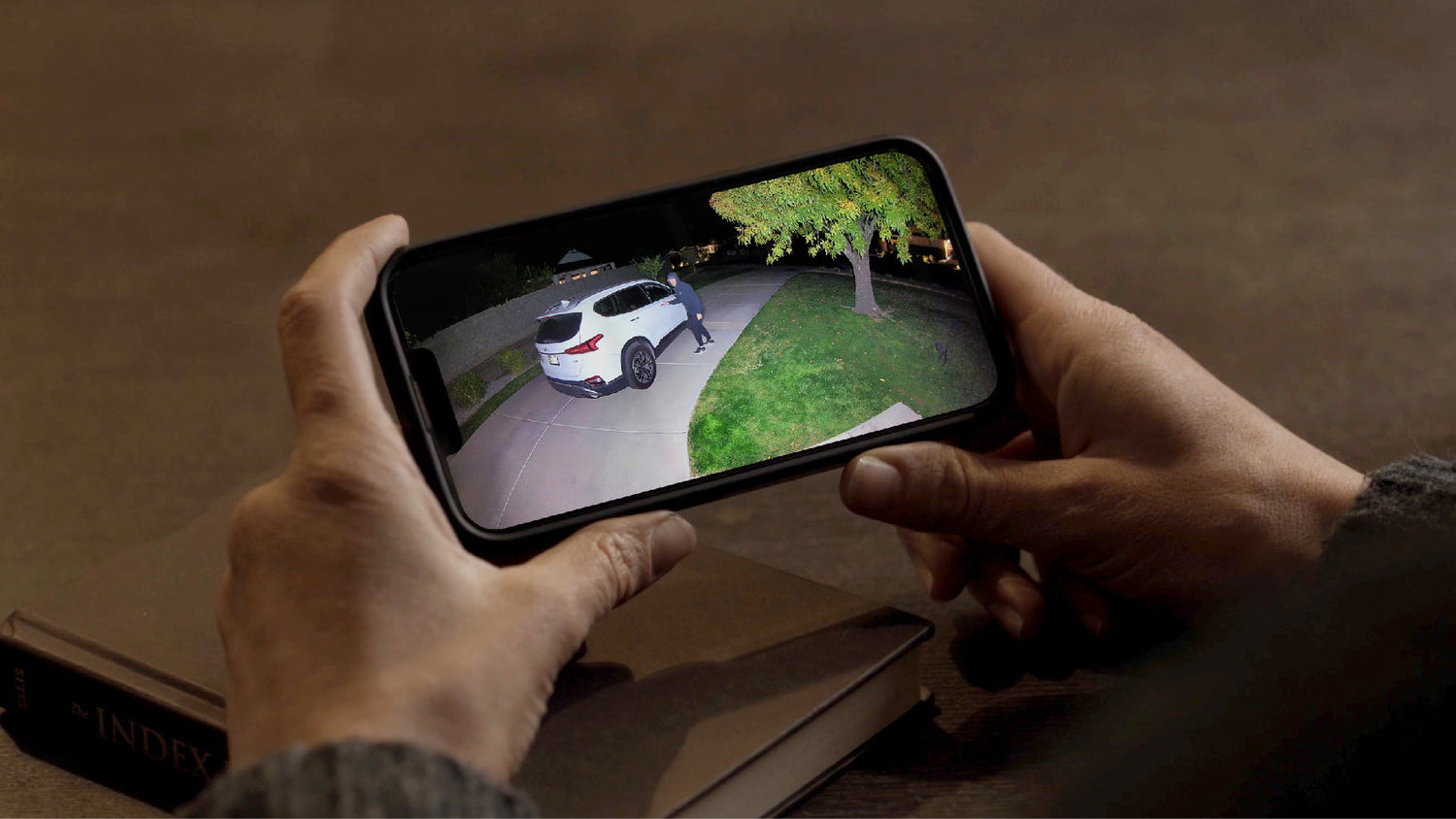
Enjoy crystal-clear 2K resolution.

Immaculate 2K image quality means you can capture events in more detail than ever, especially at night. Because we all know the devil is in the details. Or maybe it was just Brad, the hypersensitive HOA president.

A person is standing in front of a car.
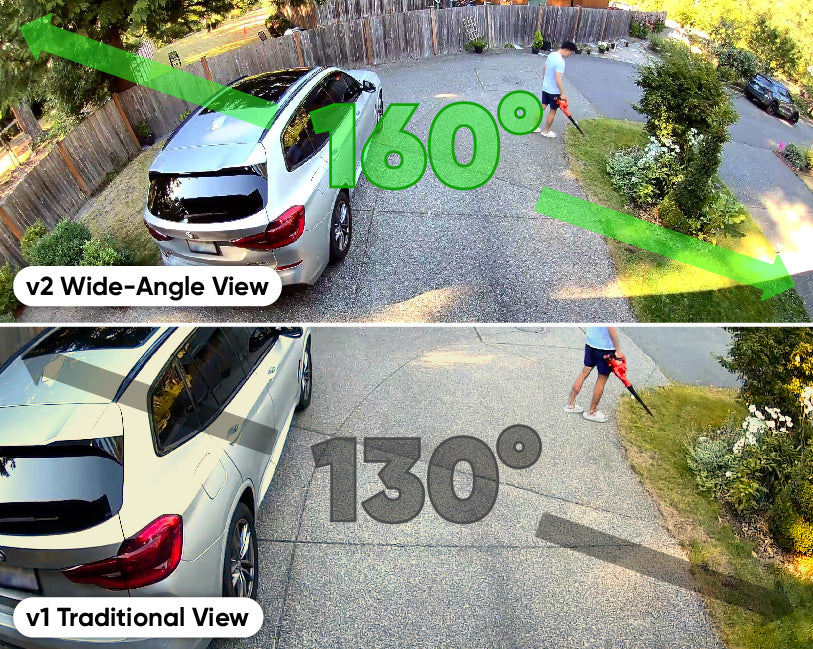
A side-by-side comparison of a traditional view and a wide-angle view of a Wyze Cam Floodlight v2.

See more, worry less.

A 160° wide-angle view gives you double the visibility compared to the previous generation. Moms everywhere are wondering if this can be applied to genetics.

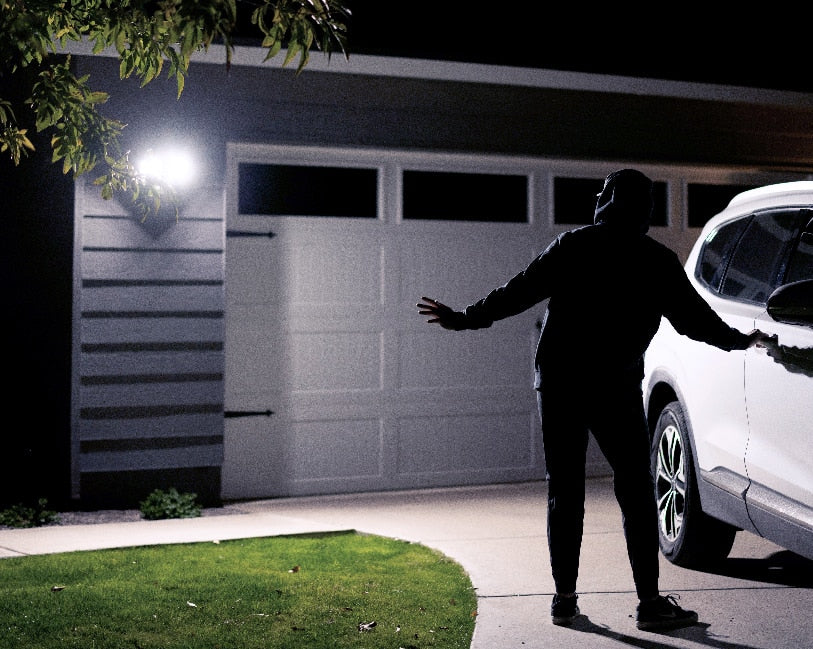
A man standing in front of a garage door with a white car.

The dark doesn't stand a chance.

Turn night into day with two 2800 lumen, adjustable and motion-activated LED lights that illuminate your path and keep intruders at bay.

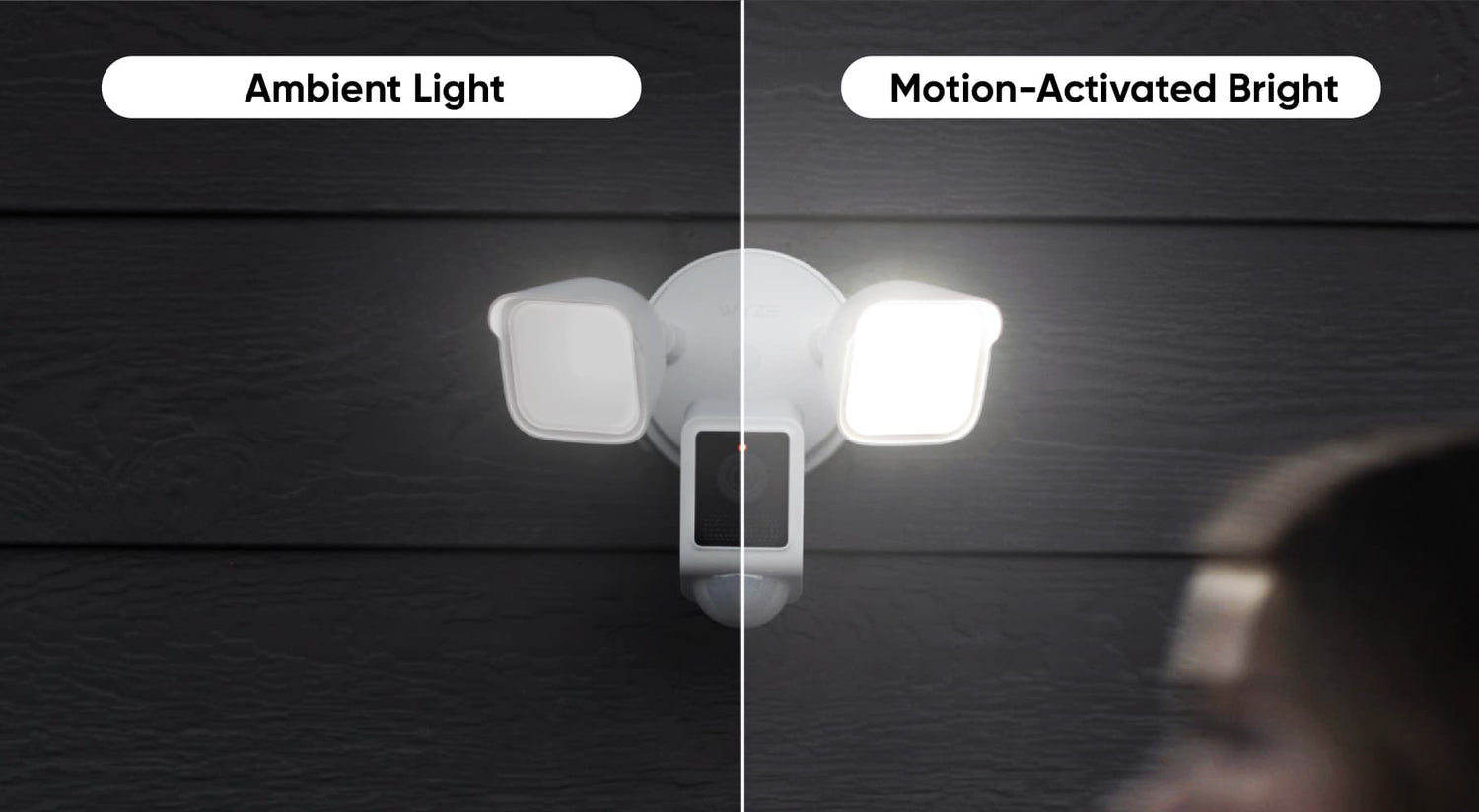
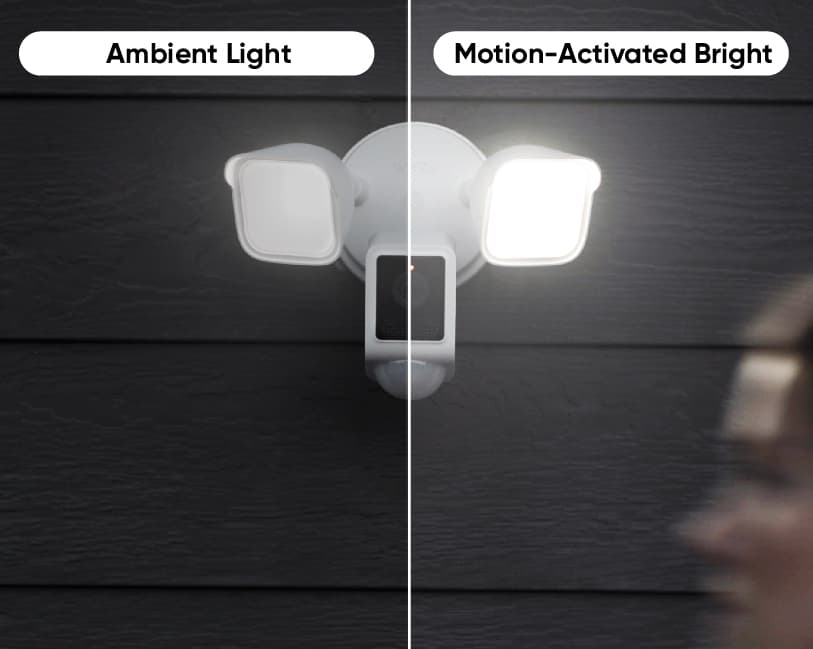
Ambient Light Mode.

When enabled, it provides constant low-level light and automatically switches to increased brightness when motion is detected. It's like a reverse night light for crooks and creepers.

A motion-activated floodlight mounted on a wall.
Wyze Cam Floodlight v2 PDP Artboard 14.
A person is inserting a microSD card into a Wyze security cam.

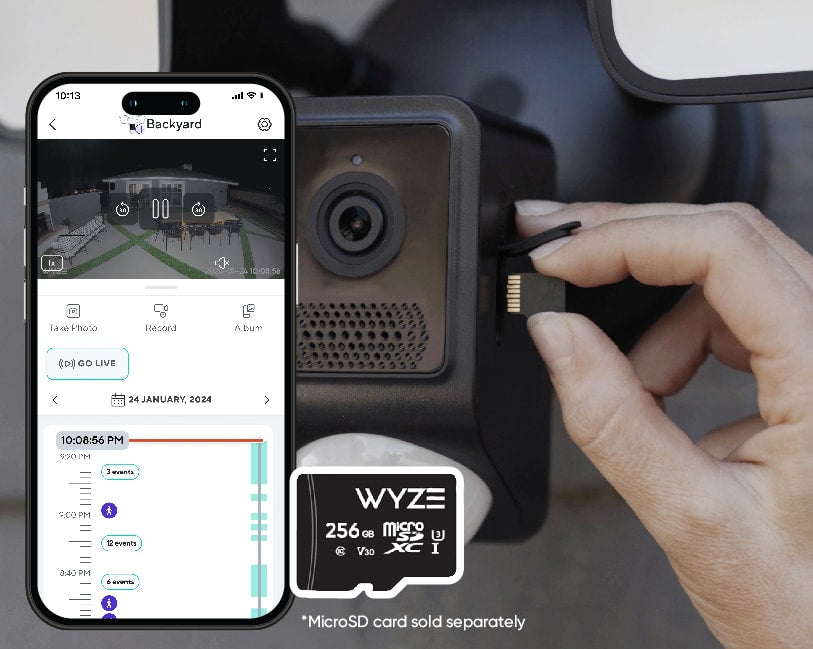
24/7 local recording with microSD card.

Record 24/7 locally with a microSD card up to 256 GB (sold separately). Add AI alerts and cloud backup with Cam Plus.

A man holding a golf bag and talking to someone through a Wyze Cam Floodlight v2.

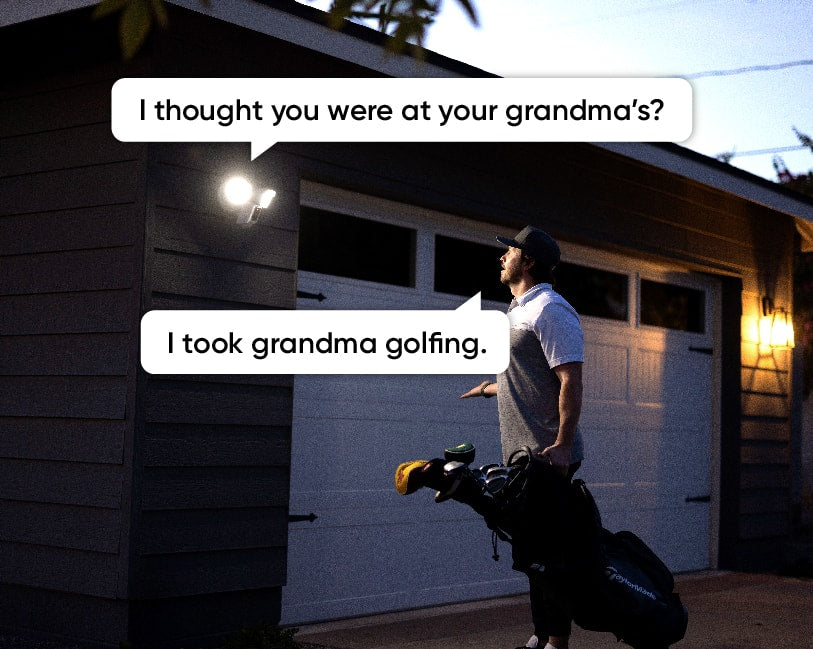
Two-way talk + loud siren.

Respond to visitors and familiars by tapping on the mic icon in the Wyze app. Still not getting the message? Sound the 105dB siren for extra deterrence.

A green circle with the text "270 PIR Motion Detection Zone" in white.

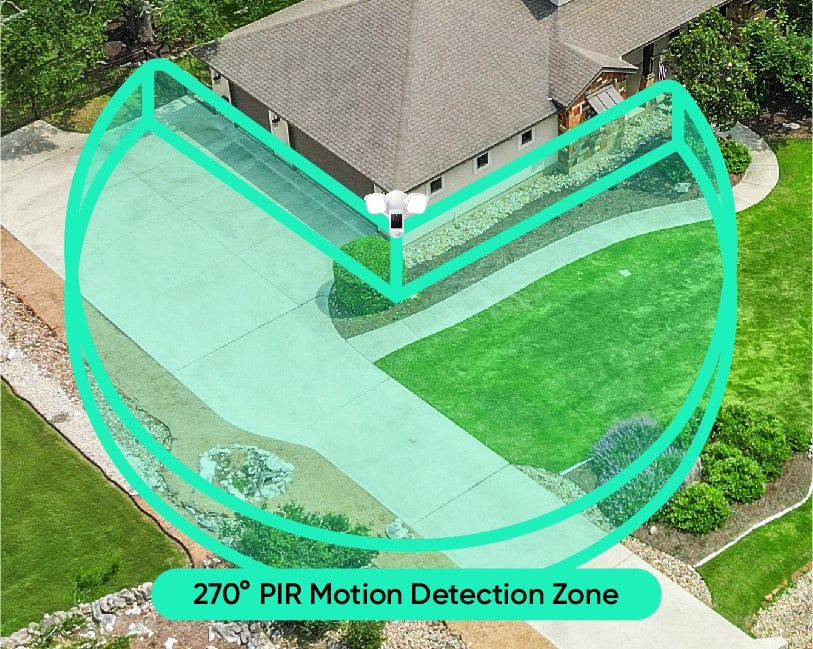
Bye bye, blind spots!

Eliminate blind spots and trigger lights faster than ever with a 270° PIR motion detection area.

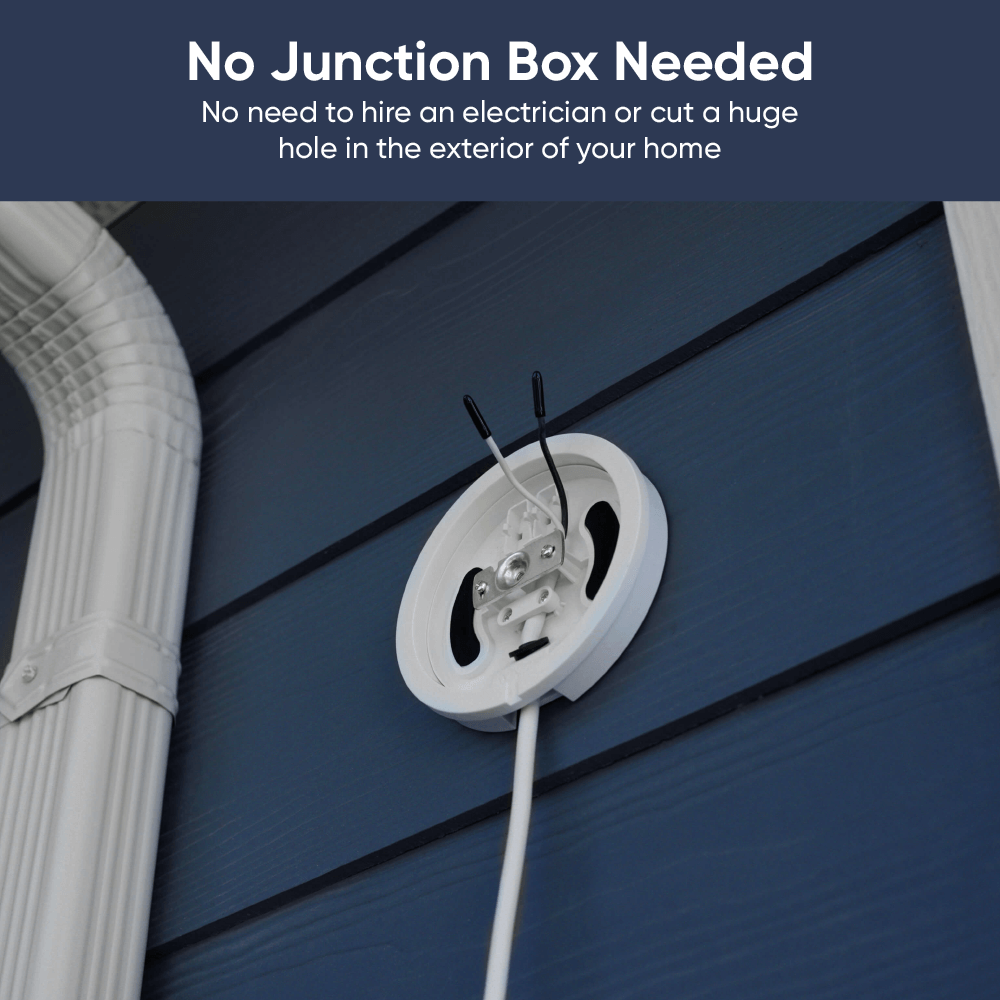
No junction box needed.

Add a floodlight plug-in mount if you prefer a power outlet.

Skip the electrician appointment! By following some simple instructions, you can now totally DIY install a floodlight camera. No need for a junction box or pesky power lines. Learn more.

Perfect for those with a handy outdoor outlet open and renters.

Plus, all the familiar features you love.

A bright light on a brick wall.

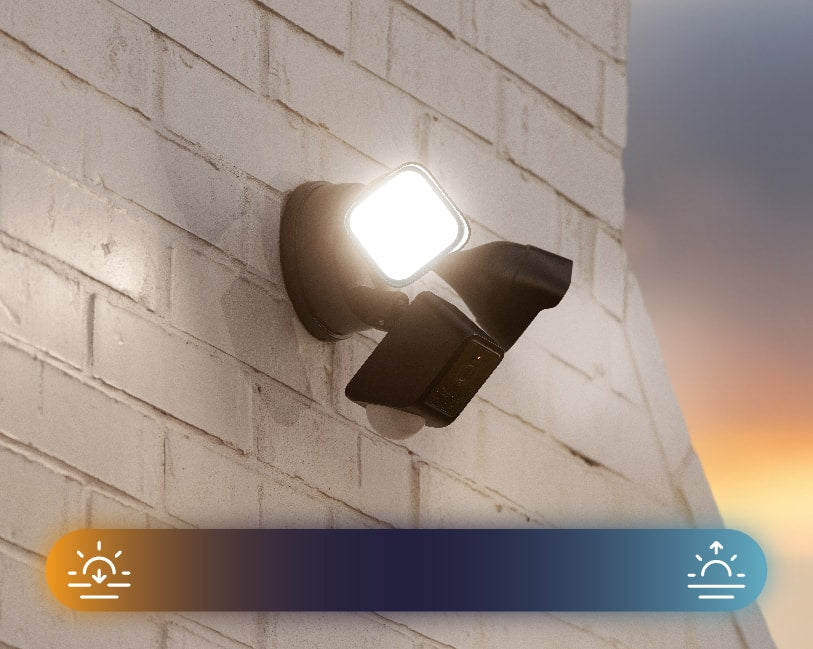
Dusk-to-dawn automation.

The floodlight knows when the sun goes down and when it comes back up. No need to turn it on and off manually.

A black security camera with two floodlights attached, mounted to a wall.

IP65 weatherproof.

Rated to withstand any weather. Especially, the "it's raining packages which means my partner maxed out the AMEX again" type of weather. That's the worst weather.

A man carrying a box in front of a house at night.

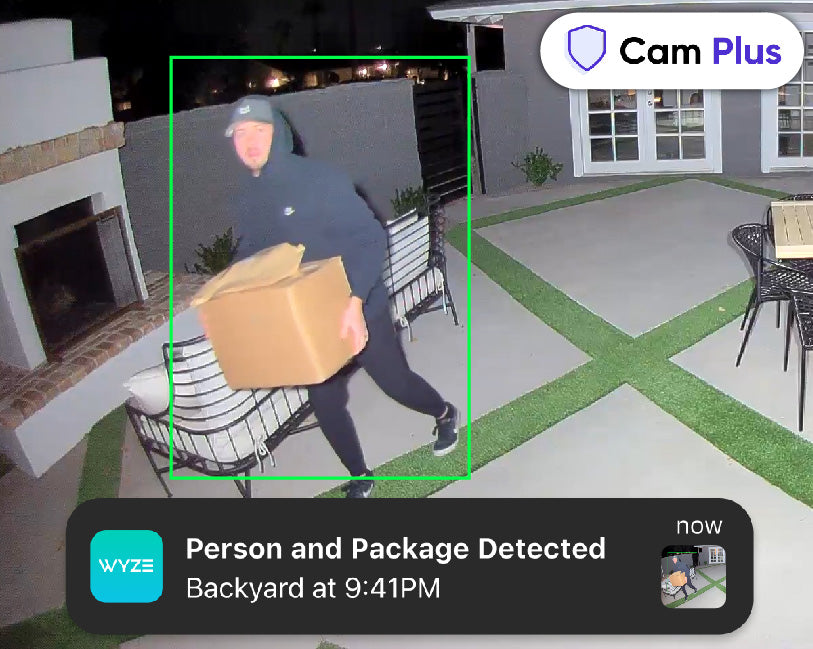
Get AI detections with Cam Plus.

Get Person and Package Detection, and more with Cam Plus. Also enjoy unlimited cloud video storage and smarter notifications.

A tablet displaying a live video feed from a security camera mounted outside.
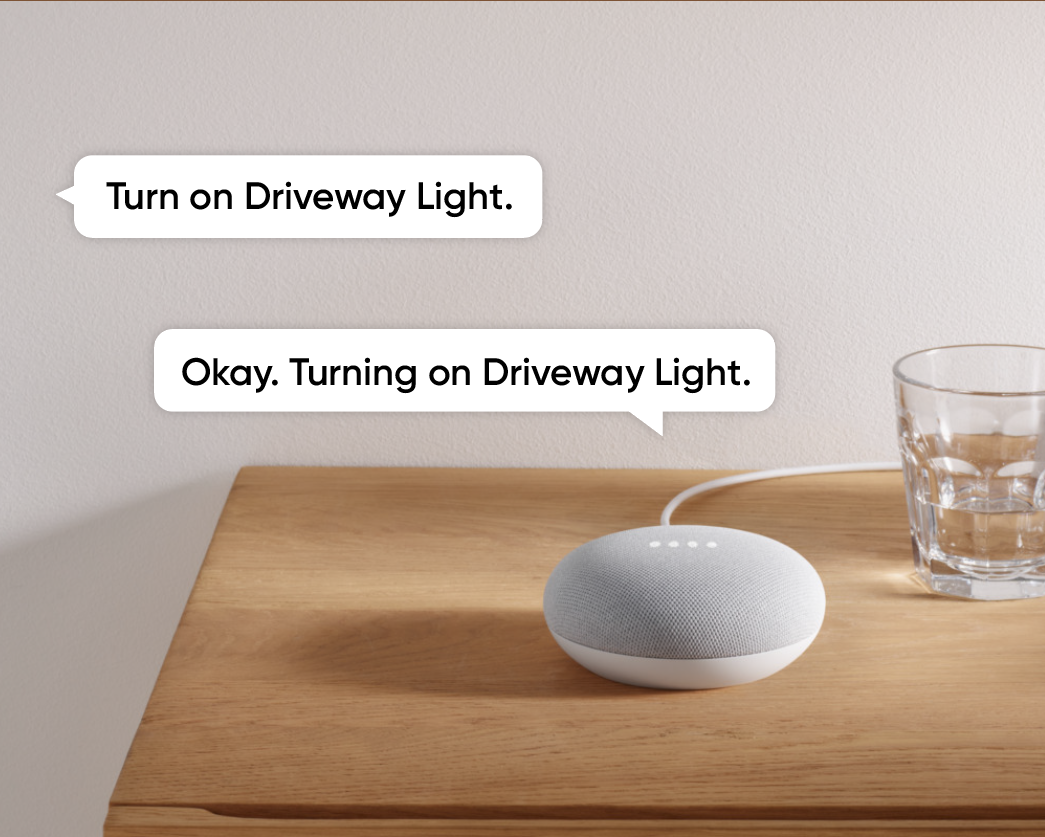
A smart speaker on a table.
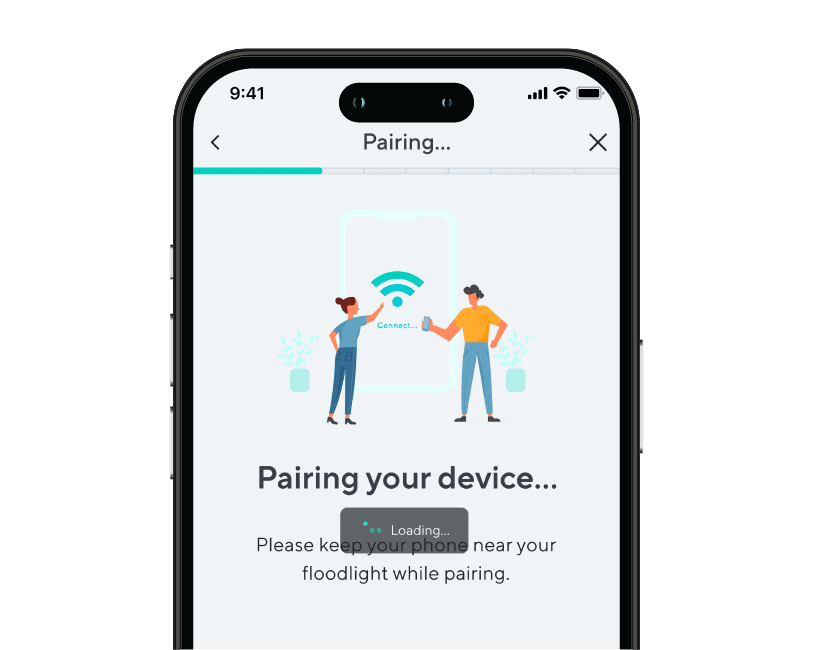
A phone screen showing a step of device pairing during onboarding.
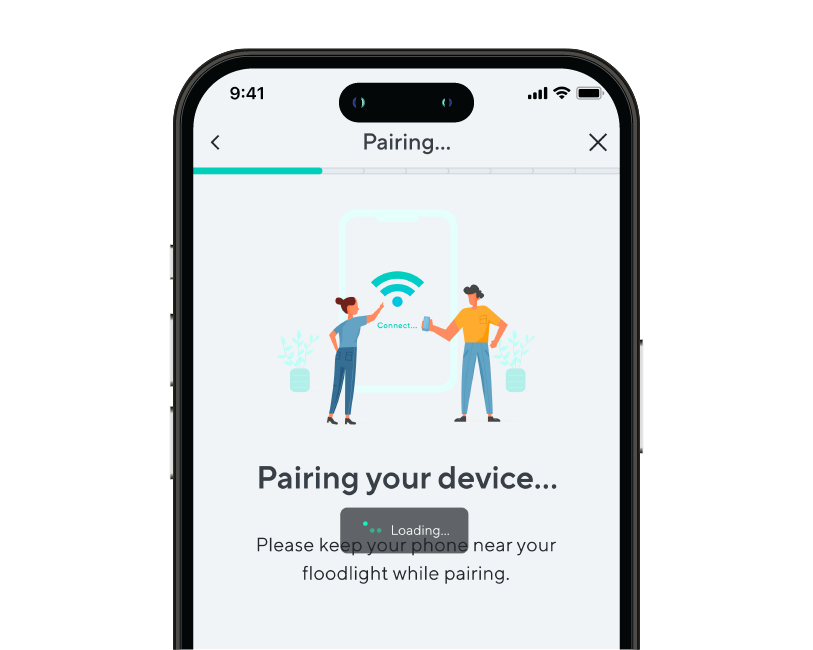
A phone screen with a message about pairing a device.
Wyze Cam Floodlight v2 PDP Artboard 12.
Wyze Cam Floodlight v2 PDP 12

Super simple setup.

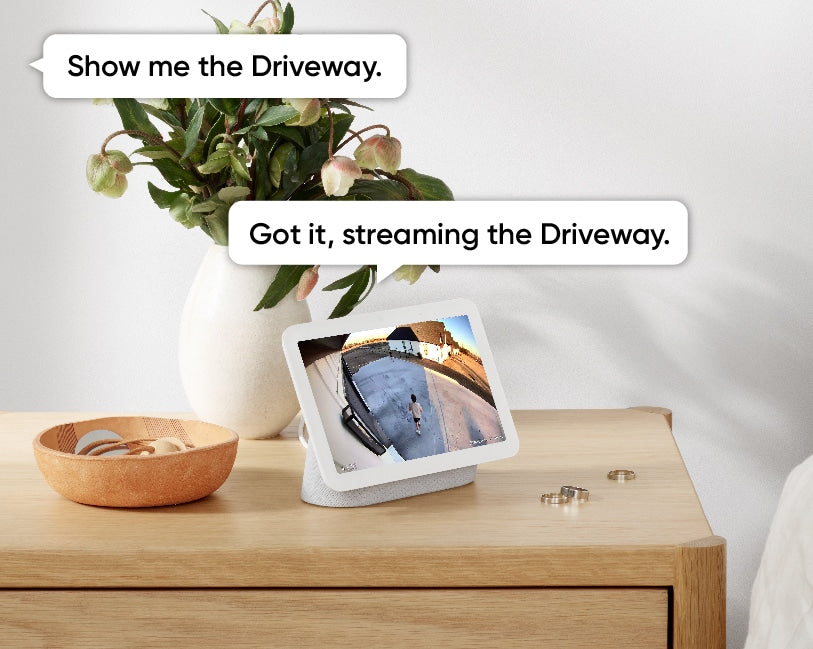
Use your Amazon Echo, Alexa, and Google Home devices to view live feeds of floodlight cam. Even get smart alerts when a person is detected, with Cam Plus.

Access Point Wi-Fi setup lets you pair Wyze Cam Floodlight v2 with
the Wyze app without climbing a ladder to scan a QR code.

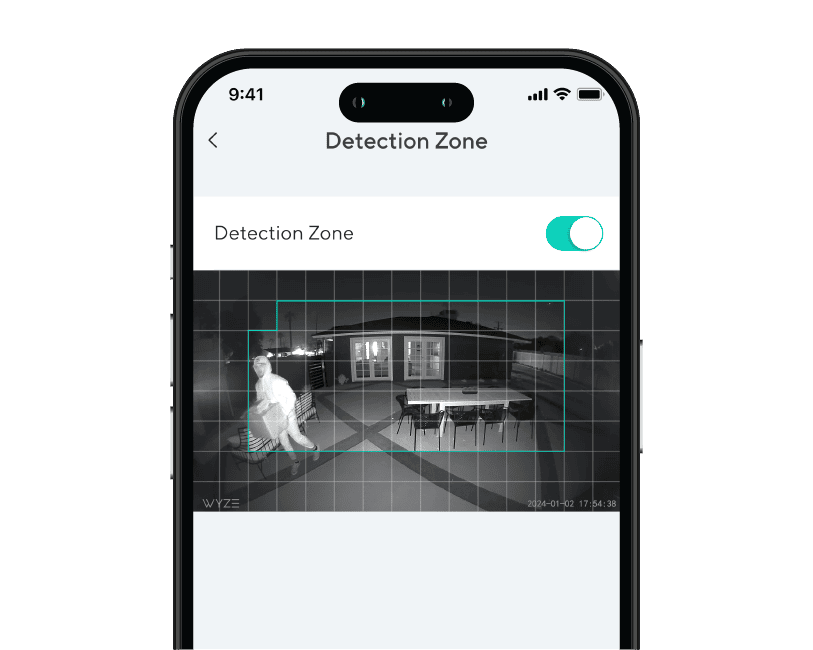
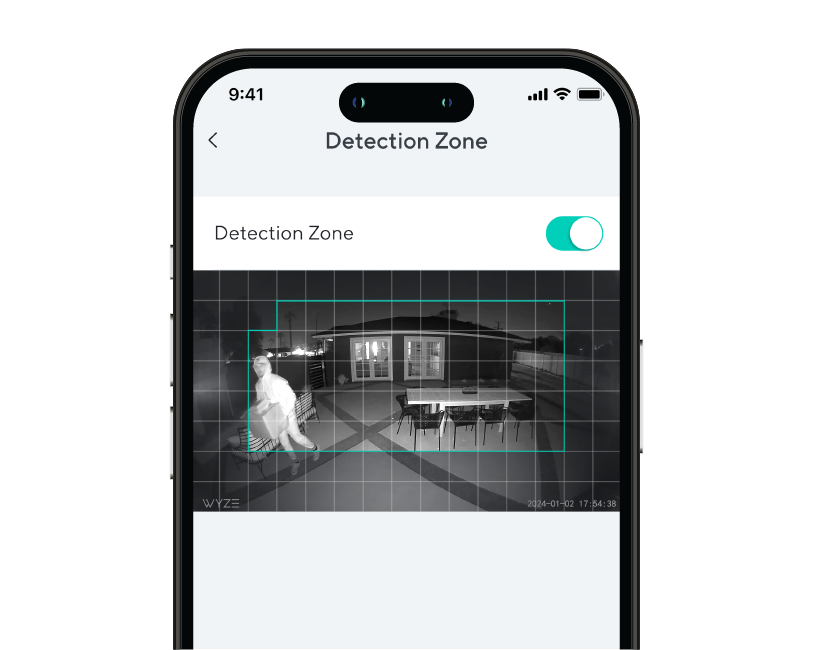
Set custom detection areas so you only receive motion notifications from areas of interest.

It's time to shine!

Here's a fancy pants recap of why Wyze Cam Floodlight v2 is changing the game.

Compare Floodlights

Swipe to compare more products →
Compare Floodlights
Camera Resolution
Field-of-View
Lumens
Floodlight Heads
Color Temperature
Wi-Fi Connectivity
Vision AI Light Control
Motion Detection
Sirens
Ambient Light Mode
Motion Warning
Device Setup Mode
IR Lights
MicroSD Card Compatibility
Power Supply
Smart Integrations
Certifications

Support Articles

Follow the steps in this article to set up your new Wyze Cam Floodlight v2. ⚡️

Before you begin setup, use our Wyze Cam Floodlight v2 Installation Guide to install the floodlight.

To set up your Wyze Cam Floodlight v2:

  1. After completing the installation process in the Wyze app, tap Begin Setup. Floodlight not installed, with power? Follow the steps listed in our Wyze Cam Floodlight v2 Installation Guide before beginning setup.
  2. The status light should begin flashing red. If the light is flashing red, check the box next to Light is flashing red, then tap Next. If the light does not turn on, press and hold the SETUP button on the side of the camera to reboot the camera.
  3. Wait for the voice prompt to say "ready to connect." After the prompt, check the box next to It said, "Ready to connect", then tap Next. If there is no voice prompt, press and hold the SETUP button for 10 seconds to reboot the camera, then try again.
  4. Give location permissions for the floodlight's Dusk to Dawn setting. Tap Next.
  5. Your floodlight will pair to the Wyze app - stay nearby.
  6. Select your 2.4 GHz Wi-Fi network and enter your network password. Tap Next. Tap the icon in the password field to display the password to ensure it was entered correctly.
  7. Your floodlight will connect to your Wi-Fi network. If connection fails, wait for the voice prompt and try again.
  8. Name your Wyze Cam Floodlight v2 using the text field, or by choosing a suggestion. Tap Finish when done.
  9. You may have a prompt for a free trial of Cam Plus. Tap Continue.
  10. Set up some automations on the Things to Try* page, or tap Skip.
  11. You are all set! Your floodlight is set up and ready to go. Tap Done.

Things to Try: Tap Create or edit a device group, Share this device, Automate your device, or Skip. These are quick ways to set up a few automations before you finish setup. When you complete a task, it'll display a green checkmark ✅. You can move on from this page by tapping Skip.

Installing your Wyze Cam Floodlight v2 is as simple as replacing your existing floodlight by connecting it to a junction box. As long as you have a junction box and neutral wiring, and self-installation is legal in your area, this process should take about 30 minutes.

-> You must have an existing junction box and a neutral wire to use Wyze Cam Floodlight v2.
-> At the electrical panel, shut off power to your junction box before proceeding.

Before you begin installation:

Check your local laws and building codes before doing any performing any electrical work. Your may live in an area that requires a permit and professional installation.

What’s in the box?

  • 1x Wyze Cam Floodlight v2 (Assembled)
  • 1x Mounting Accessory Kit 6x Bracket Screws 2x #62x #82x #10 1x Ground Wire Screw1x Floodlight Screw1x Rubber Stopper1x Mounting Bracket2x Wire Nuts1x Hook
  • 1x Quick Start Guide

Required tools:

  • Phillips Screwdriver
  • Ladder

To install your Wyze Cam Floodlight v2:

  1. In the Wyze app, tap the +plus sign then Device > Cameras > Floodlight Camera> Wyze Cam Floodlight v2.
  2. Read the High Voltage warning before tapping Got it!
  3. Are you replacing an existing floodlight? If yes, tap I'm replacing an existing floodlight. At your electrical panel, turn off power to your floodlight. Tap Next.Carefully remove your existing floodlight. Tap Next. If no, tap I don't have a floodlight to replace. Do you have an existing junction box? If yes, tap Next. Check that your junction box is at least 10 feet off the ground. Tap Next. If no, your wiring is not compatible with Wyze Cam Floodlight v2. Stop the installation process and contact a licensed electrician for assistance. Tap Check Your Wi-Fi Signal Strength in the Wyze app. If your signal is Out of Range or Poor Connection, contact your ISP for options.Tap Continue Setup. Tap Start Installation.

Continue below, following along in the Wyze app to wire your floodlight.

  1. Review the Installation page for what You Will Need for installation, and what's In the Box.
  2. Confirm that you have the required tools and items. Tap Next.
  3. IMPORTANT: At your electrical panel, double-check that you've shut off power to your floodlight or junction box. Tap Next.
  4. Follow along in the Wyze app to wire your Wyze Cam Floodlight v2.
  5. Once installation is complete, turn on power at your breaker when prompted.
  6. Tap Begin Setup, then continue to Wyze Cam Floodlight v2 Setup Guide.

Problem

Your Wyze Cam Floodlight v2 is unable to be set up.

Troubleshooting

  1. Confirm your Wyze app is up to date. In your Wyze app, navigate to the Account tab > tap About.Your current app version will be listed beneath the Wyze logo. Compare your app version to the latest app version listed on our Release Notes & Firmware page.If you find that your Wyze app is out of date, head over to your mobile device’s app store, and update the Wyze app.
  2. Power off the floodlight by switching the breaker to the off position.
  3. Check all wiring to make sure it is secure.
  4. Make sure that Wyze Cam Floodlight v2 was installed properly by following the steps in our Wyze Cam Floodlight v2 Installation Guide. If you’re ever unsure when dealing with wiring, we recommend reaching out to a licensed electrician at your discretion.
  5. Power on the floodlight by switching the breaker back to the on position.
  6. Confirm whether the status light is on after powering up the floodlight. If not, follow the steps in My Wyze Cam Floodlight v2 won’t power on.
  7. Check that BluetoothⓇ is enabled for the Wyze app in your phone/tablet settings. Toggle BluetoothⓇ off/on.
  8. Verify that Location Permissions are enabled for the Wyze app in your phone/tablet settings. Make sure that it is set to Always or While Using the App.For iOS users, make sure that Precise Location is turned on.
  9. If possible, temporarily disable any VPNs on your mobile device or Wi-Fi router.
  10. Ensure that you are following the setup process outlined in the Wyze app. After tapping Begin Setup, make sure that you hear the “ready to connect” voice prompt and check the box for It said, “Ready to connect”. Tap Next to see a Connecting to device pop-up, then tap Connect.If pairing fails, you will see a “Pairing Failed” screen. Tap Pair Device Wi-Fi Manually, then tap Choose Wi-Fi.You will be taken to your mobile device’s Wi-Fi settings. Tap floodlight_ap to connect to the floodlight’s network, then navigate back to the Wyze app.In the Wyze app on the Select your network step, select and enter the password for your Wi-Fi network. Tap Next to continue with setup.
  11. Ensure your phone/tablet is connected to the same 2.4 GHz network that you’re entering at the Select your network step and that you’re entering the SSID (Wi-Fi name) correctly. Wyze Cam Floodlight v2 is not compatible with 5 GHz Wi-Fi networks.The SSID is case-sensitive and there should be no space before or after the SSID.The SSID should automatically populate if you’re connected to Wi-Fi. If it does not auto-populate, it can indicate the phone/tablet that is being used for setup is not connected to Wi-Fi.
  12. Check that you’re entering the Wi-Fi password correctly. Tap on the eye icon to view the password you’re entering.
  13. Power cycle Wyze Cam Floodlight v2. Switch the breaker to the off position.Wait 5-10 seconds.Switch the breaker back to the on position.
  14. Factory reset Wyze Cam Floodlight v2. Remove any microSD card inserted into the floodlight.With the floodlight powered on, press and hold the setup button on the side of the camera for 10 seconds until the status light on the front of the camera turns solid red.Once the status light starts flashing red, set up the floodlight like new.
Added to your cart
FREE shipping on orders $59+
Subtotal
$0.00
View cart