Skip to content
View our Accessibility Statement
Skip to product information
1 of 13

Wyze Bulb Cam

Wyze Bulb Cam

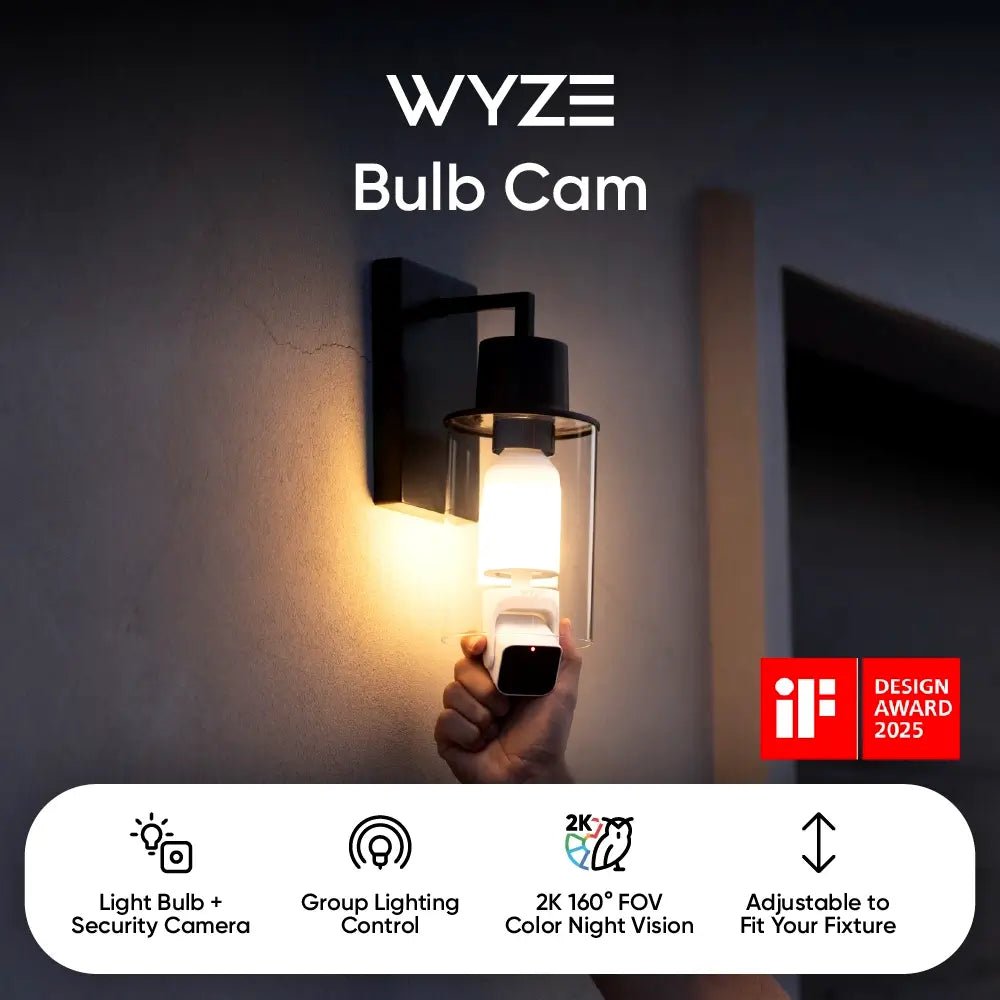
2K Camera Built into a Smart Bulb

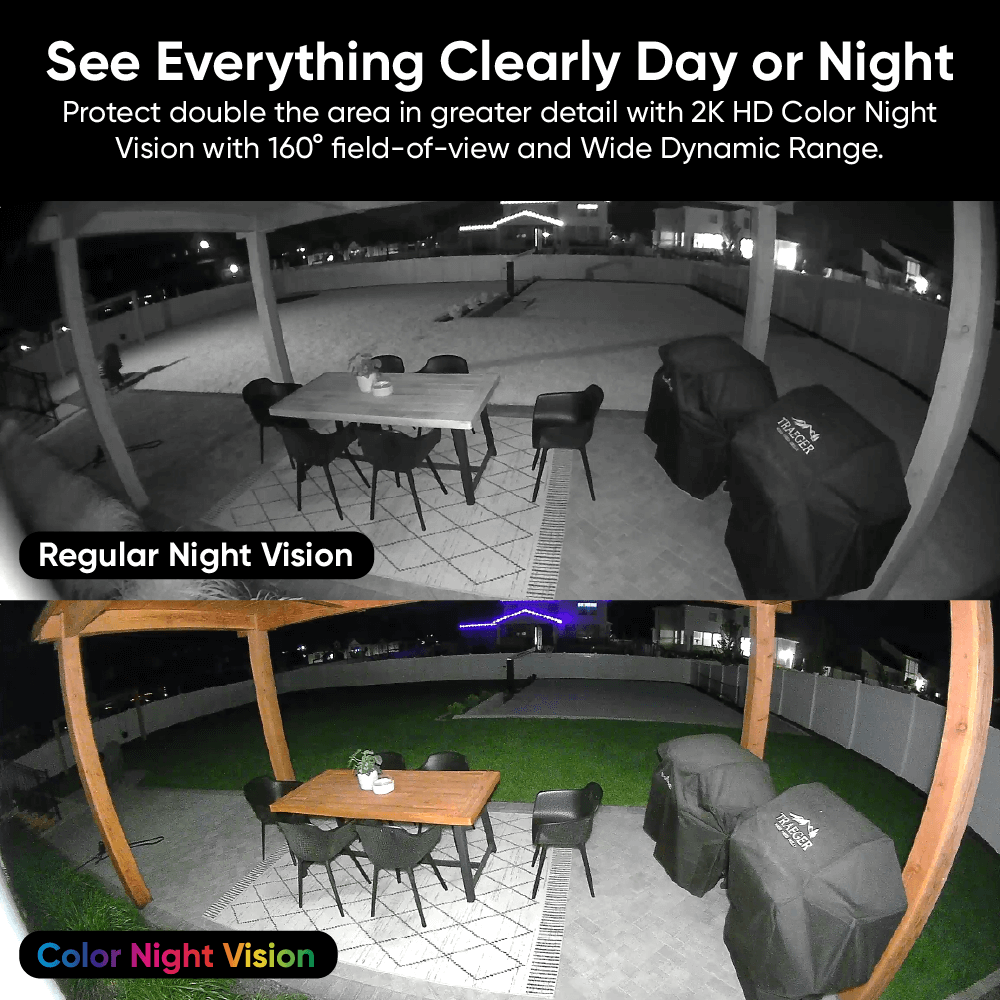
2K Color Night Vision

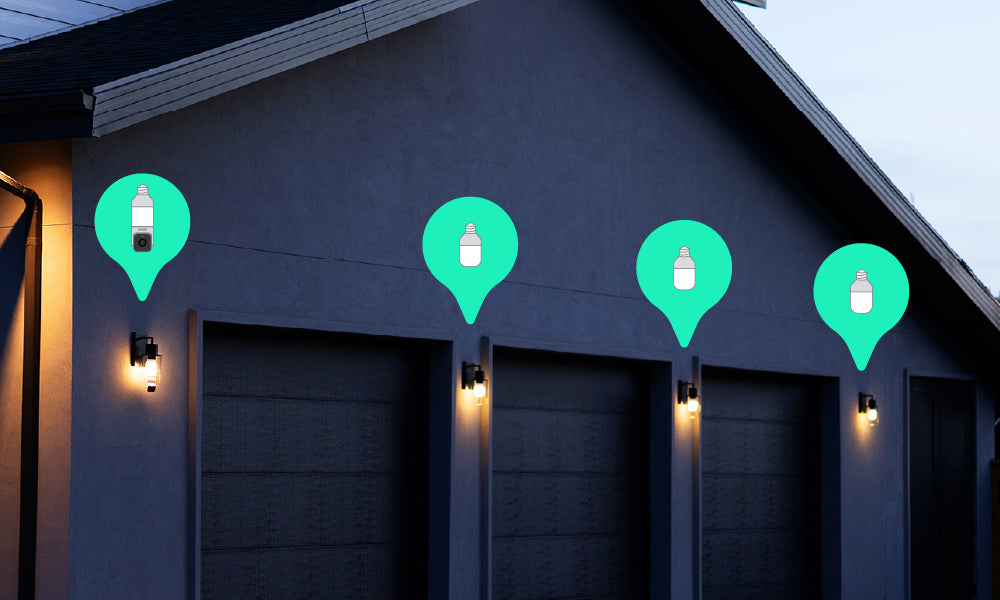
Group Lights Together

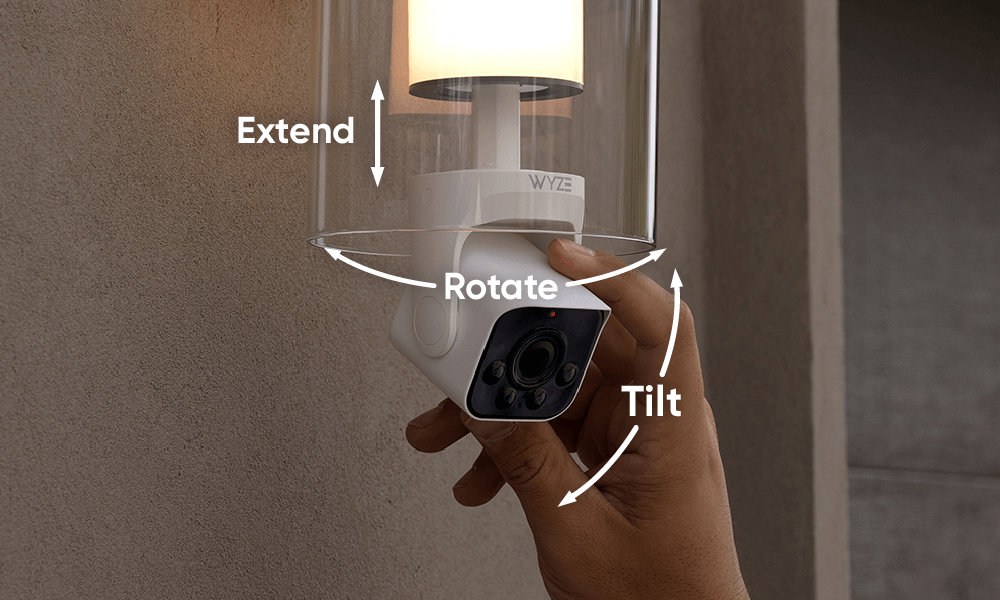
Manually extend, rotate and tilt

160 Degree View

Eliminate Blind Spots

Style
$64.98CAD
Quantity: 1
1
2
3
4
5
6
7
Out of stock
Get it as soon as
30-day hassle-free returns.
Out of stock
A blue and white logo for Wyze.
Wyze.com Exclusive BENEFITS
18-month extended warranty

Get an 18-mo extended warranty when you buy this product on wyze.com. Also get special bundles, unique promos, + rewards with each order

View full details
  • A black image of a bulb with a camera.

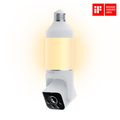
    A Light Bulb + Security Camera

    An all-in-one outdoor security solution.

  • A colorful logo for a Wyze Bulb Cam.

    2K Color Night Vision with 160° FOV

    See more of everything day or night with a wide field of view.

  • Wyze Bulb Cam Shopify 12

    Enhanced Group Lighting

    Pair up to 5 Wyze Accessory Bulbs. Customize the brightness and schedules.

  • Wyze Bulb Cam Shopify 13

    Adjusts to Fit Most Light Fixtures

    Manually extend, rotate and tilt the camera to find just the right angle.

Wyze Bulb Cam Tech Specs

Materials & Colors
  • Model: WYZECBC
  • Body: Plastic
  • Lens: Glass and Plastic
  • Bulb Base: Metal
  • Certifications: FCC, IC, UL, IP65
  • Telescoping Length: 1.18 in (3 cm)
Power
  • 120V AC Input 
  • Standard E26 Socket Only
  • 15 watts
Video
  • Resolution: 2K (2304 x 1296)
  • Field of View: 166° diagonal, 144° horizontal, 82.5° vertical
  • Frame Rate: Daytime: 20 FPS, Nighttime: 15 FPS
  • Functionality: Color Night Vision / IR Night Vision, Digital Zoom
Audio
  • Microphone: Built-in, digital
  • Siren: 95 dB at 4 in
  • 2-Way Audio
Lighting
  • Brightness: up to 800 lm
  • Color Temperature: 3000K 
  • Controls: Manual, Motion-Activated Light, Ambient Light, Schedule, Wyze Automations
  • IR Lights: 4x 850nm
Storage and Alerts
  • Alerts: Push notifications, Motion Warning
  • Cloud Storage: stored in the AWS cloud (Wyze Service subscription required)
  • Local Storage:
  • Supports 8 GB, 16 GB, and 32 GB microSD cards in FAT32 format
  • Supports up to 256 GB microSD cards in exFAT format

Connectivity and Compatibility
  • OS Requirements: Android 7.0+ or iOS 14.0+
  • Wi-Fi: IEEE 802.11 b/g/n 2.4 GHz, Wi-Fi 6
  • Bluetooth®: Bluetooth® Low Energy (BLE), Bluetooth® 4.2
  • Linking: Up to 5 Wyze Accessory Bulbs
Weather and Temperature
  • Weather Resistance: 
  • Camera portion: IP65
  • Bulb portion: UL Damp
  • Operating Temperature: -4°F - 122°F (-20°C - 50°C)
  • Storage Temperature: -40°F - 176°F (-40°C - 80°C)
Warranty
  • 1-year product warranty

Wyze Bulb Cam

  • 1x Wyze Bulb Cam
  • 1x “Do Not Turn OFF” Sticker
  • 1x Quick Start Guide

Yes, the camera part of the bulb camera is IP65 weatherproof and can be installed in outdoor sconces. However, most socket adapters are not waterproof. Please keep the socket connection from having direct contact with water.

Yes! Wyze Bulb Cam has a microSD card slot for local storage, and you can record 24/7 and store videos locally. It supports microSD cards up to 32GB in FAT32 and up to 256GB in exFAT format.

No, the camera position must be manually adjusted.

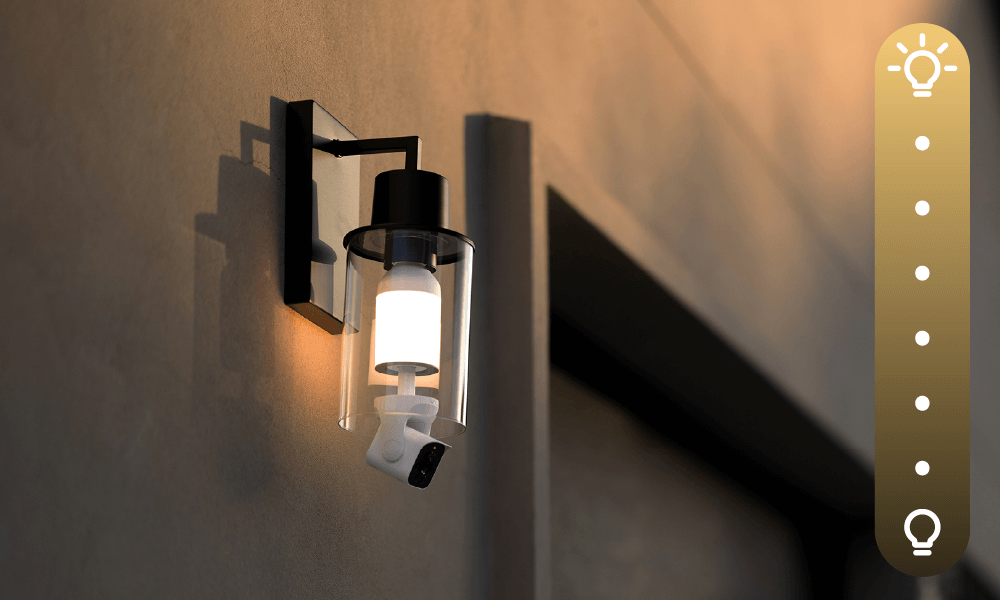
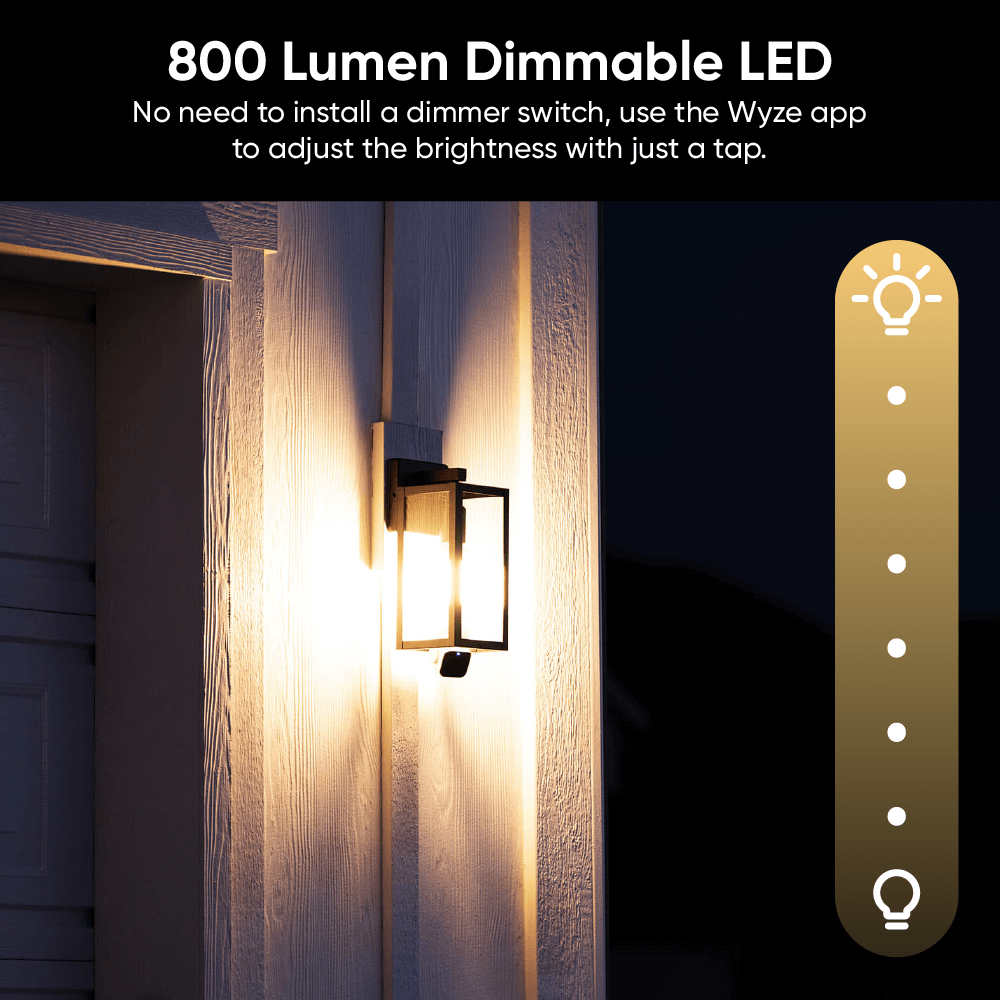
Yes, Wyze Bulb Cam and Wyze Accessory Bulb are dimmable via the Wyze app. The brightness can be set up to 800 lumens, and has an Ambient Light mode which provides constant, low-level ambient lighting until motion is detected and automatically switches to increased brightness.

No, Wyze Bulb Cam and Wyze Accessory Bulb’s color temperature are fixed at 3000K and cannot be changed.

No, it only supports 2.4 GHz networks.

Wyze Bulb Cam supports Wyze Automations with both bulb cameras and Wyze Bulbs. For the best experience and lowest latency though, we recommend pairing Wyze Accessory Bulbs to your Wyze Bulb Cam. 

It fits most sconces with an inner depth of less than 7.87 in (20 cm), from socket base to sconce edge. For larger sconces, we recommend using a Wyze Lamp Socket and Wyze Cam v4. 

We recommend installing Wyze Bulb Cam and Wyze Accessory Bulb directly into the socket and not the Wyze Lamp Socket accessory.

Support Articles

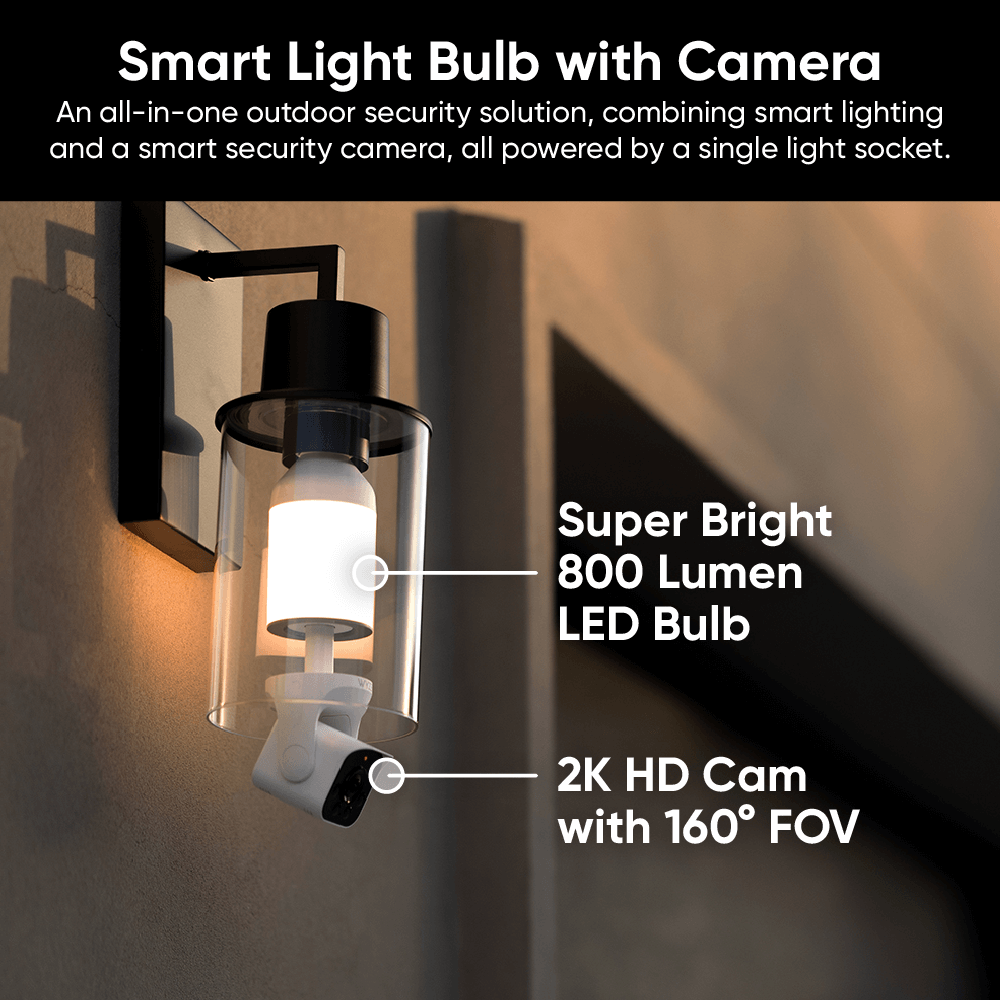
Is it a camera? Is it a lightbulb? Yes.

It's a smart... cambulbera? Let's just call it an all-in-one outdoor security solution that's conveniently powered by a light fixture.

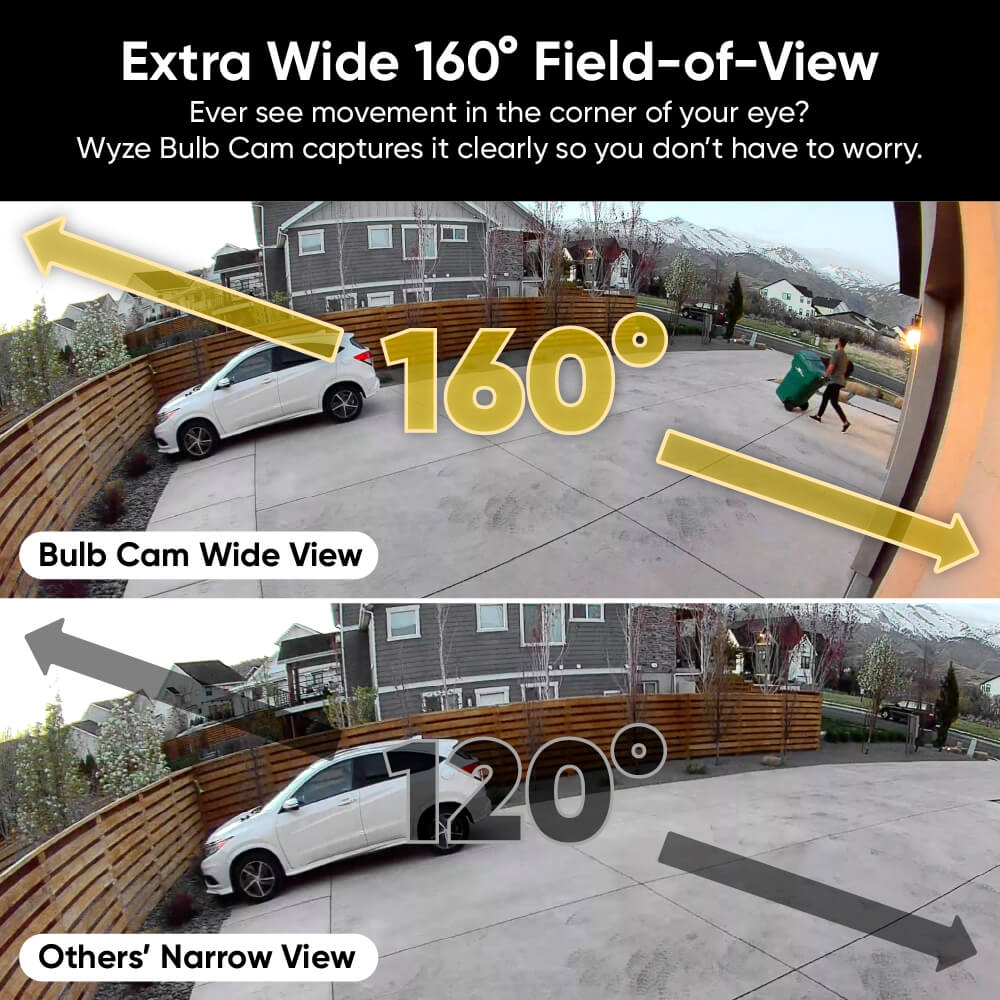
Wide 160° View Sees More Space

A super-wide field of view protects more space than a dance mom saving seats for the summer recital.

A person riding a skateboard in a driveway.
A hand adjusting the camera head of the Wyze Bulb Cam.

Adjusts to Fit Most Light Fixtures

Manually extend, pan, and tilt the camera to find just the right angle.

A Wyze Bulb Cam is mounted on a wall, providing security and illumination.

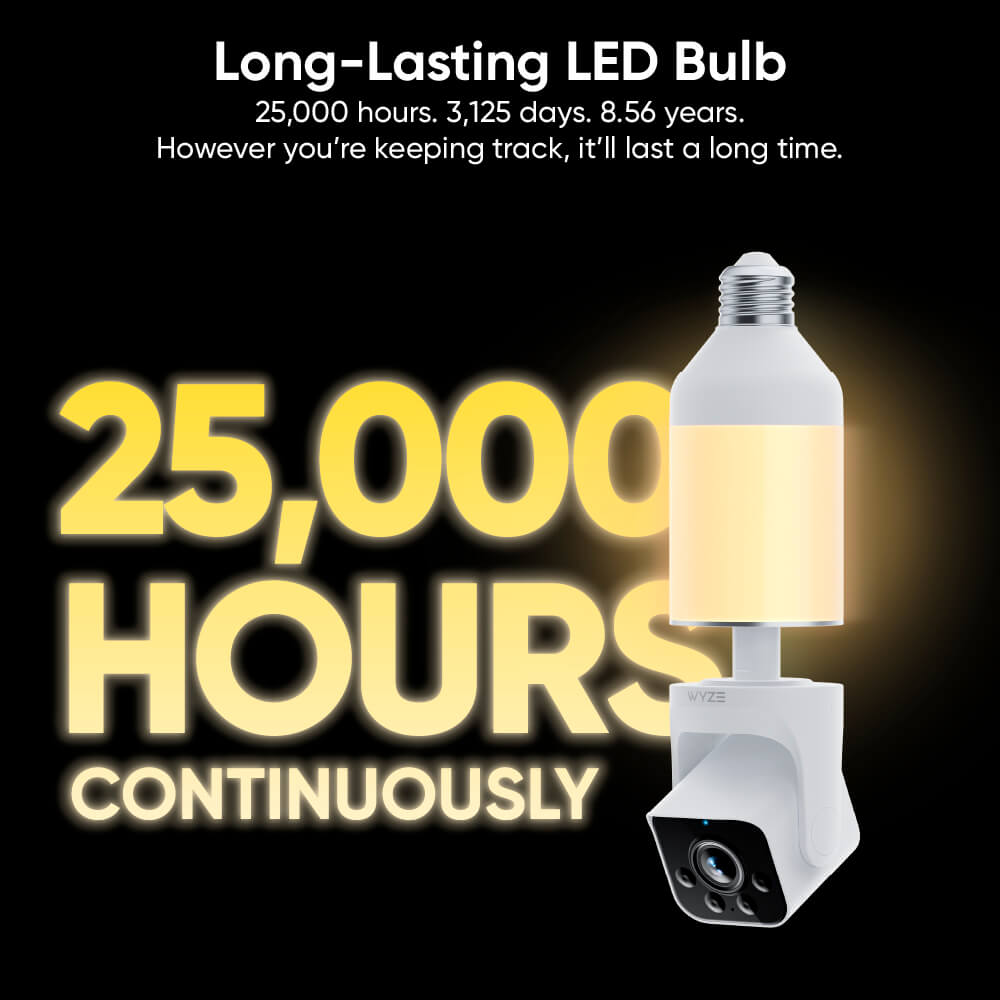
Dimmable 800 Lumen LED Bulb

Traditional lightbulbs look boring. We built this bulb to look modern and classy (just like you). Customize the brightness on these long-lasting LED bulbs to achieve the perfect lighting.

Works with Wyze Accessory Bulb

Meet the sidekick that's full of bright ideas. It's 800 lumens, dimmable, and works exclusively with Wyze Bulb Cam.

Wyze Bulb Cam Shopify
Two green lights on a building.

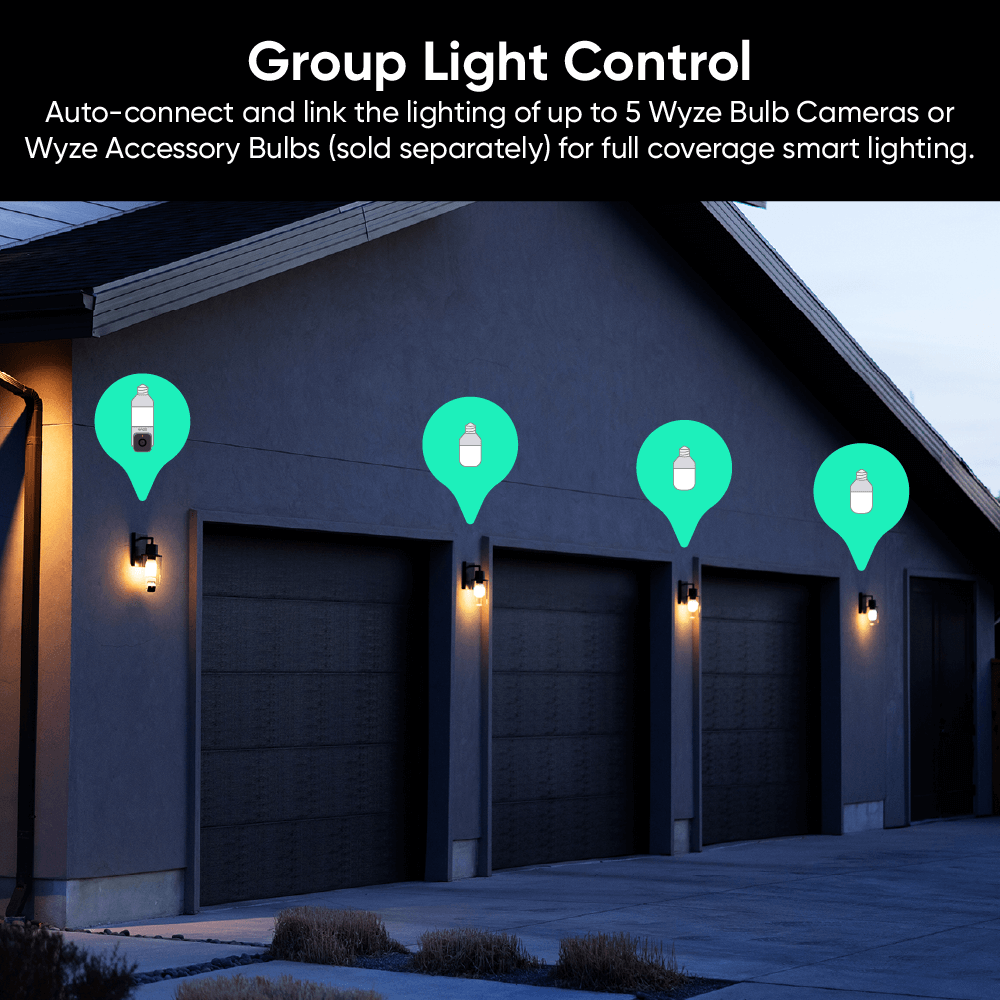
Enhanced Group Light Control

Auto-connect up to 5 Accessory Bulbs for full coverage smart lighting. Customize brightness and set schedules. Motion-activated lights? Yeah, they can do that too!

A person is holding a Wyze Bulb Cam in their hand.

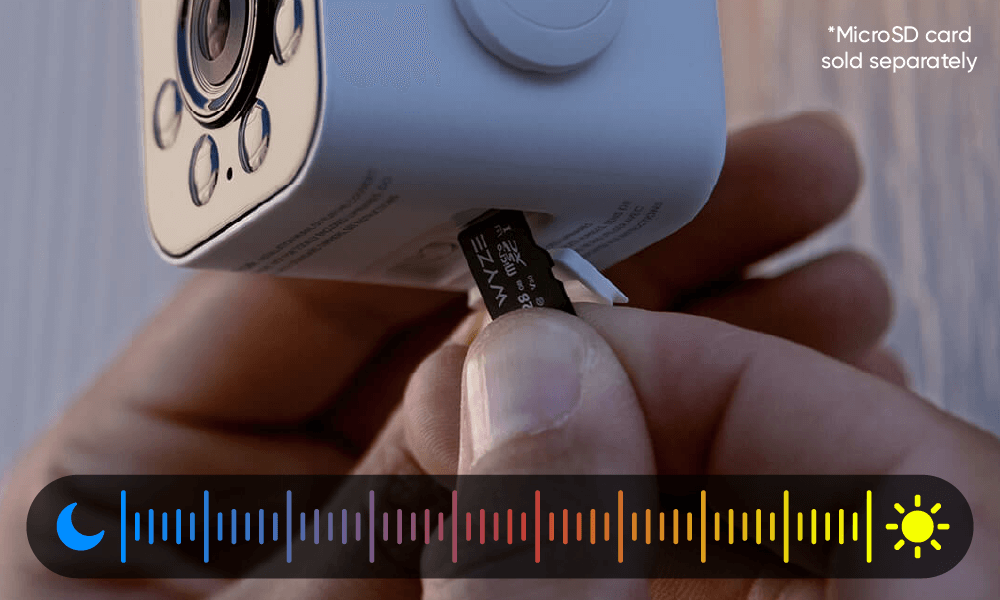
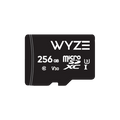
24/7 Local Recording with MicroSD Card*

Don’t miss a thing with continuous local recording to a microSD card up to 256 GB. No subscription required. 

  • Wyze Bulb Cam Shopify 07: A Wyze outdoor camera is being used for dinner.

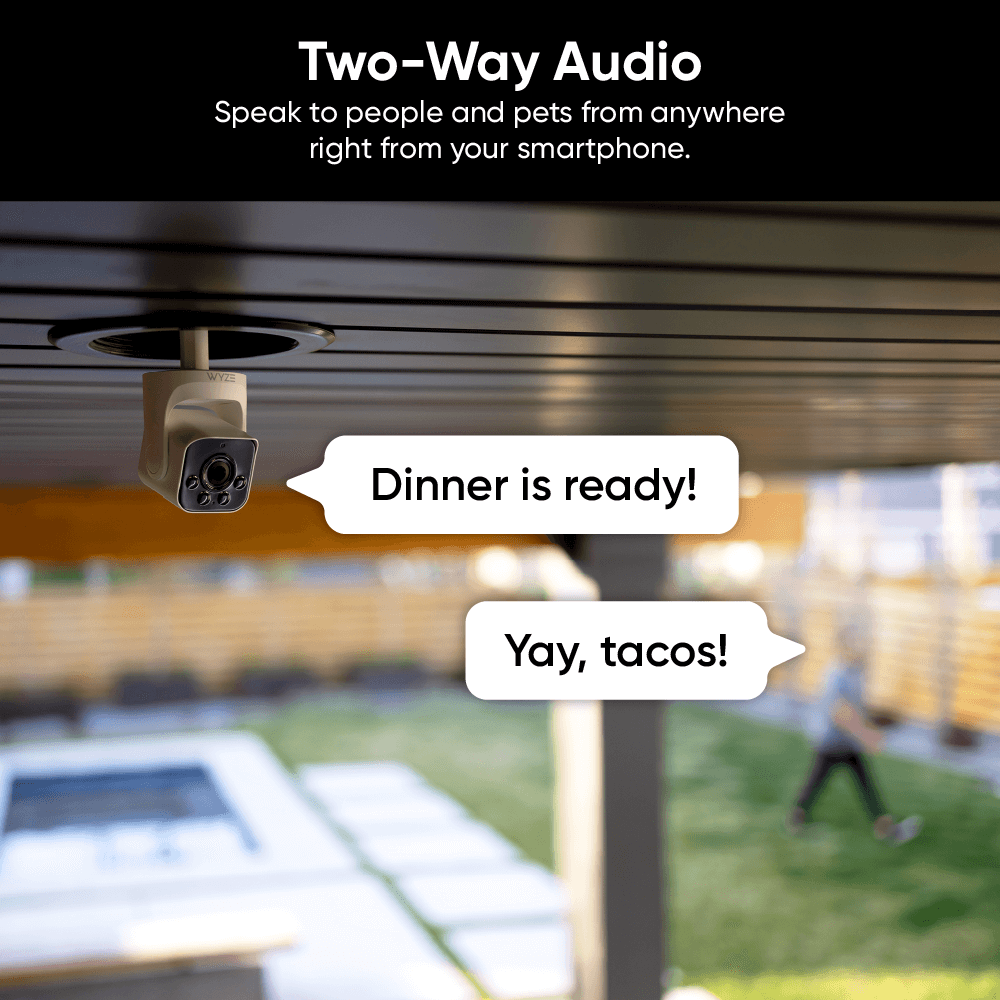
    Two-Way Audio

    Speak to people and pets from anywhere right from your smartphone. 

  • Wyze Bulb Cam Shopify 03

    Detection Features

    Get notified on your smartphone when motion is detected. 

  • A person is adjusting a Wyze Bulb Cam.

    AI Notifications and Descriptive Alerts

    Customize your detections and notifications. Get a detailed alert of what's happening with Descriptive Alerts, available with Cam Unlimited Pro. Click to learn more.

  • A person is standing in front of a garage with a car inside.

    Lighting Effects + Siren

    Flashing lights and a built-in siren will scare people away faster than a multi-level marketing invite.

Installation as easy as...

All it takes is a few twists of the wrist to install. Wave goodbye to complicated setups, messy cables and unsightly wires.

Brilliant setups

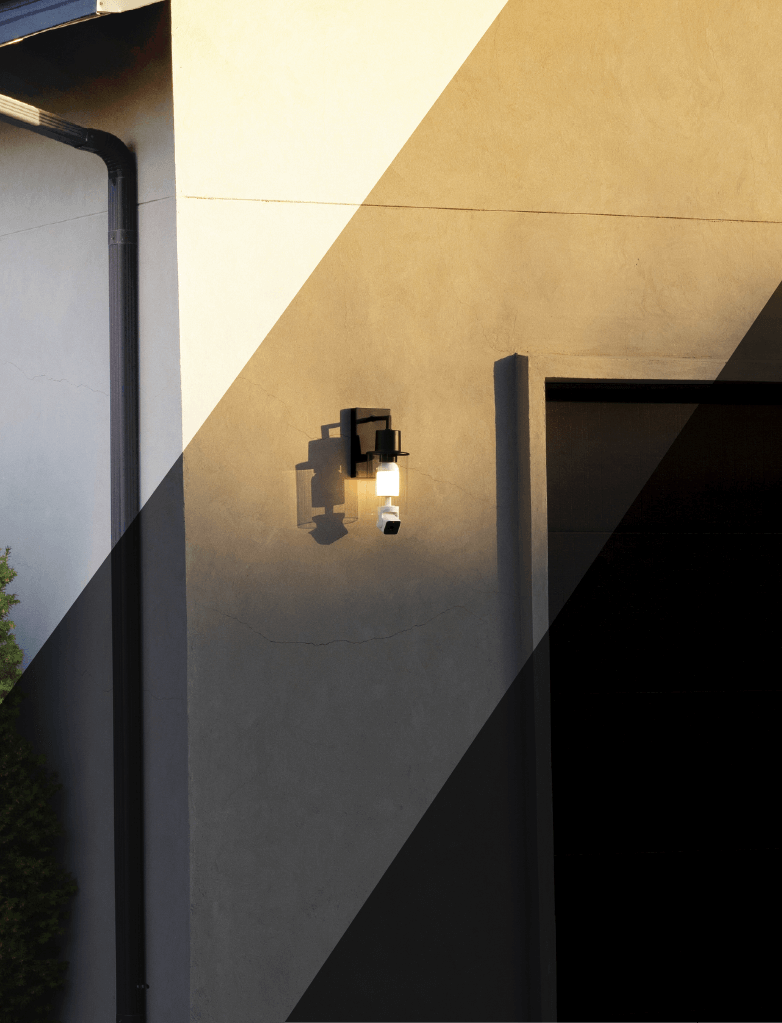
See how Wyze Bulb Cam looks with various outdoor fixtures.

Wyze Bulb Cam Shopify
A Wyze Bulb Cam is shown in an outdoor fixture that is split between the morning, evening, and night.
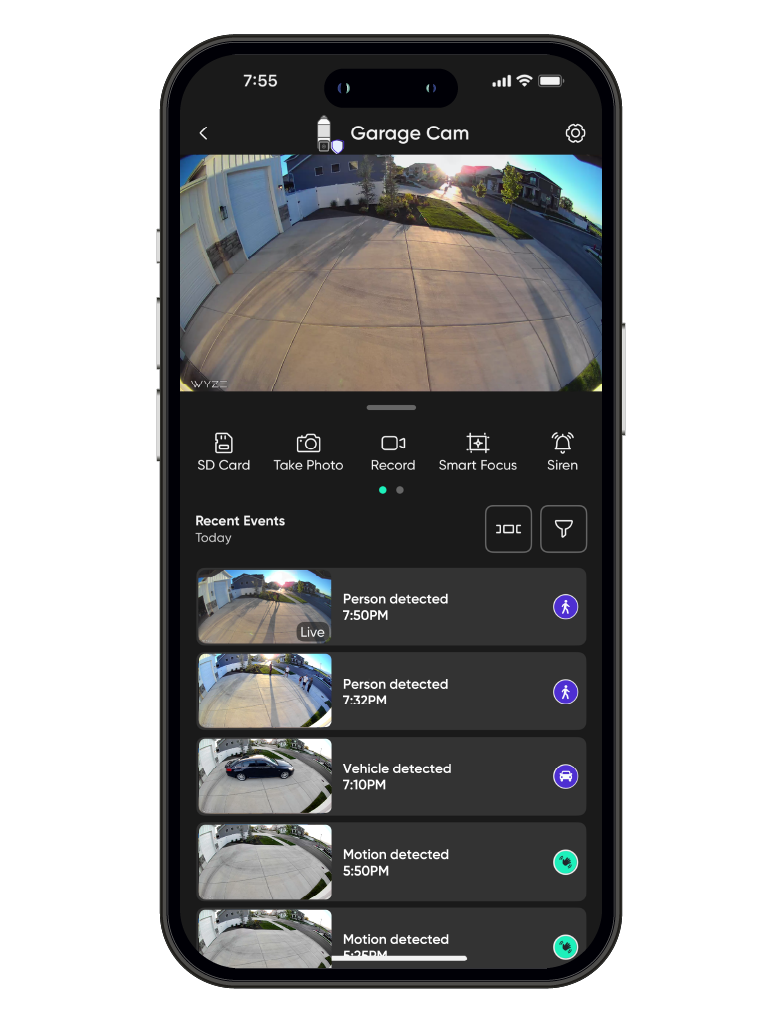
A smartphone displaying a garage camera app.
A smartphone screen displays a Wyze Bulb Cam.
A Wyze Bulb Cam is displayed on a table.

Are you the neighbor that leaves their porch lights on while they’re on vacation? Well, now you’ll need to find new things to forget. Maybe your flip-flops?

Missed something? Of you course you didn't. Because you're using a camera that's backed by the world's best smart home app. Just tap to review recorded events from wherever you are.

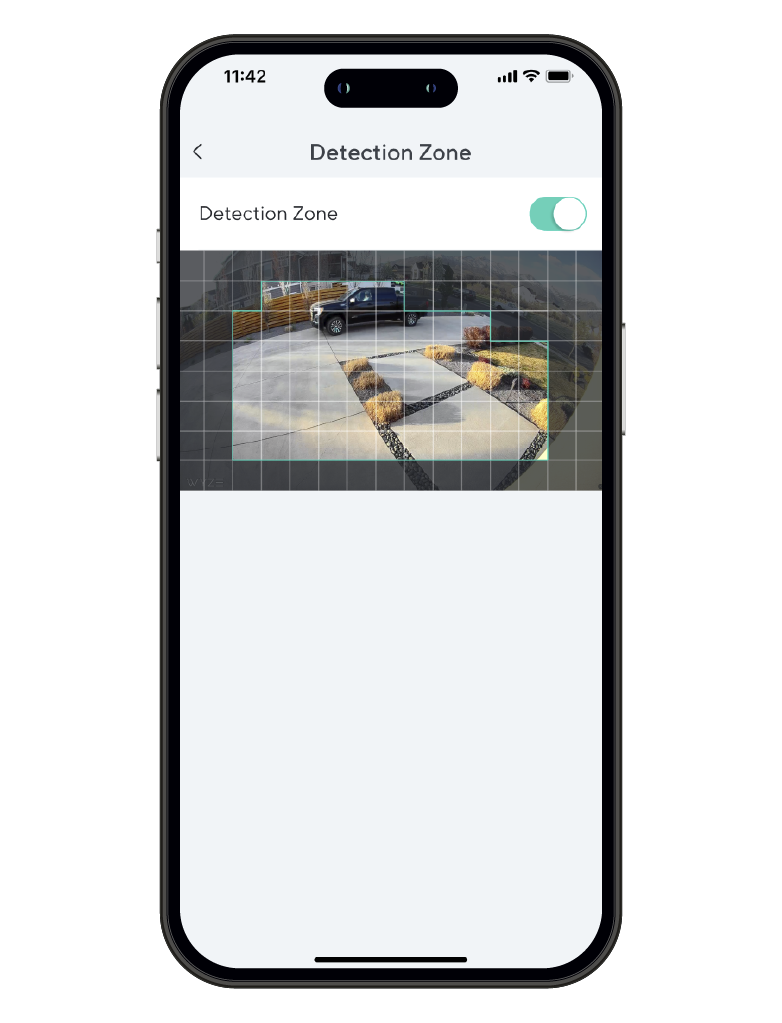
Monitor specific areas for motion so you only receive notifications when it matters.

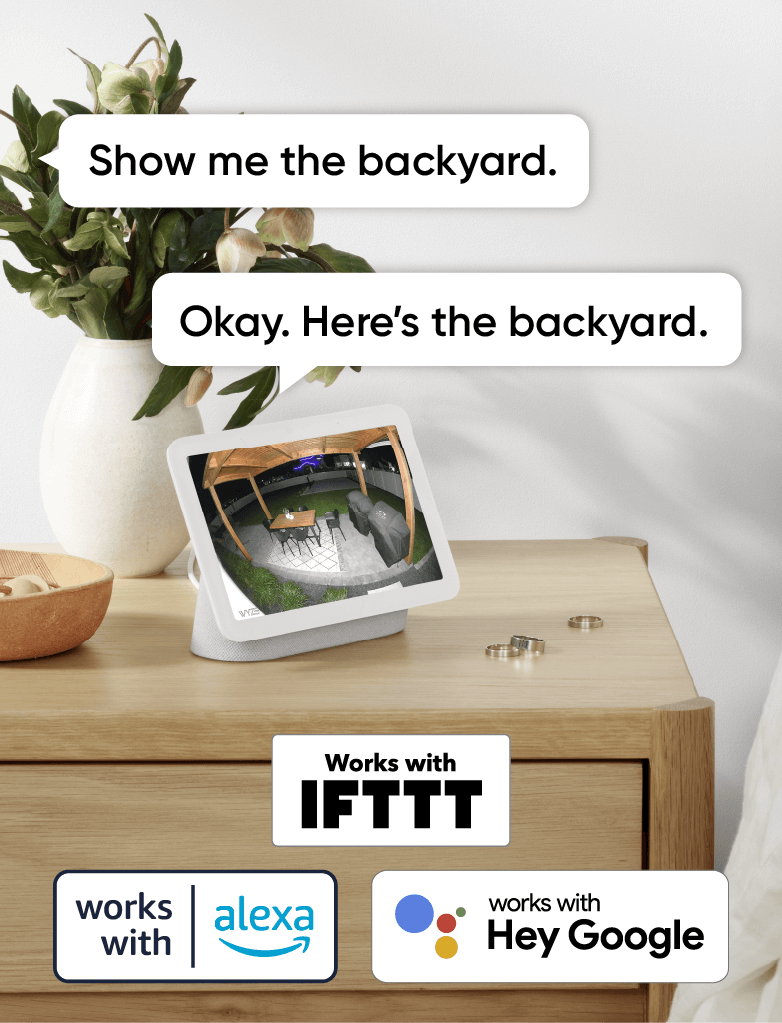
Convenience and customization at your fingertips with integrations like Amazon Alexa, Google Assistant, IFTTT, and Wyze Rules. 

Clear View Fit Check

Use the diagram below to confirm the clearance in your specific fixture. For optimal performance, the camera lens must extend beyond the bottom edge of your light fixture or sconce. 

Viewing through glass or fixture housing can cause motion detection issues, unwanted reflections, and poor image quality. 

Wyze Bulb Cam is a 2-in-1 outdoor security camera and smart LED light bulb. This is a refurbished product.
Bulb Cam uses a standard E26 socket
  • A Wyze Bulb Cam is shown in a dimly lit room.

    Accessory Bulb

    Auto-connect and synchronize the lighting of up to 5 Wyze Accessory Bulbs (sold separately) for full coverage smart lighting.

  • A hand is holding a Wyze Bulb Cam.

    SD Card

    Don’t miss a thing with continuous local recording to a microSD card up to 256 GB. No subscription required.

Wyze Bulb Cam Support Articles

Setting up your new Wyze Bulb Cam is as easy as screwing it in, and connecting to Bluetooth in the Wyze app. You can even pair your accessory bulbs at the same time!

Before Setup: Start with the Wyze Bulb Cam Installation Guide to shut off power and install your bulb cam and accessory bulbs.

To set up your Wyze Bulb Cam:

  1. With your bulb cam and optional accessory bulbs powered, tap Begin Setup.
  2. If the camera doesn't automatically sound with "Ready to connect," press the SETUP button under the camera to reset the camera.
  3. Check the box "It said, 'Ready to connect'" then tap Next.
  4. The Wyze app will search for your Wyze Bulb Cam, and attempt to pair automatically with Bluetooth.
  5. Select and sign in to your network, and tap Next.
  6. Give your Wyze Bulb Cam a name! Tap Finish. You'll be prompted to try a Wyze Service, like Cam Plus. You can tap Continue, or the X to cancel.You'll be prompted with some Things to Try, which you can Skip.
  7. Manually adjust your Wyze Bulb Cam for the best viewing angle. Pull down on the camera to extend the telescopic rod if needed.
  8. If you've installed any accessory bulbs and want to pair them, tap Yes. You must pair your accessory bulbs to a bulb cam
  9. The Wyze app will search for your Wyze Accessory Bulbs. Tap Pair.
  10. Once done searching for and pairing your accessory bulbs, tap Done.

Installing your new Wyze Bulb Cam is as easy as screwing it in, and turning on the power to the socket. You can even install and set up accessory bulbs at the same time!

Before installation: At the electrical panel or light switch, shut off power to your existing light fixture before proceeding. Then, check that your socket type is a standard E26 socket.

What's in the box?

  • Wyze Bulb Cam x 1
  • "Do Not Turn OFF" sticker x 1
  • Quick Start Guide x 1

To install your Wyze Bulb Cam:

  1. In the Wyze app, tap Home, then tap the plus sign + on the top right.
  2. On the Add menu, tap Device.
  3. Tap Cameras > Others > Wyze Bulb Cam.
  4. On the Add Cam menu, tap Wyze Bulb Cam.
  5. Check your socket type to ensure it's a standard E26 socket. Tap Next.
  6. Check your sconce, to ensure it's an open fixture. Tap Next.
  7. If you haven't already, shut off power to your light fixture. Tap Next.
  8. Unscrew your existing bulb from the lamp socket. Tap Next. 🔥 Be careful! Your existing bulb may be hot.
  9. Install your Wyze Bulb Cam by twisting it into the socket - easy! Tap Next. If you have any Wyze Accessory Bulbs to install, install them now. Tap Next.
  10. Turn on power to your Wyze Bulb Cam and accessory bulbs (if installed). Tap Next. The status light on the camera will turn on when powered. If the status light doesn't turn on or flash, press the SETUP button to reset the camera.

Now that your Wyze Bulb Cam is installed and powered, the next step is to set it up. Check out our Wyze Bulb Cam Setup Guide here.

Installing your new Wyze Accessory Bulb is as easy as screwing it in, and turning on the power to the socket. You can even install and link up to 5 total accessory bulbs at the same time!

Before installation: At the electrical panel or light switch, shut off power to your existing light fixture before proceeding. Then, check that your socket type is a standard E26 socket.

What's in the box?

  • Wyze Accessory Bulb x 1
  • Quick Start Guide x 1

To install your Wyze Accessory Bulb:

  1. In the Wyze app, tap Home, then tap the plus sign + on the top right.
  2. On the Add menu, tap Device.
  3. Tap Cameras > Wyze Bulb Cam > Accessory Bulb.
  4. Check your socket type to ensure it's a standard E26 socket. Tap Next.
  5. Check your sconce, to ensure it's an open fixture. Tap Next.
  6. If you haven't already, shut off power to your light fixture. Tap Next.
  7. Unscrew your existing bulb from the lamp socket. Tap Next. 🔥 Be careful! Your existing bulb may be hot.
  8. Install your Wyze Accessory Bulb by twisting it into the socket - easy! Tap Next.
  9. Turn on power to your accessory bulb(s). Tap Next.
  10. Select a device to pair your accessory bulb with. Your existing Bulb Cam or Accessory Bulb will search for your bulb.
  11. When your bulb is found, tap Pair then Done.

All Wyze Cams have a handy status light that helps determine what state the device is in. You'll find the status light on the front of your Wyze Bulb Cam. No light? Make sure it's properly connected to power.

Wyze Bulb Cam Status Light Guide

  • Solid red light - The camera is powered on and initializing, recording an event, or you are watching the live stream.
  • Flashing red light - The camera is ready to connect.
  • Flashing red and blue light - Connection is in progress.
  • Flashing blue light - The camera is connected and finishing setup.
  • Solid blue light - The camera is powered and fully connected.
  • Solid purple light - The firmware is being updated.

Note: Wyze Accessory Bulb does not have a status light, but you can check its online status in the Wyze app by going to Wyze Bulb Cam settings > Bulb Settings > Linked Accessory Bulbs.

Added to your cart
FREE shipping on orders $59+
Subtotal
$0.00
View cart